Using Global Search
The Global Search feature on FPT Cloud lets you quickly search for resources within a Tenant's scope, including Instances, IP Addresses, Subnets, Security Groups, and Databases.
Step 1. Enter a keyword in the search box at the top of the FPT Cloud interface.
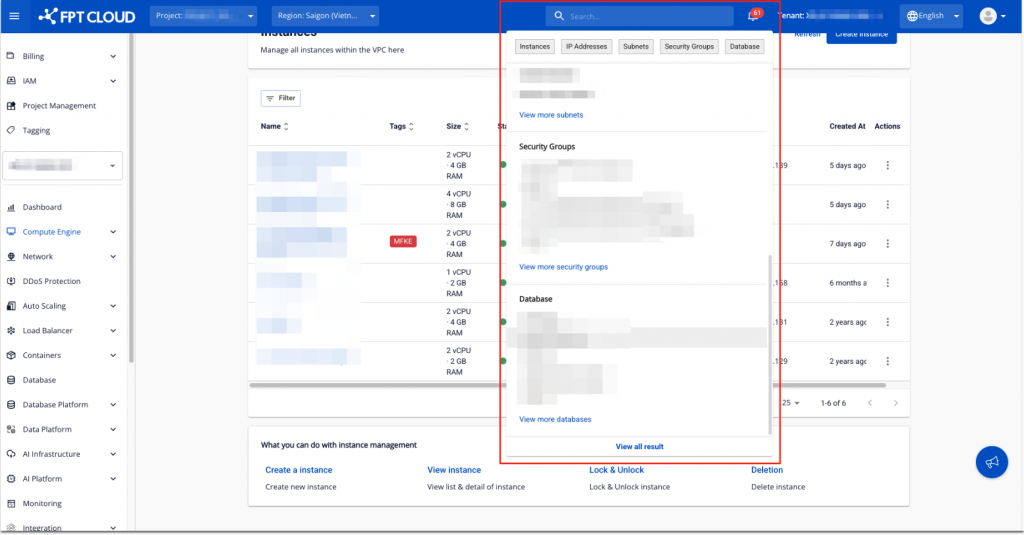
Step 2. Select one of the tabs — Instances, IP Addresses, Subnets, Security Groups, or Database — to view results grouped by resource type.
- Results below each tab correspond to that resource type.
- You can search for Public IP and Private IP addresses and apply them to VM NICs. You can view resources associated with an IP (Associated Resource — the current scope supports searching Instances and Subnets by IP). Searching for IPs outside the described catalog (for example, DHCP IPs or gateway IPs) is not supported.
- Click any result to go to the detailed information page for that resource.
If a resource does not have a detail page, the system navigates to the list screen for that resource type.
Step 3. To view all results, click View all result.
Step 4. The system opens a screen showing all search results.
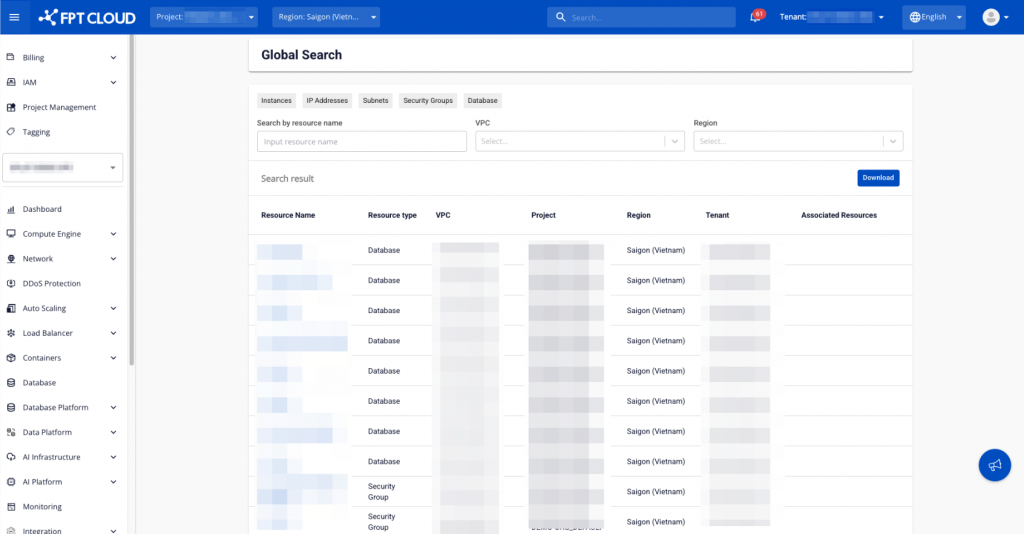
Step 5. Narrow results using the VPC or Region filters, or use the Search by resource name field.
Step 6. Click Download to export the result list as a file based on what is currently shown on screen.
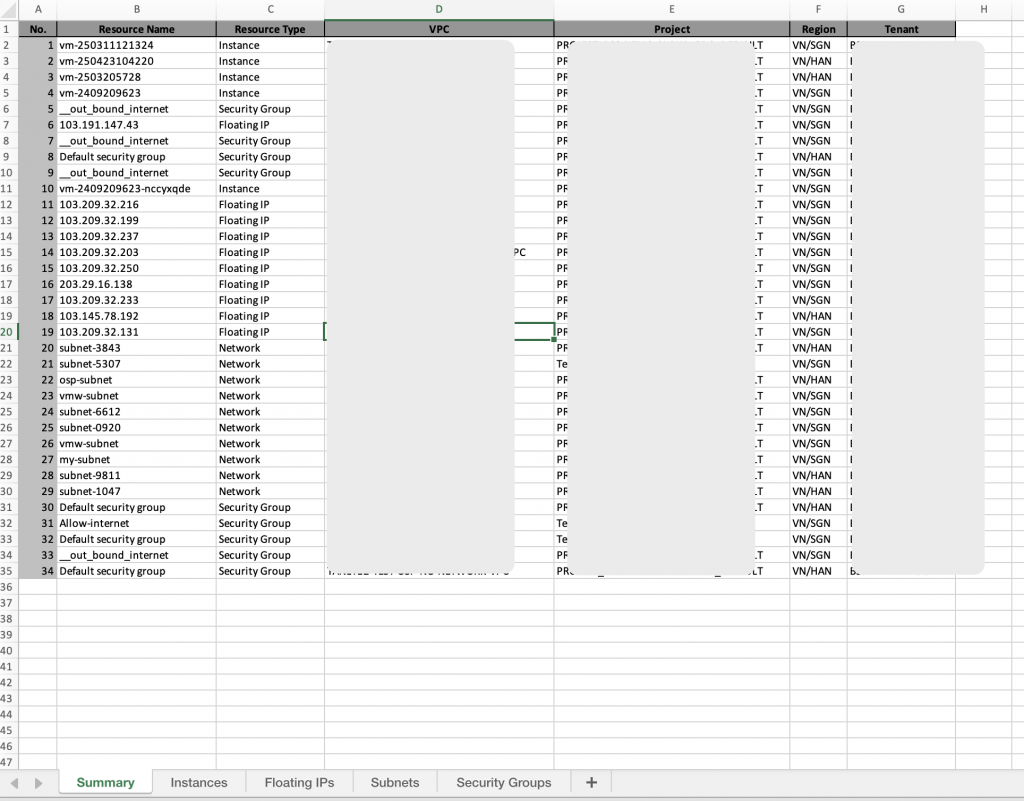
The downloaded file is in Excel format and contains 6 sheets:
- Sheet Summary: consolidates all search results including Instances, Floating IPs, Subnets, Security Groups, and Databases.
- Sheet Instances: groups Instances from the Summary sheet. Left blank if the Summary sheet has no data.
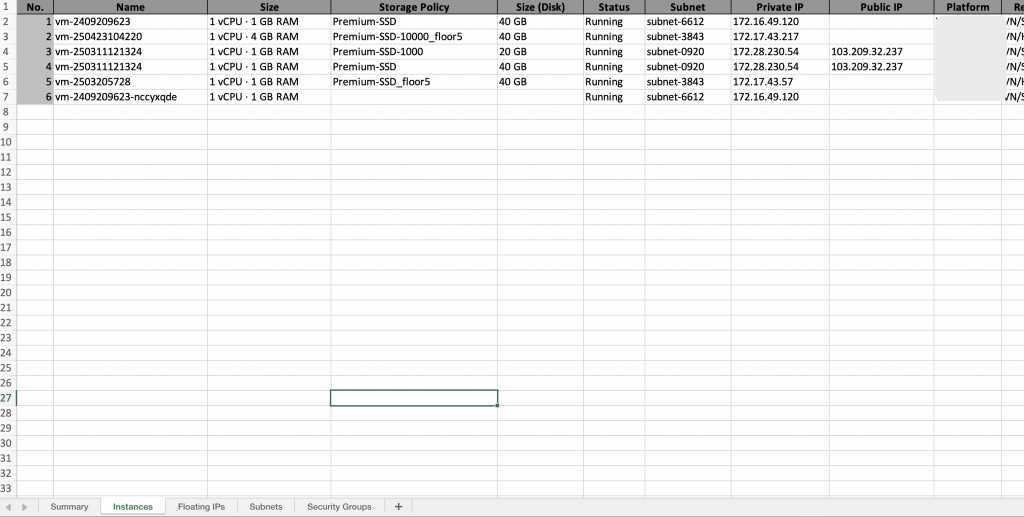
- Sheet Floating IPs: groups Floating IPs from the Summary sheet. Left blank if the Summary sheet has no data.
- Sheet Subnets: groups Subnets from the Summary sheet. Left blank if the Summary sheet has no data.
- Sheet Security Groups: groups Security Groups from the Summary sheet. Left blank if the Summary sheet has no data.
- Sheet Database: groups Databases from the Summary sheet. Left blank if the Summary sheet has no data.