Sign Up for an Account
Step 1: Create an account
- Go to https://ai.fptcloud.com/, sign up for an FPT ID account or continue with your Google account.
- Verify your account by checking your email for instructions from FPT Smart Cloud (noreply@fptcloud.com) if you sign up with your FPT ID account.
Step 2: Go back to https://ai.fptcloud.com/ and log in your new account (If you use FPT ID)
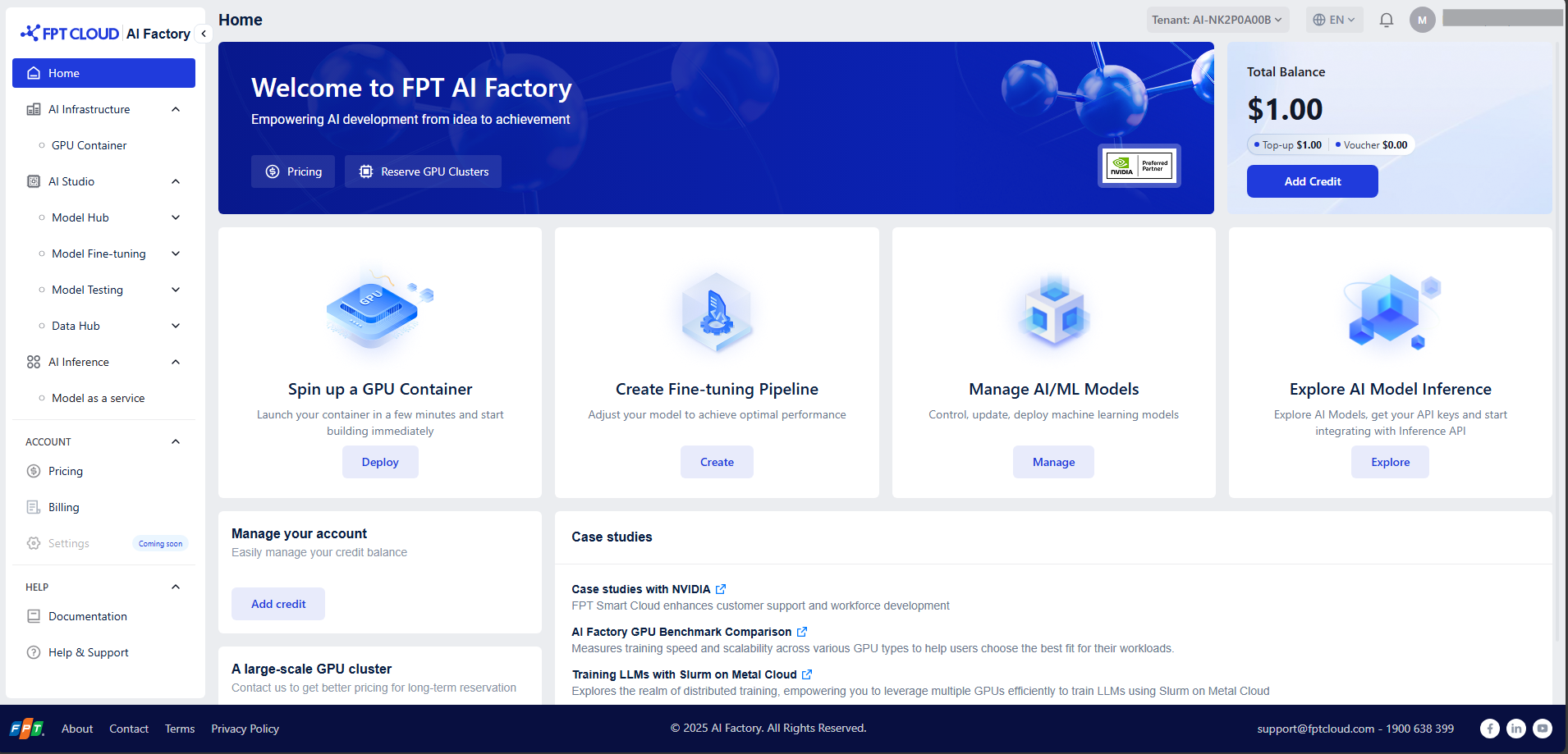
After logging in to the FPT AI Factory portal at ai.fptcloud.com, follow the instructions below:
Step 1: Add credit to account
- Navigate to section ACCOUNT and click Billing
- Click Add Credit button and enter an amount and payment information to complete.
Or, you have a voucher from FPT, apply your valid code in Add Voucher section to redeem credits
Step 2: Create a container
- Select GPU Container in the Side menu.
- Click button Create New GPU Container and configure the Container deployment.
- Follow the detailed guide here/.
Step 3: Connect to container
- In the Container list page, click container name to access container details screen.
- Depends on your configurations in Access container section, choose one of the methods to connect: HTTP Endpoint, Connect SSH via Terminal
- Follow the detailed guide here/
Step 4: Stop the container
To avoid incurring unnecessary charges, make sure to:
- Return to the list container page.
- Click the Stop button in the Actions column to stop your container.
- Confirm by clicking "Confirm".
To delete your container permanently, follow the detailed guide here/.