Import Config
For quick deployment, or when you already have a configuration file prepared, use this feature to create a container rather than configuring it through the user interface.
Step 1: Open Import Configuration modal
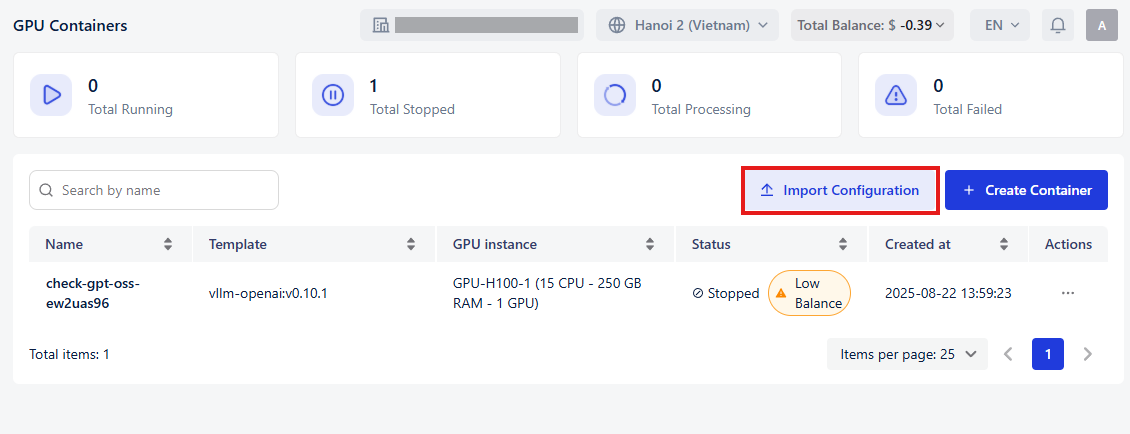
- Navigate to GPU Container from the side menu.
- Click Import Configuration located on the top right of the container list page.
Step 2: Provide configuration file in YAML format
You can import configuration in two ways:
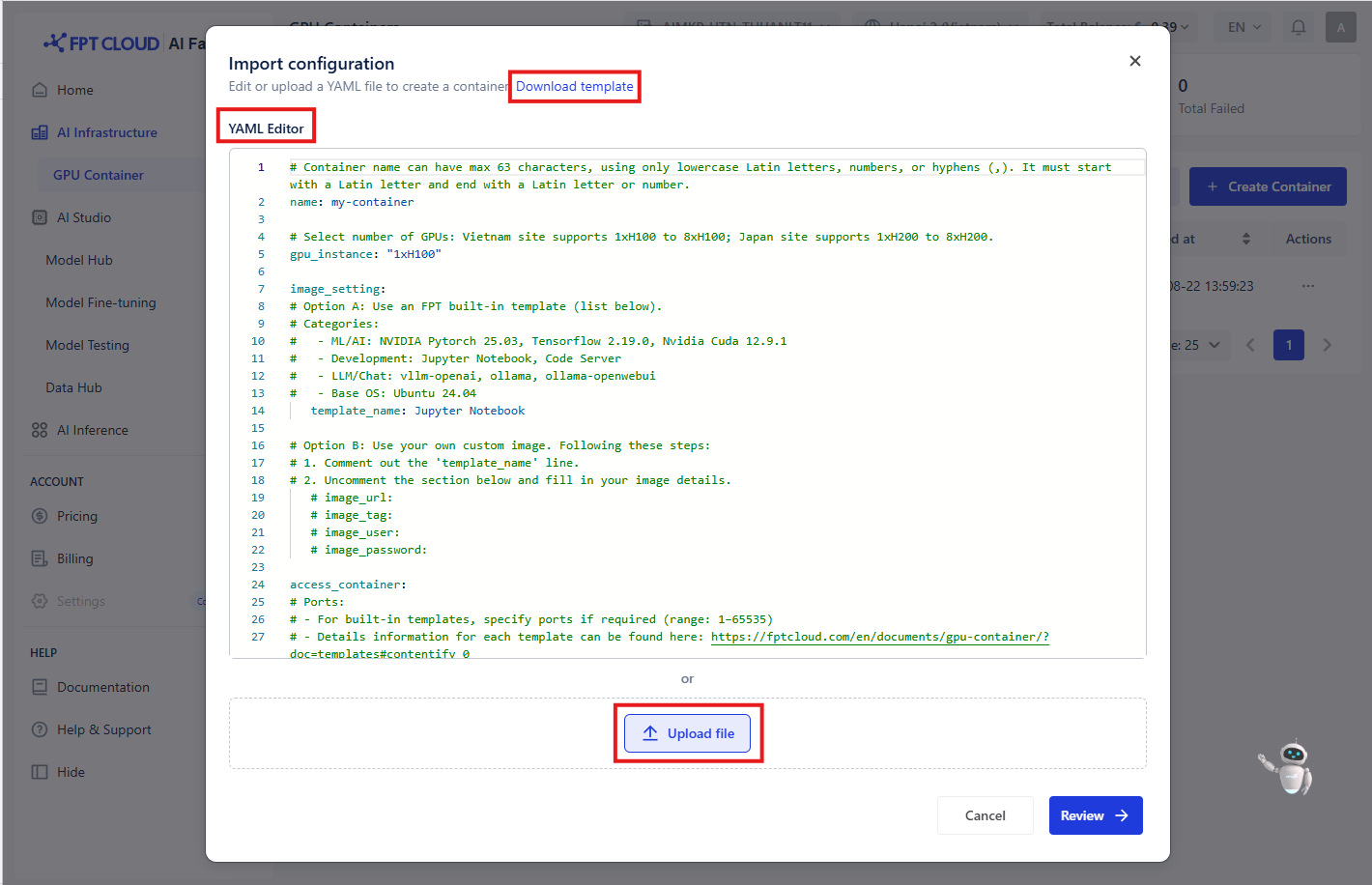
- Paste YAML directly into the YAML editor.
- Upload a YAML file by clicking the Upload file button. Currently, GPU Container supports YAML files only.
A sample YAML template can be downloaded by clicking Download template.
| Field | Data type | Sample data | Description |
|---|---|---|---|
| name | string | my-container | Name of your container. Must be unique per tenant |
| instance_type | string | GPU-H100-1 | Vietnam site supports 1xH100 -> 8xH100; Japan site supports 1xH200 -> 8xH200 |
| image_setting | Since a container can only have 1 image, please provide either template_name or image_url + image_tag | ||
| template_name | string | Jupyter Notebook | Built-in template name. Provides this in case you want to use built-in template provided by FPT. Please input an exact name in the list: Jupyter Notebook, Code Server, vllm-openai, vllm-openai-v0.10.1, ollama, ollama-openwebui, Ubuntu 24.04, Tensorflow 2.19.0, Nvidia Cuda 12.9.1, NVIDIA Pytorch 25.03. |
| image_url | string | registry/myimage:latest | (Optional) Custom image URL. Leave blank if using the built-in template. |
| image_tag | string | v1.0 | (Optional) Tag for custom image. |
| image_user | string | admin | (Optional) Username for private image registry. |
| image_password | string | password123 | (Optional) Password for private image registry |
| access_container | |||
| tcp_ports | list[int] | [22, 33] | TCP ports exposed by the container |
| http_ports | list[int] | [8888, 6006] | HTTP ports exposed by the container |
| ssh_keys | Provide each pair of name-key SSH keys. Allow a maximum of 10 keys | ||
| name | string | key01 | Name of the SSH key |
| key | string | "ssh-rsa AAAAB3..." | SSH public key |
| advanced_settings | |||
| persistent_disk | |||
| mount_capacity | int (GB) | 20 | Amount of persistent storage to attach. |
| mount_path | string | /workspace | Path where persistent disk will be mounted inside the container. |
| environment_variables | |||
| key | string | USERNAME | Environment variables injected at runtime. |
| value | string | admin | |
| startup_commands | |||
| cmds | list[string] | Startup commands (optional). | |
| args | list[string] | Startup command arguments (optional). |
Step 3: Review Configuration
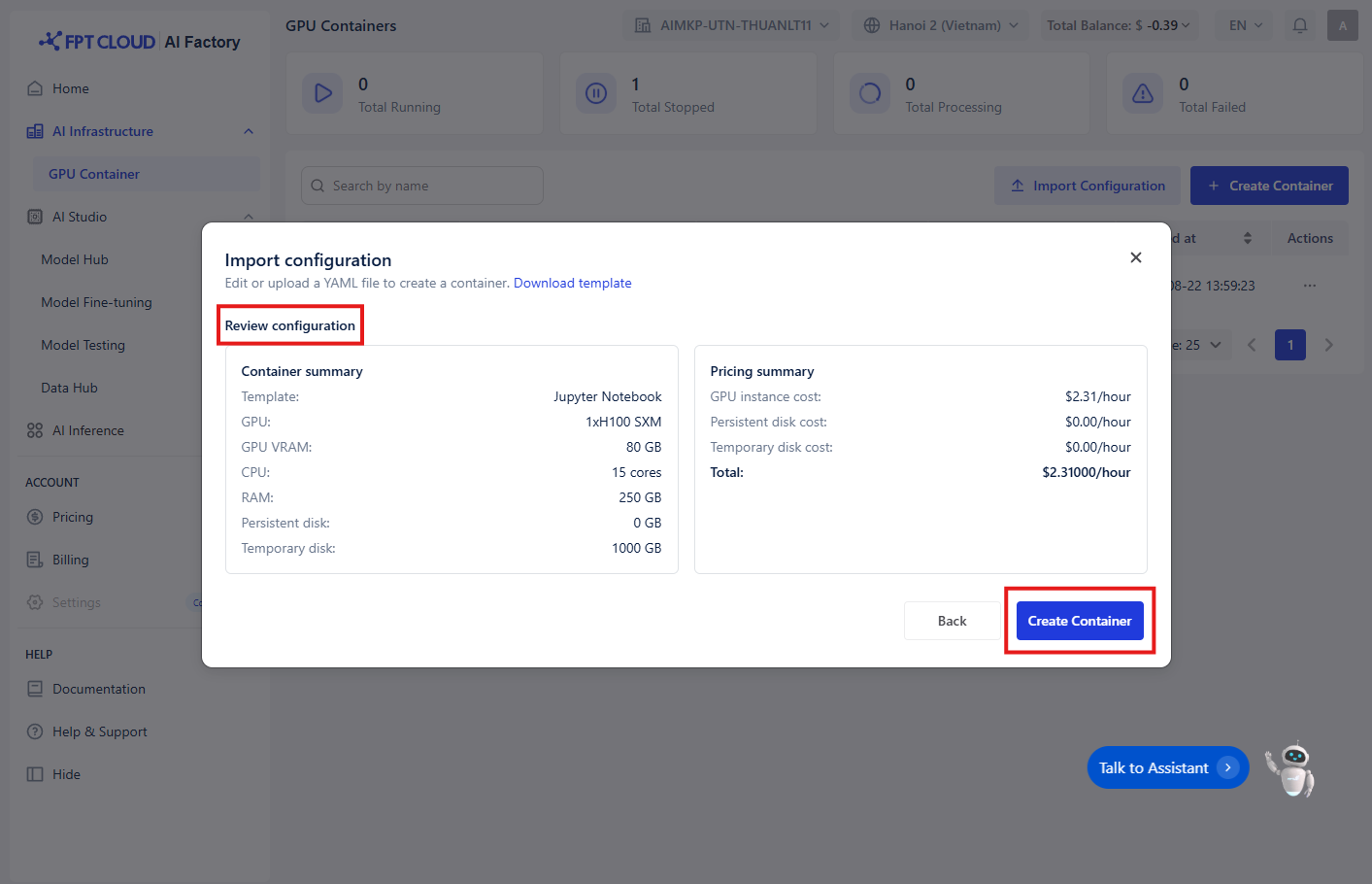
!(/img/migrated/information-fill-1-30ad0c7d.png) Notice: The button "Review" will only be enabled when all the validations within the YAML editor have passed. Click Review to continue. On this screen, you can:
- Verify container configuration including template, GPU, CPU, RAM, and disk allocation.
- Check pricing summary to view the estimated hourly cost.
Step 4: Create Container
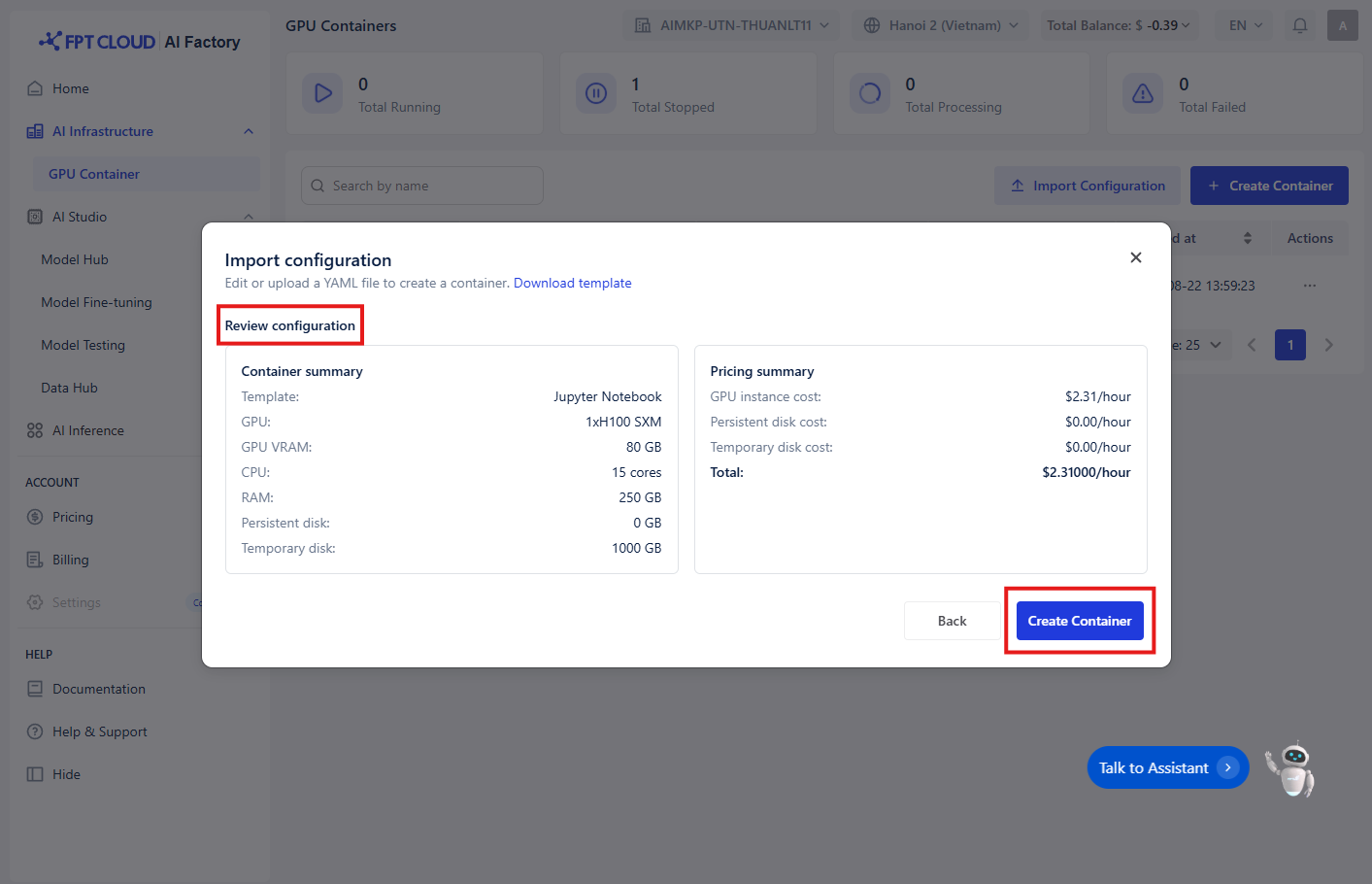
Once confirmed, click Create Container to start deployment. The system will automatically create and launch your container based on the provided configuration file.