Initial setup
If you are using MANAGED GPU CLUSTER for the first time, review and complete the following steps.
1. Create an FPT Cloud account and log in to the FPT Portal
To register for an FPT Cloud account, visit the homepage here. Next, select Sign Up and enter your information following the system instructions. The support team will contact you shortly to verify your information and create your account.
To log in to the FPT Portal, go to console.fptcloud.com. After logging in with the provided account and password, select the correct tenant, region, and VPC.
If you have questions about the above information or encounter a system error after 3 attempts, contact the support team immediately for assistance.
Note: To use AI Factory products, your account must have two-factor authentication (MFA) enabled.
2. Create a subnet for the Bare Metal GPU server used as a worker node in Managed GPU Cluster
To create a Managed GPU Cluster, you first need a subnet on the Bare Metal GPU server that will act as a worker node in the K8s cluster. The IPv4 address of the worker Bare Metal GPU is issued from this subnet.
Step 1: Go to [AI Infrastructure] > select [Subnet] > select [Create Subnet]
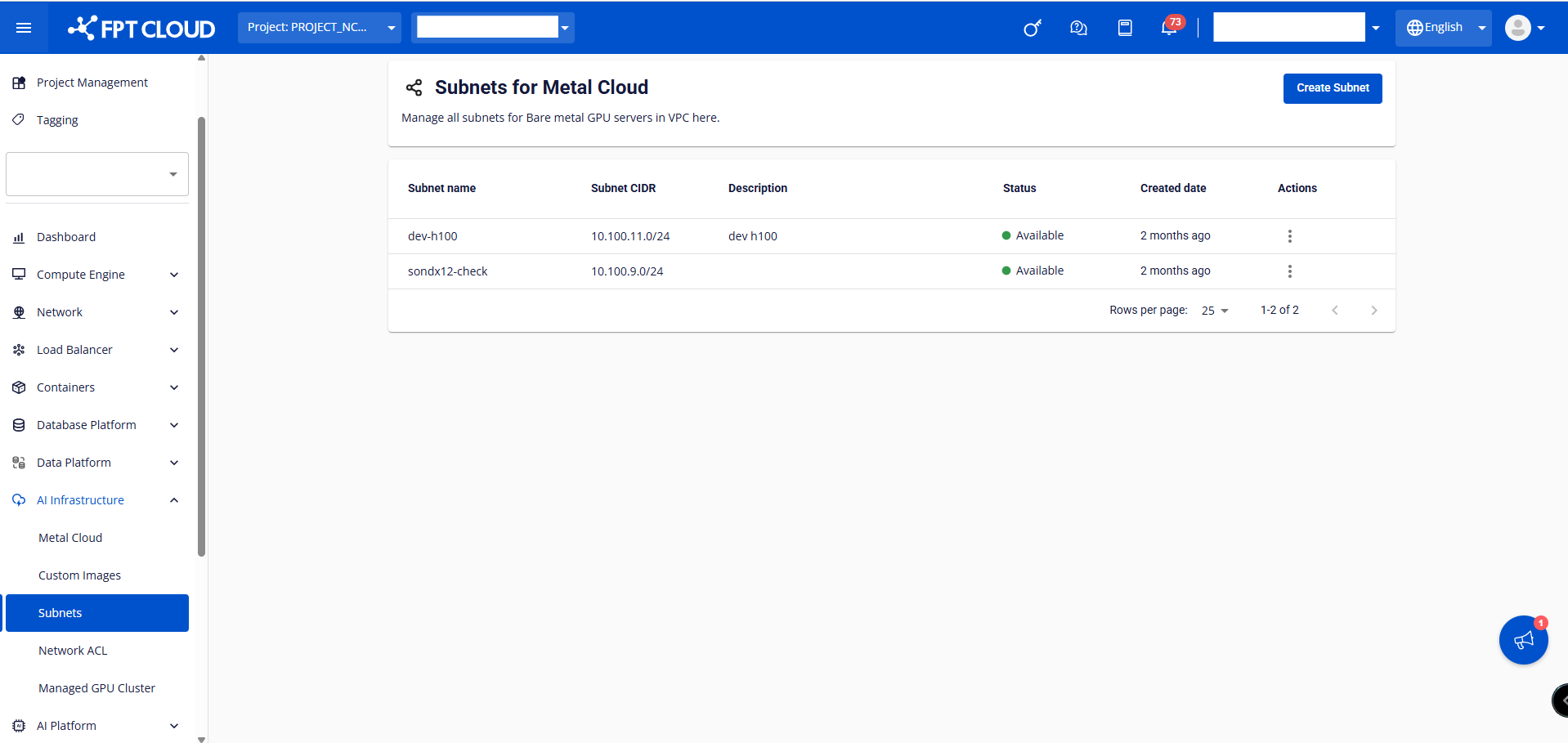
Step 2: Enter the subnet name
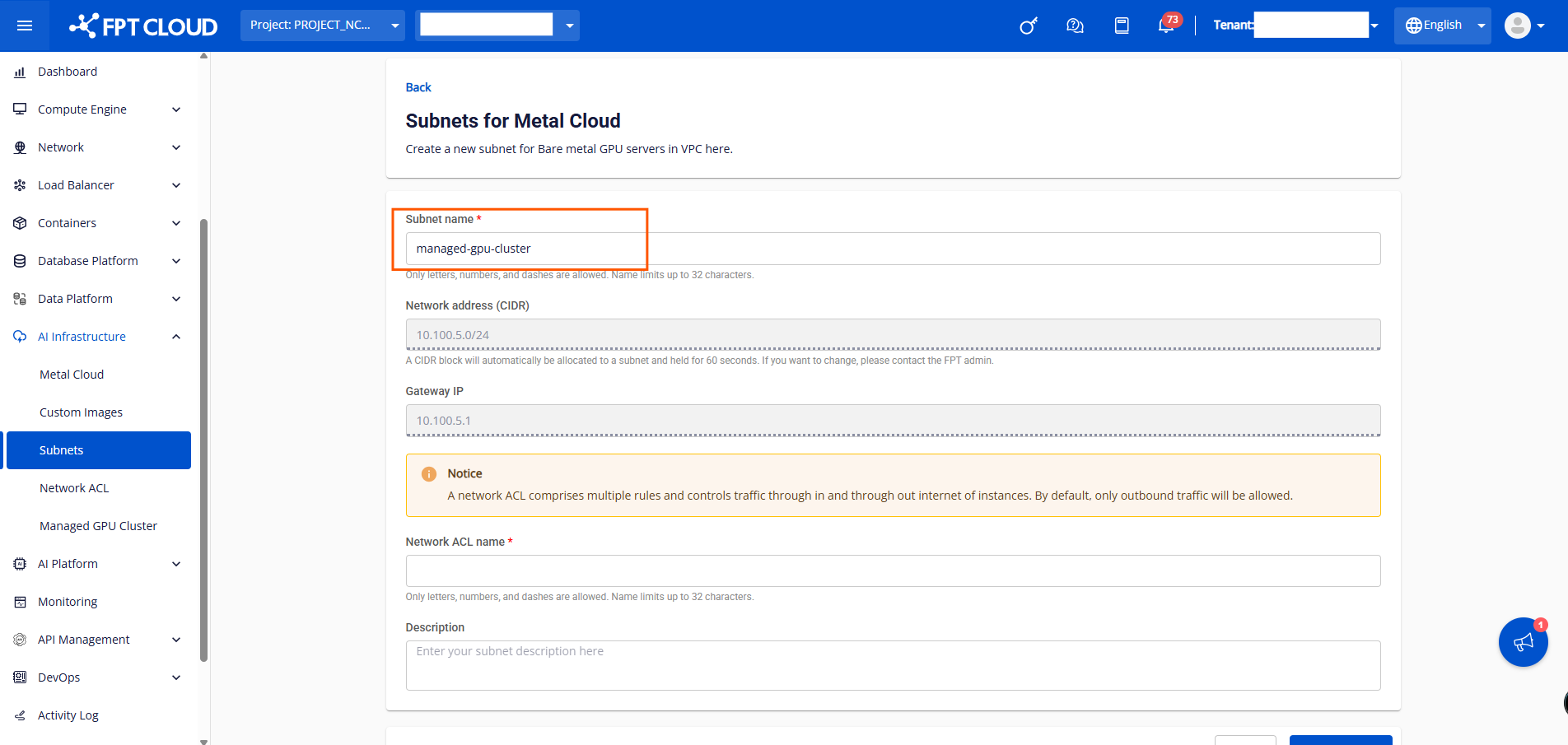
Step 3: Enter the name of the Network ACL for the subnet
Step 4: Click [Create Subnet] to complete the creation of the Bare Metal GPU subnet
Note: The Network ACL created by default for the subnet blocks all inbound traffic and allows all outbound traffic. To use the load balancer in the Managed GPU Cluster, you need to open the appropriate rules on the load balancer subnet to allow connections.
3. Create a subnet for the load balancer
Managed GPU Cluster only works with subnets that have the static pool option enabled, so you need to create a subnet with a static pool following these steps.
Step 1: In the [Network] section, select [Subnet].
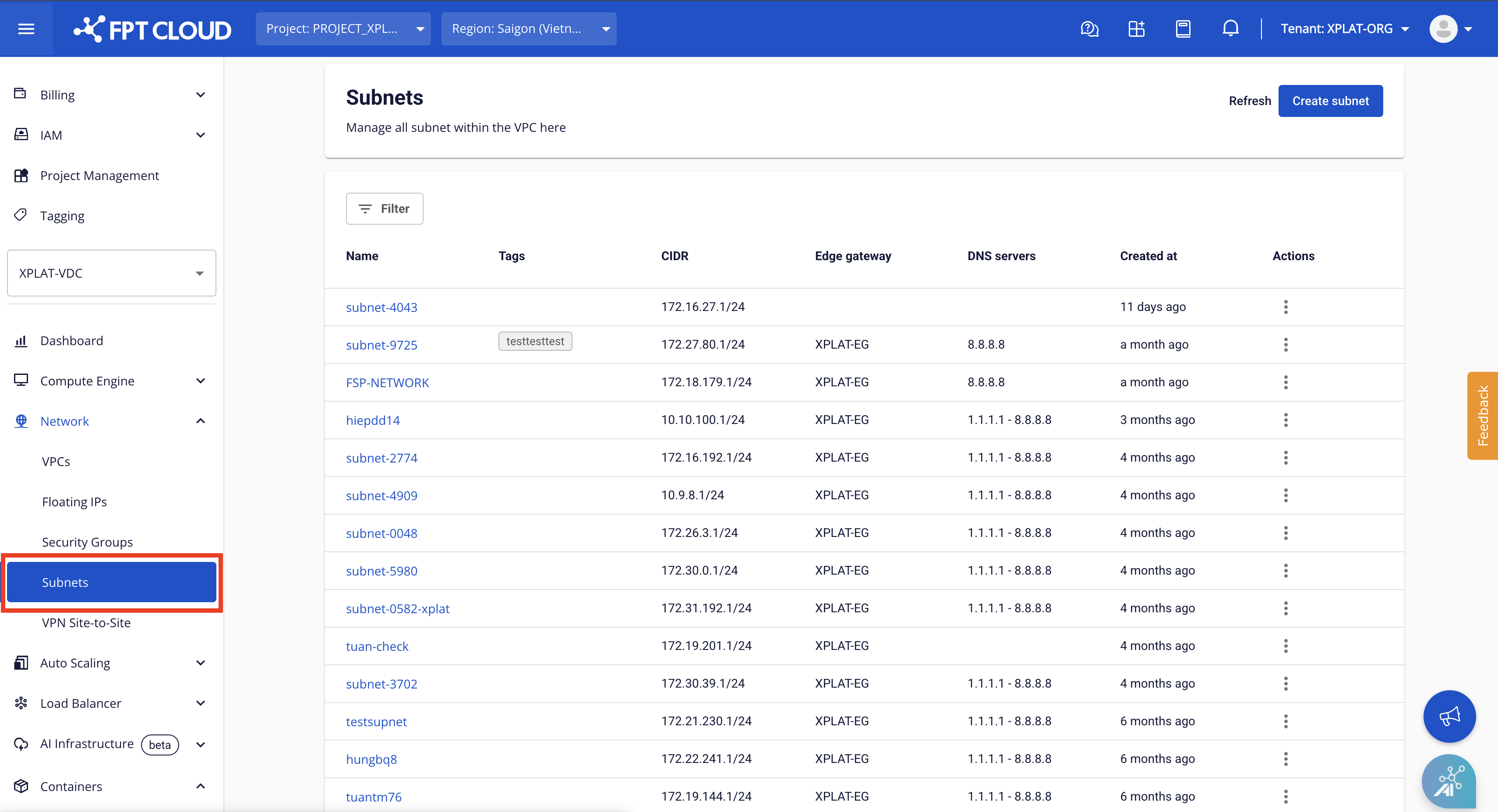
Step 2: On the [Subnet Management] page, select [Create Subnet].

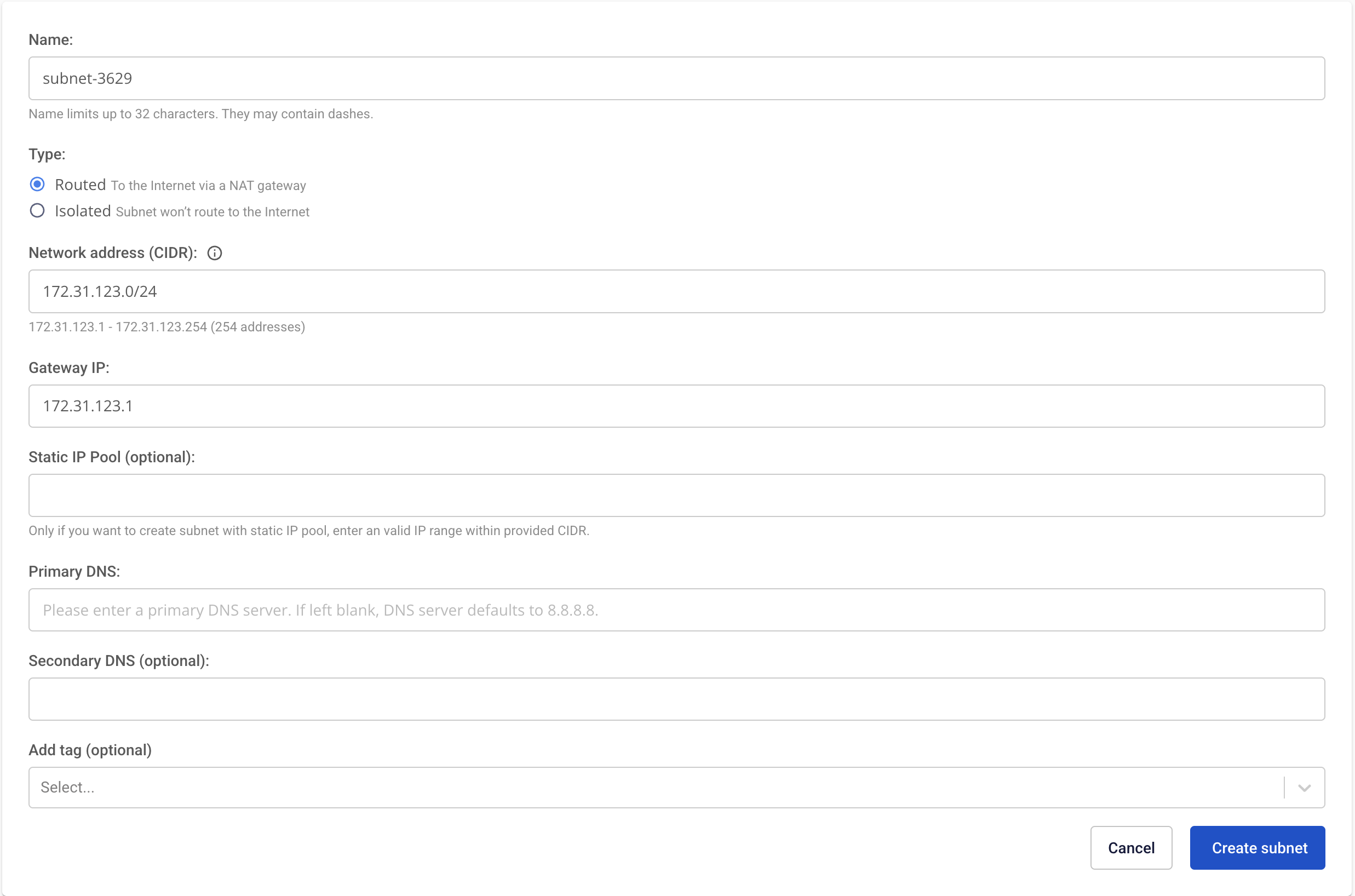
Step 3: Enter the following information:
- Name: Enter a reminder name for the subnet
- CIDR: Enter a valid CIDR
- Select the [Advanced Settings] option
- Static IP Pool: Enter one valid IP range derived from the CIDR
Select [Save] to create the new subnet. The system will process and notify you of the result.
4. Enable the Managed GPU Cluster service and request resource quota
If you are using FPT Cloud for the first time, some services may not be enabled on your account. Contact the support team to provide information about the services and configuration you need. We will provide the necessary resources such as RAM, CPU, storage, and public IP so you can start using the Managed GPU Cluster service.
Contact the support team:
Hotline: 1900638399
Email: support@fptcloud.com