Create Nessie
Nessie is designed to support large and complex distributed data environments, helping data teams more effectively manage the development, control, and deployment of data within the system.
To create Nessie, follow these steps:
Step 1. In the menu bar, select Data Platform > Workspace Management > select the Workspace name
Step 2. In the application section, click Create > the application selection popup appears, select Nessie > Create
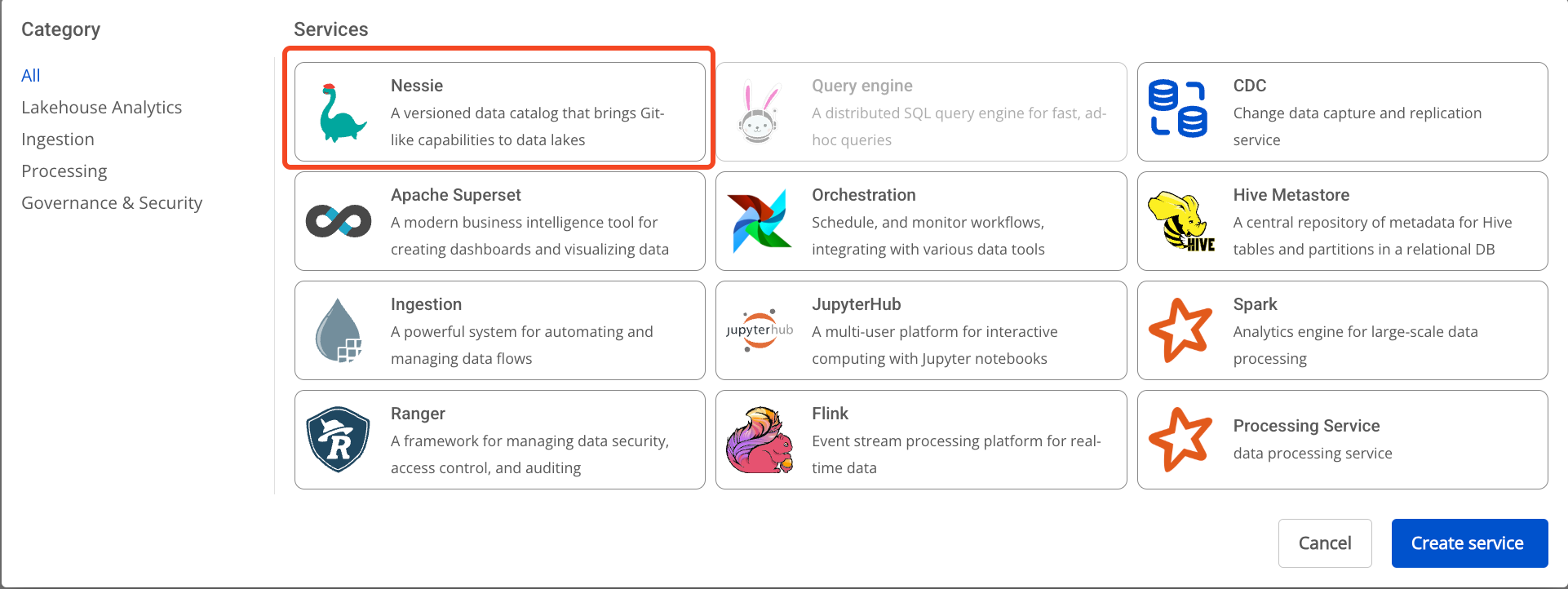
Step 3. In the Nessie creation form, enter the Basic Information:
- Name (required): Nessie name
The Nessie name must be between 1 and 30 characters. It can contain lowercase letters a-z, uppercase letters A-Z, or digits 0-9.
-
Description (optional): Description
-
Version (required): Select the version
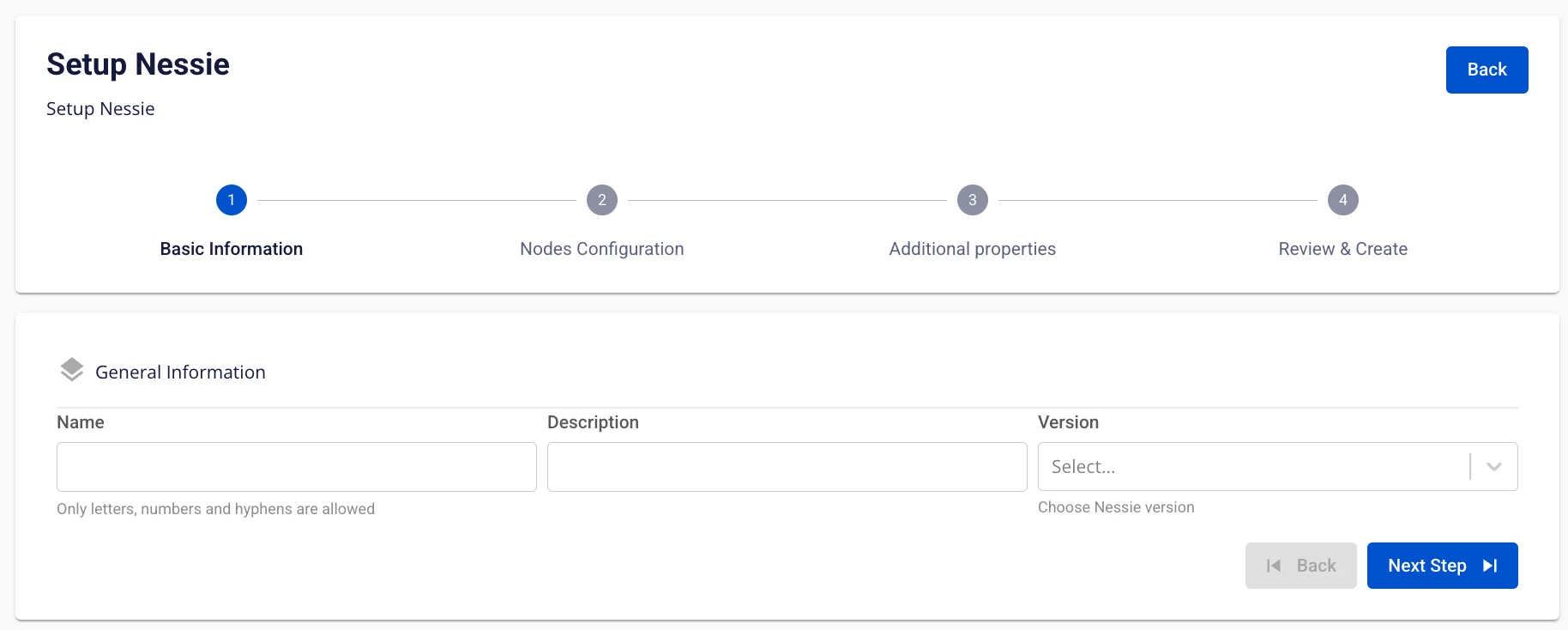
Step 4. Click Next Step to proceed to the Node configuration screen
Enter the following information:
-
Storage policy (required): Select the Storage for Nessie
-
Type (required): Select the configuration type for Nessie
-
Number of nodes: Enter the number of nodes
The number of nodes must be greater than or equal to 2.
If you need to auto-scale the service, check Enable auto scaling and enter the desired number of nodes.
The scaled number of nodes must be greater than the Number of nodes.
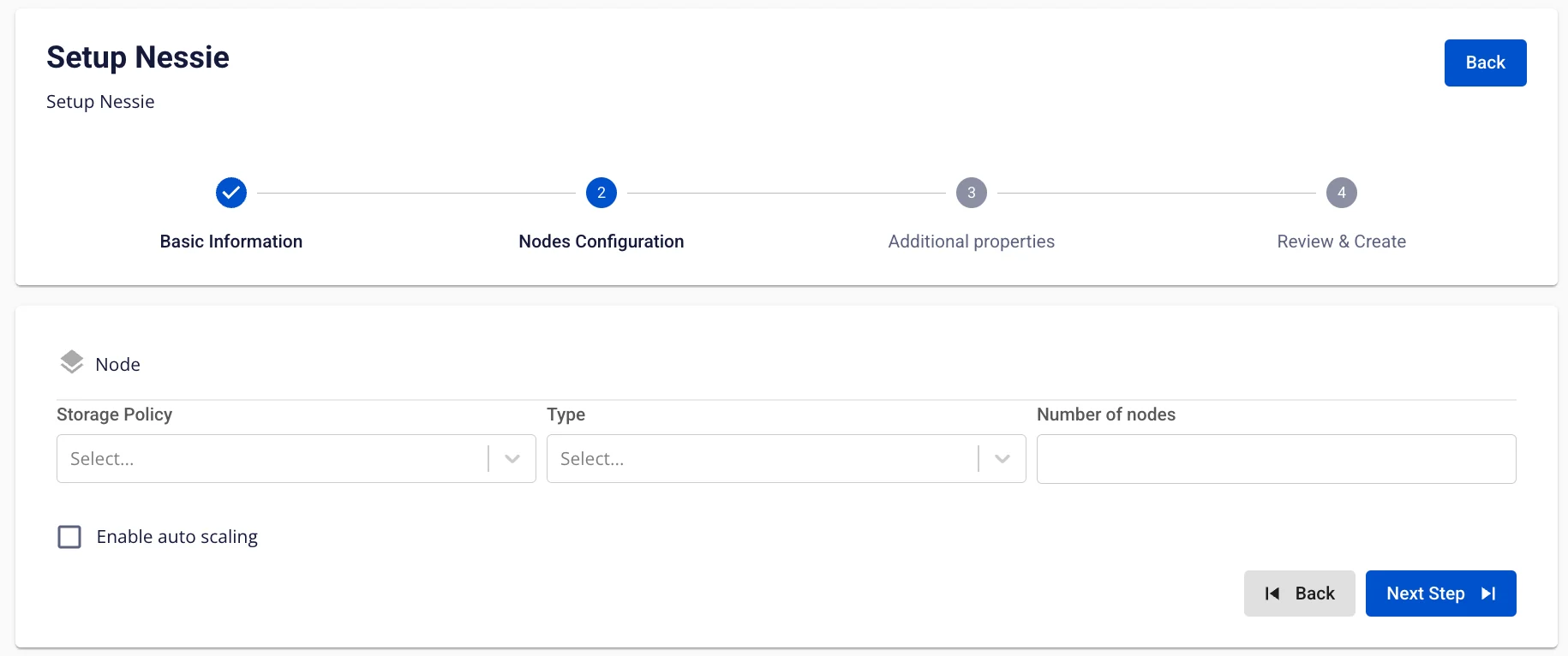
Step 5. Click Next Step to proceed to the Additional properties screen
Enter the following information:
When the type is PostgreSQL:
-
Host name (required): Hostname or IP of the Postgres server
-
Port (required): Postgres server port, default is 5432
-
Database name (required): Database name
-
Username (required): Username to access the Postgres server
-
Password (required): Password to access the Postgres server
When the type is MySQL:
-
Host name (required): Hostname or IP of the MySQL server
-
Port (required): MySQL server port, default is 5432
-
Database name (required): Database name
-
Username (required): Username to access the MySQL server
-
Password (required): Password to access the MySQL server
Users can choose to use a Database from FPT or their own Database.
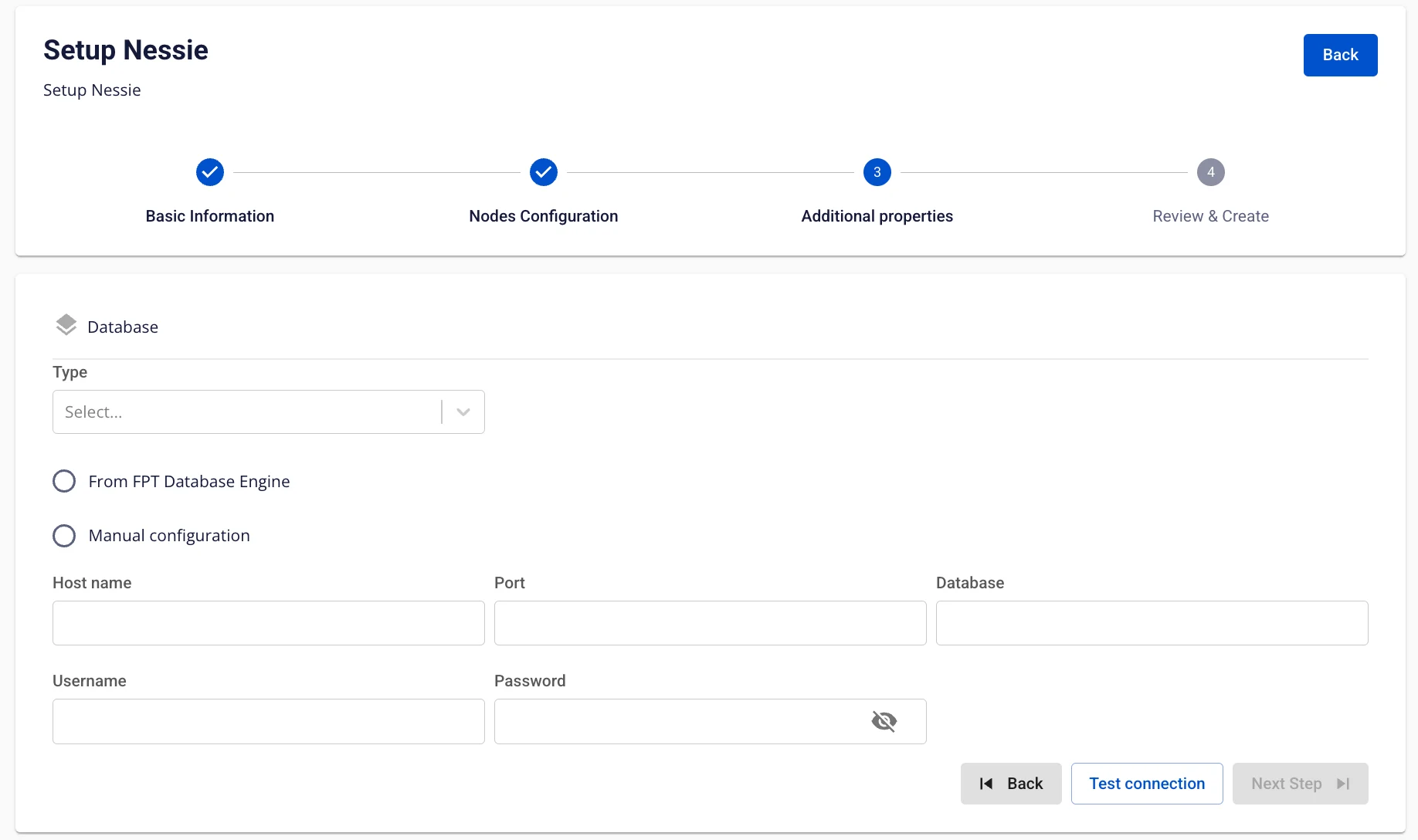
Step 6. Click Next Step to proceed to the Review & Create screen
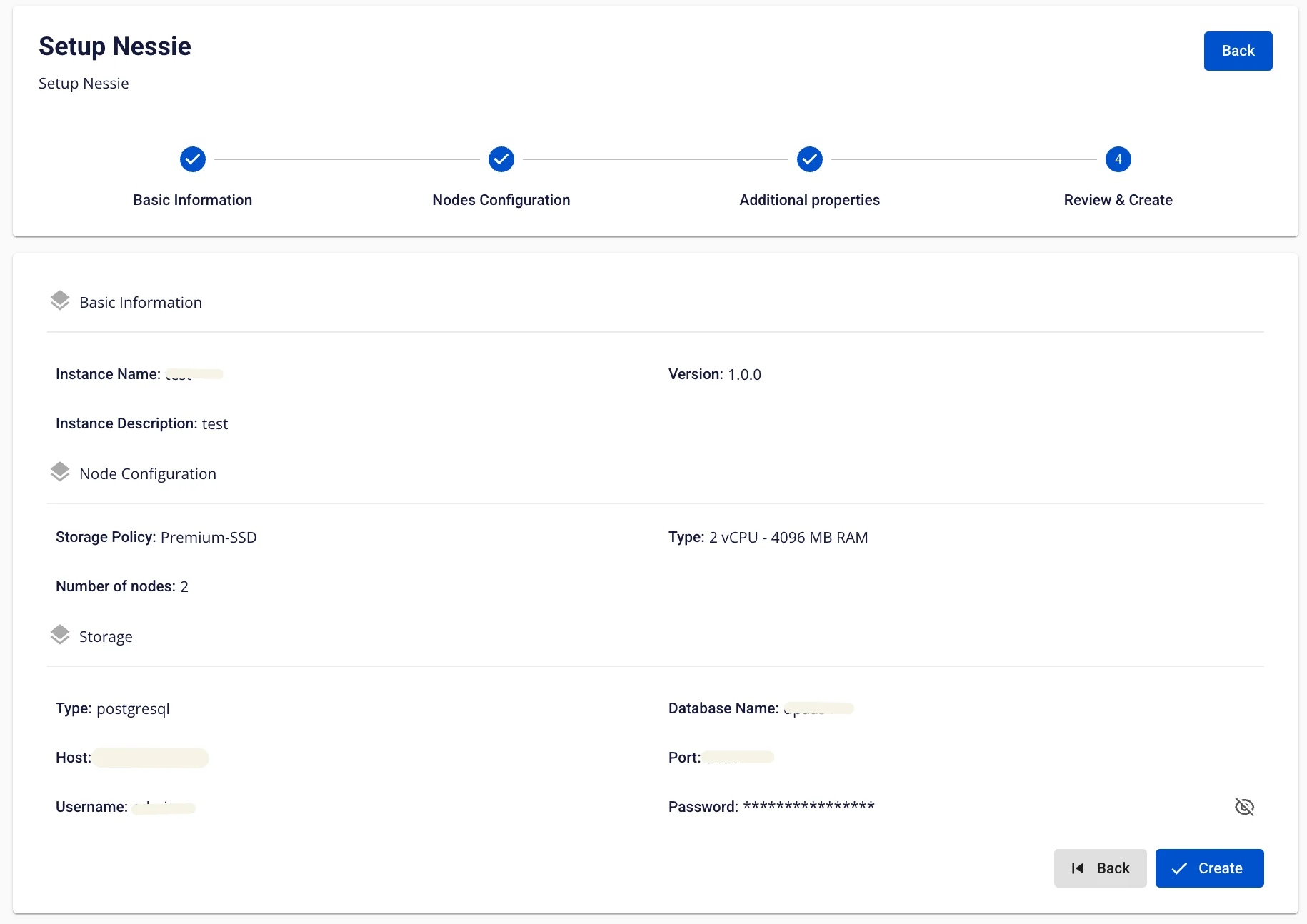
Step 7. Review the entered information, then click Create to complete.