Policy Settings
Used to configure policies and rules to select events to block or record in the View Logs — Detection Logs section.
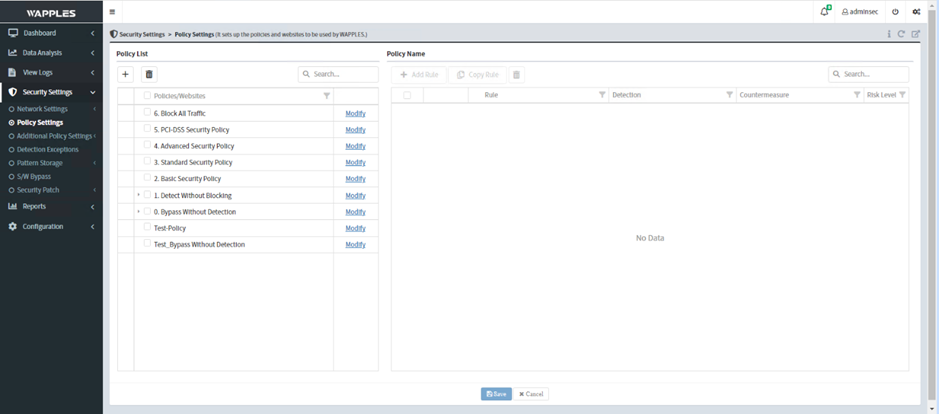
The main components include:
Policy List — block or record events based on the policy. WAPPLES includes 7 default policies:
- Bypass Without Detection: Does not record any events
- Detect Without Blocking: Records events without blocking them
- Basic Security Policy: After detection, blocks events according to the rules
- Directory Listing
- Invalid HTTP
- SQL Injection
- Basic Security Policy: After detection, blocks events according to the rules
- Standard Security Policy: After detection, blocks events according to the rules
- Cross Site Scripting
- Directory Listing
- Directory Traversal
- Error Handling
- File Inclusion
- File Upload
- Invalid HTTP
- Invalid URL
- Request Method Filtering
- SQL Injection
- Advanced & PCI-DSS Security Policy:
- Responds based on the configured countermeasures
- Allows inspection of a specific rule by clicking the corresponding policy
- Responds based on the configured countermeasure settings
- Block All Traffic:
- Blocks all responses to requests to the website
- Does not record logs because requests are blocked before detection
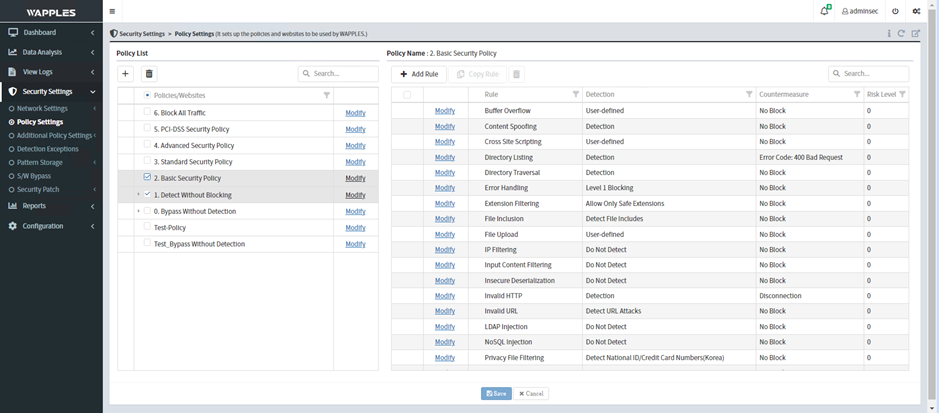
Rule List — displays the rules and countermeasures available in the selected policy.
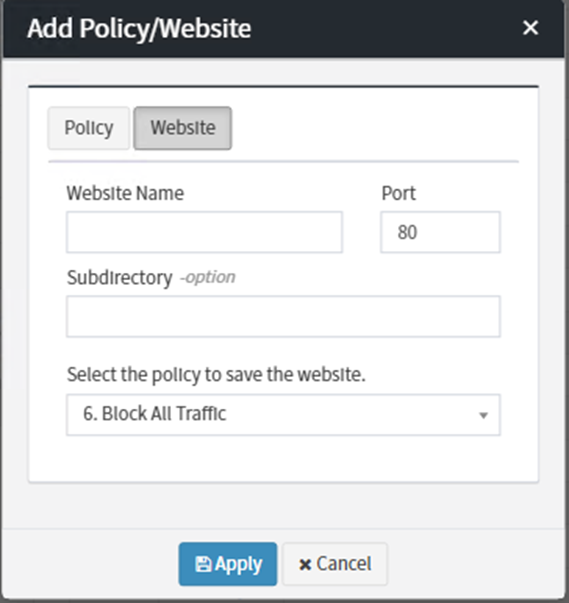
Add Policy/Website — create a custom policy or add websites to a policy to apply it individually per website by clicking the + icon.
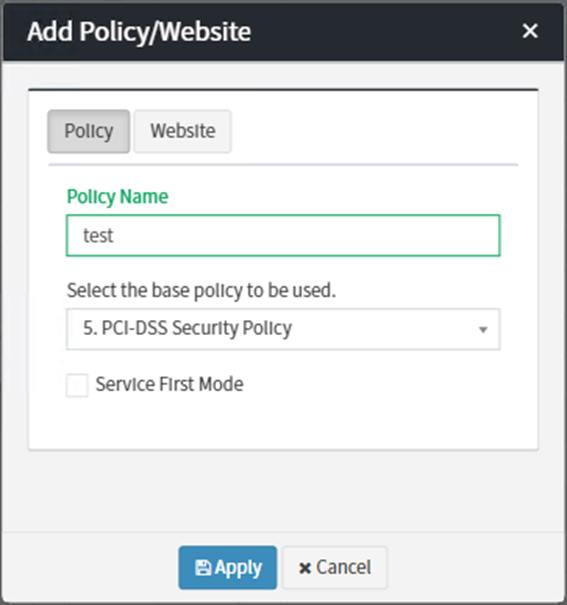
- Create a policy based on an existing policy
- Add a policy for a website (a specific subdirectory can be specified)
- Add a rule to a policy
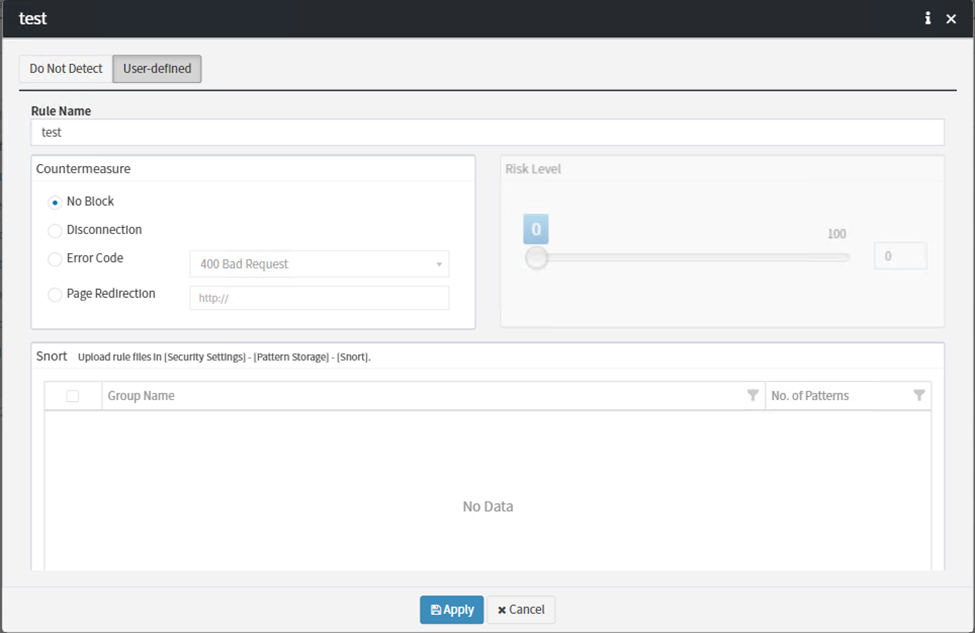
Snort 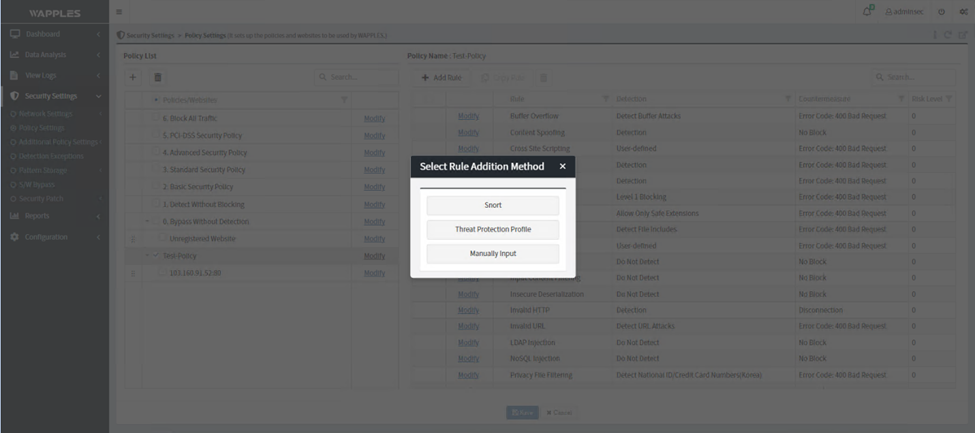
- Select User-defined
- Add Rule Name
- Select Countermeasure
- Select Risk Level (if Disconnect / Error Code / Page Redirection is selected)
- Upload the rule configured in [Security Settings] - [Pattern Storage] - [Snort]
- Click Apply then Save
Threat Protection Profile 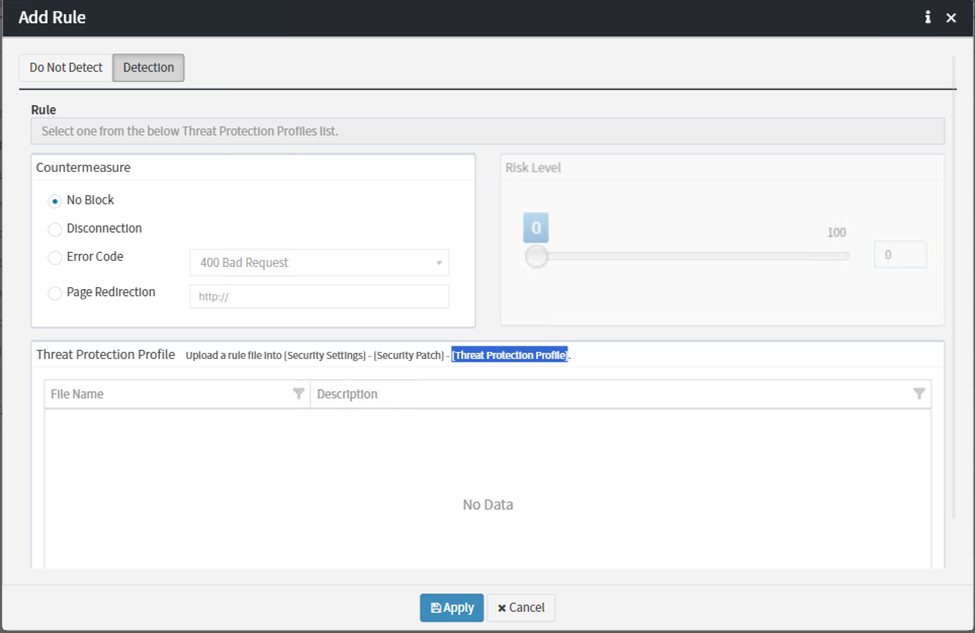
- Select Detection or Do Not Detection
- Select Countermeasure (if Detection is selected)
- Select Risk Level (if Detection / Disconnect / Error Code / Page Redirection is selected)
- Upload the rule configured in [Security Settings] - [Security Patch] - [Threat Protection Profile]
- Click Apply then Save
Manually Input 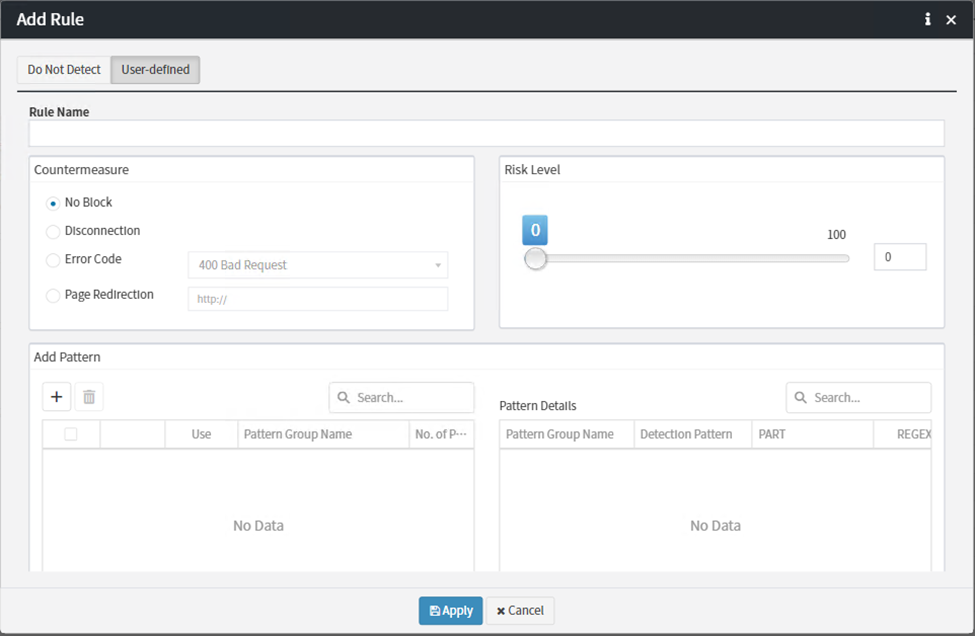
- Select User-defined
- Add Rule Name
- Select Countermeasure
- Select Risk Level (if Disconnect / Error Code / Page Redirection is selected)
- Manually configure the pattern, then click Apply and Save