Using FPT Object Storage as a Media Server
Introduction
FPT Object Storage is an object storage service provided by FPT Smart Cloud, supporting a protocol equivalent to AWS S3 (Simple Storage Service). With notable features such as unlimited storage, high security and availability at an affordable price, FPT Object Storage is an excellent choice as a media storage for websites and web applications with high and continuous data access demands. Some key benefits include:
- Improved web server performance: By using FPT Object Storage to store media files, the Web Server no longer needs to handle storing and distributing those files. Resources are fully freed up to process other more important tasks.
- Cost savings: If you use your Web Server's own storage for media, the server will require very large capacity. Web Server storage unit prices are generally much higher than FPT Object Storage. Additionally, Web Server bandwidth is saved because the browser loads files directly from FPT Object Storage without going through the Web Server. FPT Object Storage currently supports a Pay-As-You-Go model, ensuring you only pay for the storage you actually use.
- Independent storage: Separates the application from data. You can place your application anywhere and move it to any environment without worrying about data disruption. For example, if you need to move a website to another server, simply transfer the website source code to the new server. No need to migrate media or spend time finding and updating embedded media links across the website.
- Website acceleration: End-user browsers load media files directly from FPT Object Storage's high-speed data centers, minimizing page load time. FPT Object Storage data centers are located in Hanoi and Ho Chi Minh City, ensuring stable domestic speeds even when international internet connectivity is disrupted. This also complies with data localization regulations under Government Decree 53/2022.
This article provides an overview and guide to using FPT Object Storage as a media server, based on the example of integrating FPT S3 into a WordPress website.
Prerequisites
- The website is built on the WordPress platform.
- The FPT Object Storage service is active.
- A public bucket has been created to store media.
- Endpoint and Access Key information for the Object Storage service has been collected.
Overview
By default, WordPress does not support using S3 Storage directly to store files. However, several plugins can help you do this. Essentially, these plugins still operate based on WordPress's default uploader. After WordPress successfully uploads a file, the plugin creates a copy in FPT Object Storage and automatically deletes the original file, replacing all WordPress links with links pointing to FPT Object Storage. Popular plugins on the market include WP Offload Media Lite, MediaCloud, Media Library Folders Pro S3, W3 Total Cache, and others. This article provides guidance based on the MediaCloud plugin; the workflow for other plugins is similar. Basic steps:
- Create a new bucket.
- Create a SubUser account and assign bucket access permissions to that SubUser.
- Install and configure the plugin on the WordPress website.
Solution
A. Create a new bucket.
A bucket is a logical storage unit on S3. A bucket is responsible for holding the files and folders that users upload. You need to create a bucket to store all of the website's media data. Step 1: Go to Object Storage Management on FPT Portal or open your S3 Client. Step 2: Select Create Bucket and enter the name for the bucket to create. Instructions for FPT Portal./ Instructions for S3 Client./ Step 3: Configure security for the bucket. By default, anyone with the key pair and Endpoint can edit or delete objects inside the bucket. The WordPress website needs to be carefully secured to prevent hackers from seizing the key and causing data loss in the bucket. Use the advanced features provided by FPT Cloud to enhance bucket security:
- Versioning: Automatically stores previous versions of changed objects.
- Bucket Policy: Create a Policy to restrict which IPs can access data in the bucket or limit the file extensions that can be uploaded.
- Backup and Replicate Bucket: Automatically backs up the entire Bucket to another Bucket.
B. Create a SubUser account and assign bucket access permissions to that SubUser.
During testing or demos, you may use the admin key pair to connect. However, FPT Cloud does not recommend this practice long-term, as exposing this key pair carries significant risks. A hacker could delete all data in your Object Storage buckets with no possibility of recovery. Create a SubUser with limited permissions that can only interact with the designated bucket, then use that SubUser's key to configure the WordPress website.
C. Install and configure the Plugin on the WordPress website
Go to the WordPress website admin panel, then navigate to the Plugin section. Find the Media Cloud plugin and download it.
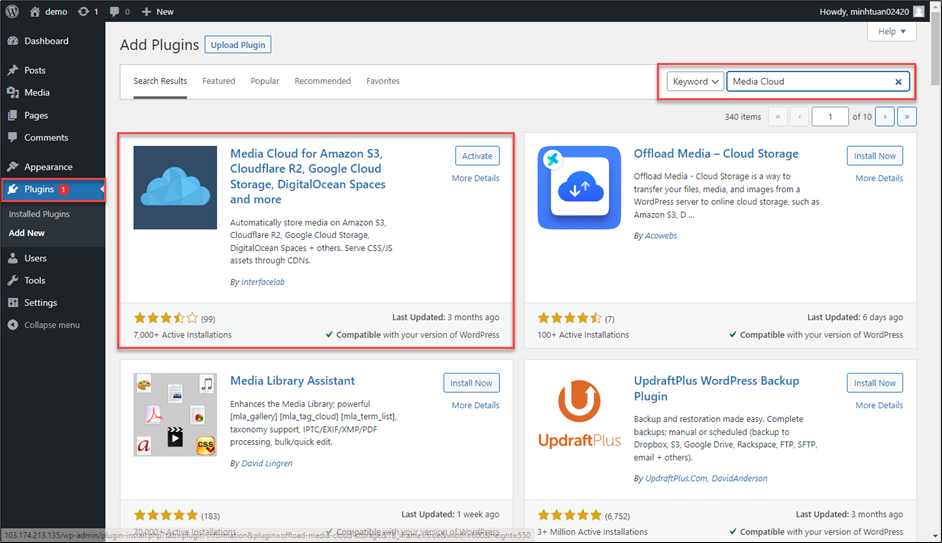
After activation, you will be prompted to enter the Endpoint, Key, and Bucket Name. You can obtain this information from FPT Portal as follows:
After a successful connection, adjust some basic configuration settings for a more convenient experience. 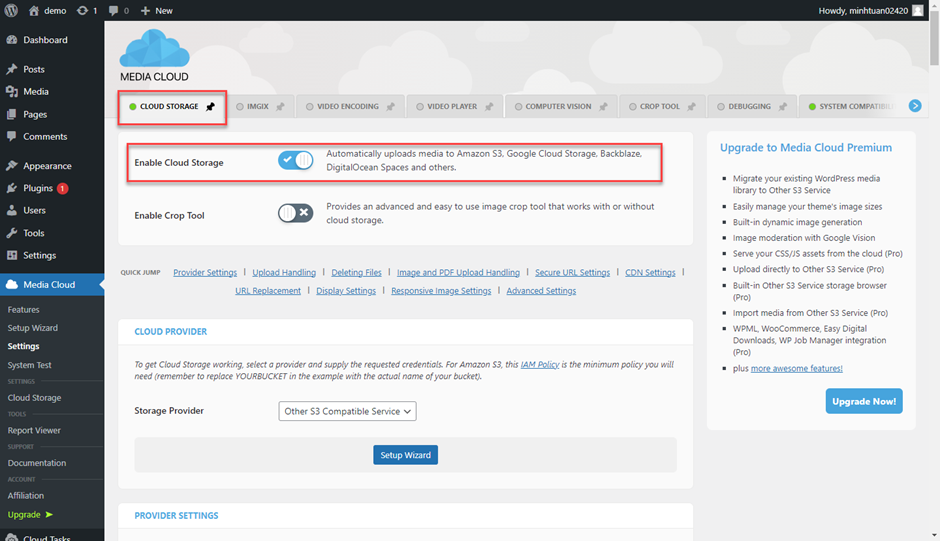
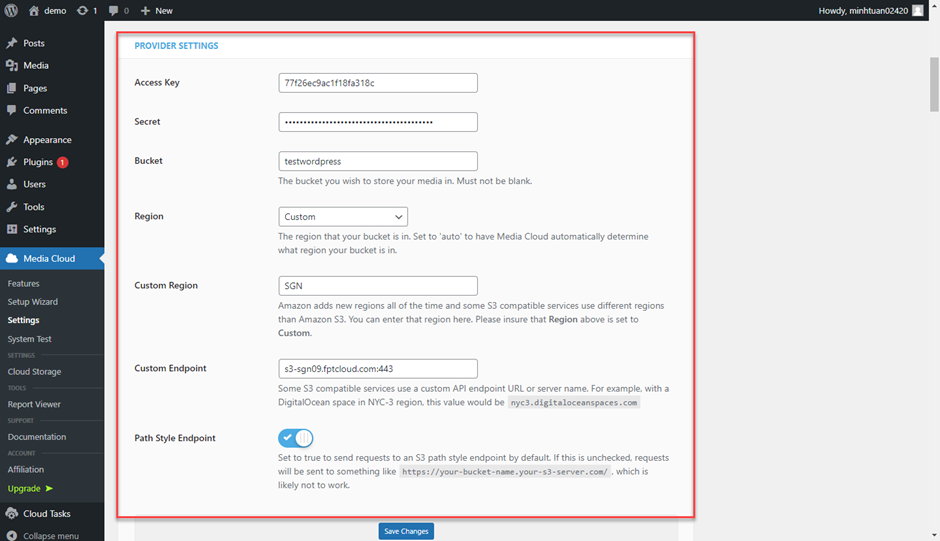 Select the file types to sync in the UPLOAD HANDLING section.
 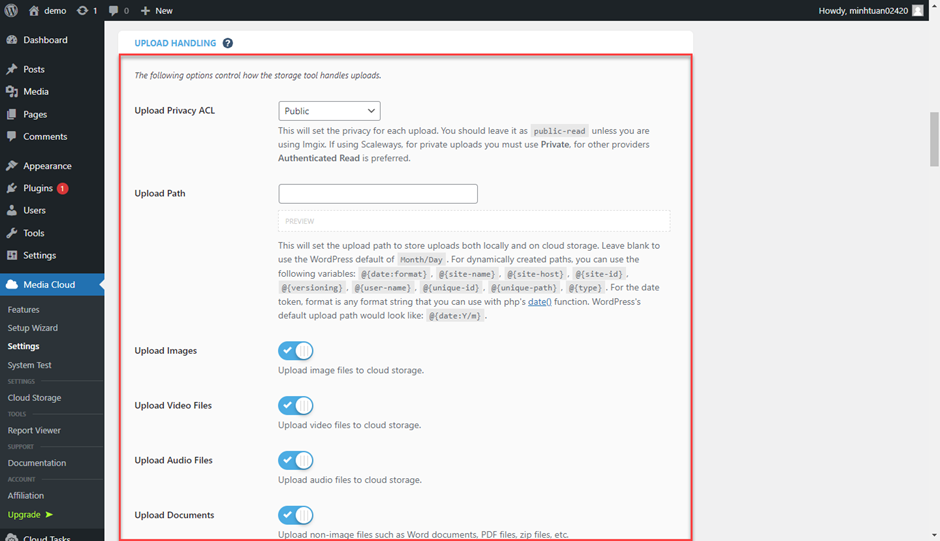 Configure the file deletion mechanism; it is recommended to enable Delete From Storage mode to optimize bucket storage.
 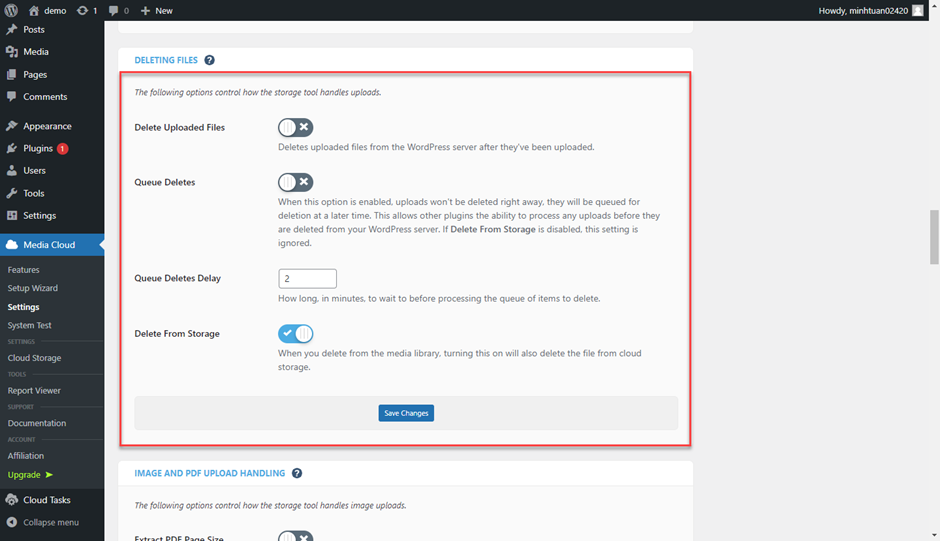 After successful configuration, all media files uploaded going forward will be stored in the FPT Smart Cloud Bucket. You can verify this by uploading a test image and checking in FPT Object Storage.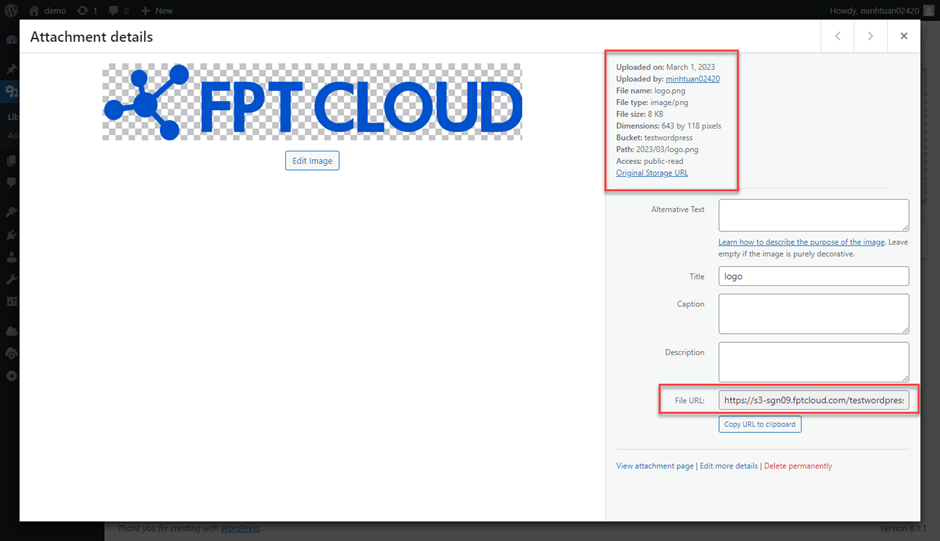
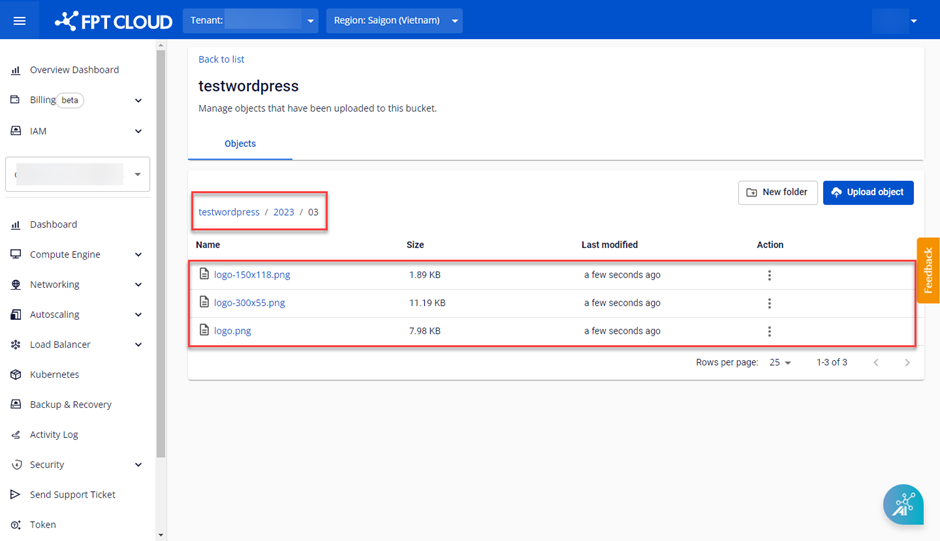
CopyWith the Free version, files uploaded before the plugin was installed will not be synced to the bucket. Purchase Premium to upgrade this feature.
Conclusion
This article has introduced and guided the use of FPT Object Storage as a media server for storing and distributing images and videos for web applications. If you encounter any issues during operation, please contact us via the Support section for assistance.