Mount a bucket as a drive on a local machine
Mount bucket with Windows
In addition to using FPT Portal or S3 Browser, we can use an S3 bucket directly on FPT Object Storage as a drive of a computer running Windows through the TntDrive tool by following these steps: Step 1: Access and download the TntDrive tool. Step 2: Open TntDrive > Choose Accounts > Add new account.
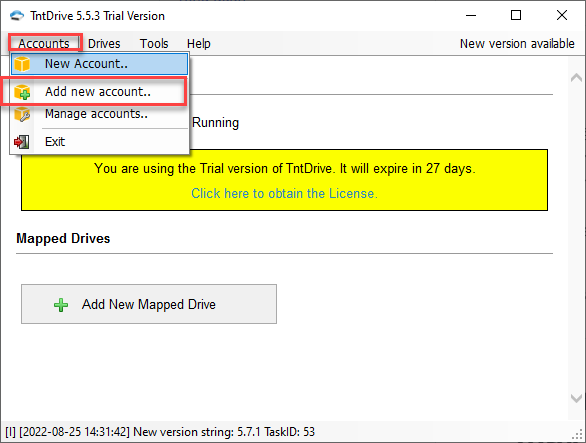
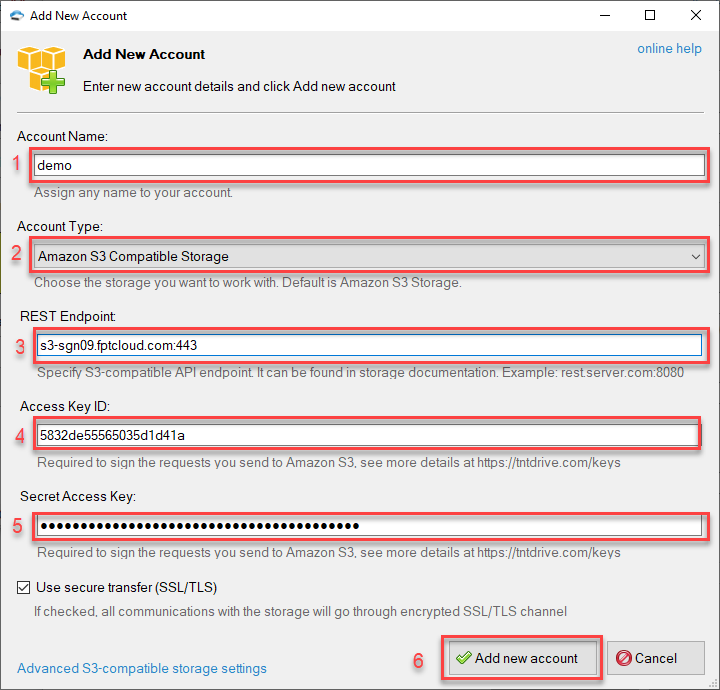
Step 3: Enter the same information as when using S3 Browser.
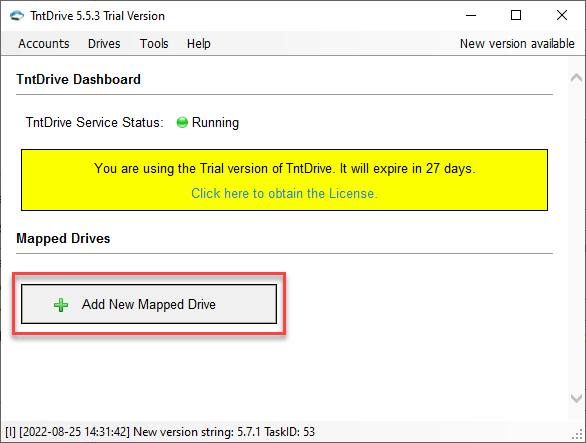
Step 4: After entering the account information in the TntDrive tool > Choose Add New Mapped Drive.
Step 5 : Select the following information:
- Storage account: Select the name of the account just added.
- Amazon S3 Bucket: Select the bucket to mount. You can enter the name directly or click the icon to choose.
- Mapped drive letter: Select the drive name to map with the bucket.
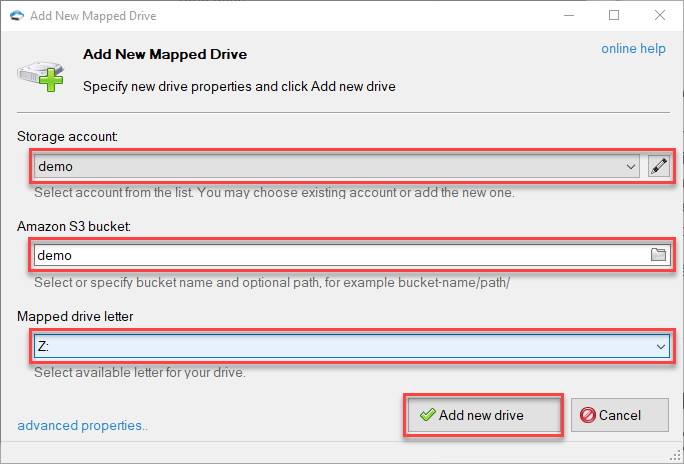
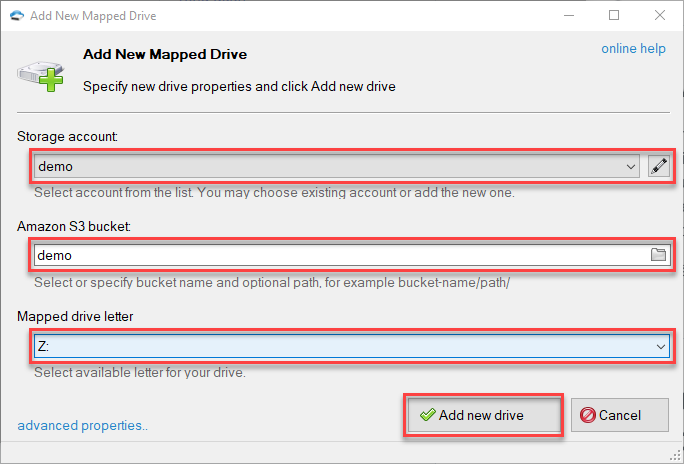
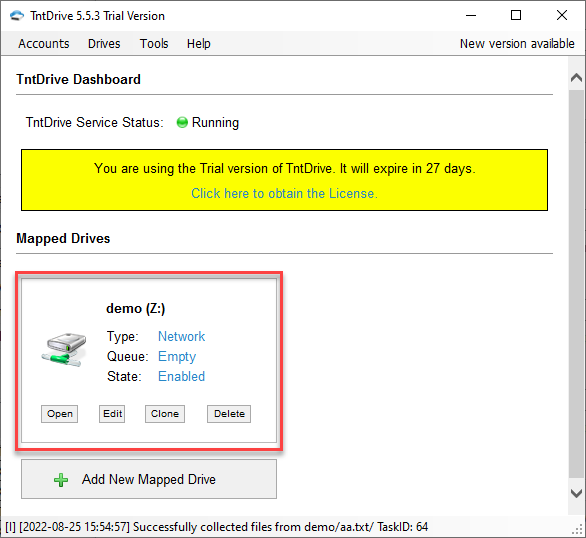
Step 6 : Choose Add new drive. Now, the TntDrive interface will display the status of the mounted drive
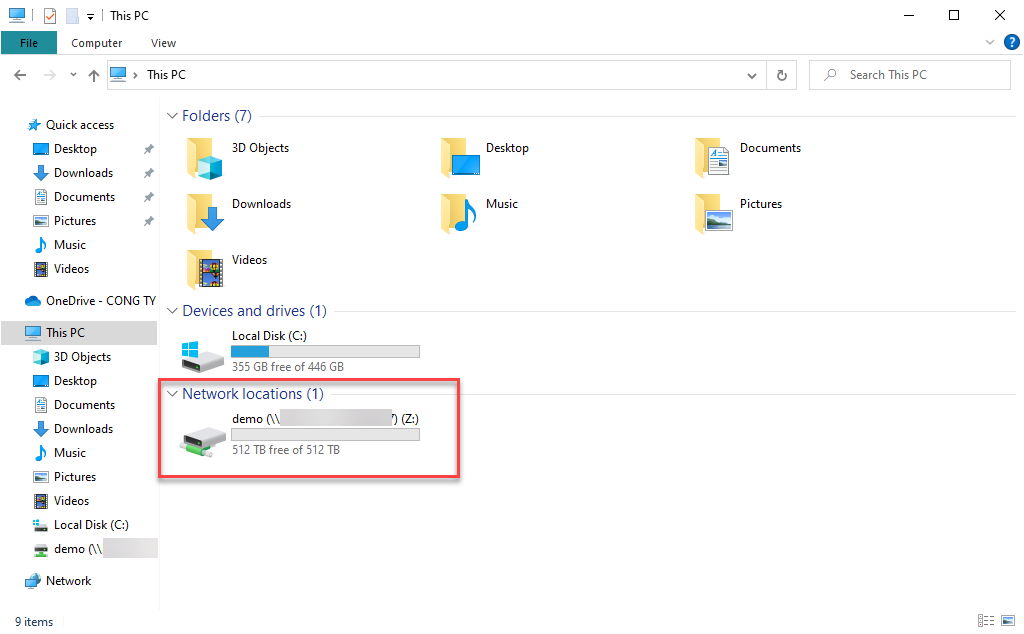
You can check in File Explorer
Mount bucket with Linux
This guide will walk the customer through mounting a bucket on Ubuntu 20.04 using the S3FS tool. Step 1: Install S3FS.
Copysudo apt-get install s3fs
Step 2: Create a file containing the access key and secret key.
Copyecho XRRS541KWS8T9DMDRCFY:gknj5Rpmgifmr4Bc90euHF8GIaZEY7xJD6bVDm7D > s3-password
chmod 600 s3-password

Step 3: Create the mount directory.
Copymkdir /mnt/bucket-01
Step 4: Perform the mount with fstab.
Copyecho bucket-01 /mnt/bucket-01 fuse.s3fs \_netdev,allow\_other,passwd\_file=/root/s3-password,use\_path\_request\_style,nonempty,uid=0,gid=0,use\_cache=/tmp,dbglevel=info,curldbg,url=https://s3-hfx03.fptcloud.com 0 0 >> /etc/fstab
Result:
 Step 5: Mount the bucket
Copymount -a
