Bucket Management
A Bucket is a logical storage unit in FPT Object Storage. Each bucket contains files and folders uploaded by users.
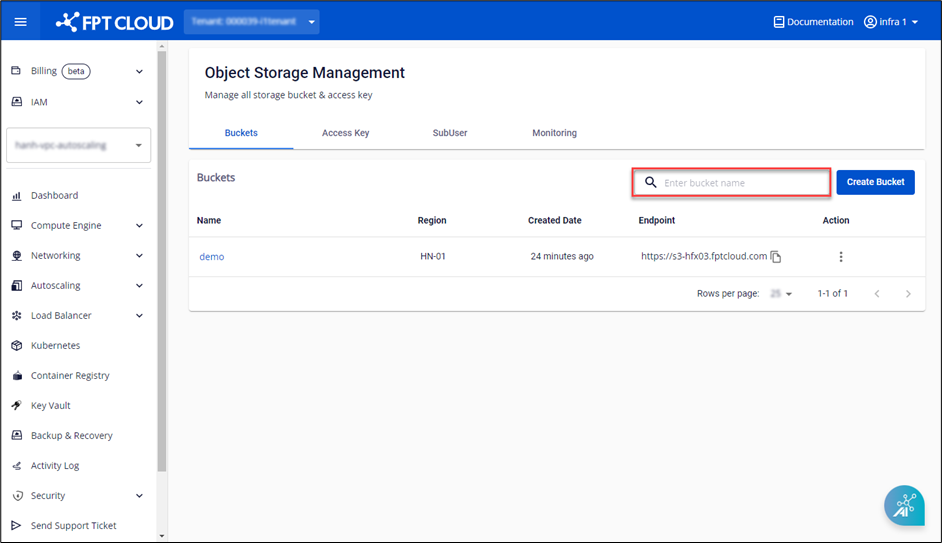
To view the list of buckets, access Object Storage Management at https://console.fptcloud.com and select the Buckets tab.
Create a Bucket
Step 1: Access Object Storage Management at https://console.fptcloud.com and select the Buckets tab.
Step 2: Choose Create Bucket.
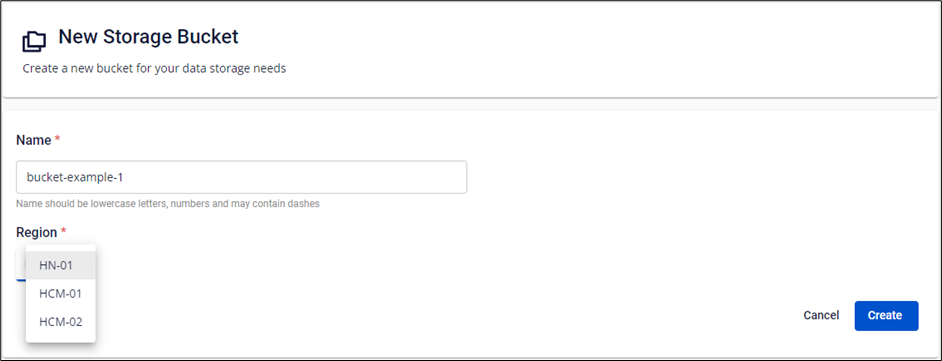
Step 3: Enter a new Bucket name, select a Region from the list, and click Create.
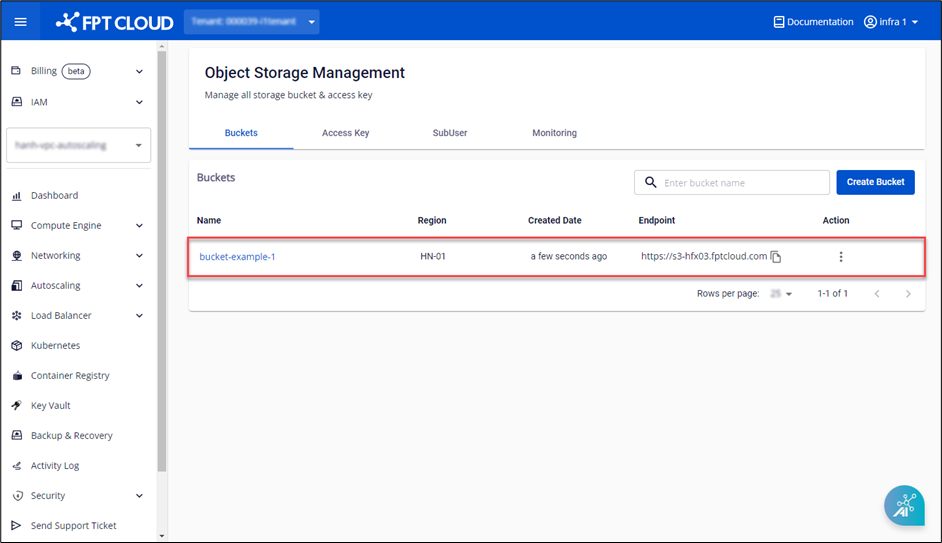
The system will display the new bucket in Object Storage Management.
Bucket names must be unique within each cluster, have a maximum length of 64 characters, and cannot contain special characters.
Delete a Bucket
Step 1: Access Object Storage Management and select the Buckets tab.
Step 2: In the Action section of the bucket you want to delete, choose Delete.
Step 3: A confirmation dialog will appear, displaying the bucket name and requesting user confirmation. Choose Delete to proceed.
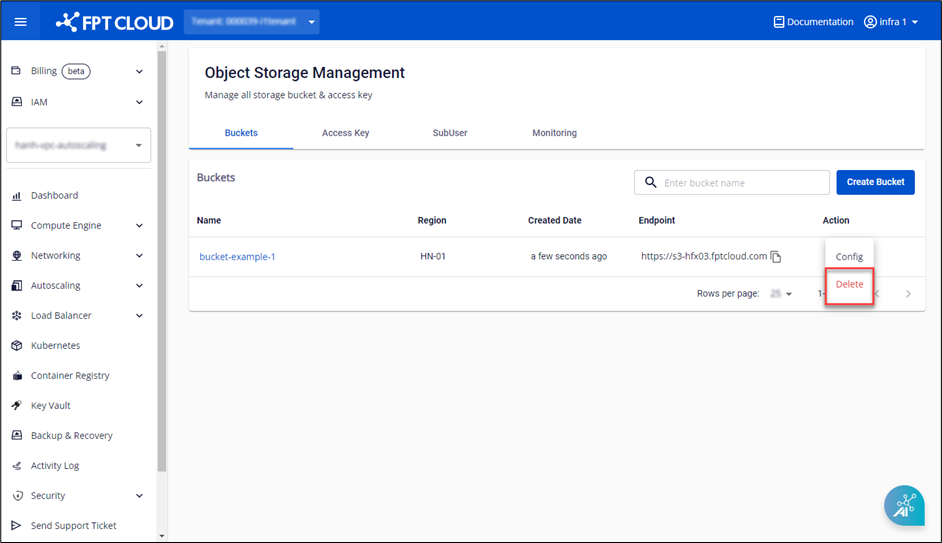
Deleting a Bucket will permanently remove all objects inside and cannot be undone. Exercise caution when performing this action.
Empty a Bucket
The Empty Bucket feature allows you to delete all data in the bucket while preserving configuration information such as permissions and policies.
The processing time depends on the number of objects. Consider using the Delete Bucket feature if your bucket contains more than 1000 objects.
In the bucket where you need to perform actions, select the Empty Bucket action.
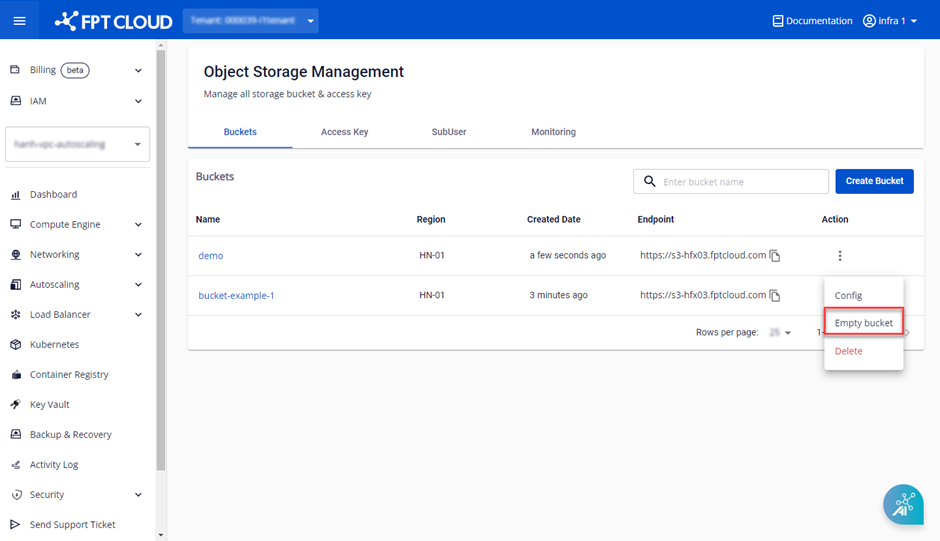
A confirmation popup will appear, displaying the bucket's name and requesting user confirmation. Choose Delete to proceed.
Add a New Folder
In the general Object Storage model and FPT Object Storage, there is no concept of a Folder as we typically use. Instead, there are only Buckets and Objects. However, the FPT Portal displays them in a folder-like structure for user convenience. Objects with the same path are grouped as a folder.
For example, if you have two objects with paths bucket_name/folder-1/object-1.txt and bucket_name/folder-1/object-2.txt, the FPT Portal will display object-1.txt and object-2.txt inside folder-1.
To create a new folder, follow these steps:
Step 1: In the Object Storage Management dashboard, select the bucket where you want to add a folder.
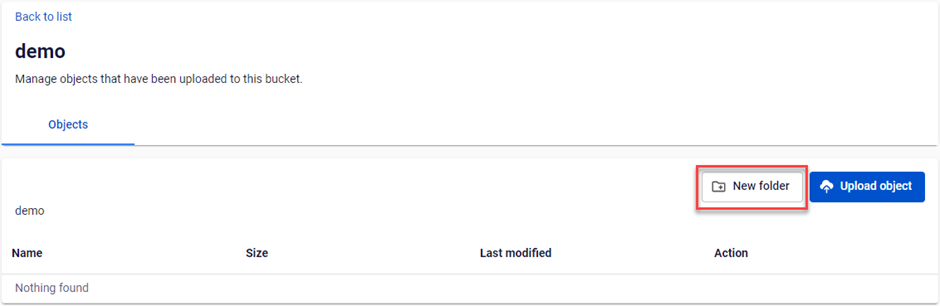
Step 2: Navigate to where you want to add the folder and select New folder.
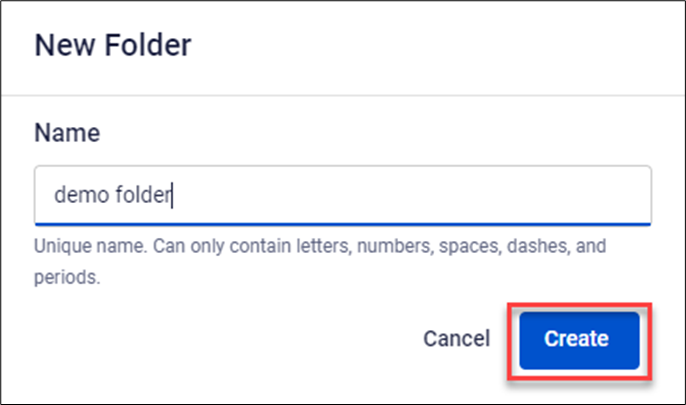
Step 3: Enter the new folder's name and choose Create.
Search for Buckets
You can search for buckets by the Name field.
Enter the content you want to search for in the Search box and press Enter.