Completion History
Completion history allows you to view and manage the past completions. It helps track previous messages, responses, and session details for review or reuse.
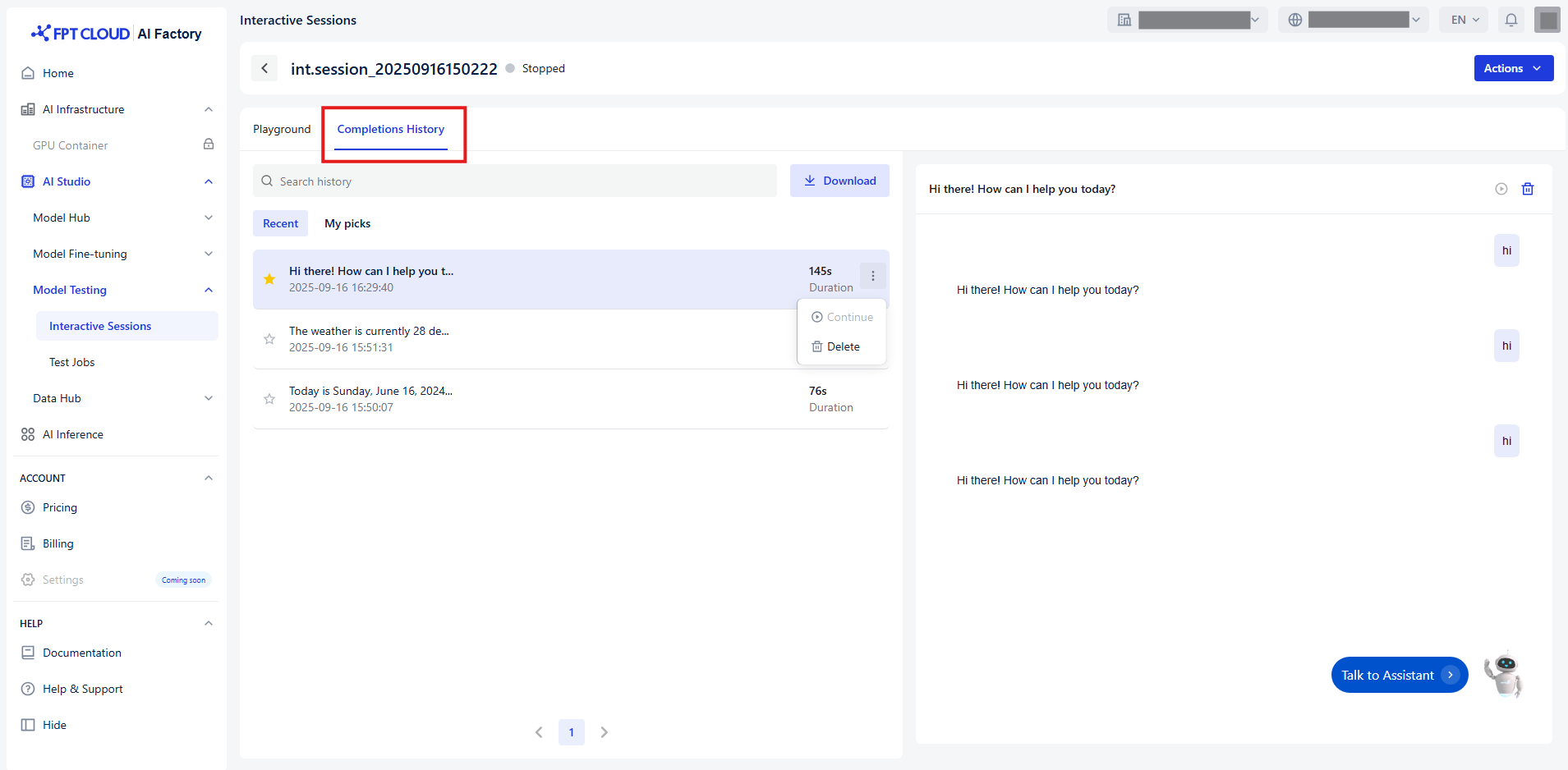
Accessing completion history
- Navigate to the Completion History tab in your interface. This page displays a list of all your current and past completions.
- You can browse through the list or use the search bar to find specific completions using:
- Keywords from the last assistant responses.
Viewing completion details
- Click on one completion to expand it.
- You will see:
- User message
- Assistant response
- Duration of the completion
- Timestamp of when it occurred
Continuing a completion
- To resume a past completion, click the Continue button.
- This will reopen Playground , allowing you to continue chatting with your model.
Delete a completion
To remove a completion from your history:
- Click the trash icon or the Delete button.
- Confirmation popup show to confirm the deletion
Notice: Deleted completions are permanently removed and cannot be recovered.
Download all completions
To export your entire completion history:
- Click the Download button
- The supported file format is '.xlsx'. It consists of all user messages, assistant responses, timestamps, and metadata for each completion.
- (Optional) Download completion you want to select by clicking the start icon and navigate My picks