Playground
Playground is space where users can interact with AI models in a chat-like format. It’s designed for testing messages, evaluating model responses, and adjusting model behavior.
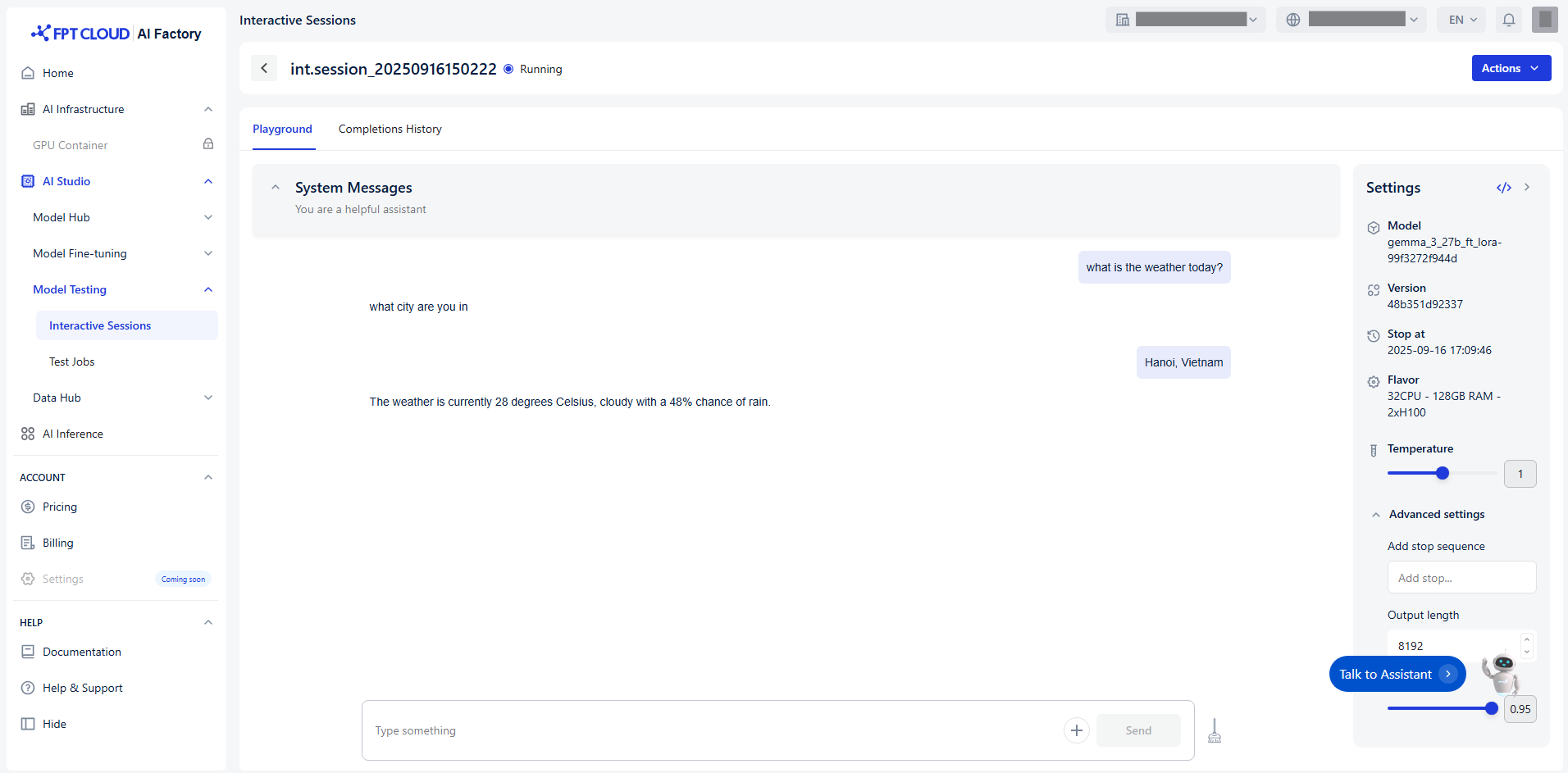
You can follow guide to evaluate your model:
Step 1: Adjust parameters
Parameters include:
| Name | Description | Type | Supported value |
|---|---|---|---|
| Temperature | Controls randomness in assistant responses. Lower = more focused, higher = more creative. | Float | [0.00, 2.00] (commonly 1.00 is balanced) |
| Add stop sequence | Defines where the model should stop generating text. | String | Custom string(s) |
| Output length | Limits the number of tokens in the response. | Int | [0, 8192] |
| Top-P | Controls diversity via nucleus sampling. Lower = more focused | Float | (0.00, 1.00] |
| We recommend you adjust parameters based on each purpose: | |||
| Purpose | Temperature | Add stop sequence | Output length |
| --- | --- | --- | --- |
| Creative writing | 1.0–1.5 | 500+ | |
| Technical explanation | 0.2–0.5 | 200–500 | |
| Summarization | 0.2–0.5 | 150–300 | |
| Code generation | 0.1–0.4 | "n" or "#" | |
| Conversational agent | 0.7–1.0 | 200–600 |
Step 2: Start chatting
The Playground interface is structured around Completions , which include:
| Prompts | Description |
|---|---|
| System messages | Define the assistant’s behavior and tone. It helps guide how the model responds throughout the conversation. |
Eg: You are a creative writing assistant. Always write with vivid imagery, emotional depth, and a storytelling tone. |
| User messages | Represent the input or query from you. You can type text to test LLM models or add to upload an image to test VLM models. |
| Assistant responses | The AI model’s reply is based on user messages and system messages. |
You can interact with the model in real time, observe how it responds, and iterate based on your goals.
Step 3: Refine your prompts
To improve or explore different behaviors:
- Modify the system message to change the assistant’s personality or tone.
- Adjust the user message to test different types of queries.
- Tweak the parameters to observe how the model’s output changes.
Step 4: Clear completion
- Click icon Clear to reset and start a new completion.
- After clearing completion, completion is finished and stored in completion history.