Access the IP Access Control feature
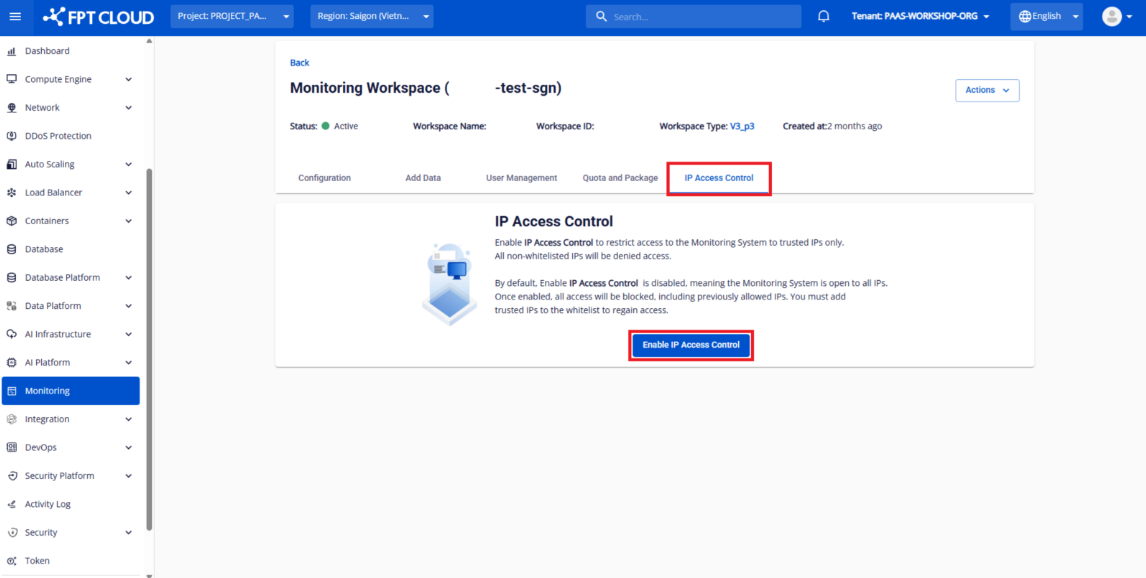
- In FPT Cloud Console Portal, open the FPT Cloud Monitoring workspace you want to configure, and select the IP Access Control tab.
- If the feature is not yet enabled, you will see an Enable IP Access Control button. Click it to enable the feature.
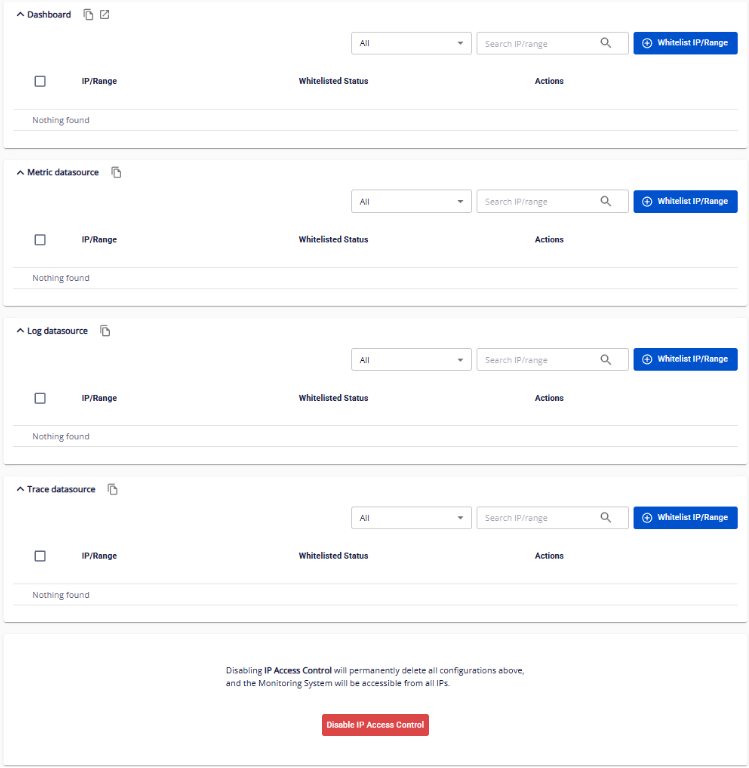
- If the feature is already enabled, you will see 4 whitelisted IP tables corresponding to the 4 FPT Cloud Monitoring system components, along with a Disable IP Access Control button. Click it to disable the feature.
warning
- When IP Access Control is disabled, all IP addresses can access the FPT Cloud Monitoring workspace components.
- When enabled, the system immediately blocks all access from outside FPT Cloud by default (monitoring agents within FPT Cloud continue to work normally). External IPs must be whitelisted to access FPT Cloud Monitoring endpoints.