Set Up Agent Installation Package and Install Agent
The agent is a software component installed on each server to be protected, allowing the Trellix server to remotely monitor and deploy security policies. Supports Windows, Linux, and macOS.
Installation on Windows
-
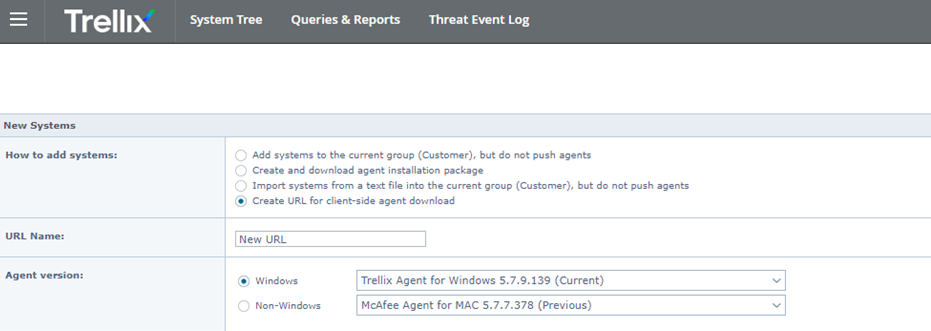
In the admin interface, select System Tree > New System.
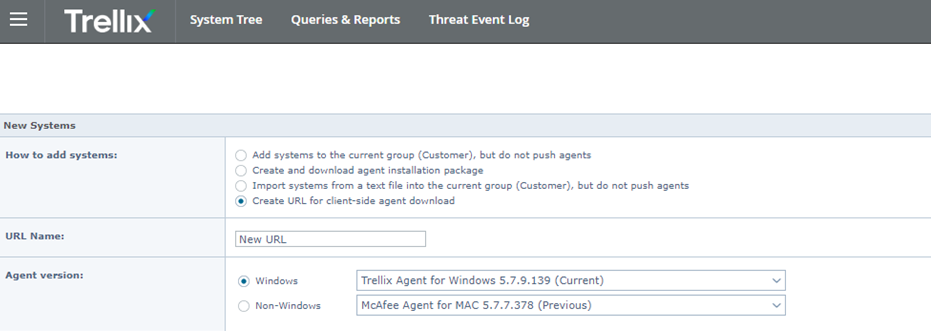
-
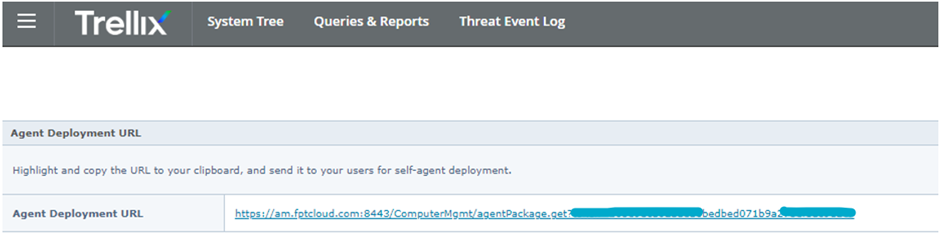
Copy the URL that was just generated.
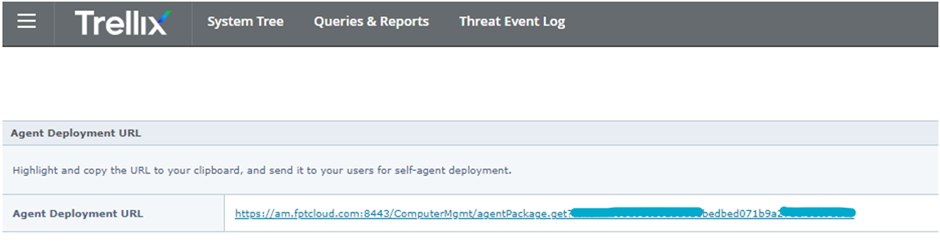
Example Windows Agent URL:
https://am.fptcloud.com:8443/ComputerMgmt/agentPackage.get?token=d0ace512f20025972b13c8554162e74fe3d6ecdc -
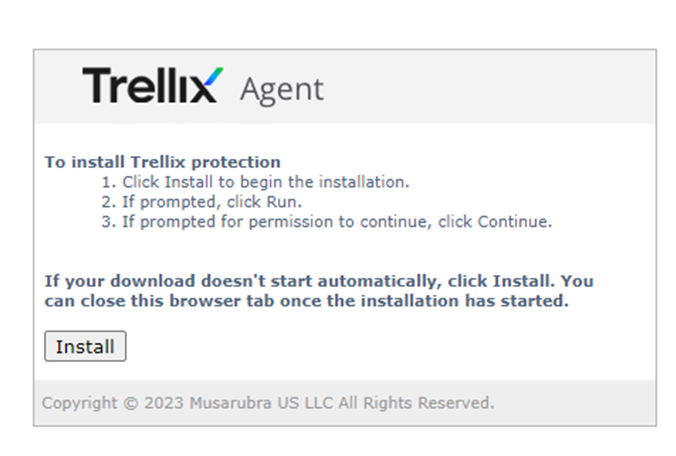
On the machine where Anti-Virus needs to be installed, open a browser, navigate to the URL above, then select Install.
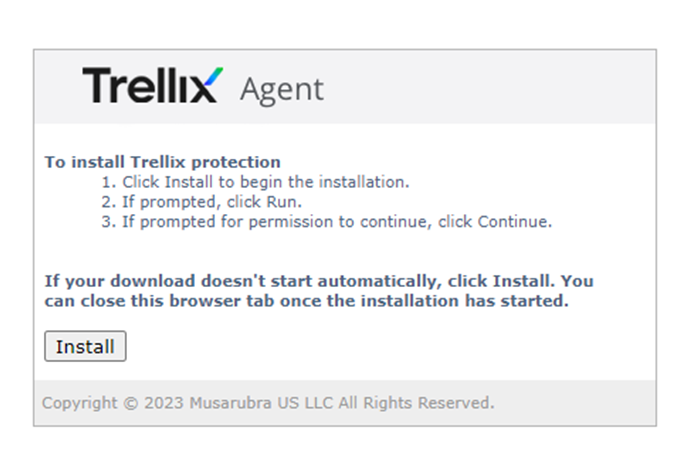
-
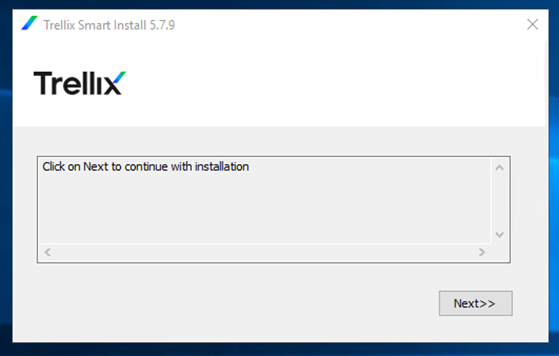
Follow the installation instructions (Next/Install) and wait until the agent installation is complete.
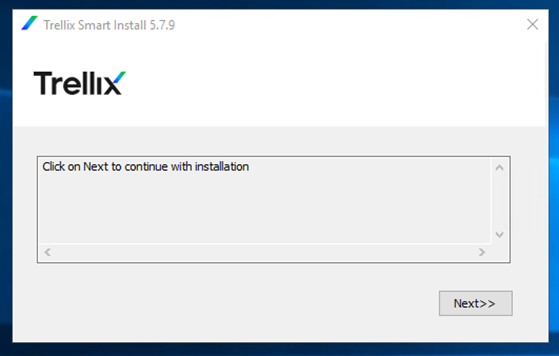
-
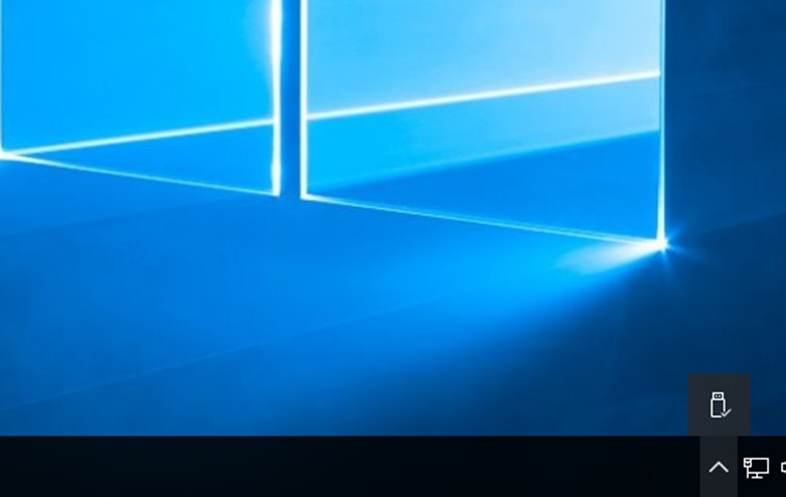
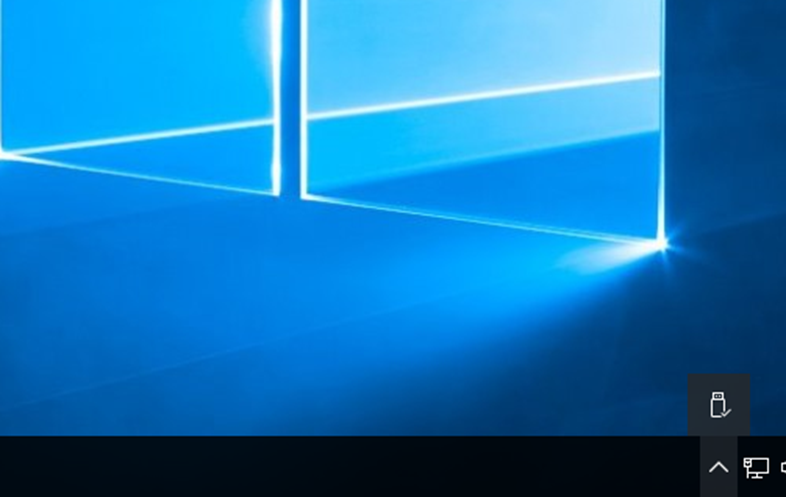
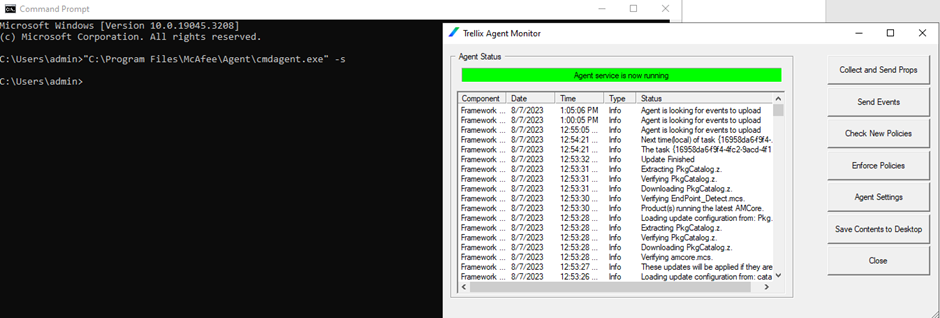
Check the agent status. If the Trellix icon is not yet visible in the task bar, run the following command then select Collect and send Props, Send Events, Check New Policies.
"C:\Program Files\McAfee\Agent\cmdagent.exe" -s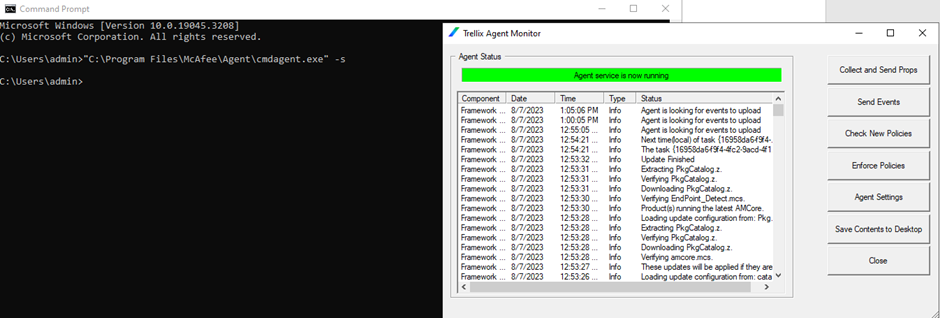
Installation on Linux
-
Download the agent script file from the installation URL:
https://am.fptcloud.com:8443/ComputerMgmt/agentPackage.get?token=e50140e04eea0aa17f171feca9864bf06cedf0f4 -
Rename the downloaded file:
mv <downloaded_file> trellix.sh -
Grant permissions and run the installer (requires root privileges):
sudo chmod +x ./trellix.sh
sudo ./trellix.sh -i
-
Verify the connection to the server:
sudo /opt/McAfee/cma/bin/cmdagent -f

After the agent is successfully installed, the Trellix server will automatically deploy Endpoint Security (immediately) and update ENS (at 12AM). These tasks were pre-configured before the service was provisioned. You can view and customize the tasks in the Client Tasks Management section.