Upload a Custom Image
FPT Cloud supports using Custom Images when creating Instances. You need to upload the image to the system before you can use it.
Upload a General Custom Image
-
Select Compute Engine → Custom Image, then click Upload Image.
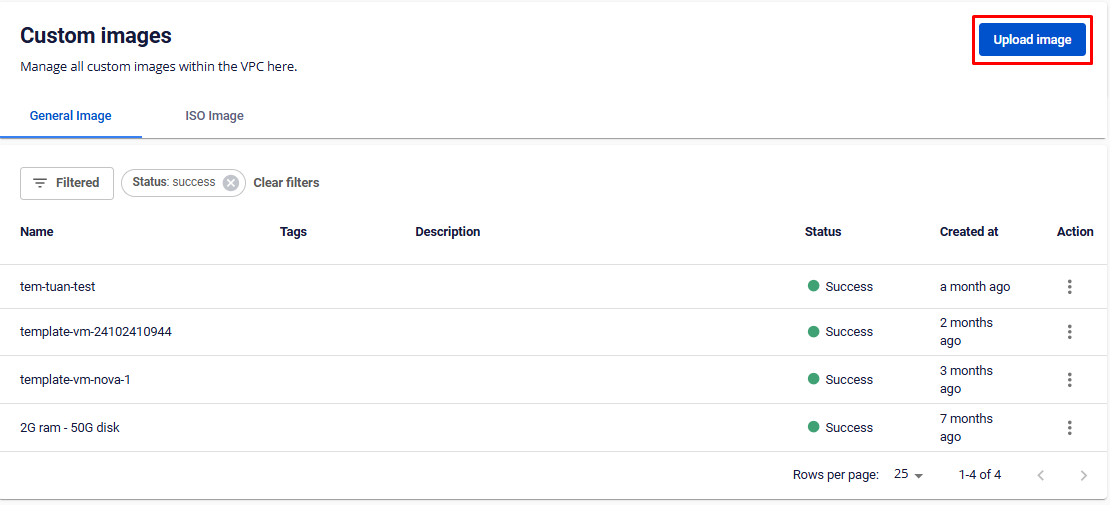
-
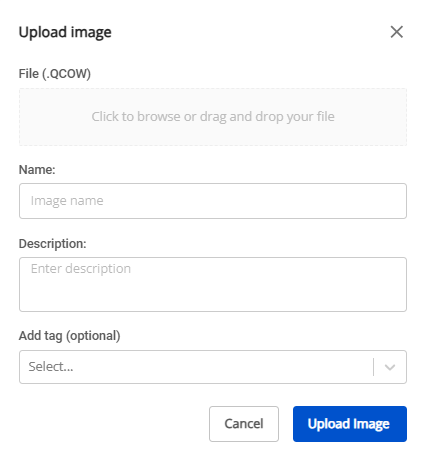
Enter the details and select the file from your machine, then click Upload.
note
For the General service type, the system supports QCOW and VMDK file formats.
Upload an ISO Custom Image
-
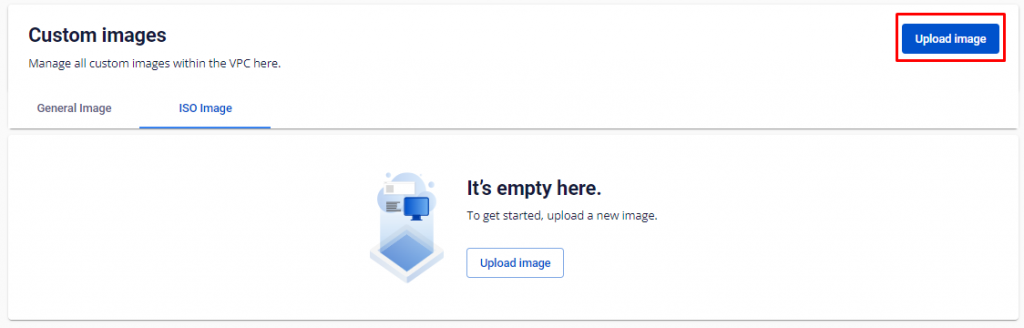
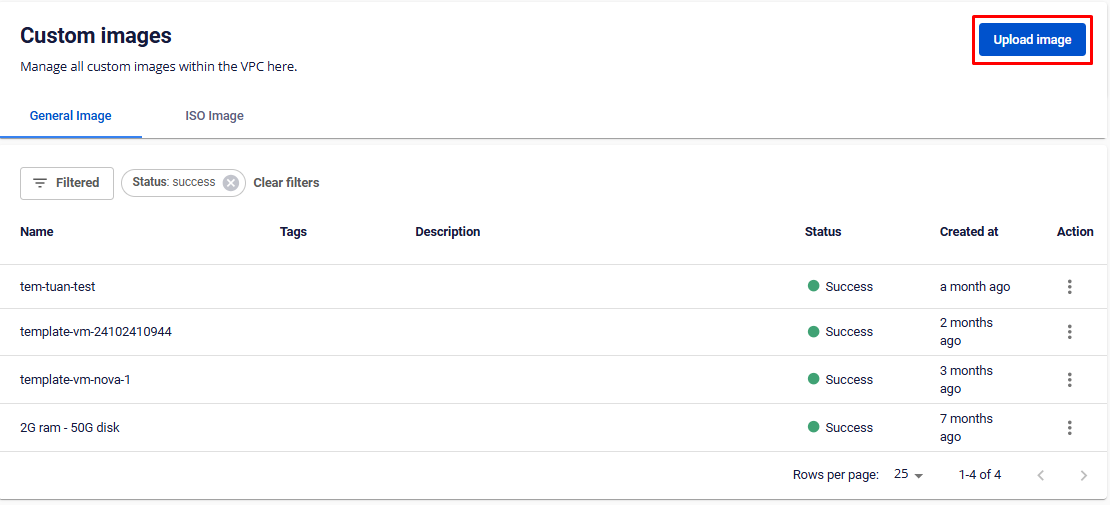
Select Compute Engine → Custom Image, then click Upload Image.
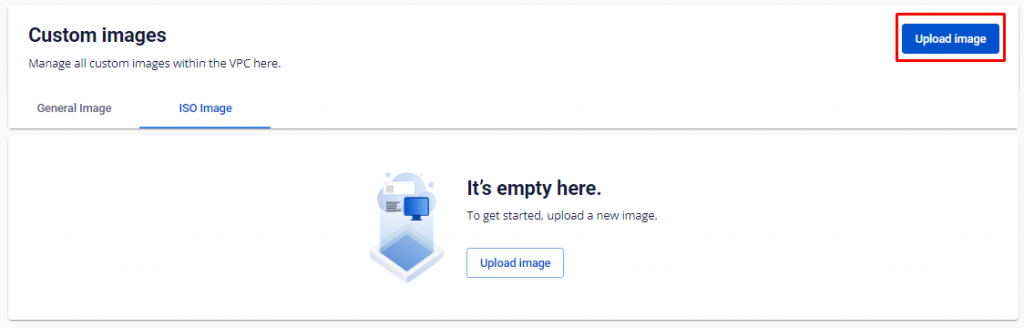
-
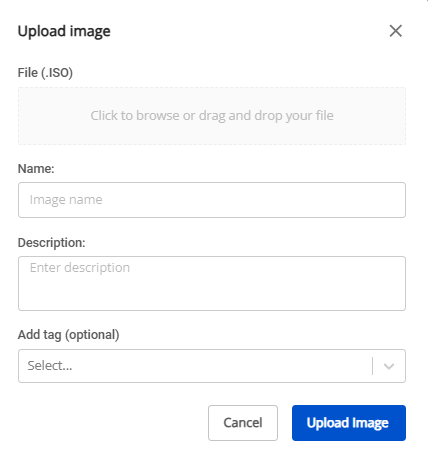
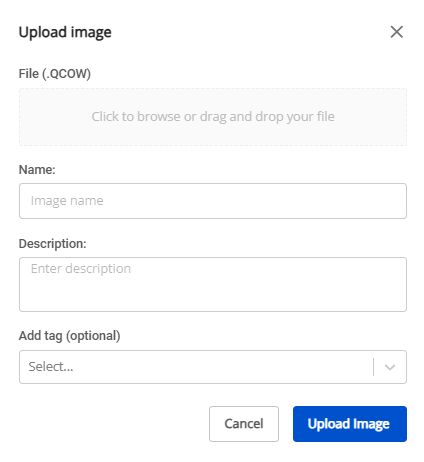
Enter the details:
- ISO file (format .iso): Drag and drop or select the file from your device.
- Name: Image file name.
- Description: Image file description.
- Add tag (optional): Add tags to the image.
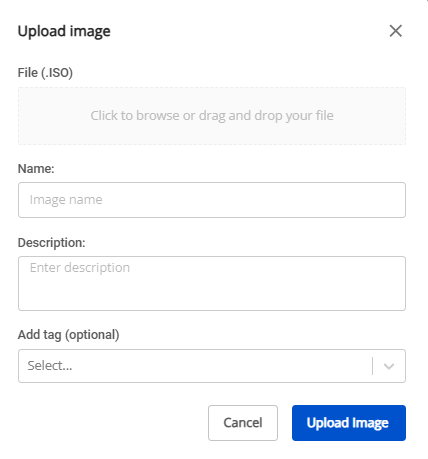
-
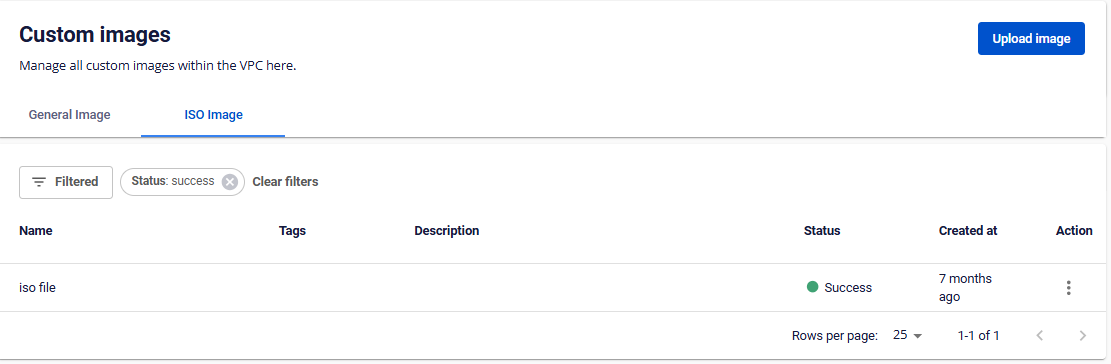
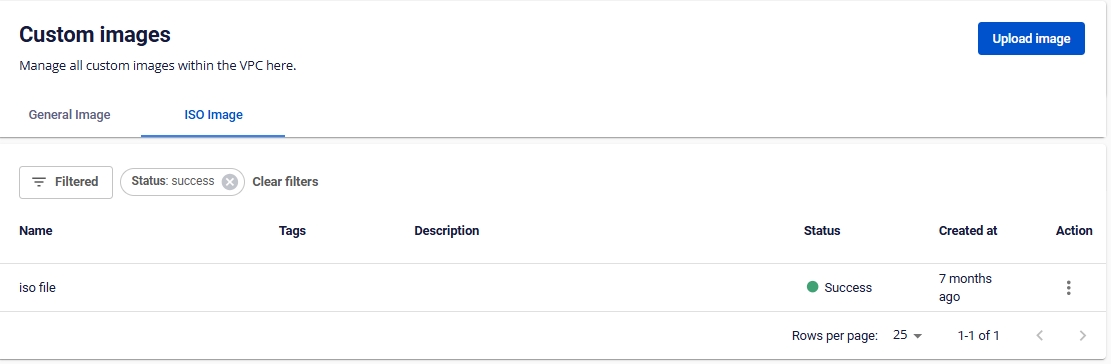
Click Upload Image. The system navigates to the ISO image list page where you can monitor the upload progress.