Gpu General
Manage GPU with Console Portal
1. Create a Virtual Machine with GPU
Users can create a virtual machine with GPU.
Step 1: On the Instance Management screen, select Create instance.

Step 2: Select GPU and the GPU card type to use.
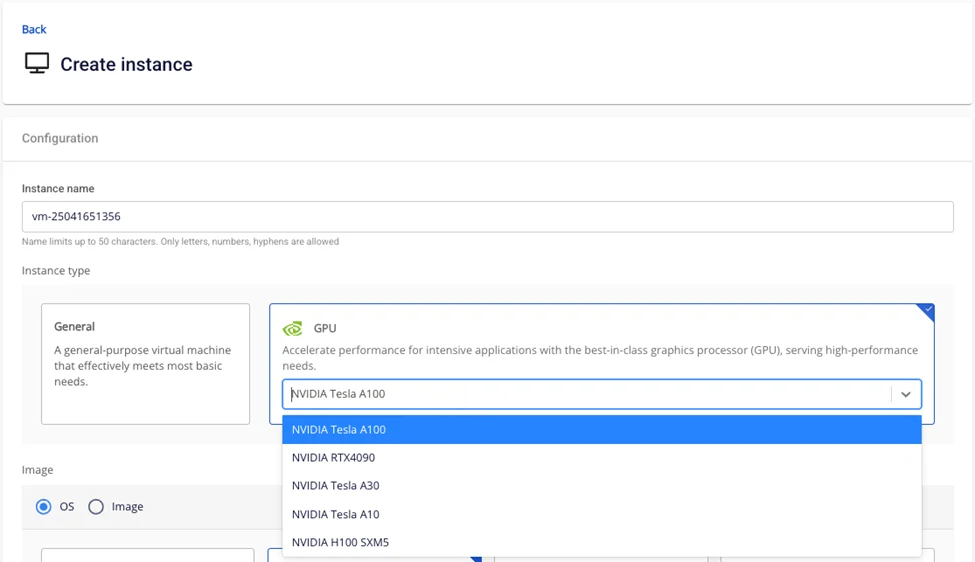
Step 3: Enter the remaining instance information.
Step 4: Click Create Instance.
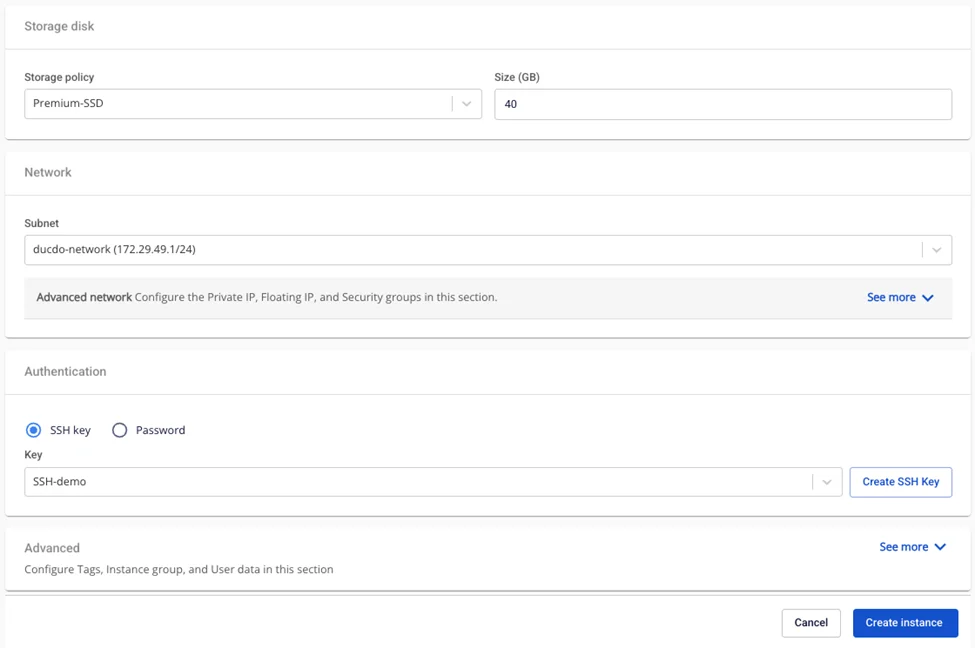
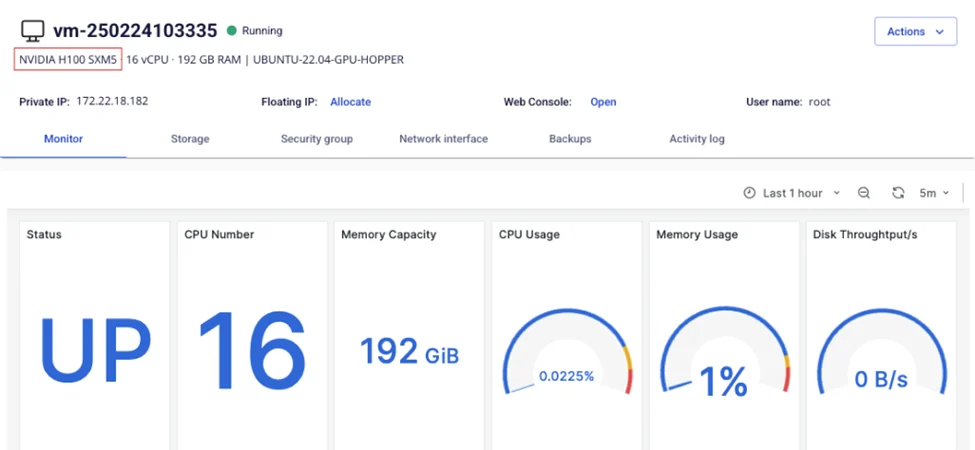
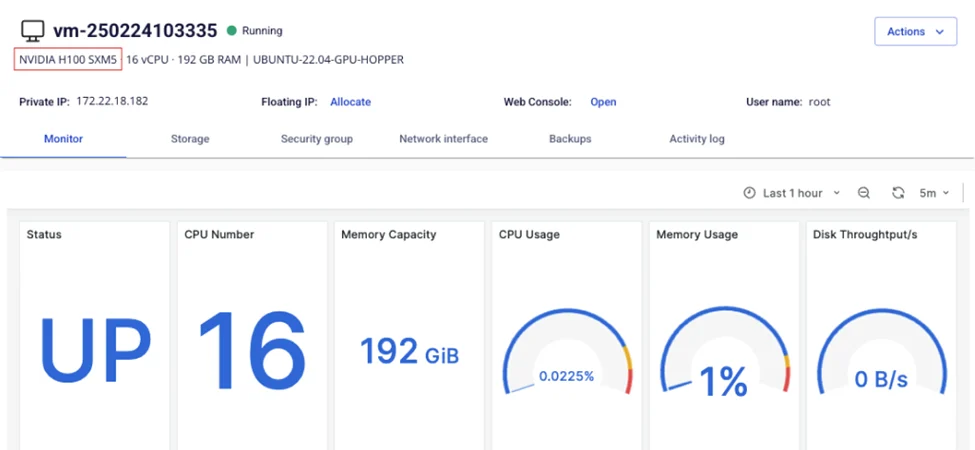
Step 5: Verify the information. The information is updated on the Instance detail screen.
2. Add GPU to an Instance in Instance Management
Step 1: On the Instance management screen, select the virtual machine to which you want to add a GPU.
- Users must Power off the virtual machine before adding a GPU (status must be "Stopped").
- For machines in other states such as "Running" or "Pending", the feature will be disabled.
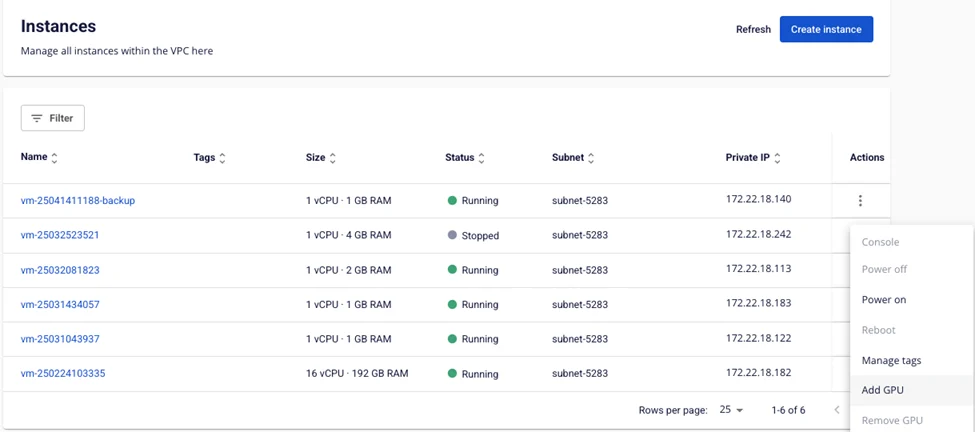
Step 2: Select Actions, then select Add GPU.

Step 3: Select the GPU type to add to the instance.
-
The system displays a list of compatible GPU types for the user to choose from.
-
Current: the current instance configuration
-
Type: only GPU resource types can be selected (standard configurations are not available in the list)
-
Step 4: Click the Add GPU button.
- The system updates the information and adds the GPU to the instance.
Step 5: Verify the information. The information is updated on the Instance detail screen.
3. Remove GPU from a Virtual Machine
Step 1: On the Instance management screen, select the virtual machine from which you want to remove the GPU.
- Users must power off the virtual machine before removing the GPU (status must be "Stopped").
- For machines in other states such as "Running" or "Pending", the feature will be disabled.
Step 2: Click the Remove GPU button.
Step 3: Select the resource type:
-
Current: the current GPU instance configuration
-
Type: only standard resource types can be selected (GPU configurations are not available in the list)
Step 4: Click the Remove GPU button.
Step 5: The system will remove the GPU and convert the instance to the selected resource type. The updated configuration information will be reflected on the Instance management screen.
4. Resize GPU Parameters of an Instance
Step 1: On the Instance management screen, select the virtual machine whose GPU you want to resize.
- Users must power off the virtual machine before resizing the GPU (status must be "Stopped").
- For machines in other states such as "Running" or "Pending", the feature will be disabled.
Step 2: Click the Resize button.
Step 3: Select a template and a resource type (if the instance is a GPU instance, it can only be resized to a GPU type; if it is a standard instance, it can only be resized to a standard type).
-
For instances with GPU, the instance can only be resized to a GPU type.
-
For instances without GPU, the instance can only be resized to a non-GPU type. If users want to resize to a GPU type, they can use the Add GPU feature instead.
Step 4: Click the Resize Instance button.
Step 5: Verify the information. The information is updated on the Instance Management list screen and in the Instance detail page.