Open Metadata Usage Guide
1. Create Service
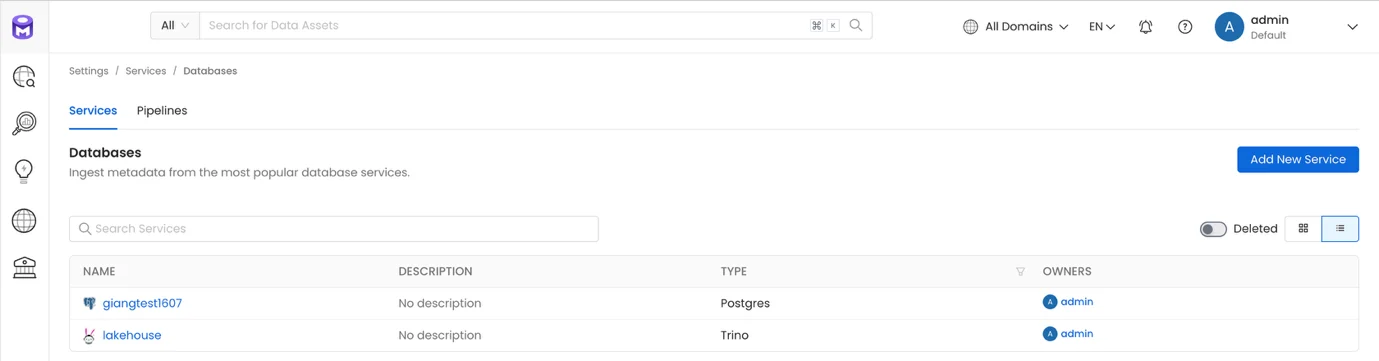
Step 1. Access Open Metadata, in the left menu select Settings > Services > Databases, then click Add New Service
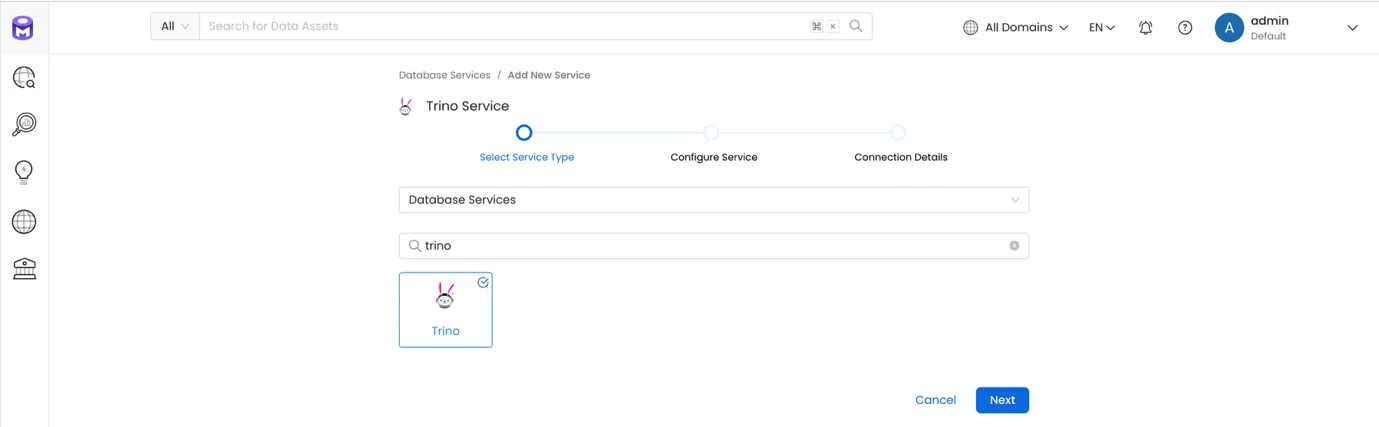
Step 2. Select Service Type Trino, then click Next
Step 3. Enter the following information:
-
Service name: Service name
-
Description: Service description
Click Next
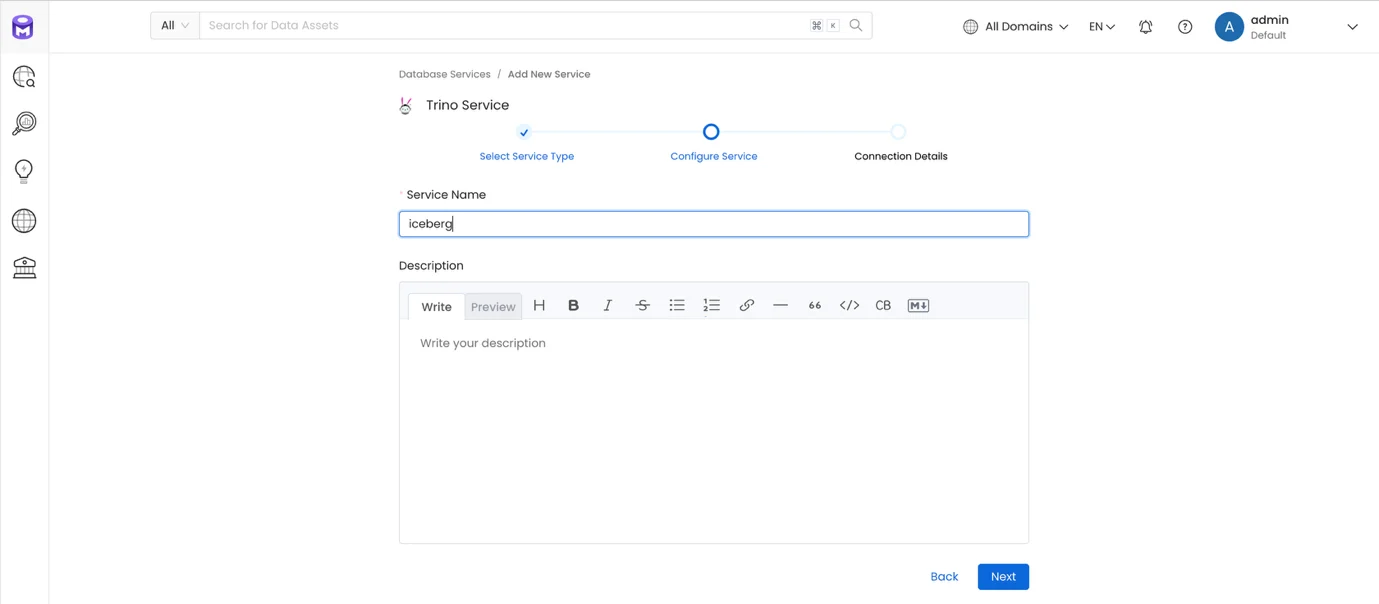
Step 4. Enter the Connection Details:
-
Username: Account name
-
Auth Configuration Type: Select Basic Auth
-
Host and Port: Enter the Trino connection information
-
Catalog (optional): Enter the exact catalog to retrieve data from. If left blank, the system will retrieve data from all Catalogs available through Trino.
-
DatabaseSchemas (optional): Enter the exact schema to retrieve data from. If left blank, the system will retrieve data from all Schemas available through Trino.
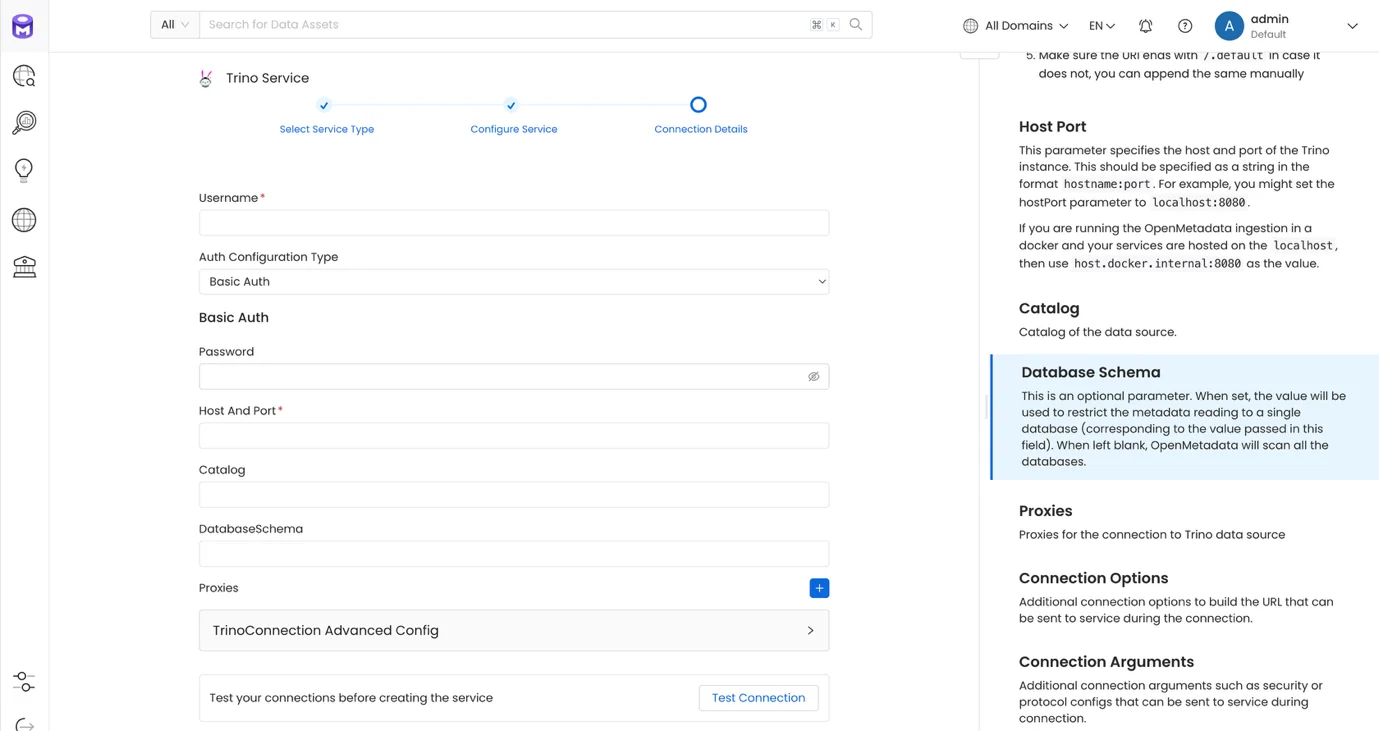
Click Test connection to verify the connection to Trino
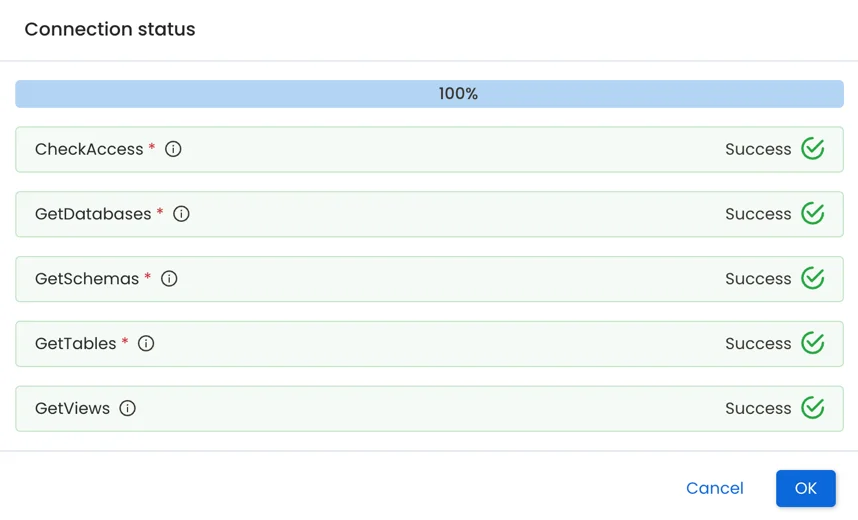
Step 5. Click Save to complete creating the Service
2. Configure Pipeline
Configure a Pipeline to ingest data from the Service into Open Metadata
Step 1: On the Service list screen, click to view the details of the newly created service
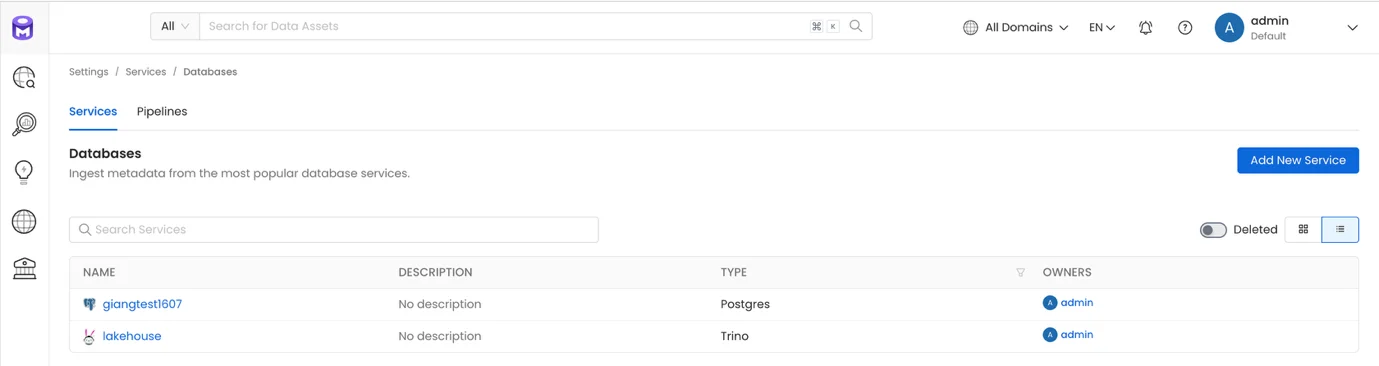
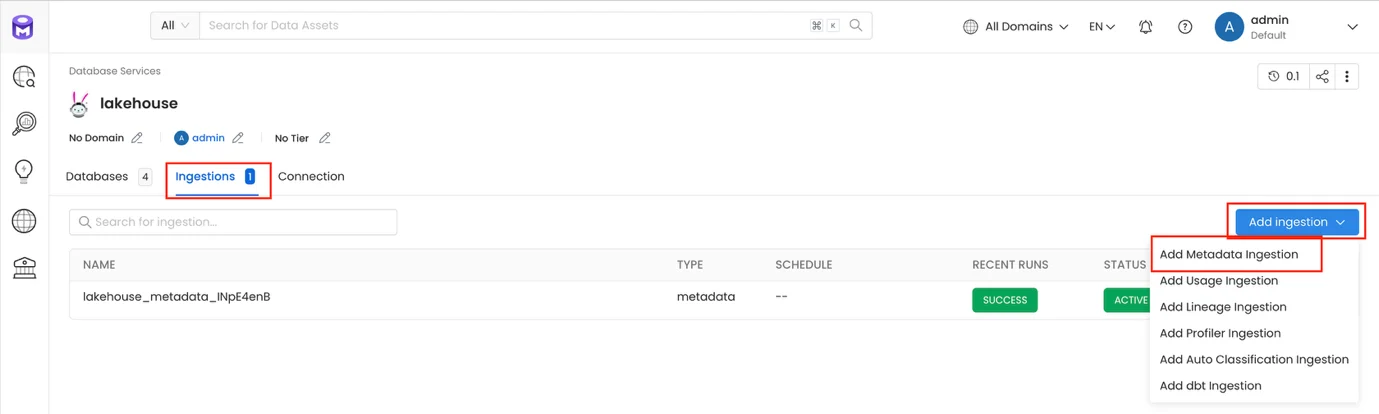
Step 2: On the Service detail screen, select the Ingestion tab, then click Add Ingestion > Add Metadata Ingestion
Step 3. On the Add Metadata Ingestion screen:
-
Name: Pipeline name
-
Database Filter Pattern
-
Includes: Enter the databases to include for data ingestion
-
Exclude (optional): Enter the databases to exclude from data ingestion
-
Schema Filter Pattern
-
Includes: Enter the schemas to include for data ingestion
-
Exclude (optional): Enter the schemas to exclude from data ingestion
-
Table Filter Pattern
-
Includes: Enter the tables to include for data ingestion
-
Exclude (optional): Enter the tables to exclude from data ingestion
Click Next
-
Select Schedule to set up a recurring ingestion schedule
-
Select On demand to run ingestion manually
-
Number of retries: Number of retry attempts if ingestion fails
Click Add & Deploy to complete adding the Ingestion and deploy the Ingestion Job
3. Run Pipeline
Step 1: On the Service list screen, click to view the details of the newly created service
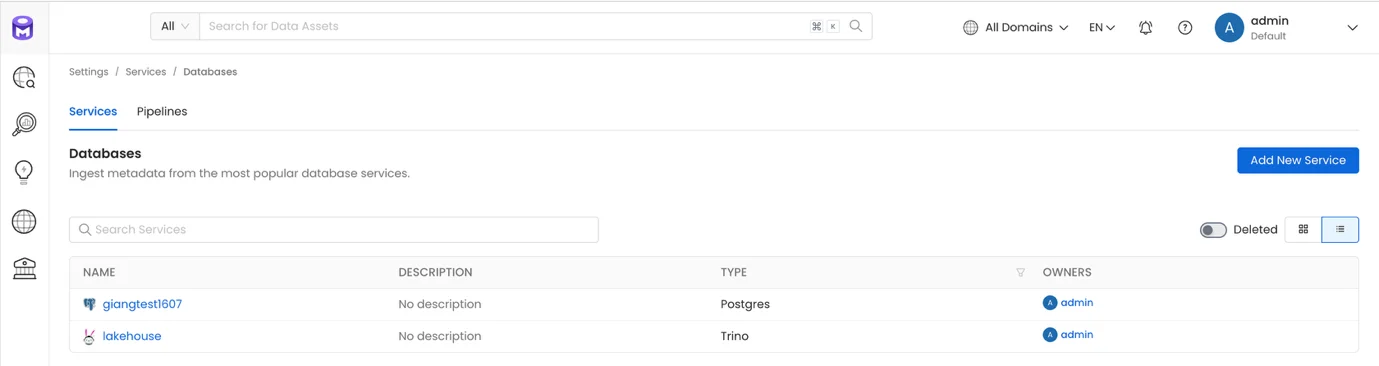
Step 2: On the Service detail screen, select the Ingestion tab
Step 3: For the newly created pipeline, click the Run action
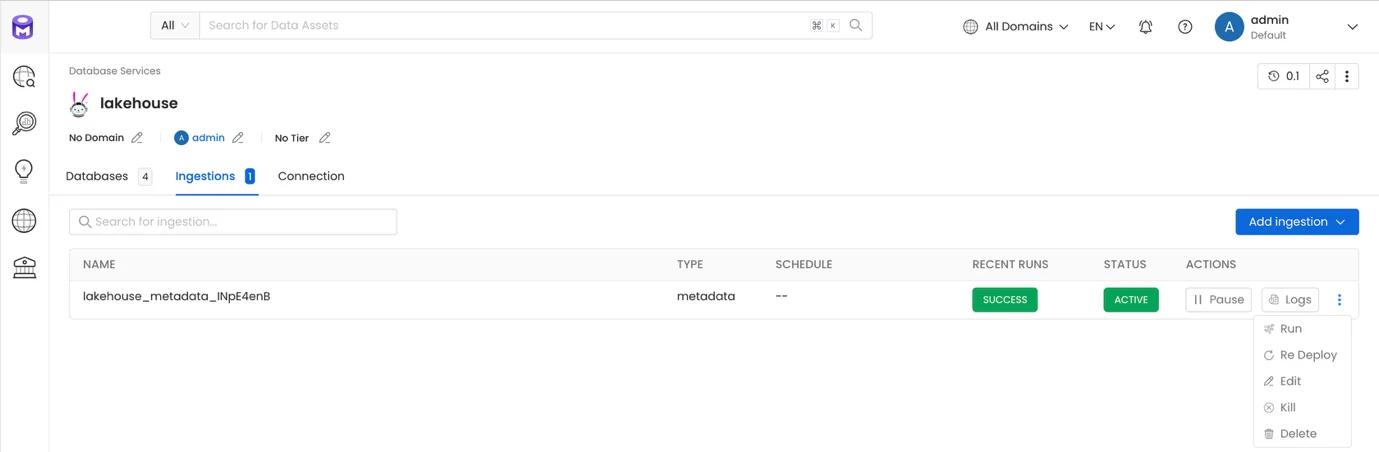
After clicking Run, the Ingestion Job is executed to fetch Metadata into the system
If the Ingestion Job is scheduled, the Pipelines will be automatically executed at the configured time
4. Explore
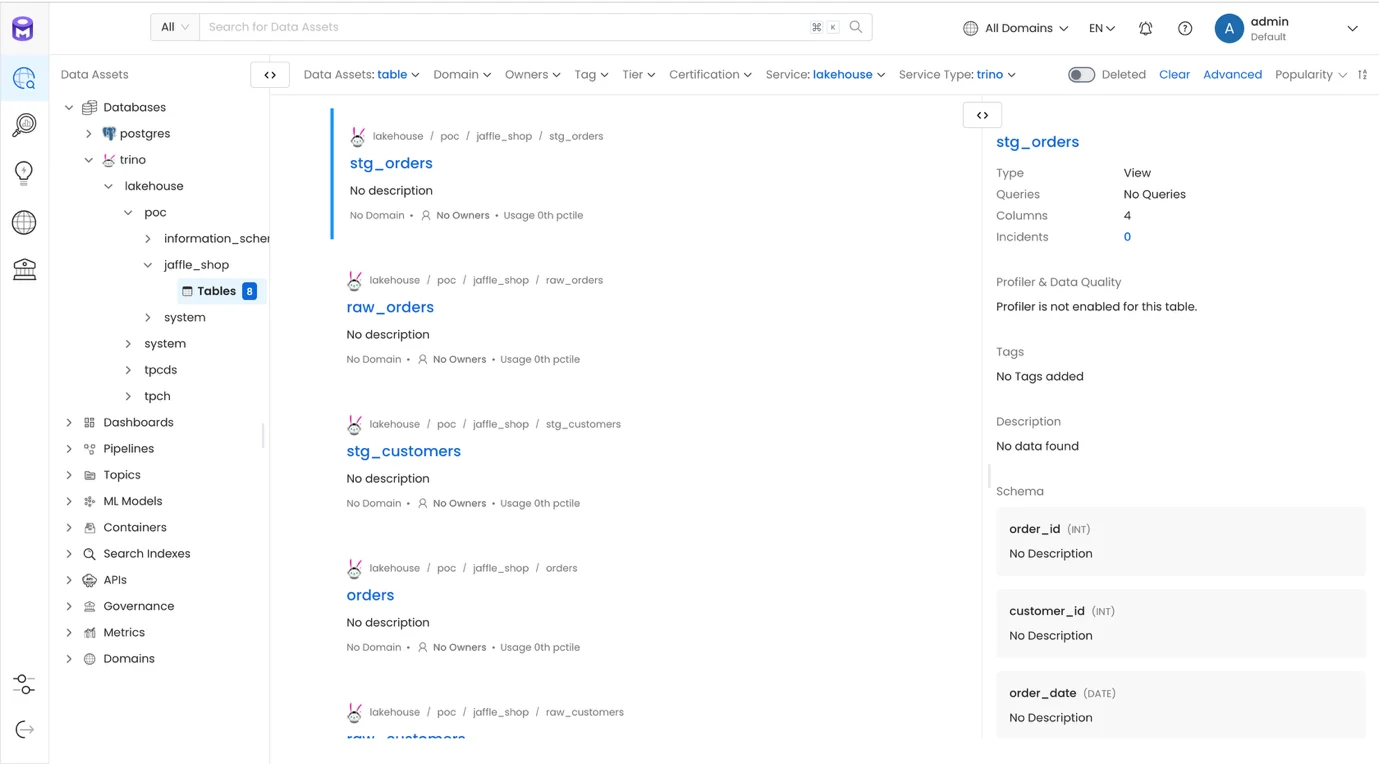
After running Ingestion, explore the data in the Explore menu
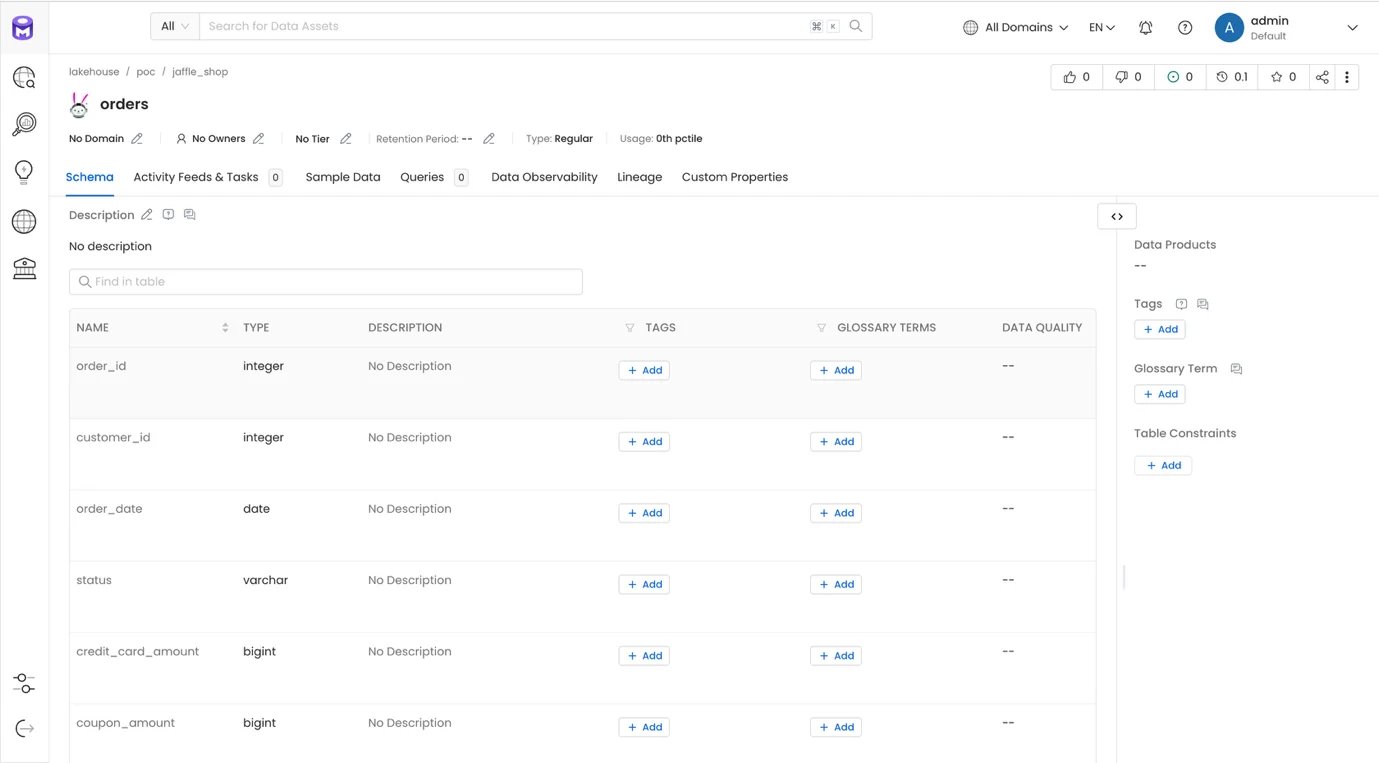
5. Create Testcase
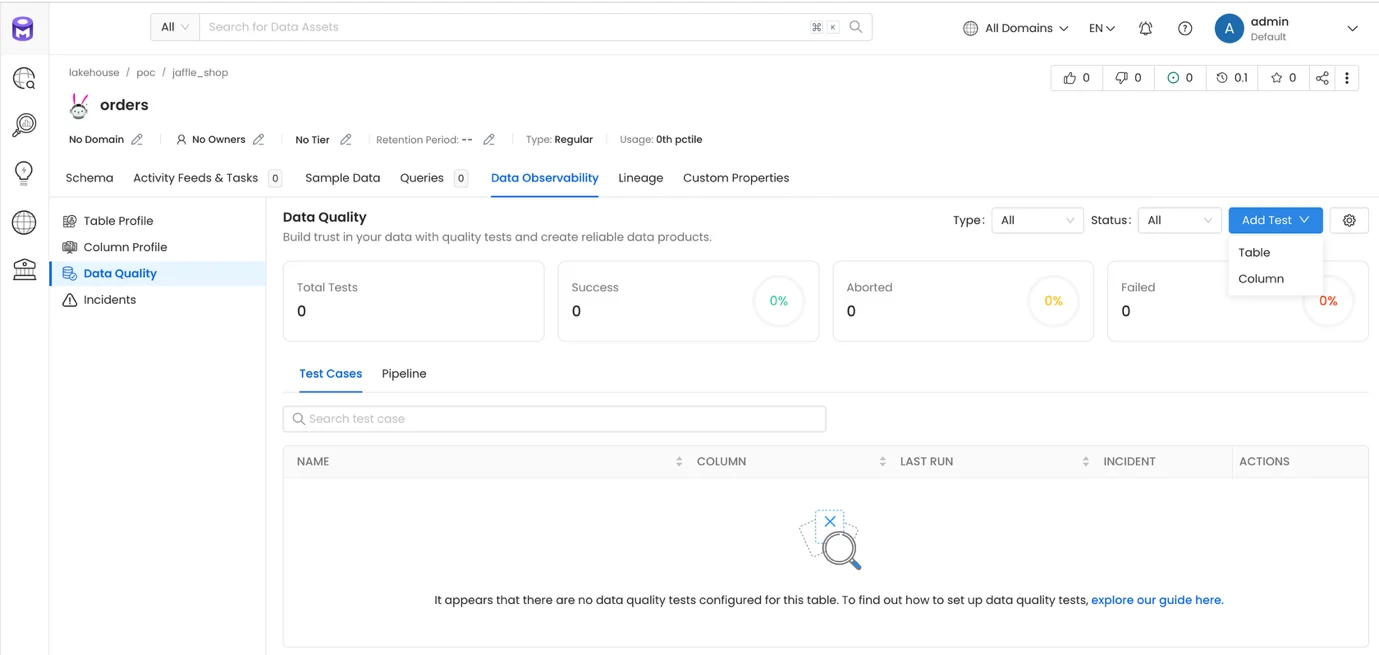
Check data quality
Step 1. From the Explore screen, select the table to create a Testcase for, then click Add Test (use Table to test at the table level, Column to test at the column level)
Step 2. Create an Add Column Test
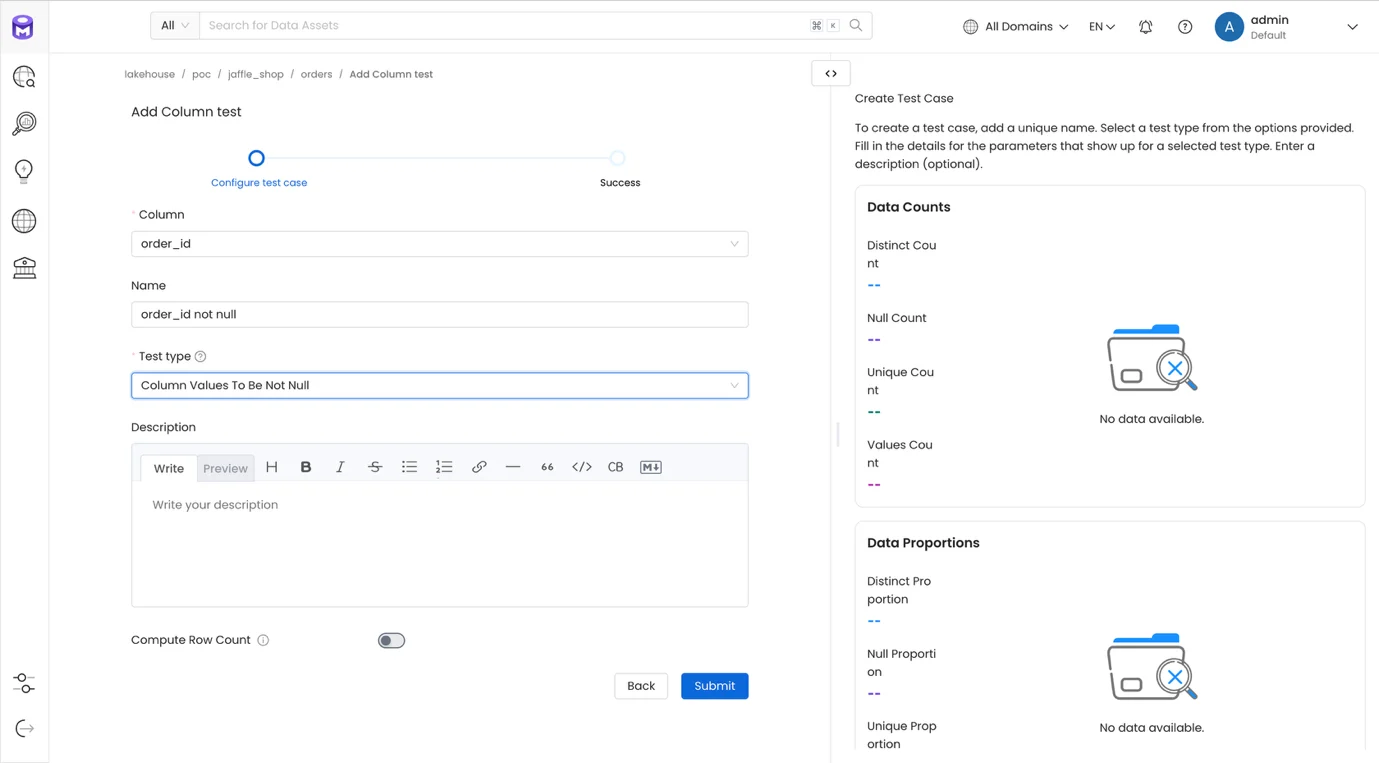
Click Submit to create the Test
6. Create Pipeline Test
Step 1. From the Explore screen, on the table that has the newly created Test case, select the Pipeline tab and click Add
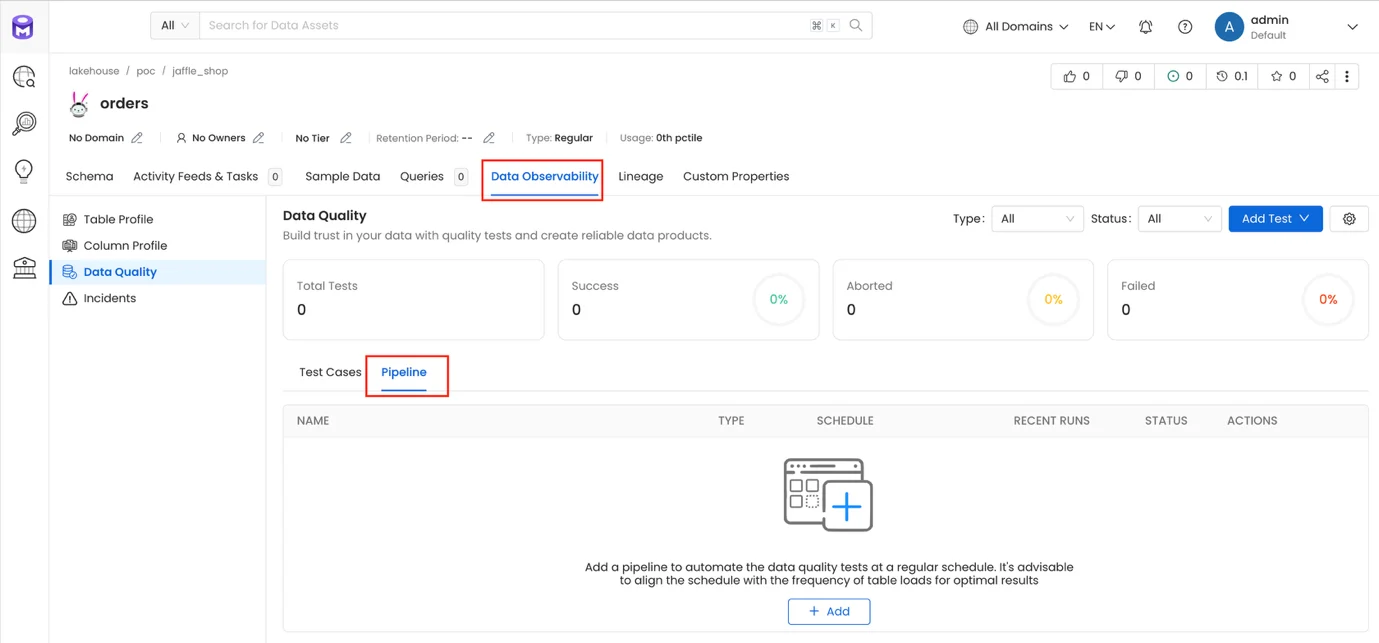
Step 2. Enter the Scheduler for Test Cases information:
-
Name: Schedule name
-
Select Schedule to set up a recurring schedule
-
Select On Demand to run manually
-
Select the test cases to include in the pipeline
Click Submit to complete creating the schedule for the testcase
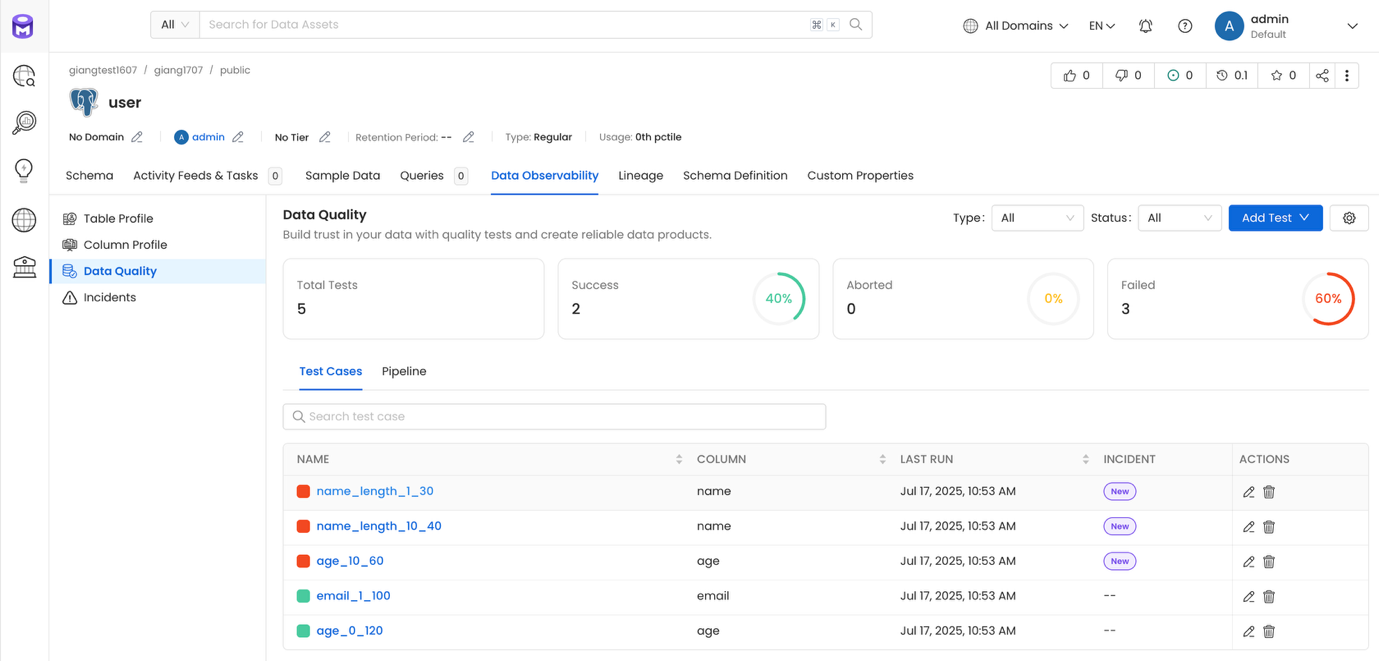
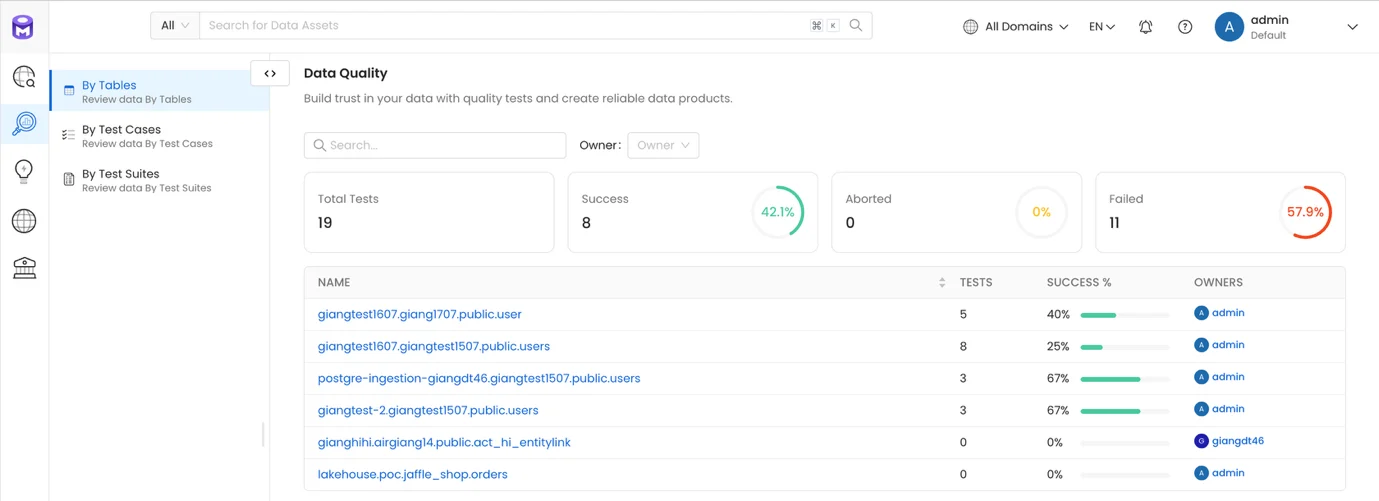
After the test pipeline runs, the system will check the data according to the configured testcases and return results at both the table level and the overall system level