Create Query Engine
FPT Query Engine uses Trino, an open-source distributed SQL query engine designed to process queries quickly and efficiently on large datasets. Trino allows you to query data from multiple sources — including relational databases, data warehouses, and non-relational data storage systems — without needing to move or copy the data.
To create a Query Engine, follow the steps below:
Step 1: In the menu bar, select Data Platform > Workspace Management > Workspace name
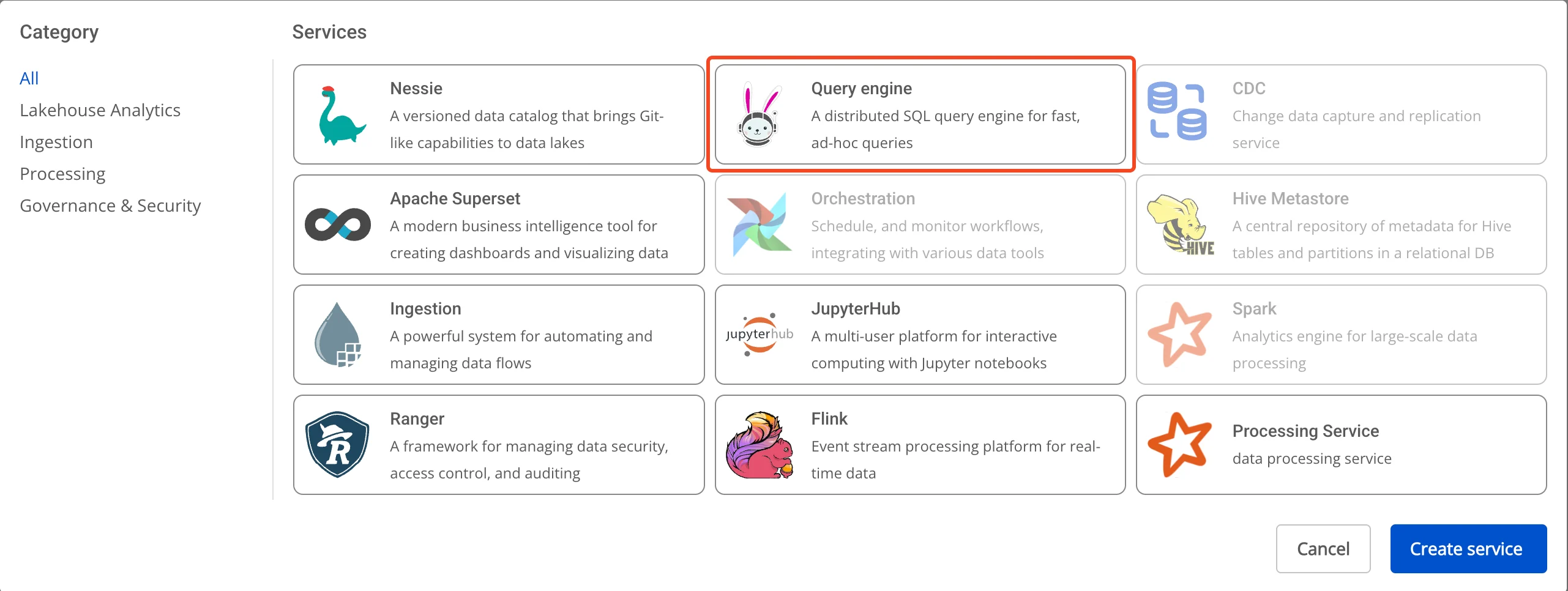
Step 2: In the My services section, click Create > the popup appears, select New service, choose Trino > Create
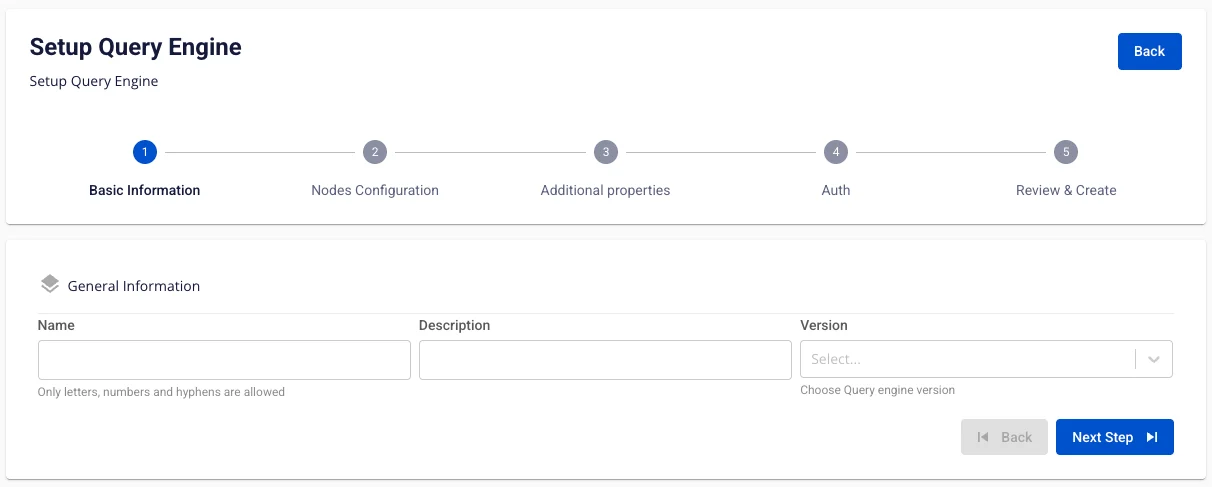
Step 3: In the Query Engine creation form, enter the Basic Information details:
- Name (required): Service name
Note: The service name must be 1 to 30 characters. It may contain lowercase letters a-z, uppercase letters A-Z, or digits 0-9.
-
Description (optional): Description
-
Version (required): Select the version
Step 4: Click Next to proceed to the Node configuration screen
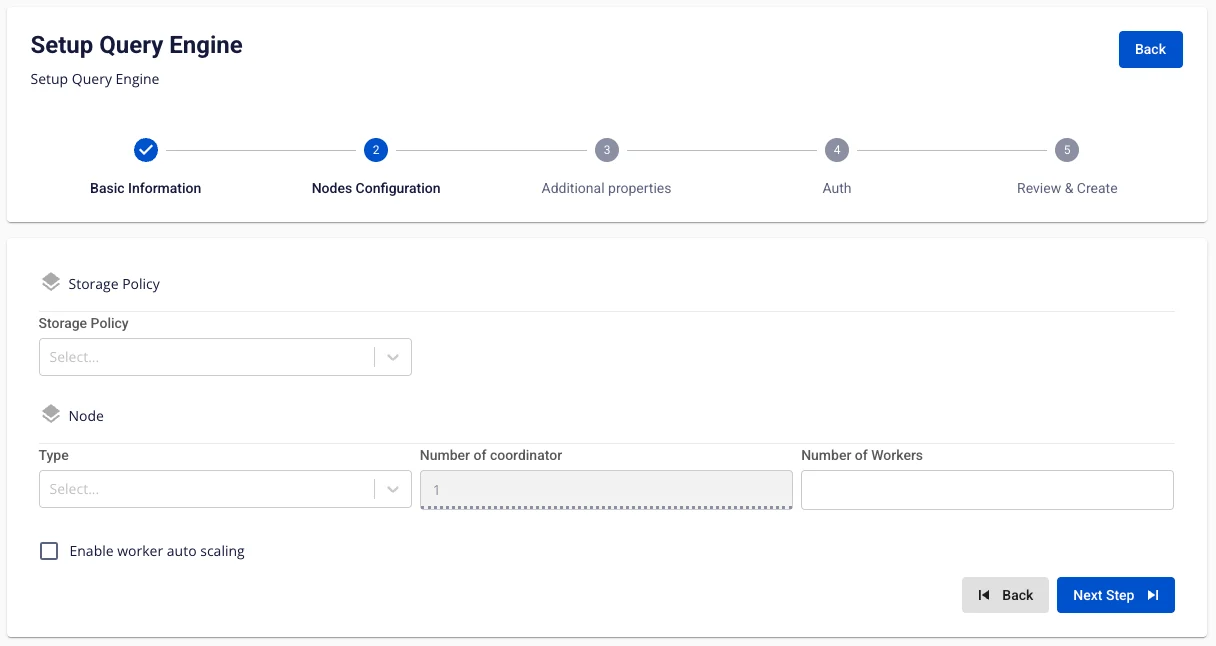
Enter the following information:
-
Storage policy (required): Select Storage for Query Engine
-
Type (required): Select the configuration type for Query Engine
-
Number of coordinator: Default is 1
-
Number of workers (required): Enter the number of workers
Note: The number of Workers must be greater than or equal to 1 and less than or equal to 10.
To automatically scale the Worker configuration, check Enable worker auto scaling > enter the maximum number of nodes for the Worker.
Step 5: Click Next to proceed to the Additional Properties screen
Enter the following information:
- Max memory (GB): Enter the Max memory value; default is 20.
This is the maximum amount of memory that a query can use across the entire cluster. User memory is allocated during execution for tasks directly related to, or controllable by, the user's query — for example, memory used by hash tables created during execution, memory used during sorting, etc. When the user memory allocated for a query across all workers reaches this limit, the query will be terminated. Note: The Max memory value must be greater than or equal to 1.
-
Retry policy: Select a Retry policy; default is NONE.
-
NONE: Disables fault-tolerant execution mode.
-
TASK: Retries individual tasks within a query when an error occurs. Requires an exchange manager to be configured.
-
QUERY: Retries the entire query when an error occurs.
-

-
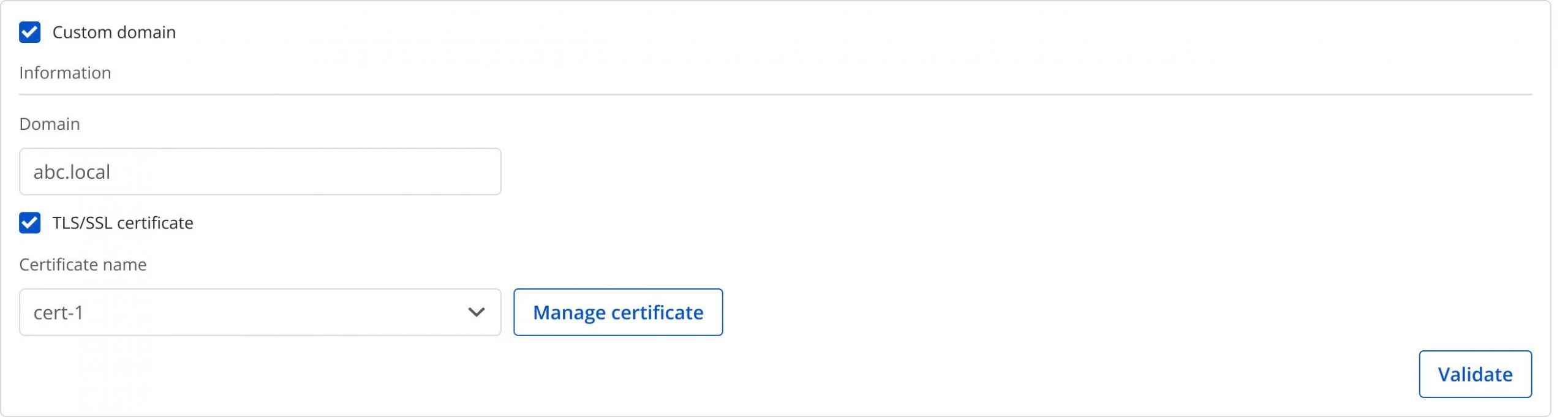
Custom Domain
-
Purpose: Allows configuration of a custom domain to access services.
-
For Public Workspace: Used to assign a domain and certificate without needing to enable/disable TLS (HTTPS is always available).
-
For Private Workspace: In addition to domain and certificate, users can optionally enable or disable TLS/SSL to choose between HTTPS and HTTP.
-
-
Workspace is Public
-
Custom domain: Check to enable custom domain.
-
Domain: Enter the domain name (e.g., abc.local, jupyter.example.com).
-
Certificate name: Select from the list of certificates imported in Certificate Manager.
-
Buttons:
-
Manage certificate: Open the certificate management screen.
-
Validate: Verify the certificate is valid for the domain.
-
-
-
For a Public Workspace, the TLS/SSL certificate option is not displayed — the system supports HTTPS by default.
-
Workspace is Private
-
Custom domain: Check to enable custom domain.
-
Domain: Enter the domain name.
-
TLS/SSL certificate: Check to enable HTTPS for services.
-
Certificate name: Select from the certificate list.
-
Buttons:
-
Manage certificate: Open certificate management.
-
Validate: Verify the certificate.
-
-
If TLS/SSL certificate is unchecked, the service will run on HTTP and no certificate is required.

Step 6: Click Next to proceed to the Auth screen
Authentication Type:
-
Authentication Type = Basic
- Query Engine is initialized with Basic authentication.

-
Authentication Type: OAuth2
-
Provider: FPT ID. Enter the following information:
- Email (required): FPT email address used as the admin account.
-

-
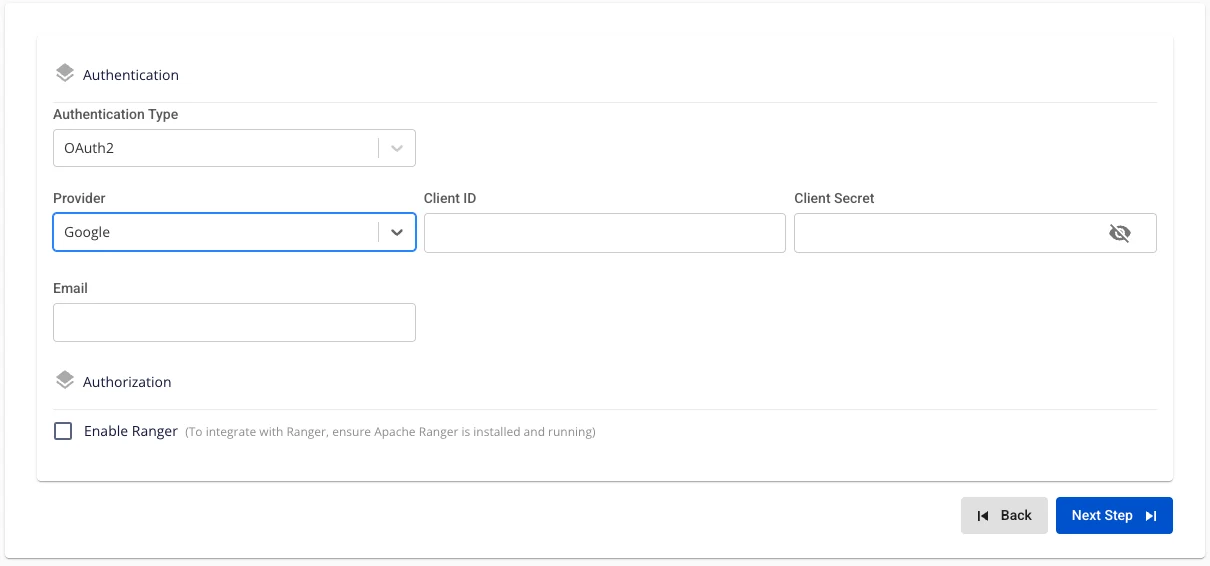
Provider: Google. Enter the following information:
-
Client ID (required): Application identifier (obtained from Google Cloud → OAuth Credentials).
-
Client Secret (required): Secret string associated with the Client ID, used to authenticate the application.
-
Email (required): Gmail or Workspace address of the administrator initializing the engine.
-
Before testing the connection, ensure that Google Cloud has added the Query Engine's redirect URI to the allowed list.
-
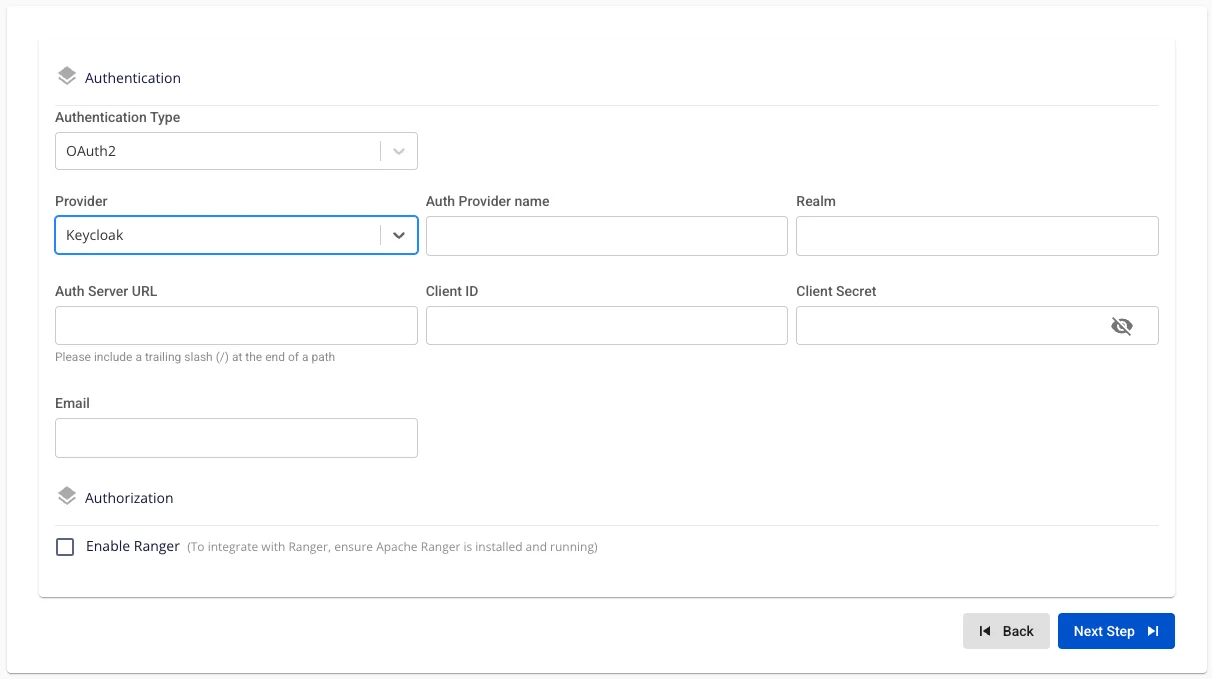
Provider: Keycloak. Enter the following information:
-
Auth Provider Name (optional): Provider name
-
Realm (required): A management space in which all users, groups, roles, clients, and other objects are managed and secured independently.
-
Auth Server URL (required): The base URL of the Keycloak server used by clients for authentication. Must end with "/".
-
Client ID (required): An ID code used to authenticate the client with Keycloak.
-
Client Secret (required): The password used to authenticate the client with Keycloak.
-
Email (required): Email address in Keycloak.
-
-
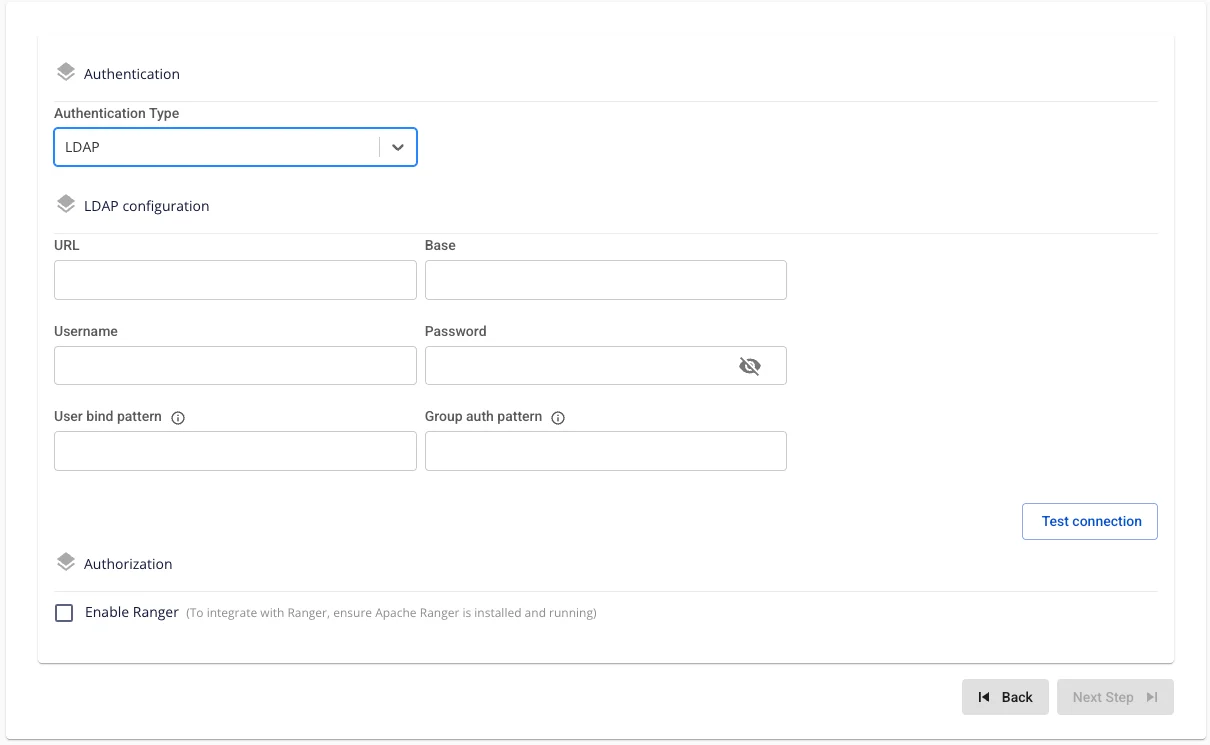
Authentication Type: LDAP. Enter the following information:
-
URL (required): LDAP path, e.g., ldap://ldap.example.com:389 or ldaps://ldap.example.com:636.
-
Base DN (required): Query root, e.g., dc=example,dc=com.
-
Username (required): Bind DN with search permissions (e.g., cn=admin,dc=example,dc=com).
-
Password (required): Bind DN password.
-
User Bind Pattern (optional): DN pattern for finding users, e.g., uid={0},ou=People,dc=example,dc=com.
-
Group Auth Pattern (required): DN pattern for querying groups, e.g., cn={0},ou=Groups,dc=example,dc=com.
-
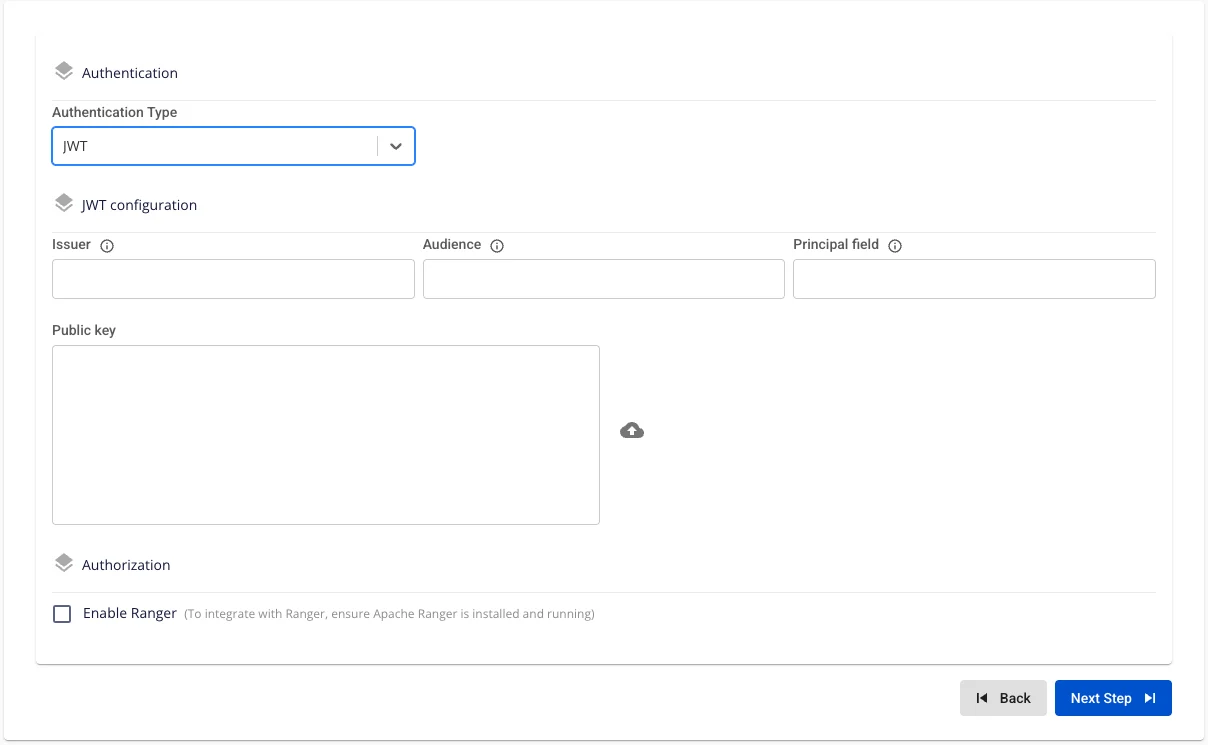
- Authentication Type: JWT
Enter the following information:
-
Issuer (required): The iss claim value that Query Engine must match.
-
Audience (optional): The aud claim value (if the JWT system uses this field).
-
Principal Field (required): The claim name containing the username (typically sub or email).
-
Public Key (required): PEM-formatted public key (paste directly or upload a file) for Query Engine to verify the JWT signature.
- It is recommended to use RSA or EC keys of 2048 bits or more; the PEM file must begin with -----BEGIN PUBLIC KEY-----.
Authorization: Integrate Ranger
-
Enable Ranger = False (Query Engine is initialized in standard mode, with no policies applied from Ranger.)
-
Enable Ranger = True
-
Check Enable Ranger → The UI automatically displays the Test connection button.
-
Click Test connection to verify the connection to Ranger for integration. Query Engine can only be initialized with Authentication type set to Integrate Ranger when Test Connection succeeds.
-
To use Ranger for authentication control and permission management for Trino, users must initialize the Data Governance (Ranger) service before initializing the Query Engine service.
Initialize Ranger here

Step 7: Click Next to proceed to the Review & Create screen
Step 8. Review the entered information, then click Create to complete.
Query Engine initialization is complete when the Worker Status is Succeeded and the Status of Trino is Healthy (~10 minutes).