Access and Configure Query Engine Management
Precondition: The Query Engine service has been successfully initialized, the Workspace status is Succeeded, and the Trino status is Healthy (initialize the Query Engine service here).
Step 1. Access Ranger using the URL on the Essential information tab along with the Username / Password.
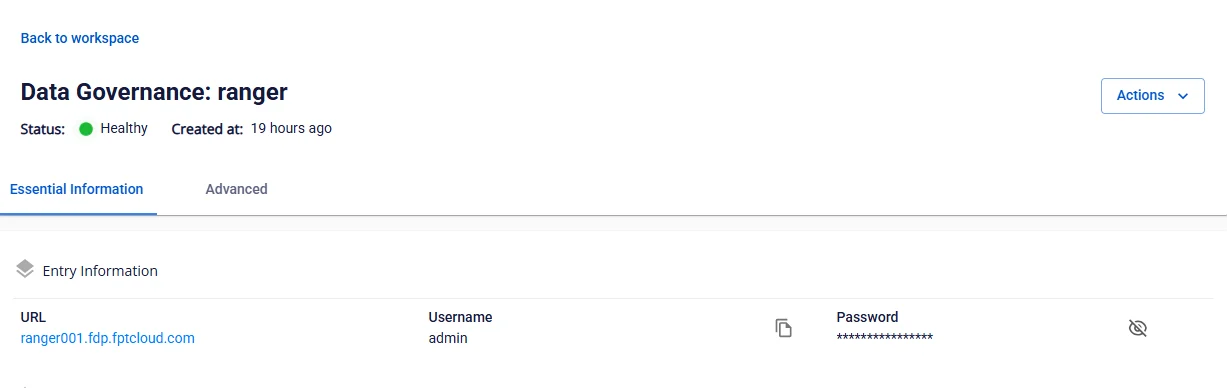
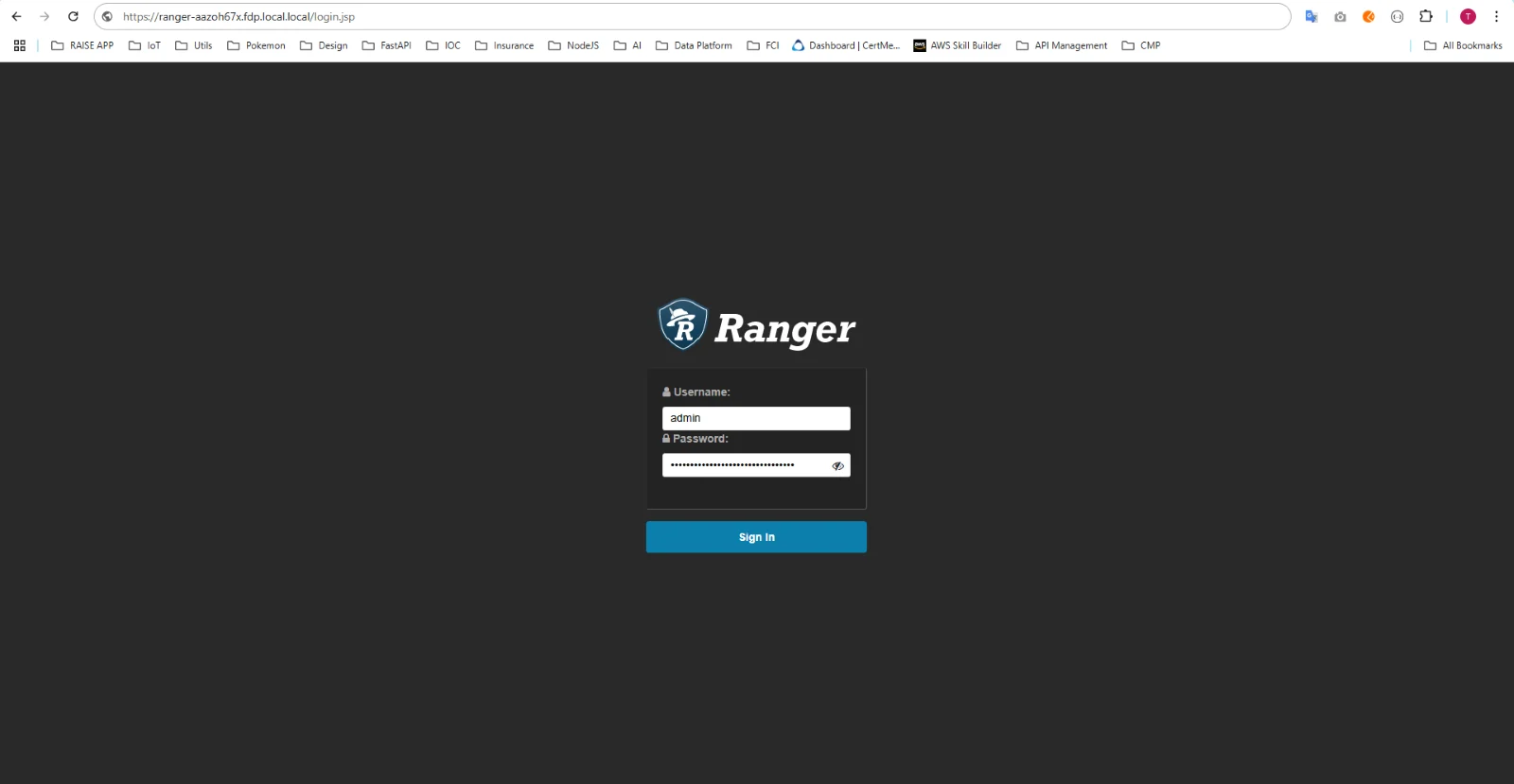
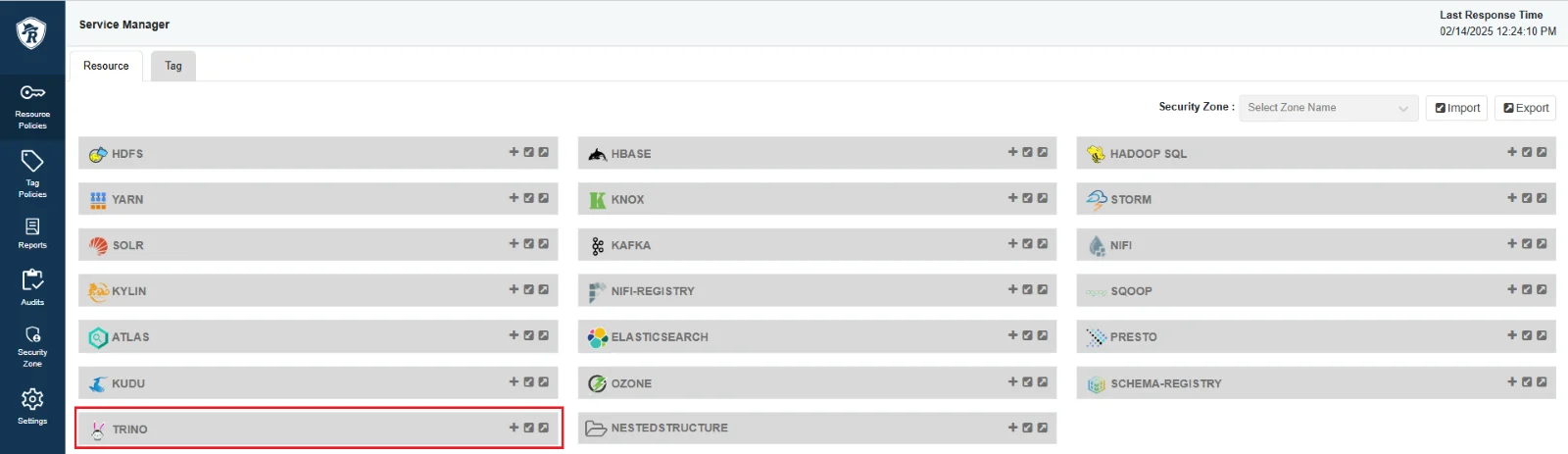
Step 2: Create a Trino Service from Ranger Admin. On the Service Manager screen, select Resource TRINO and click the Add icon.
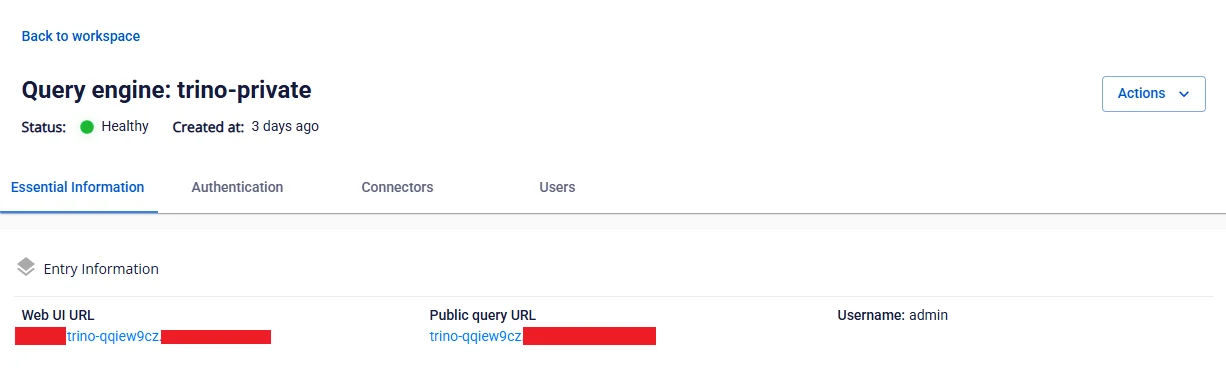
Step 3. Enter the Service initialization information:
- Service name: Service name (a string found in the Trino access URL, in the format: trino-xxxxxxxx)
-
Display name: Display name
-
Description: Description
-
Active Status: Status of the Service
-
Select Tag Service: Select the tag service
-
Username: Login account username for Query Engine
-
Password: Login password for Query Engine
-
jdbc.driverClassName: Default is io.trino.jdbc.TrinoDriver
-
jdbc.url: JDBC connection address for Query Engine (jdbc:trino://:443)
-
Superusers: Account names that will bypass access control checks when connecting to Query Engine
-
Superuser groups: Group names whose members will bypass access control checks when connecting to Query Engine
-
Service admin users: Account names on Ranger designated as Service admins
-
Service admin usergroups: Group names on Ranger designated as Service admins
Step 4. Save the Service information.
After entering all required information, click Add to save the Service information for Query Engine into Ranger-Admin.
Step 5: Verify the connection
- On the Service Manager screen, click the Edit icon for the Trino Service just created, then click Test connection.
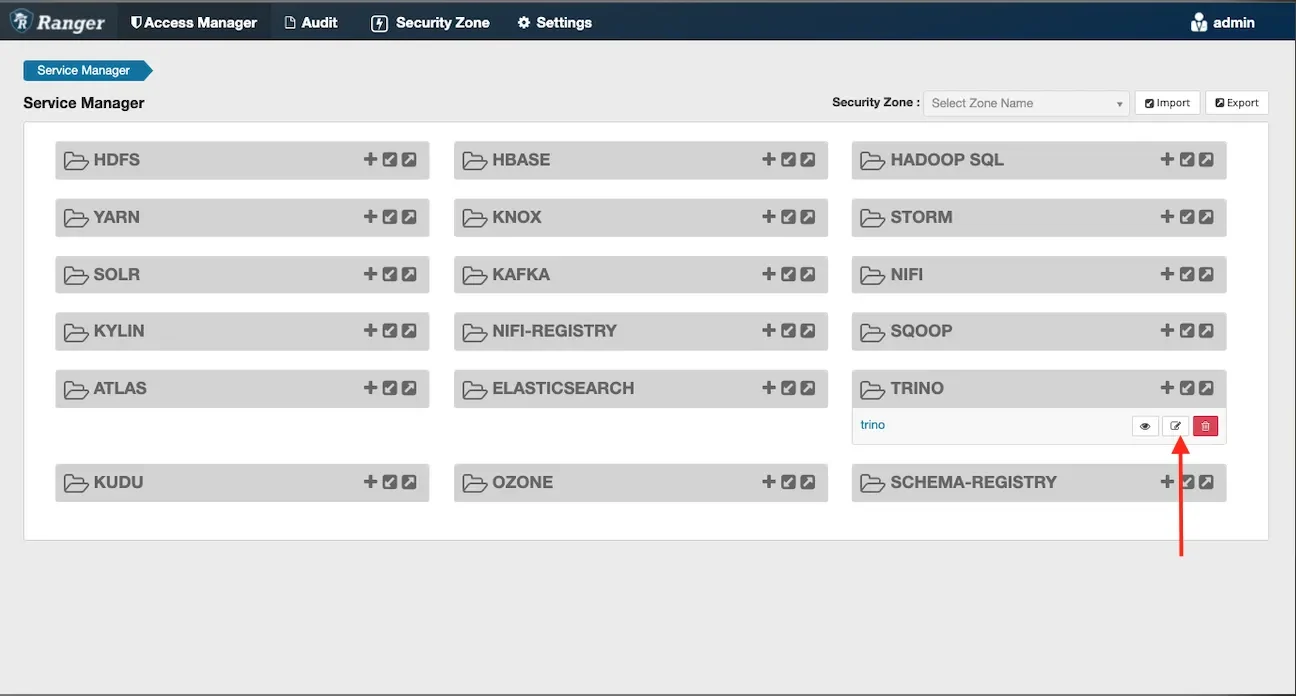
- Confirm that Ranger-Admin has successfully connected to Query Engine (Trino) when the Test connection result shows Connected Successfully.
