Create Ranger
FPT Data Governance uses Ranger as a security management and access control solution for the Lakehouse solution for Query Engine (Trino). It provides centralized and granular access management, supporting control based on Role-Based Access Control (RBAC) and Attribute-Based Access Control (ABAC).
To create Data Governance, follow the steps below:
Step 1: In the menu bar, select Data Platform > Workspace Management > Workspace name
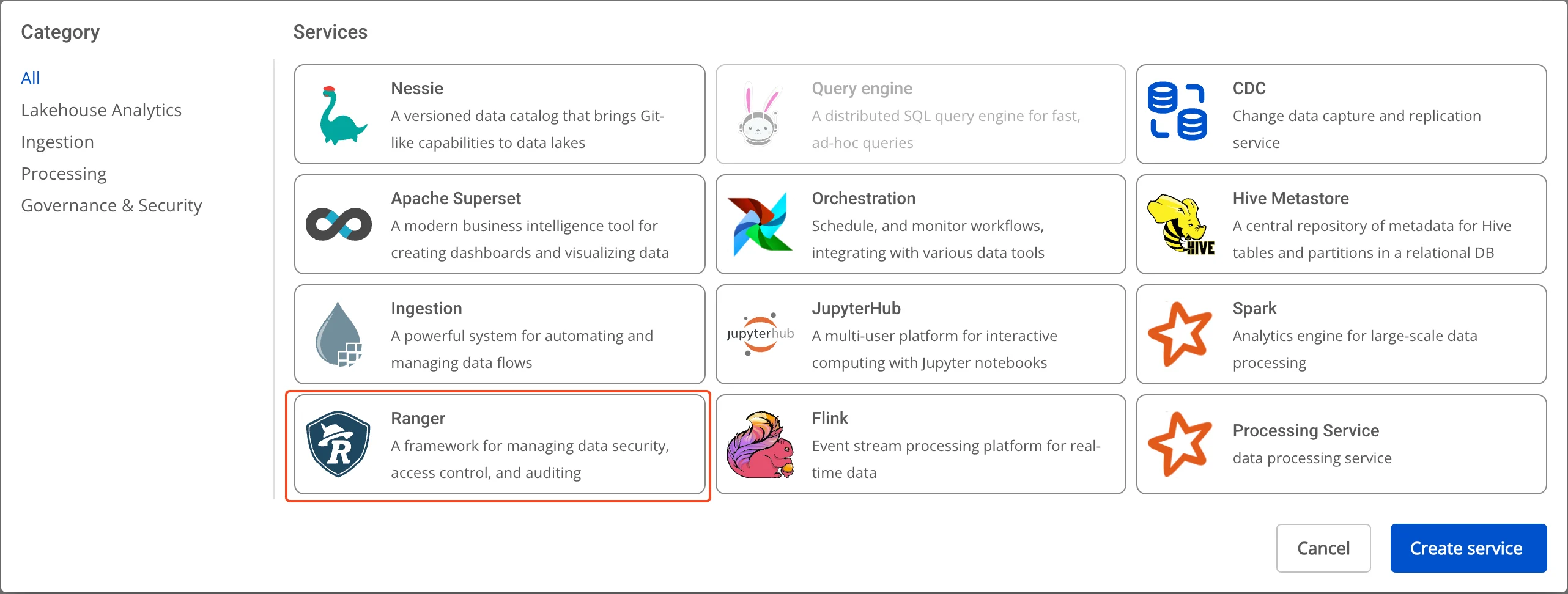
Step 2: In the My service section, click Create > the popup appears, select New service, choose Ranger > Create
Step 3: In the Data Governance creation form, enter the Basic Information details:
- Name (required): Service name
Note: The service name must be 1 to 30 characters. It may contain lowercase letters a-z, uppercase letters A-Z, or digits 0-9.
-
Description (optional): Description
-
Version (required): Select the version
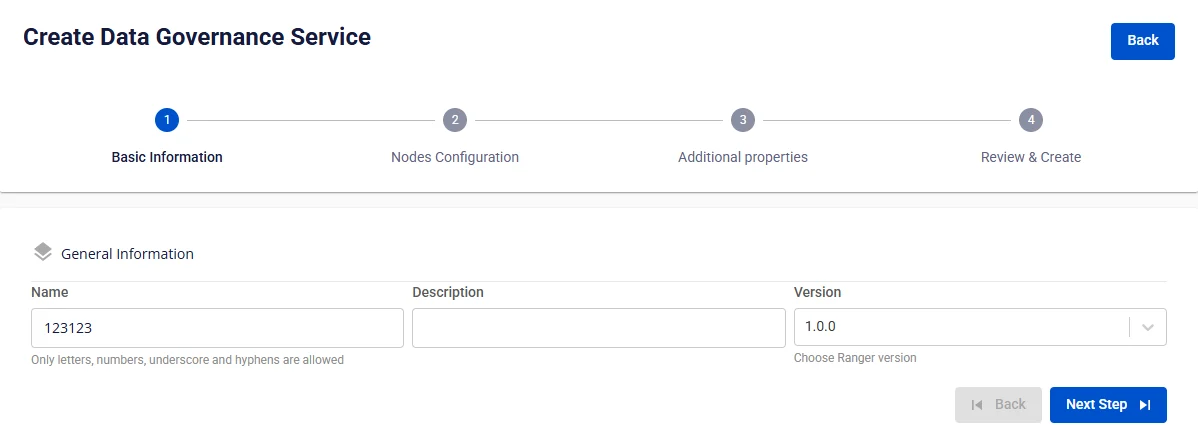
Step 4: Click Next to proceed to the Node configuration screen
Enter the following information:
-
Storage policy (required): Select a storage policy
-
Type (required): Select the resource configuration
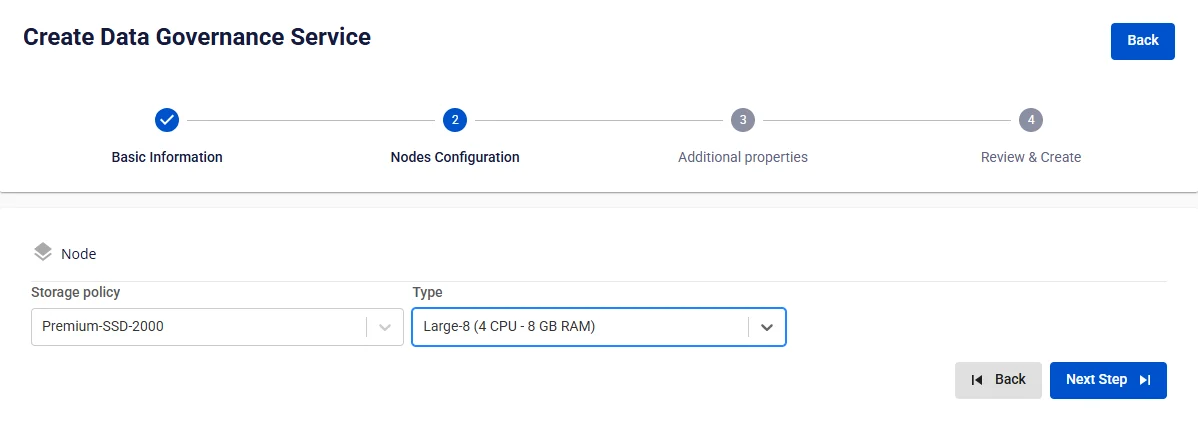
Step 5. Click Next to proceed to the Additional properties screen
- Database (Database information for storing Data Governance data. Users can use a database created on the FPT Database Engine service or any other database.)
When type is PostgreSQL:
-
Host name (required): Hostname or IP address of Postgres
-
Port (required): Connection port, default is 5432
-
Database name (required): Database name
-
Username (required): Account username for accessing Postgres
-
Password (required): Password for accessing Postgres
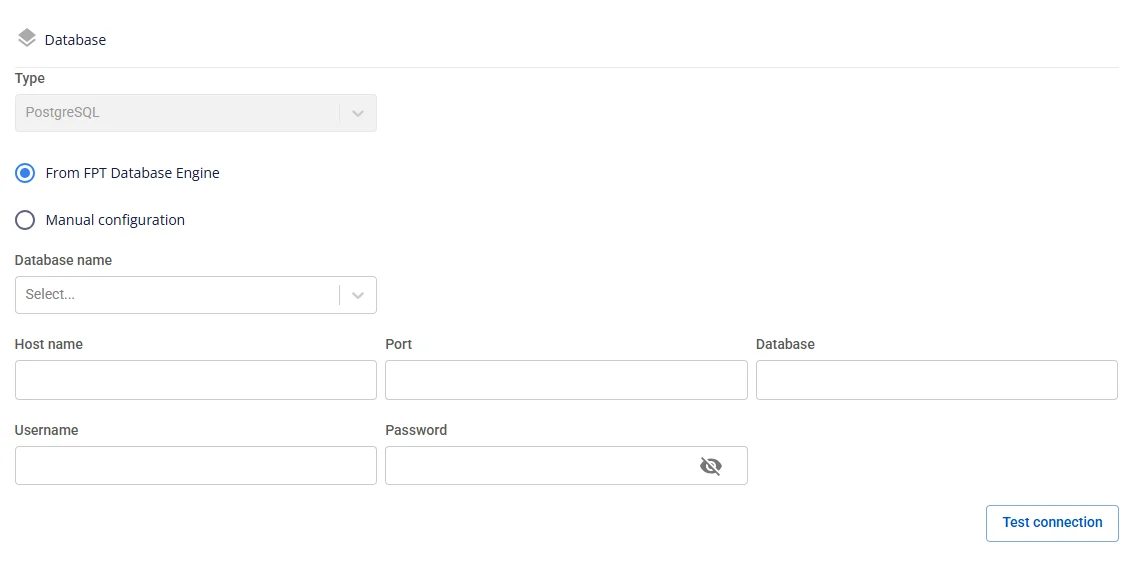
After entering all Database information, click Test connection to verify the connection from the Workspace to the entered Database.
Enter Audit logs database information:
- Type (required): OpenSearch or Elasticsearch
In the Configure Parameters of OpenSearch, the ssl_http parameter must be set to False (HTTP) instead of the default value True (HTTPS).
-
Protocol (required): Select http or https
-
Host name (required): Access address
-
Port (required): Connection port
-
Username (required): Account username
-
Password (required): Password
-
Index (required): Index
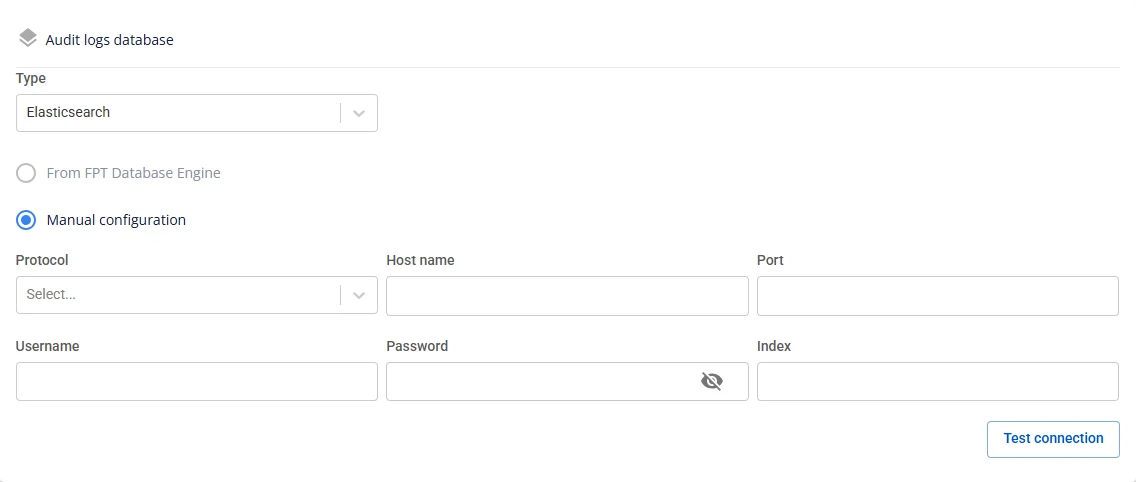
Click Test connection to verify the connection from the Workspace to the Audit logs database.
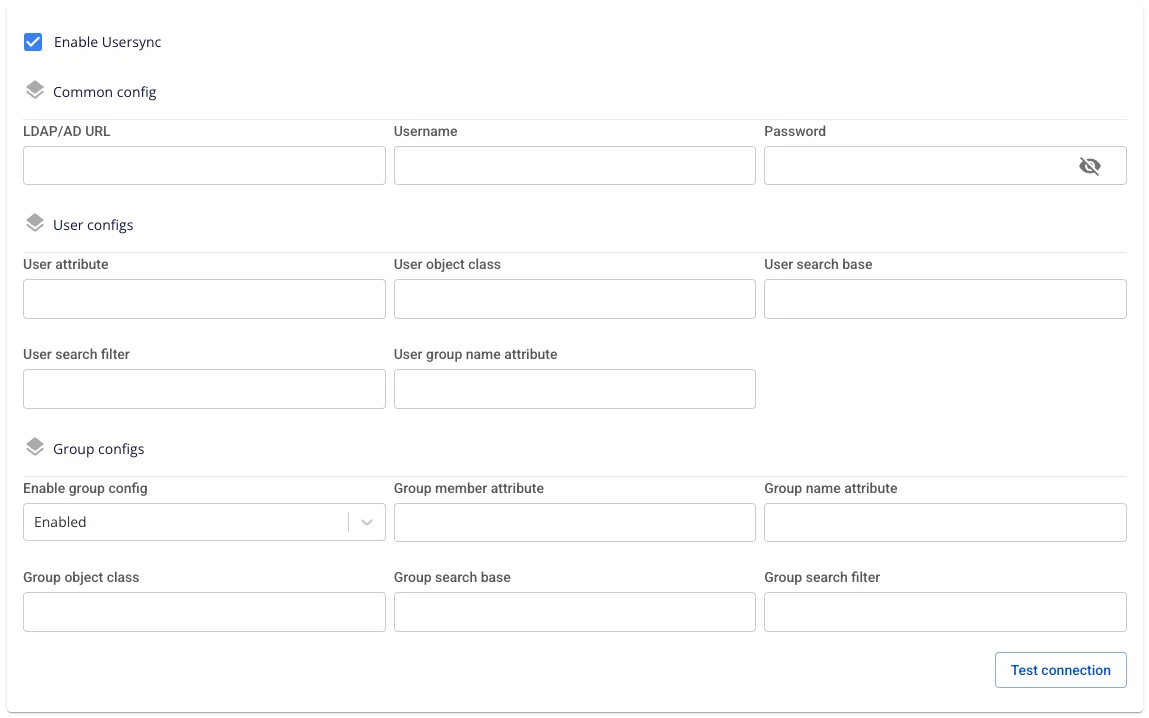
Usersync: (Automatically syncs users and groups from LDAP/AD into Ranger, enabling centralized permission management and reducing manual creation.)
-
Enable Usersync (optional): Default is unchecked.
-
Unchecked → Ranger does not sync LDAP; no additional fields are displayed.
-
Checked → Opens the configuration sections below.
-
-
When Enable Usersync = checked, enter the following information:
-
LDAP/AD URL (required): ldap://host:port or ldaps://host:port.
-
Password (required): Password of the bind account.
-
Username (required): Bind account with read permissions (e.g., cn=admin,dc=example,dc=com).
-
User attribute (required): Attribute used as the username in Ranger (uid, sAMAccountName, cn, etc.).
-
User object class (required): Object type containing users (person, inetOrgPerson, user, etc.).
-
User search base (required): Root DN for user search, e.g., ou=Users,dc=example,dc=com.
-
User search filter (optional): Additional filter if needed, e.g., (&(objectClass=person)(department=IT)).
-
User group name attribute (optional): Attribute storing the group list on the user (typically memberOf).
-
Enable group config: Select Enabled to sync groups.
-
Group member attribute (optional): Attribute listing members (member, uniqueMember, memberUid).
-
Group name attribute (required when Enabled): Attribute for group name (cn).
-
Group object class (required when Enabled): Group object type (groupOfNames, group, etc.).
-
Group search base (required when Enabled): Root DN for group search, e.g., ou=Groups,dc=example,dc=com.
-
Group search filter (optional): Advanced filter, e.g., (&(objectClass=group)(cn=dev*)).
-
After filling in all information, click Test connection to verify that Ranger can connect to LDAP/AD successfully.
-
Custom Domain
-
Purpose: Allows configuration of a custom domain to access services.
-
For Public Workspace: Used to assign a domain and certificate without needing to enable/disable TLS (HTTPS is always available).
-
For Private Workspace: In addition to domain and certificate, users can optionally enable or disable TLS/SSL to choose between HTTPS and HTTP.
-
-
Workspace is Public
-
Custom domain: Check to enable custom domain.
-
Domain: Enter the domain name (e.g., abc.local, jupyter.example.com).
-
Certificate name: Select from the list of certificates imported in Certificate Manager.
-
Buttons:
-
Manage certificate: Open the certificate management screen.
-
Validate: Verify the certificate is valid for the domain.
-
-
For a Public Workspace, the TLS/SSL certificate option is not displayed — the system supports HTTPS by default.
-
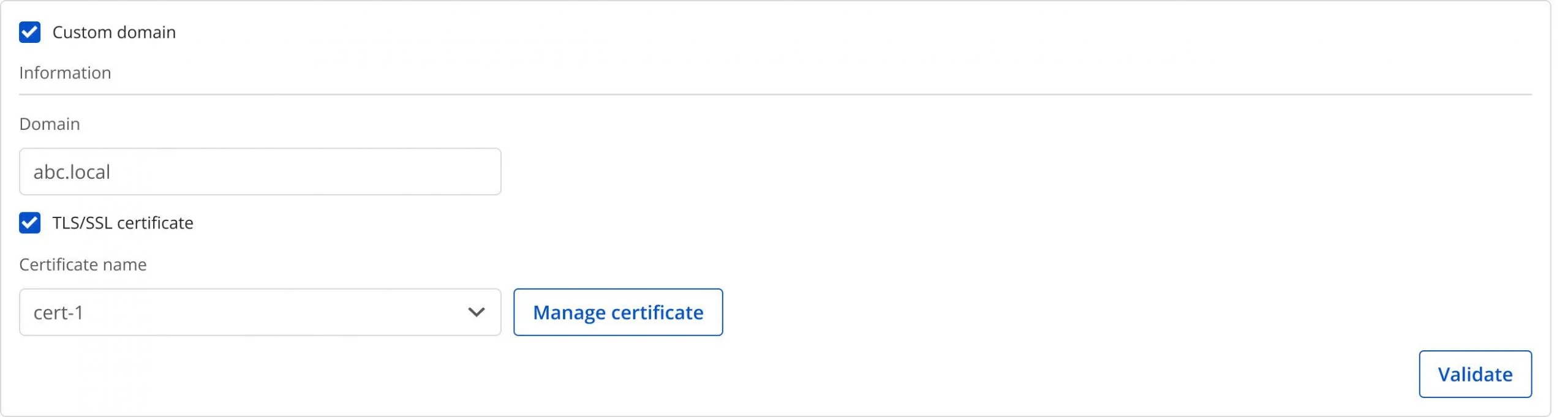
Workspace is Private
-
Custom domain: Check to enable custom domain.
-
Domain: Enter the domain name.
-
TLS/SSL certificate: Check to enable HTTPS for services.
-
Certificate name: Select from the certificate list.
-
Buttons:
-
Manage certificate: Open certificate management.
-
Validate: Verify the certificate.
-
If TLS/SSL certificate is unchecked, the service will run on HTTP and no certificate is required.

Step 6: Click Next Step to proceed to the Review & Create screen
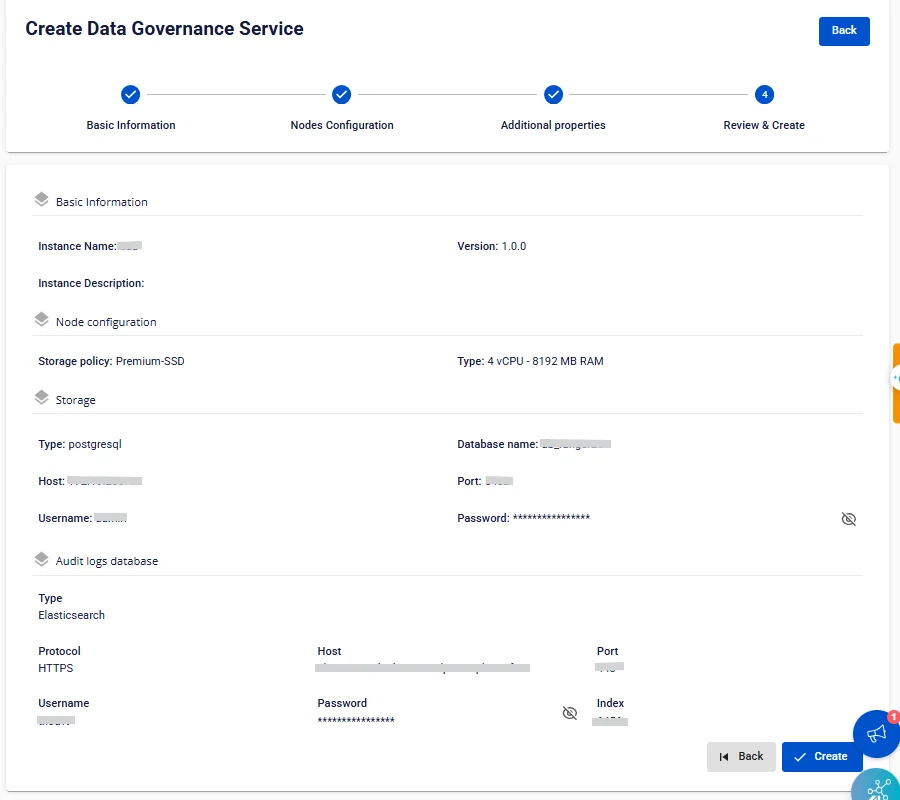
Step 7. Review the entered information, then click Create to complete.
Data Governance initialization is complete when the Worker Status is Succeeded and the Status of Ranger is Healthy (~10 minutes).