Create a recipient
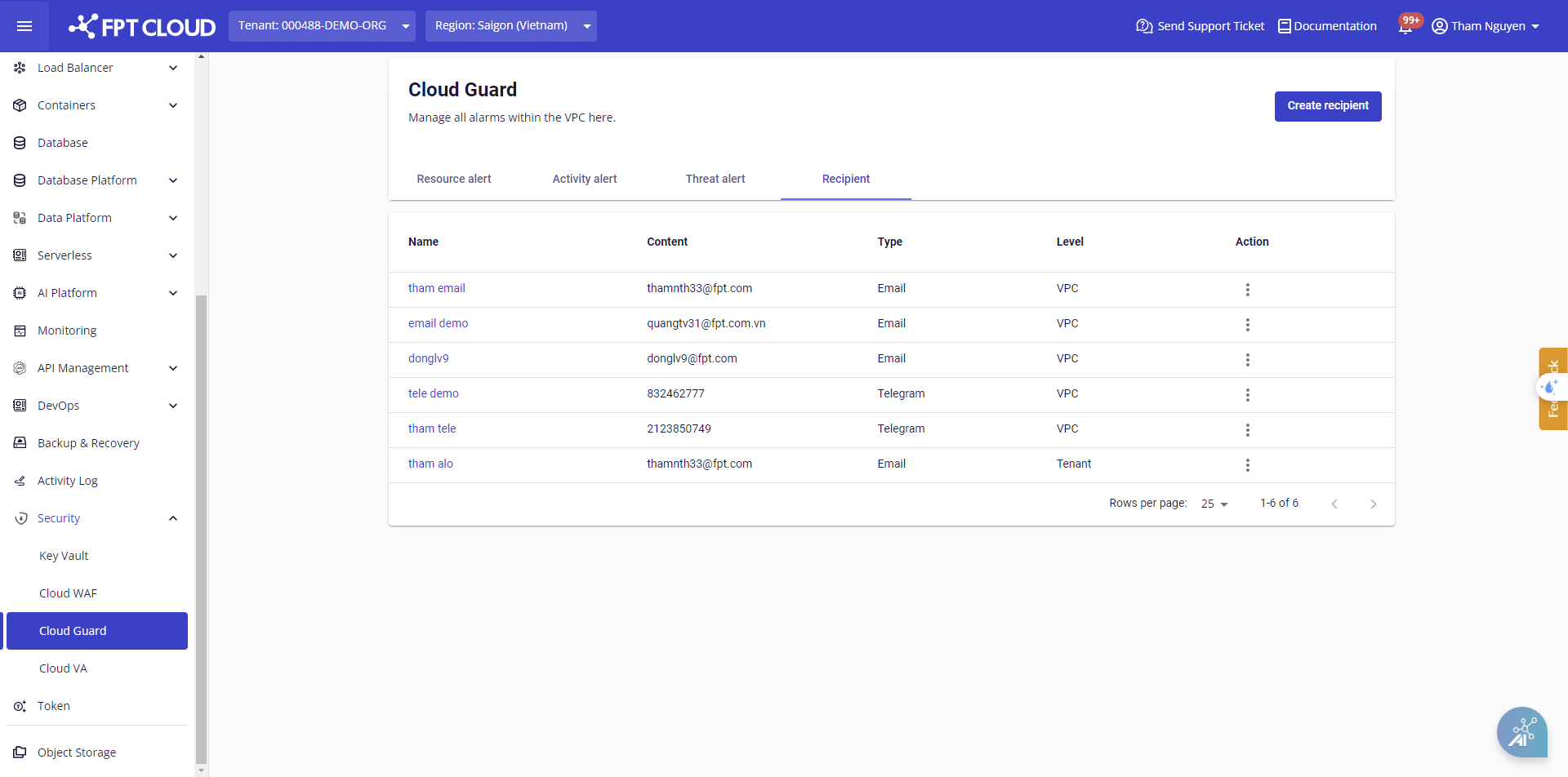
Step 1: In the menu, go to Cloud Guard > Alert, open the Recipients tab, and click Create Recipient.
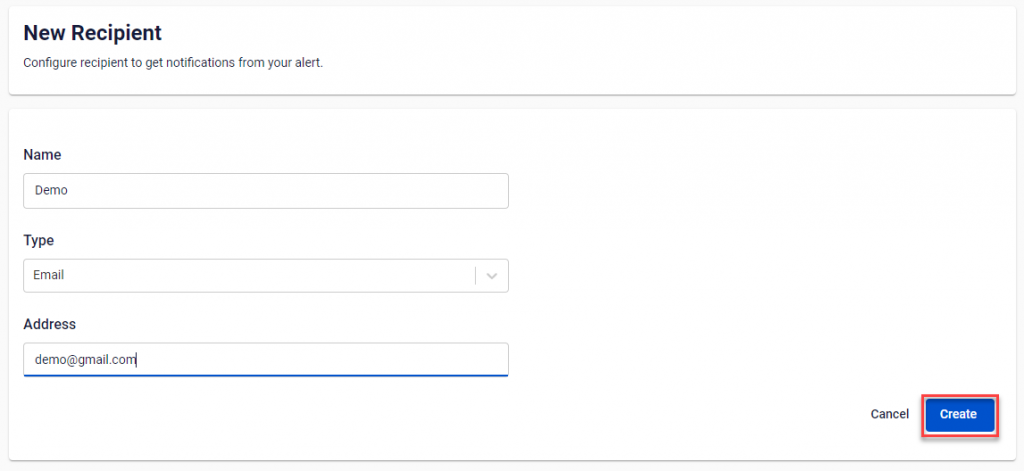
A dialog box appears to guide you through the steps.
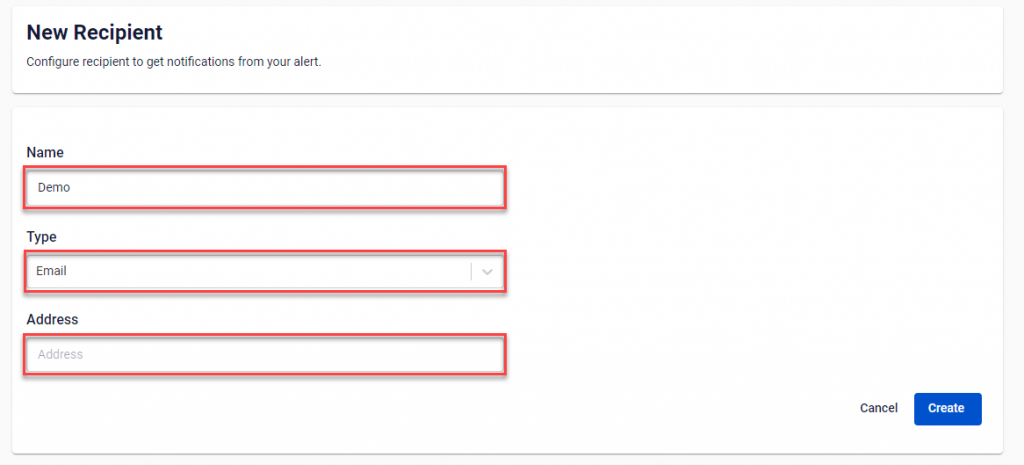
Step 2: Enter the required information:
- Name: Enter the recipient name.
- Type: Select the notification method. FPT Alert supports Email, Telegram, and Slack.
Step 3: Enter the Address corresponding to the selected type. This is where the system sends notifications when resource usage exceeds the configured threshold.
Receive alerts via Email:
- Address: Enter the recipient's email address.
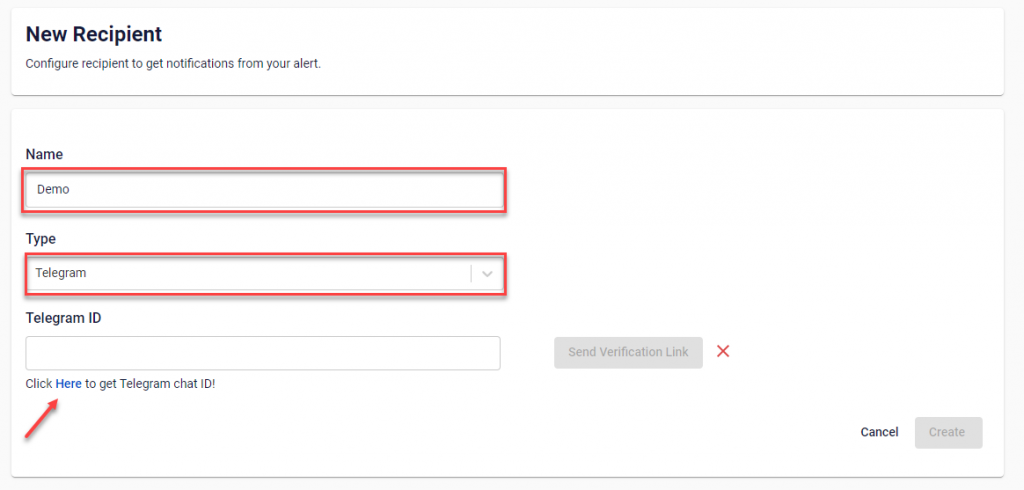
Receive alerts via Telegram:
- Telegram ID: Enter the recipient's Telegram ID. If you do not have an ID, follow the instructions in the system to obtain one.
tip
To receive alerts in a Telegram group:
- Create the group, get the group ID, and create the corresponding recipient in Cloud Guard.
- Add the FPT Cloud Guard bot to the group to receive alerts.
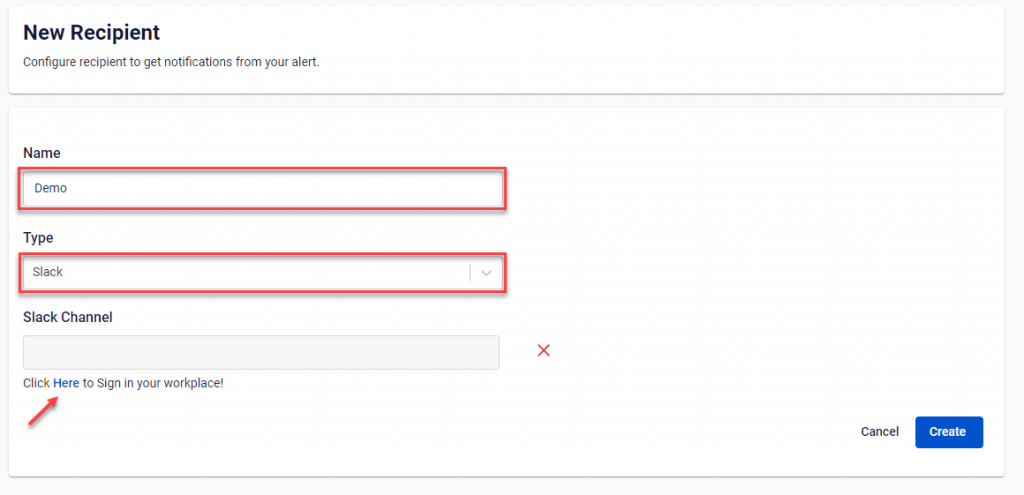
Receive alerts via Slack:
- Slack Channel ID: Select the Slack channel to receive alerts. Log in to your Slack account, select a channel from the list, and FPT Portal will automatically retrieve the Slack Channel ID.
Step 4: When all information is filled in, click Create.
The system processes the request and confirms. After creation, the new recipient appears in the management table.