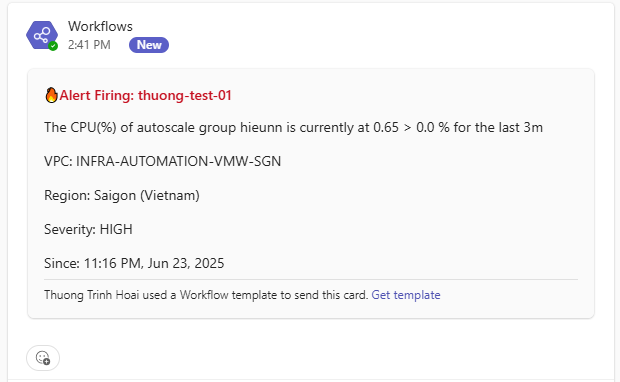
Create a recipient via Microsoft Teams
The Microsoft Teams recipient feature lets you configure a Teams channel or group chat to receive notifications from the FPT Cloud Guard security monitoring system. This integration helps operations teams receive timely alerts and respond quickly to security events.
Configuration steps
Step 1: Get the Webhook URL from Microsoft Teams
- Open Microsoft Teams and select the Channel or Chat where you want to receive alerts.
- Create a workflow: Post to a channel/chat when a webhook request is received.
- Copy the Webhook URL and click Done.
For detailed instructions on creating the workflow and getting the webhook URL, see: Microsoft Support – Create incoming webhooks with Workflows for Microsoft Teams.
Step 2: Add the recipient to Cloud Guard
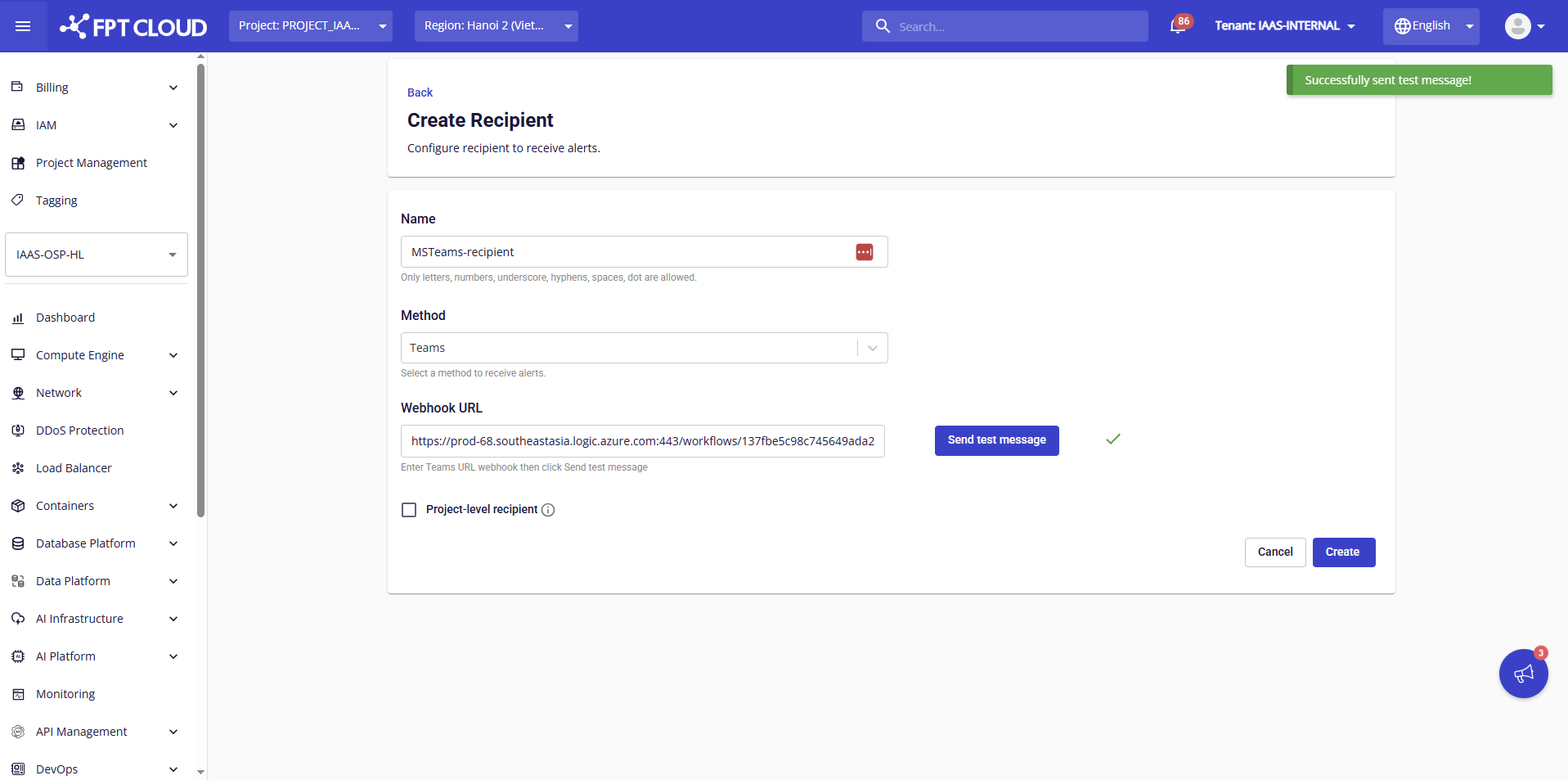
- Go to FPT Cloud Portal and select the Cloud Guard service.
- Go to Recipient and click Create.
- Select Method = Teams.
- Paste the Webhook URL copied from Teams, then click Send test message to test the connection.
- After the test message succeeds, click Create to save the recipient.
Step 3: Assign the recipient to an alert
- Go to the Resource alert, Activity alert, or Threat alert tab.
- Select an existing alert, or create a new one.
- Add the Teams recipient to the alert and click Update or Create.
Alerts will be delivered to the customer's Teams channel or chat.