Create a schedule
Step 1: Open the creation screen.
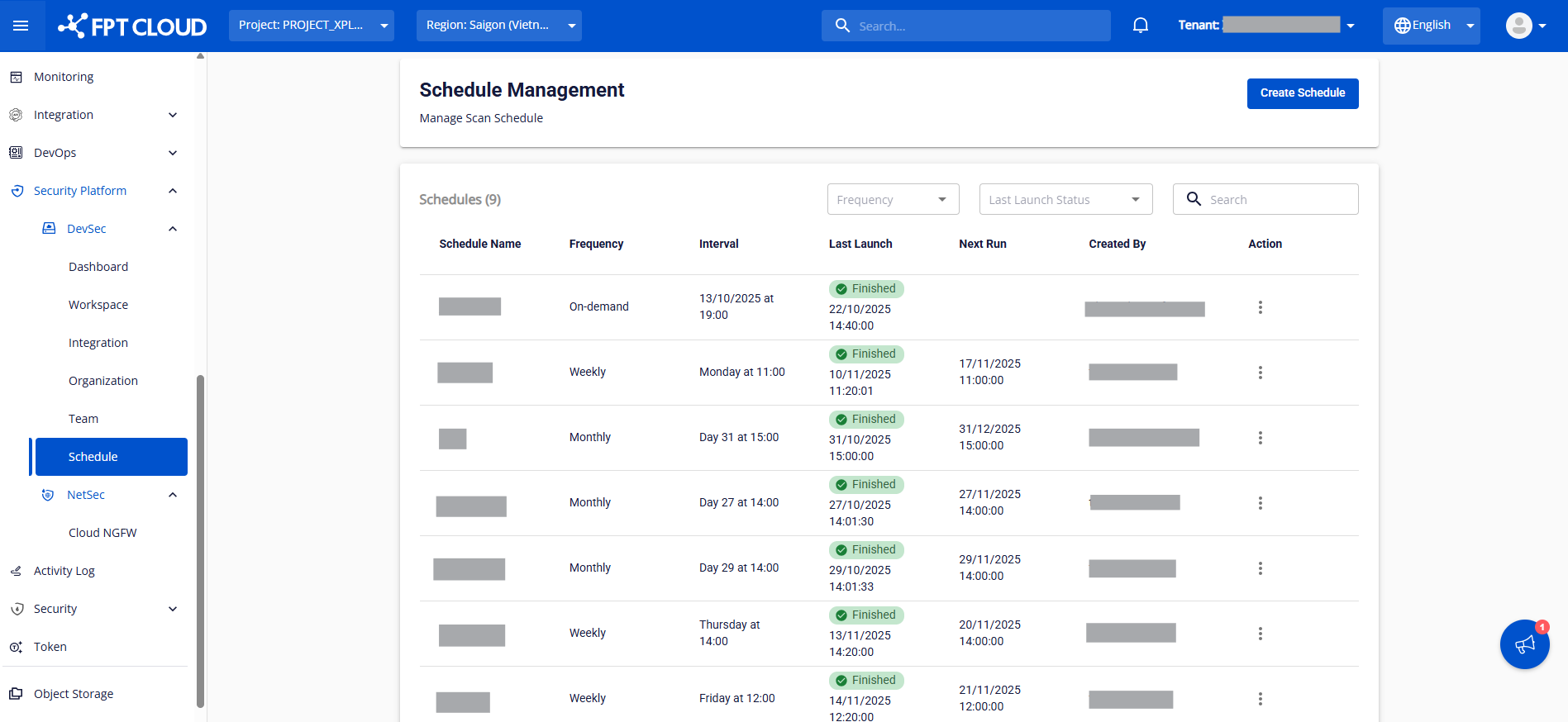
Go to the Schedule menu — the system navigates to the Schedule Management screen. Click Create Schedule.
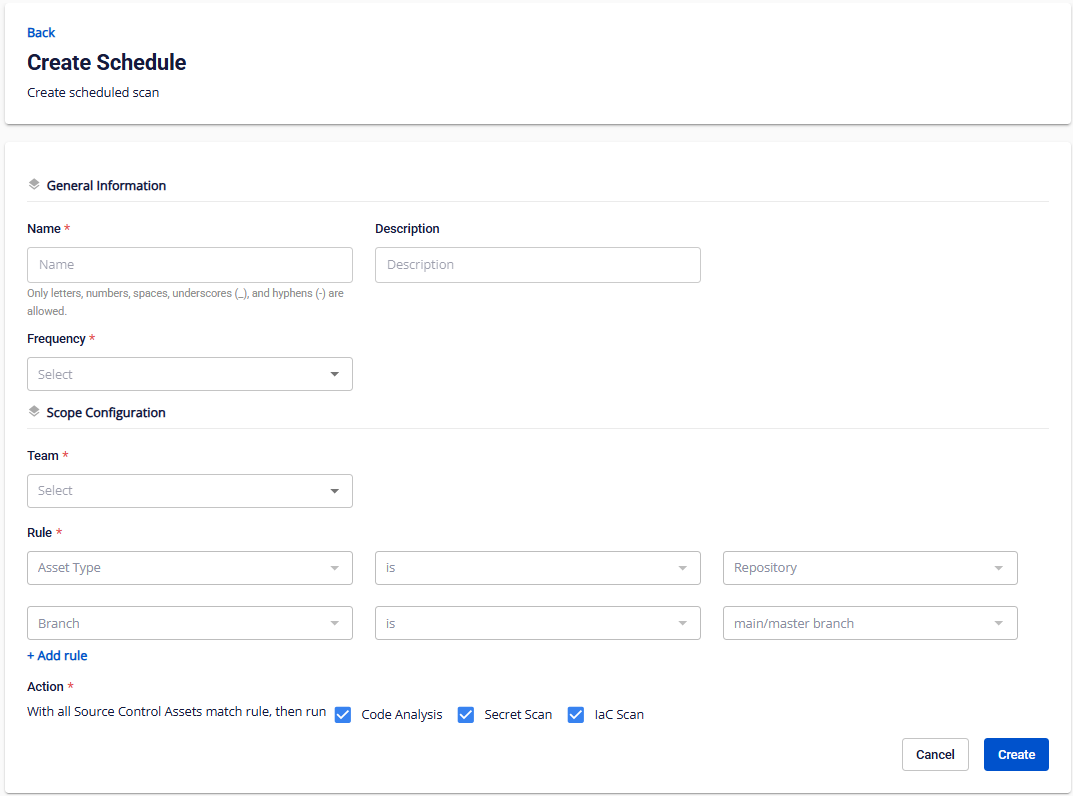
The creation screen appears with fields for General information and Scope configuration.
Step 2: Fill in the general information fields.
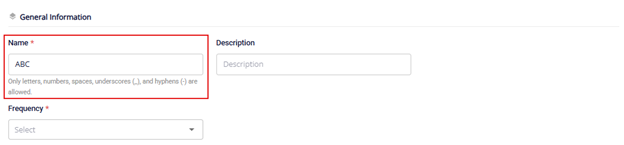
1. Name (required): Enter a name for the schedule for easy identification. The name must be unique.
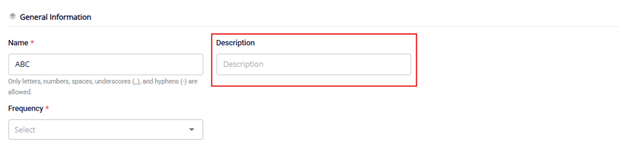
2. Description (optional): Enter a short description (maximum 255 characters).
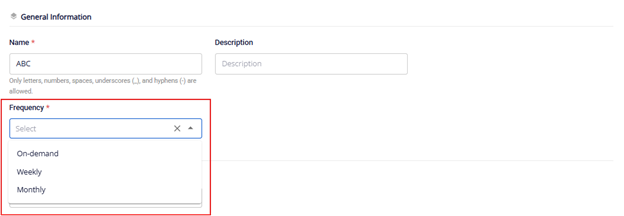
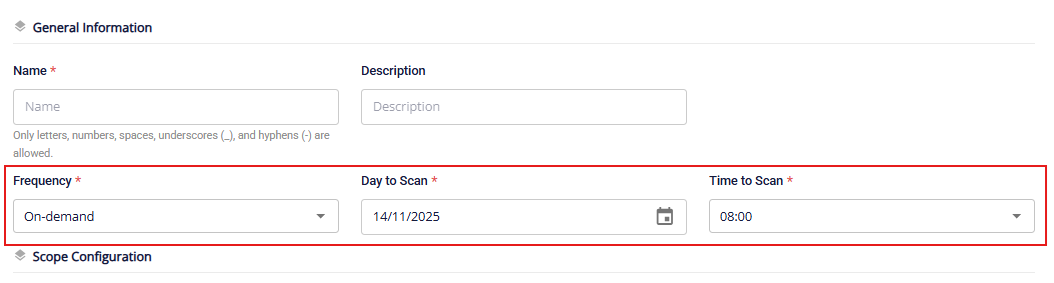
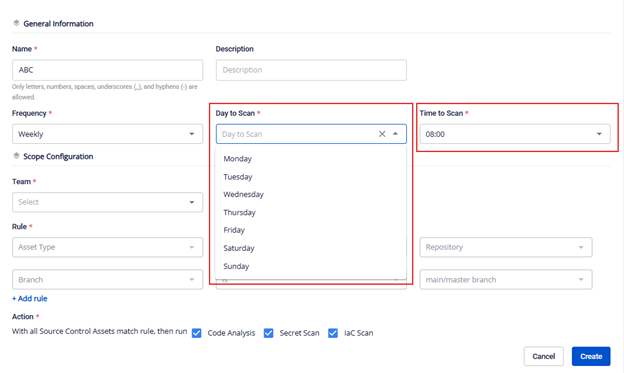
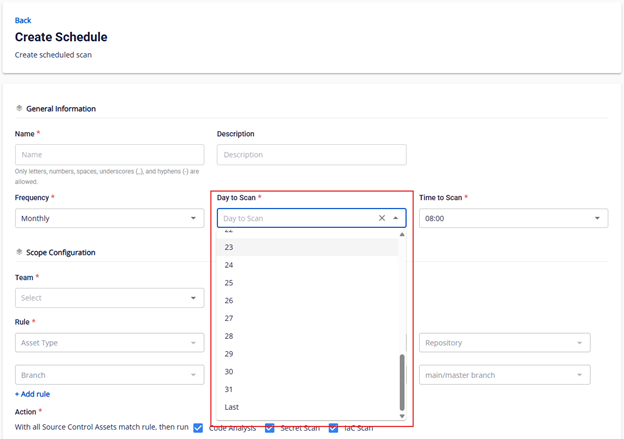
3. Frequency (required): Select the schedule run frequency.
-
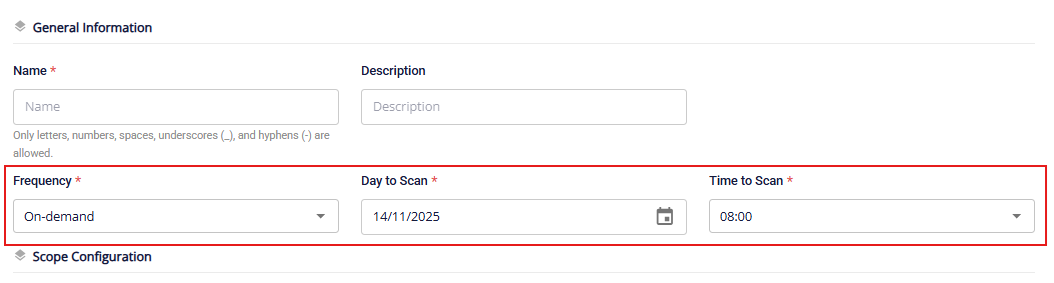
On-demand: Runs manually when triggered. Select a specific date and time (after today). The system runs the schedule once at the selected time.
-
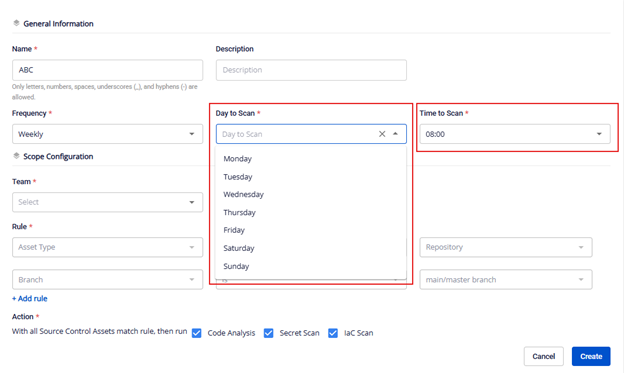
Weekly: Select the day of the week (Monday – Sunday) and the time to run.
-
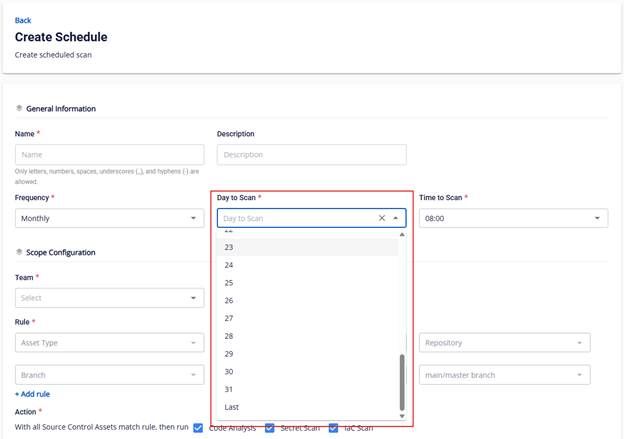
Monthly: Select the day (1–31) and the time to run each month, or choose Last to schedule on the last day of the month.
Step 3: Configure the scope.
1. Select Team (required): Choose the team to apply the schedule to.
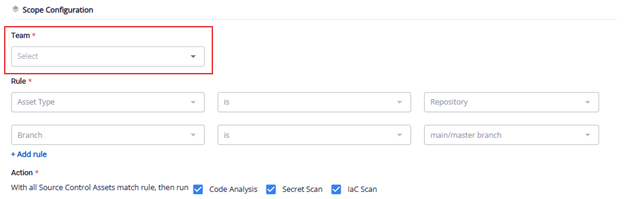
2. Configure rules (Scope):
-
Asset Type: In the current version, rules apply only to Repository assets. Not editable.
-
Branch: The current version applies to main/master branches only.
-
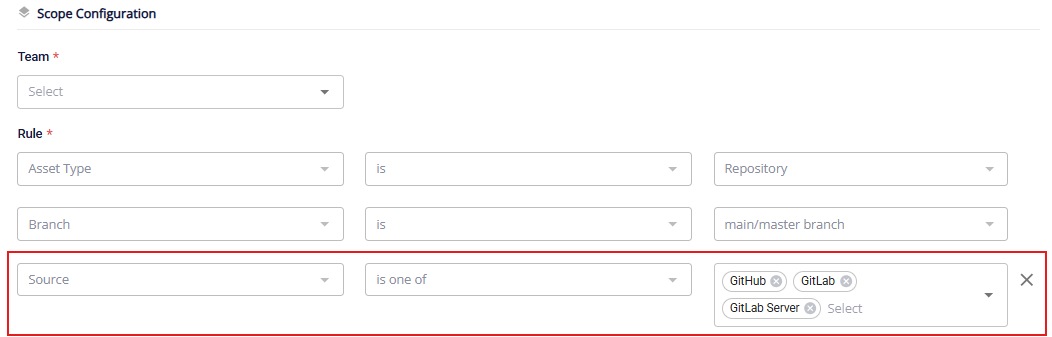
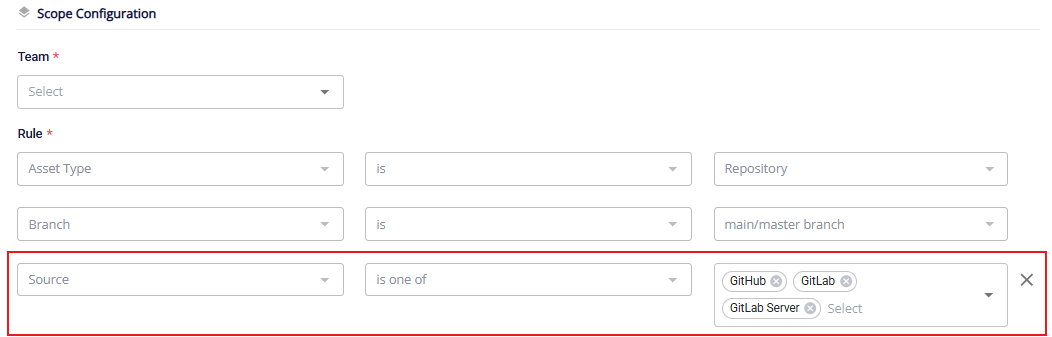
Source: Select the repository source (GitHub/GitLab/GitLab Server). If not selected, the system scans all repos from all sources by default.
-
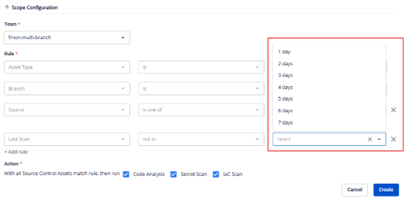
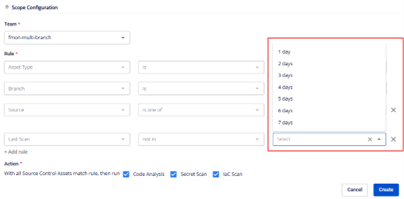
Last Scan: Define a time window for repos not recently scanned. If not selected, all eligible repos are scanned. If selected, only repos not scanned within the last X days are scanned (based on the scan types selected in Action).
-
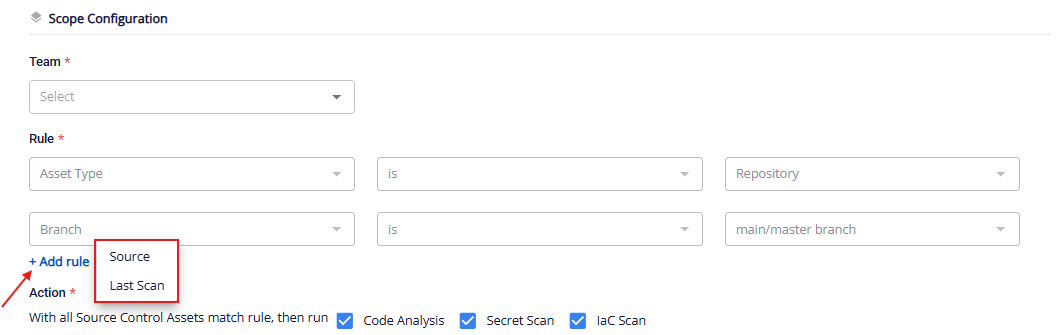
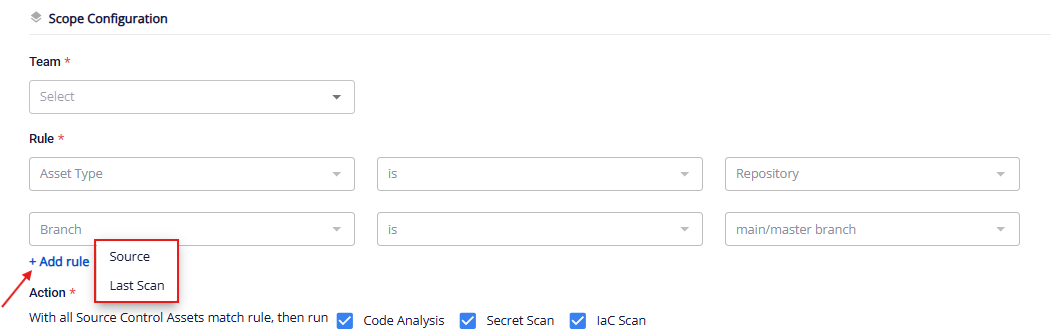
Add rule: Click to add a new rule type (Source, Last Scan). Disabled when all rule types have been added.
Step 4: Select scan types (Action).
In the Action section, choose scan types: Code Analysis, Secret Scan, IaC Scan. At least one must be selected. By default, all three are selected.

Step 5: Verify all required fields are filled in. Click Create to save the schedule.
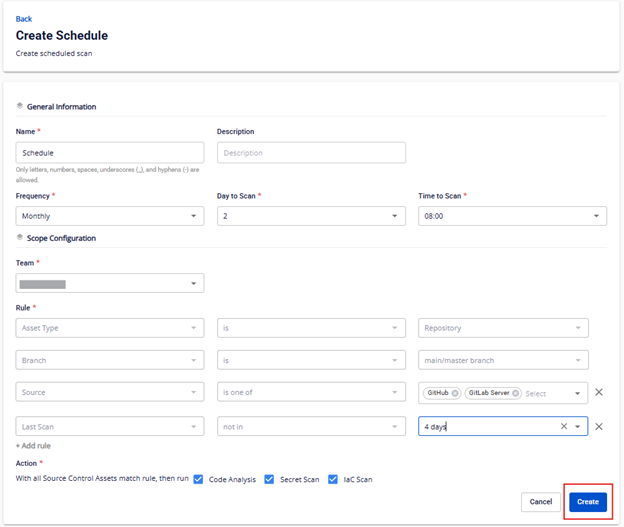
On successful creation, the system returns to the schedule list and displays "Created schedule successfully".