Playground
How to get started with Playground?
The AI Marketplace Playground lets you test and interact with AI models without coding — including text generation, text-to-speech, speech-to-text, vision tasks, and embeddings.
- On the homepage, click Playground in the top navigation bar (between Pricing and Support Center).
- Click Get API Key to go to the My API Key page, where you can create or manage your API keys.
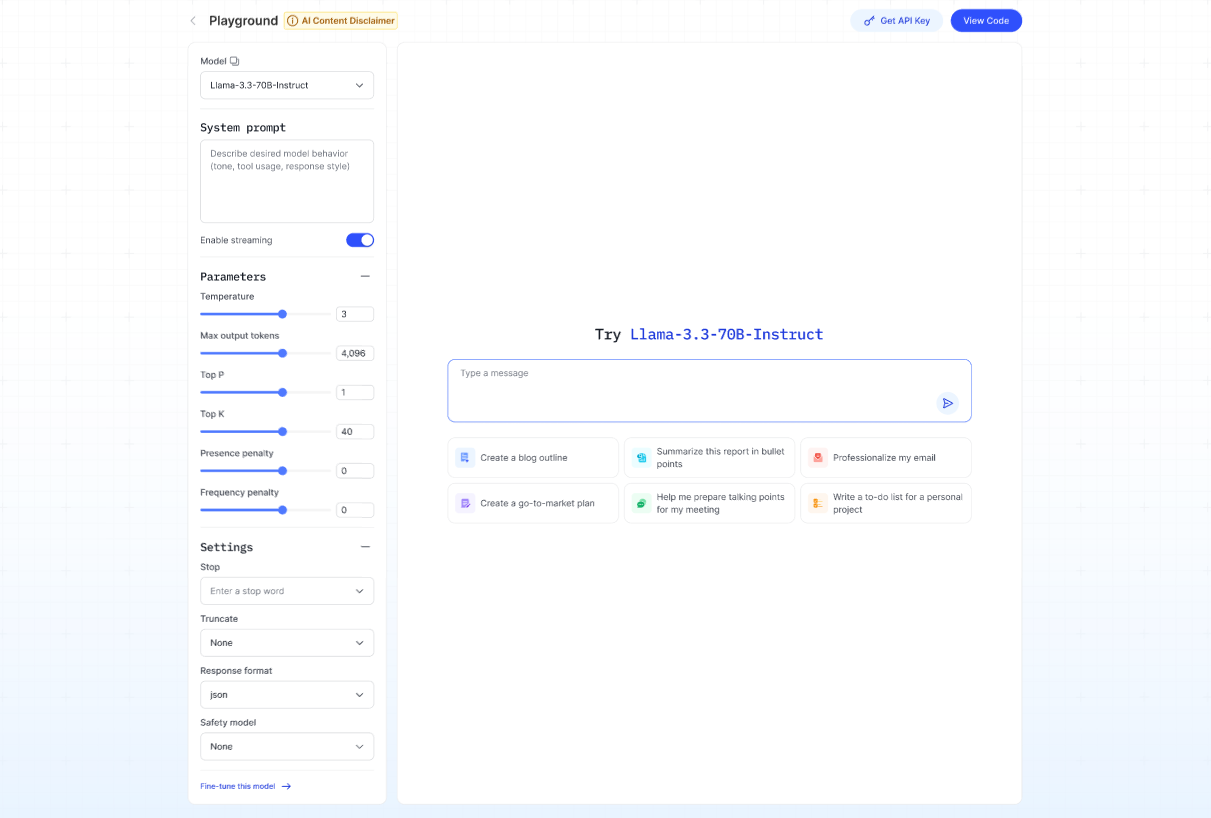
- Click View Code to open a pop-up showing sample code snippets (available in cURL, Python, and Node.js) along with an example response for your request.
Large Language Model (LLM)
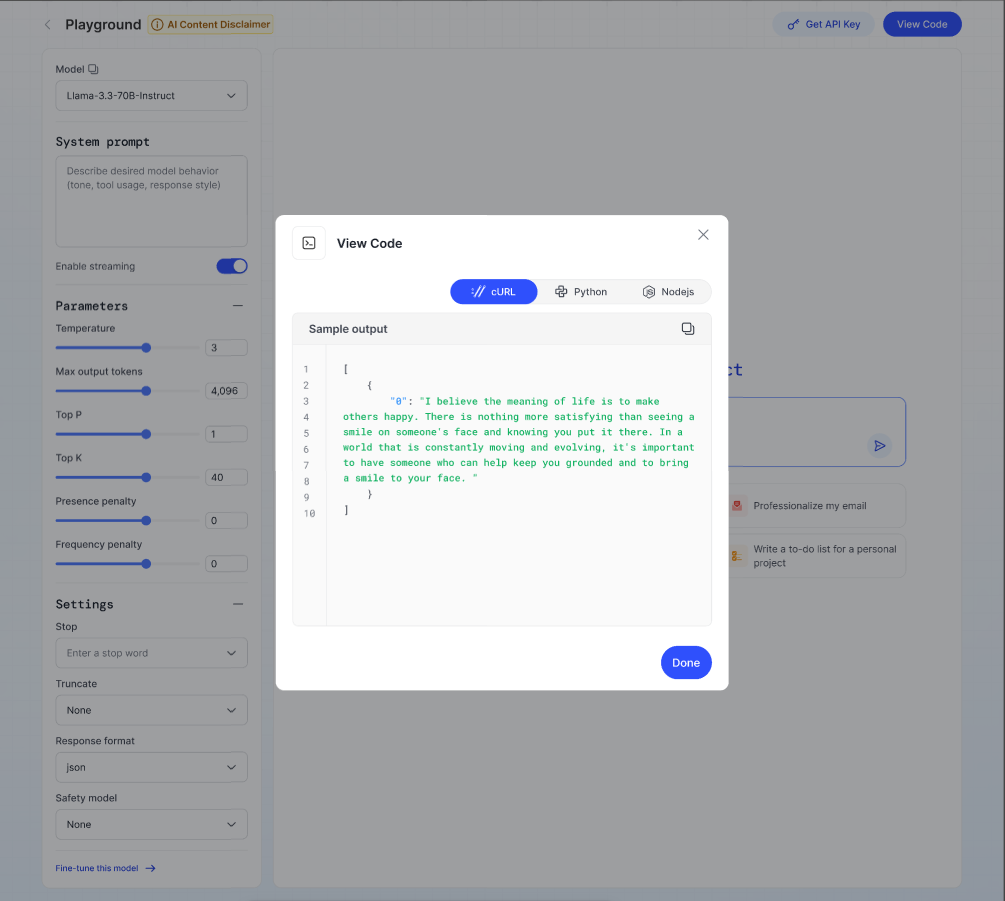
Description: A text-based assistant trained on a large amount of information (books, websites, articles, conversations). It can understand your request and reply with natural, human-like text.
Quick action templates available:
- Create a blog outline
- Create a go-to-market plan
- Summarize this report in bullet points
- Help me prepare talking points for my meeting
- Professionalize my email
- Write a to-do list for a personal project
Steps:
- Click on the task that best fits your needs. The system will automatically prepare a response based on your input.
- Type your question, topic, or specific request related to the selected task into the text box.
- Click Send — the result will appear on the right.
Advanced settings (left panel):
- System prompt — set style/behavior of the assistant.
- Temperature, Max output tokens, Top P, Top K, Penalties — fine-tune creativity, length, and randomness.
Text to Speech Model (TTS)
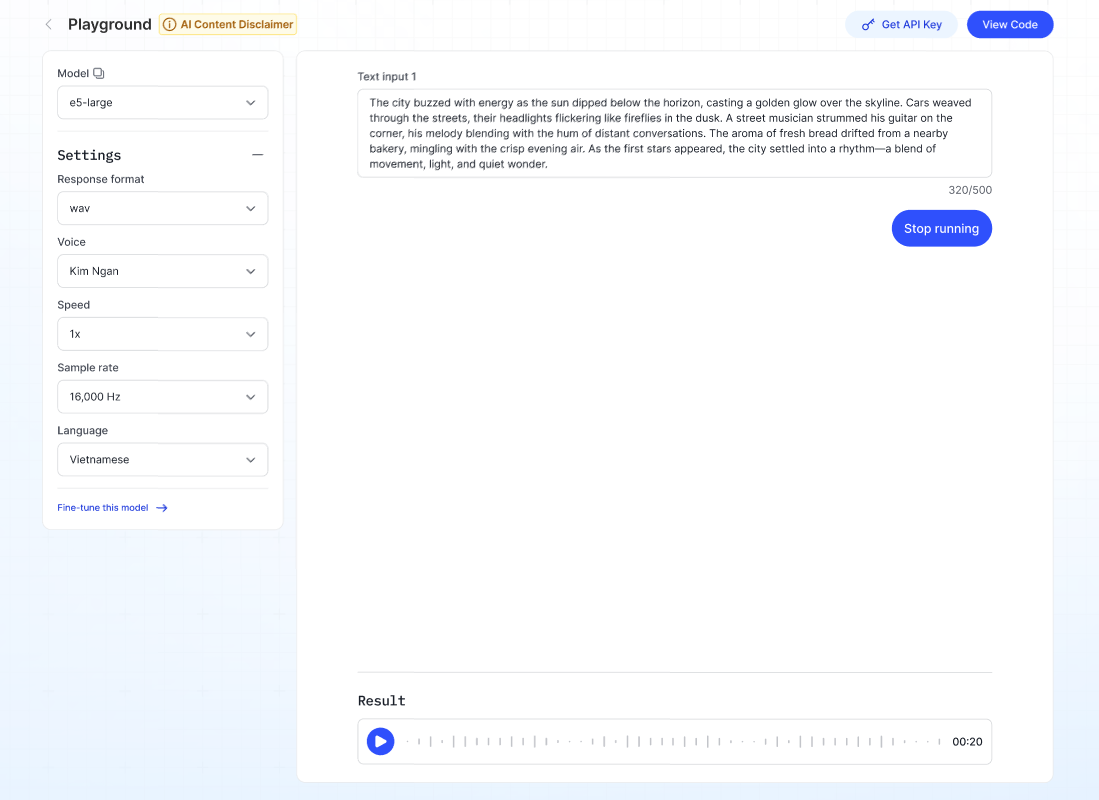
Description: Converts written text into spoken audio.
Steps:
- Select the type of voice in the Voice dropdown.
- Select the speed of the voice in the Speed dropdown.
- Select the language in the Language dropdown.
- Enter up to 500 characters in the Text input.
- Click Run — the system will generate the audio file, which can be played or downloaded.
Speech to Text Model (STT)
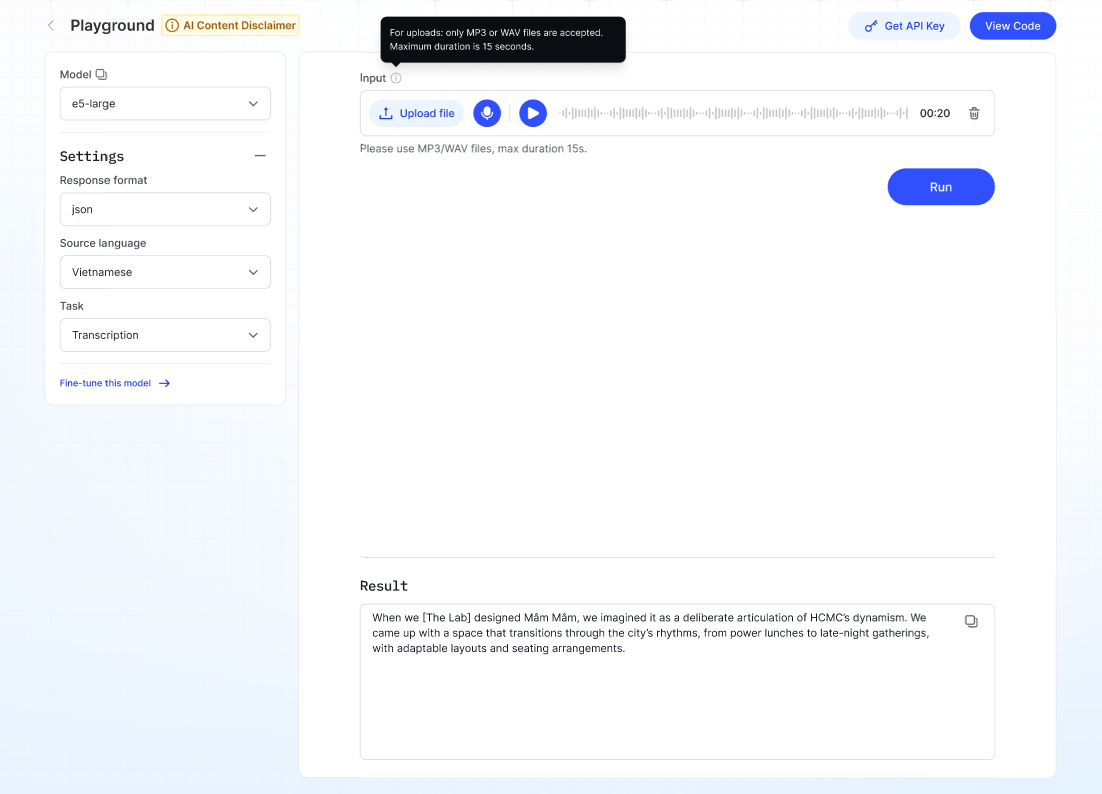
Description: Converts spoken audio into written text.
Steps:
- Select the Model from the dropdown.
- Choose Response format (e.g., json or text).
- Set the Source language.
- Select the Task:
- Transcription — converts speech to text.
- Translation — converts speech to text in another language.
- Upload or record audio (supported formats: MP3/WAV, max length 15s).
- Click Run — the transcribed or translated text will appear in the Result section.
Vision Language Model (VLM)
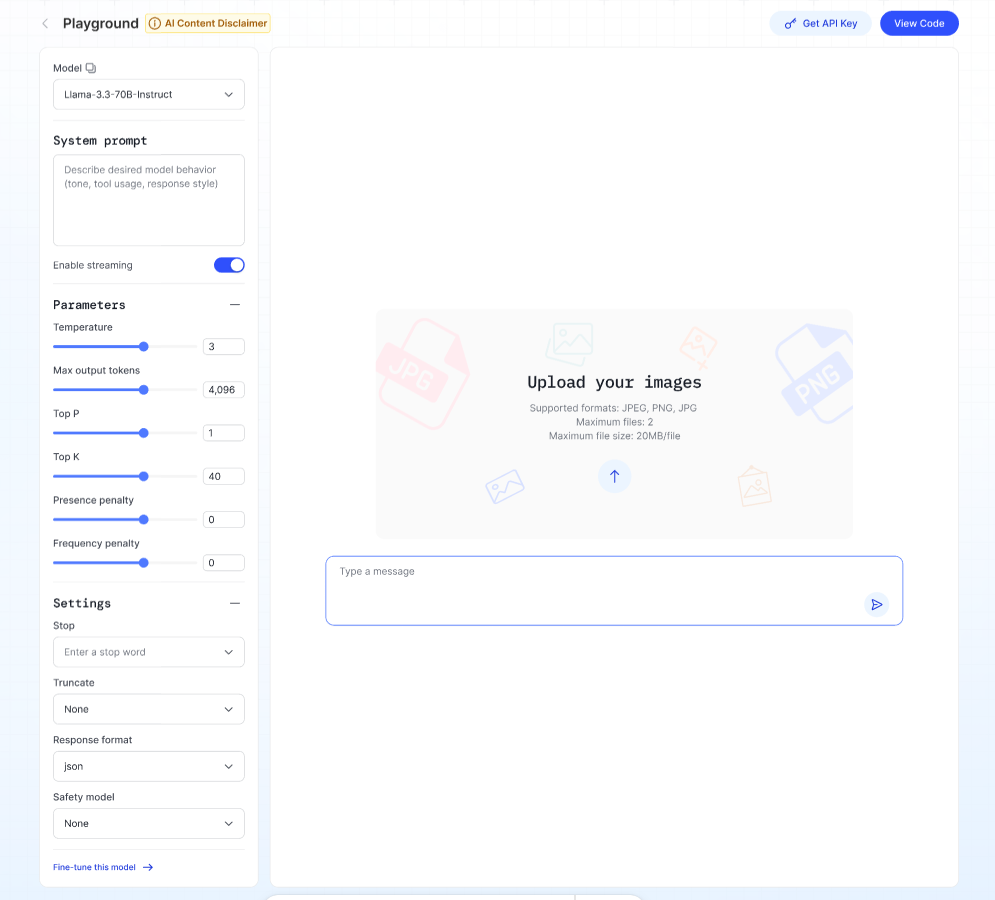
Description: An assistant that combines computer vision (understanding images) and natural language processing (understanding text) to make sense of the world in a more human-like way.
Steps:
- Upload your image (JPEG, PNG, JPG, max 2 files, 20 MB each).
- Ask a question about your image in the text box.
- Click Run — the model will respond based on the image content.
Embedding model
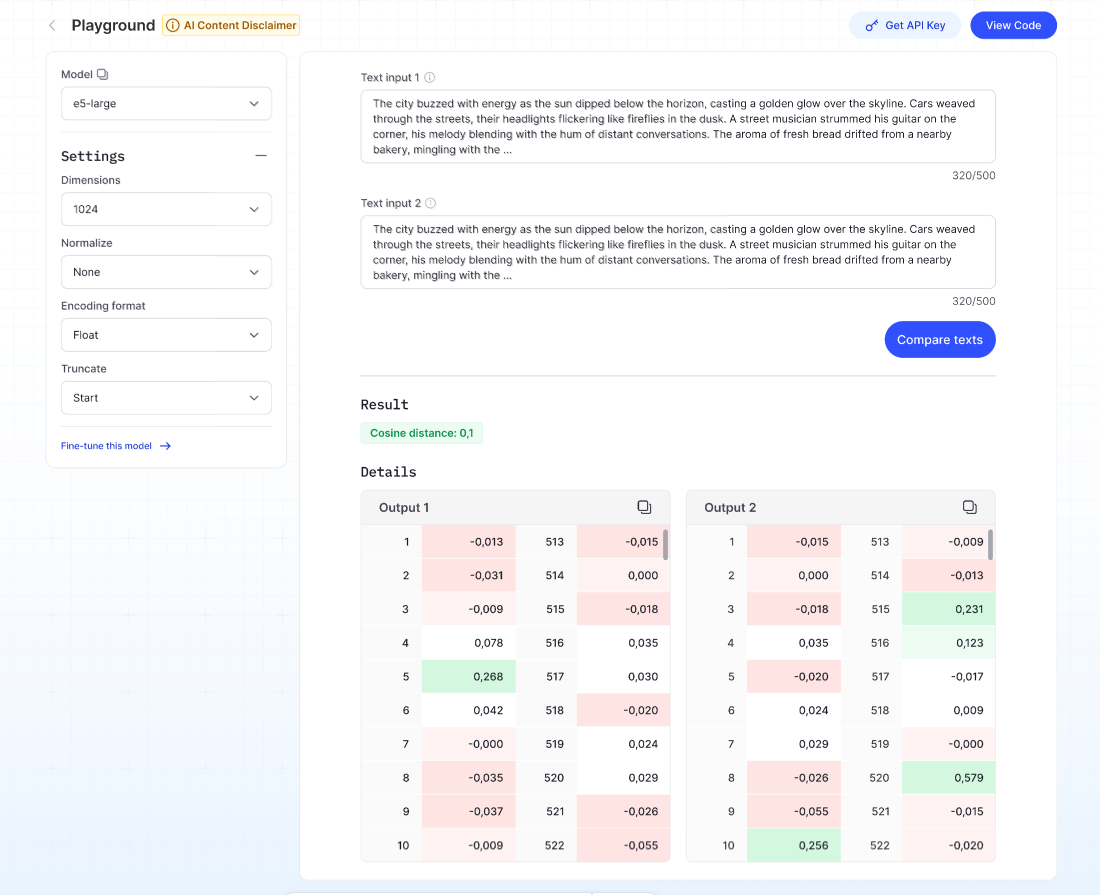
Description: Embedding models are transformer-based neural networks that transform chunks of documents (passages of text) into a numeric representation or vector. These vectors capture the semantic meaning of text and are used for tasks like search, recommendation, and similarity comparison.
Steps:
- Select the type of input you want to test in the Input type dropdown.
- Select the desired output format for the embedding in the Encoding format dropdown.
- Choose how to handle input that exceeds the token limit in the Truncate dropdown.
- Enter up to 500 characters in the Text input.
- Click Run — the system will display the embedding vector (numerical representation) in the Result section.
Guardrail feature is coming soon to enhance content safety.
How to use extra controls in the Playground?
- System prompt — guide the model's behaviour and style.
- Enable streaming — show partial results as they are generated.
- Stop sequences — cut off the model's response at specific words or phrases.
- Fine-tune this model — link to start customizing the model for your own use case.