Shut down kernel
Step 1: Navigate to Running Kernels/Notebooks. From the navigation bar, select the Running Kernels/Notebooks option (second icon from the top).
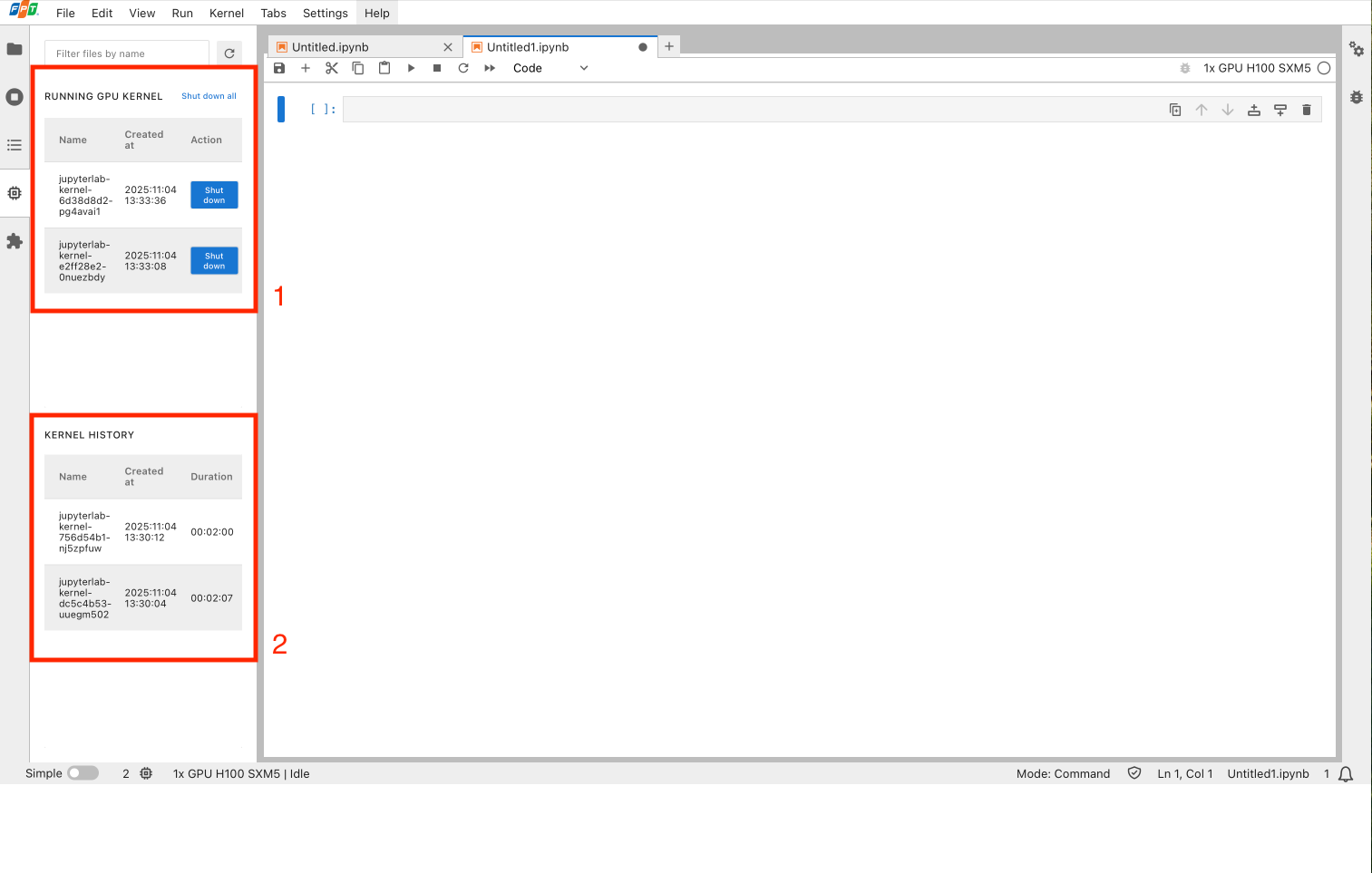
Running GPU kernel table
Displays information about all currently running GPU kernels in your lab.
| Field | Description |
|---|---|
| Name | Unique identifier of the GPU kernel |
| Created At | Date and time when the GPU kernel started |
| Action | Available actions: Shut Down All terminates all running kernels in your lab. Once terminated, the kernels will appear in the Kernel History section. Shut Down terminates only the selected kernel. The terminated kernel will appear in the Kernel History section. |
Kernel history table
Displays information about all terminated GPU kernels.
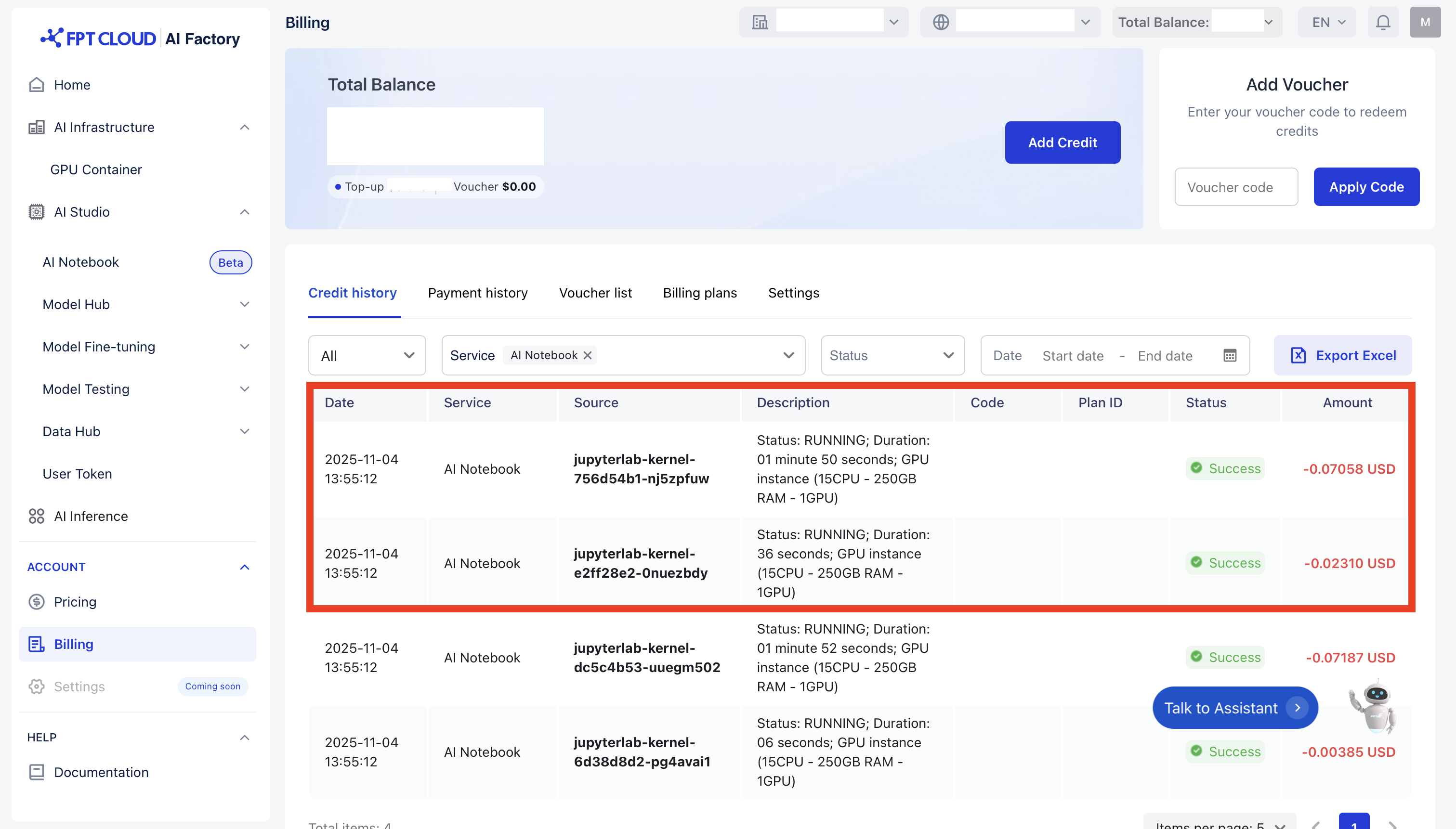
This table helps you verify kernel usage duration and cross-check it with billing data on the AI Factory Portal.
| Field | Description |
|---|---|
| Name | Unique identifier of the GPU kernel |
| Created At | Date and time when the GPU kernel started |
| Duration | Total runtime of the GPU kernel |
Billing reconciliation
note
You may notice a slight difference (typically 1–10 seconds) between the GPU runtime displayed in AI Factory Billing and the Duration column in the Kernel History table of AI Notebook. This minor variation is expected and occurs due to normal synchronization delays between internal services.