Create a new deployment
Step 1 : Select AI Platform → Model Serving → Deployment → New Deployment. Step 2 : Enter the Model Settings information, then click Next
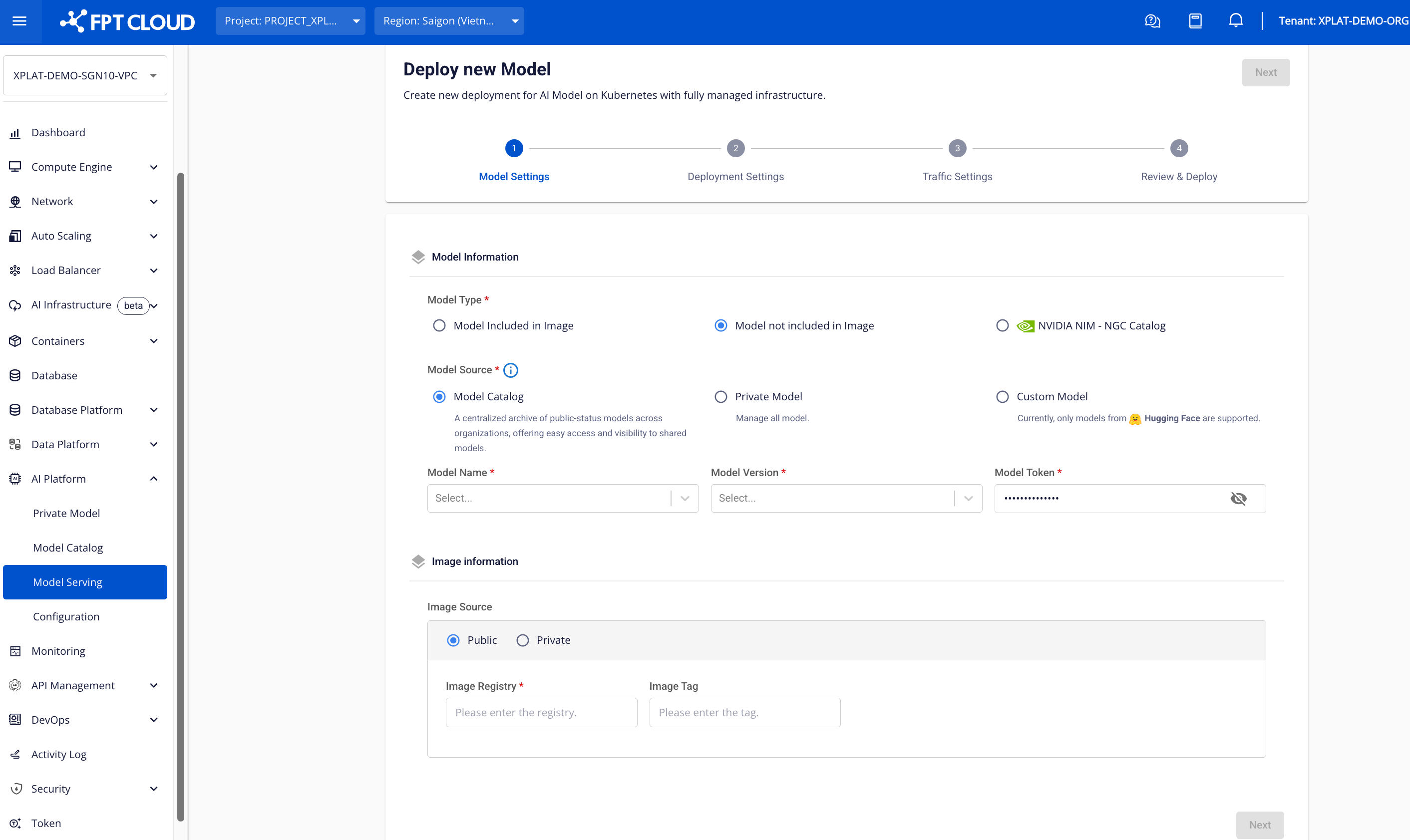
- Model Information : AI deployment information. Select Model Type:
- Model included in Image: AI Model included in Container Image
- Model not included in Image: AI Model not included in Container Image
- NVIDIA NGC Catalog: AI Model using NVIDIA NGC technology
- If Model Type is Model included in Image , select Model Source:
- Model Source : Model selection source. Select Model Source:
- Model Catalog : Centralized repository of public models, shared for users to use.
- Model Name: Name of the model selected on the Model Catalog.
- Model Version: Version of the model selected on the Model Catalog.
- Model Token: Token authenticated with the Model Catalog for deployment (Create token by: on the home page interface, selectToken → Create)
- Private Model : Private repository of users, can be used internally within the organization.
- Model Name: Name of the model selected on Private.
- Model Version: Version of the model selected on Private Model.
- Model Token: Token authenticated with Private Model to deploy (Create token by: on the home page interface, select Token → Create)
- Custom Model : Custom model on the Internet, currently only supporting Hugging Face models.
- Model URL: Path to the custom model
- Model Token: User authentication token on the platform of the selected Custom Model (e.g., Hugging Face)
- Model Catalog : Centralized repository of public models, shared for users to use.
- Model Source : Model selection source. Select Model Source:
If you select Model Type as Model included in Image or Model not Included in Image , select Image Information:
- Image Information : Container Image deployment information. Enter Image information:
- Image Source: Select Image type Public (no need to enter user/password) or Private (need to enter user/password)
- Image Registry: Link to the container image storage location.
- Image Tag: Container image version
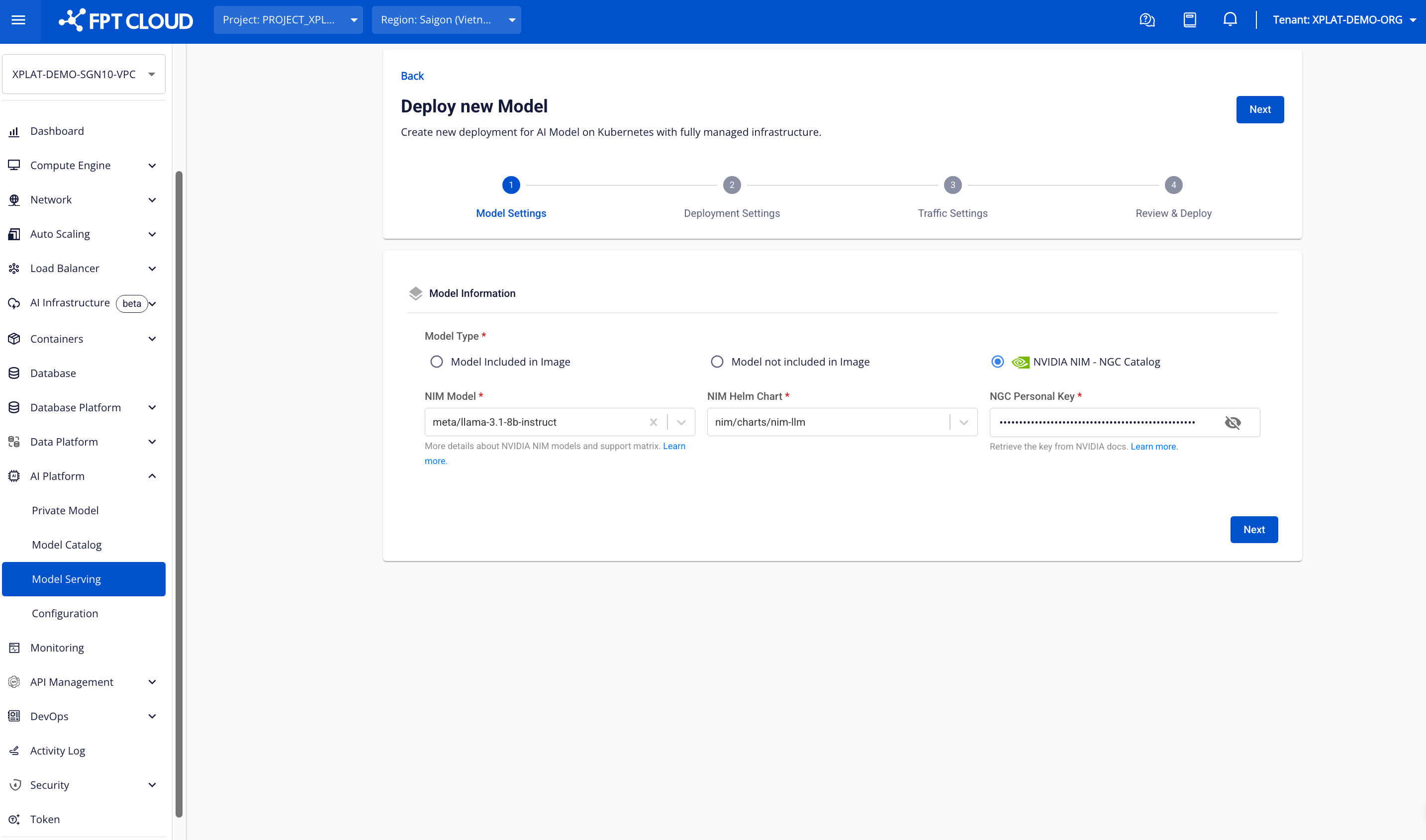
If Model Type is NVIDIA NIM – NGC Catalog , select deployment information:
- NIM Model : Select the NIM Model to deploy. Refer to the Support matrix to select the correct Model compatible with the deployment infrastructure.
- NIM Helm Chart : Select the appropriate Helm Chart to deploy the Model.
- NCG Personal Key : The personal key to authenticate the user with NGC Catalog.
(Refer to theNGC Catalog User Guide to generate the personal key.)
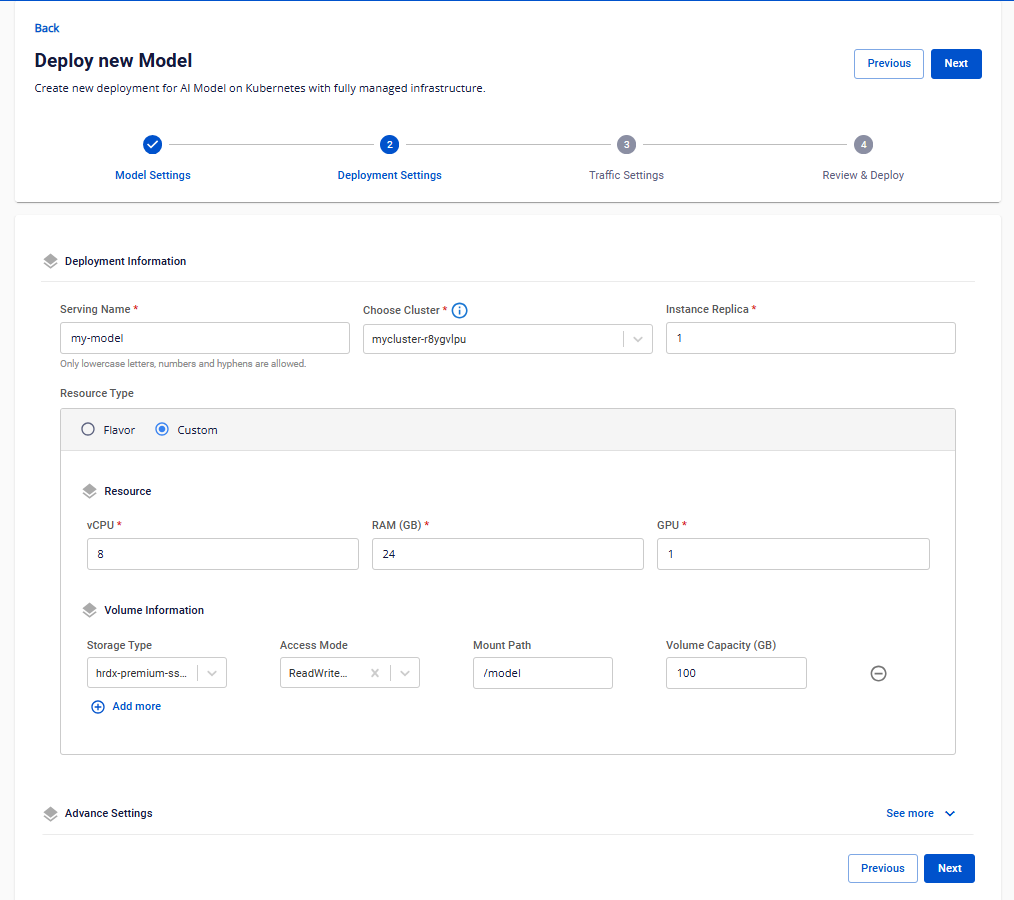
Step 3: Enter the Deployment Settings information, then click Next.
- Deployment Information: Information about the Deployment
- Serving Name: The name of the deployment to be served.
- Choose Cluster : Select the K8S cluster to serve from the list of K8S clusters in this VPC.
- Instance Replica: The number of processing units in this deployment.
- Resource Type: Information about resource configuration. There are two types of resources:
- Flavor: Pre-configured selection for CPU/RAM/DISK/GPU
- Custom: Custom configuration for CPU/RAM/DISK/GPU according to needs.
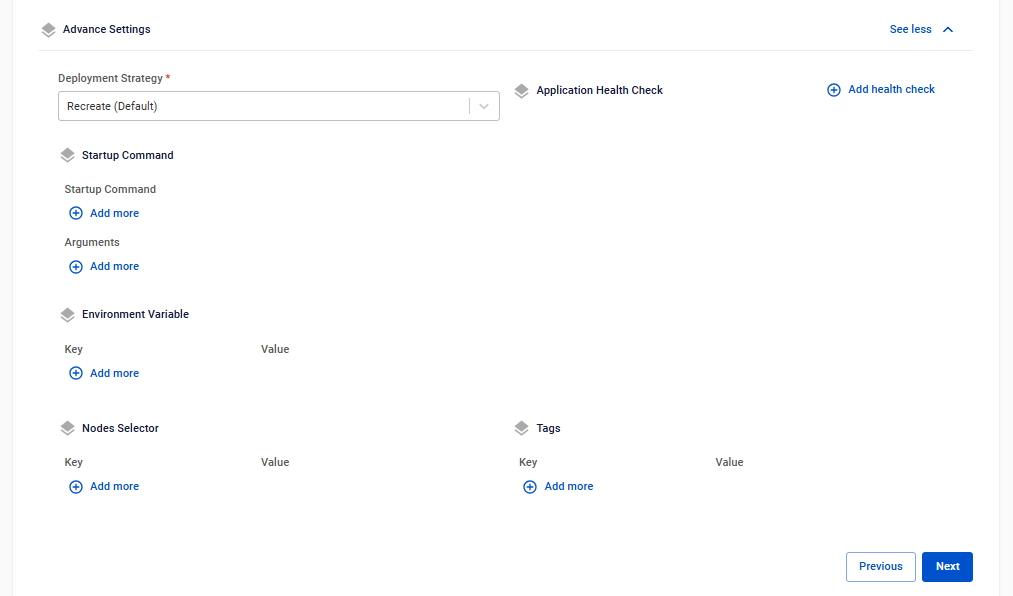
- Advance Settings: Enter advanced configurations for Deployment. Click See More to configure.
- Deployment Strategy : Choose a deployment strategy for K8S. Available strategies include:
- Recreate: Recreate instances when changes are made (downtime will occur)
- Rolling: Gradually replace instances during updates (no downtime), but requires additional resources equivalent to one instance.
- Startup Command: Configure the startup command for instances
- Startup Command: The command executed when the instance starts
- Arguments: Parameters passed to the startup command
- Environment Variable: Define environment variables for the instance
- Key: The name of the environment variable
- Value: The value assigned to the environment variable
- Nodes Selector: Select specific worker nodes/worker groups for deployment
- Key: The label key assigned to the node
- Value: The label value assigned to the node
- Tags: Assign tags to the Deployment
- Key: The label key assigned to the Deployment
- Value: The label value assigned to the Deployment
- Deployment Strategy : Choose a deployment strategy for K8S. Available strategies include:
Step 4 : Enter configuration details for Traffic Settings , then click
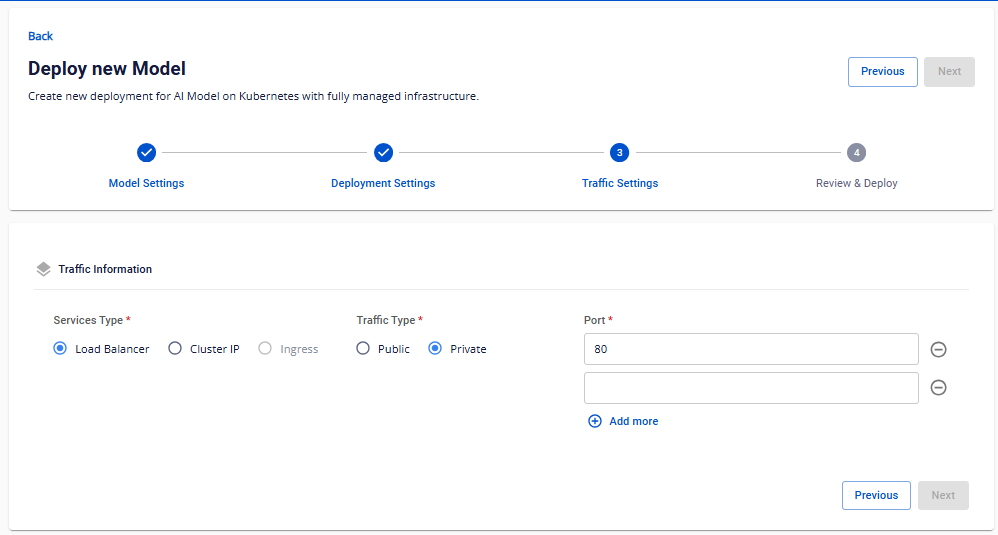
- Traffic Information : Configure settings for the Deployment's external connection
- Services Type : The type of service for the external connection
- Load Balancer: Use load balancing
- Cluster IP: Use internal communication within the Kubernetes Cluster
- Ingress: Use the Ingress application to manage connection flows
- Traffic Type : Specify the connection type: public or private
- Port: The external connection port
- Services Type : The type of service for the external connection
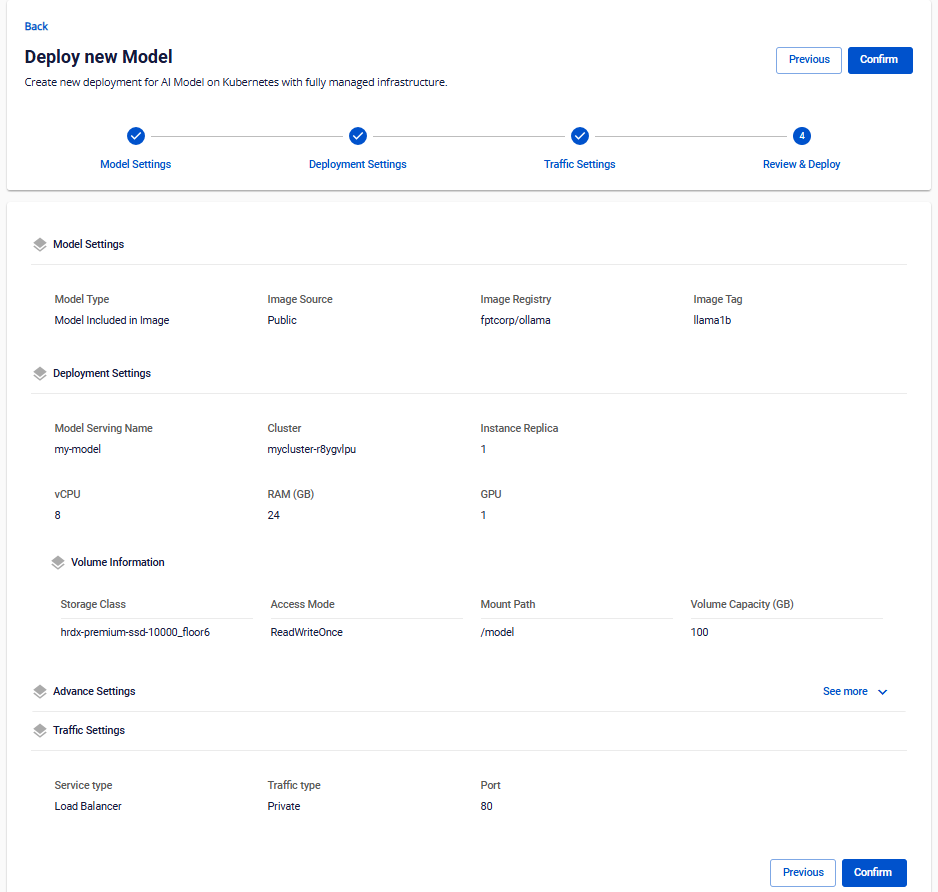
Step 5: Review the entered information and click Confirm to create the Deployment cluster