Set static IP on Windows Server
Step 1: Check the current state
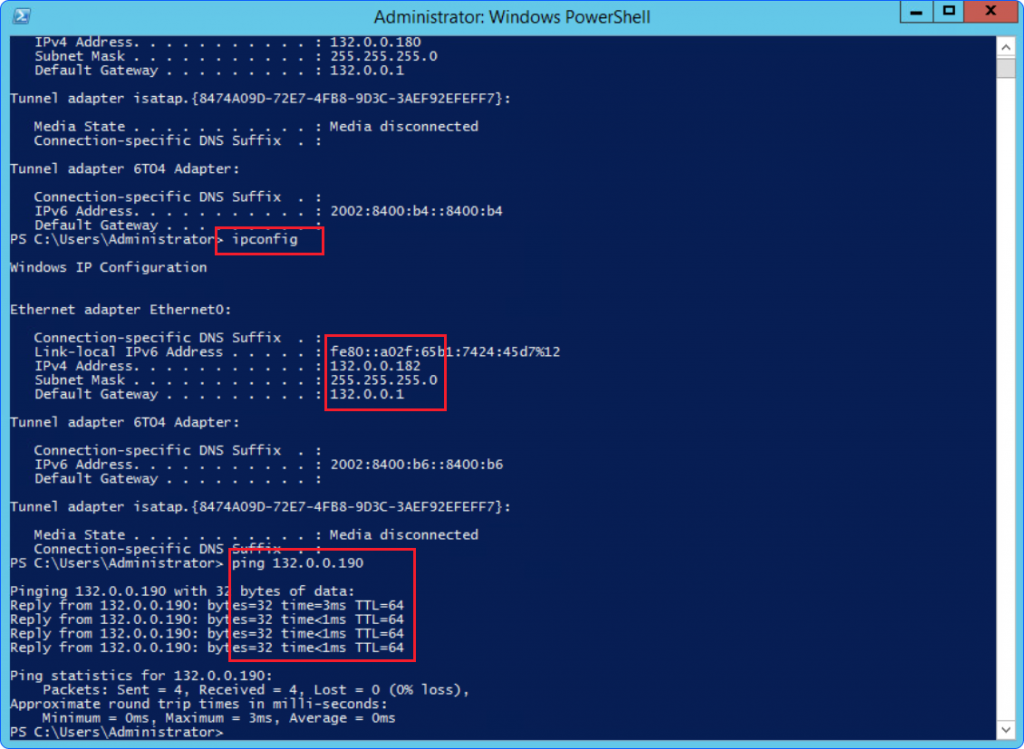
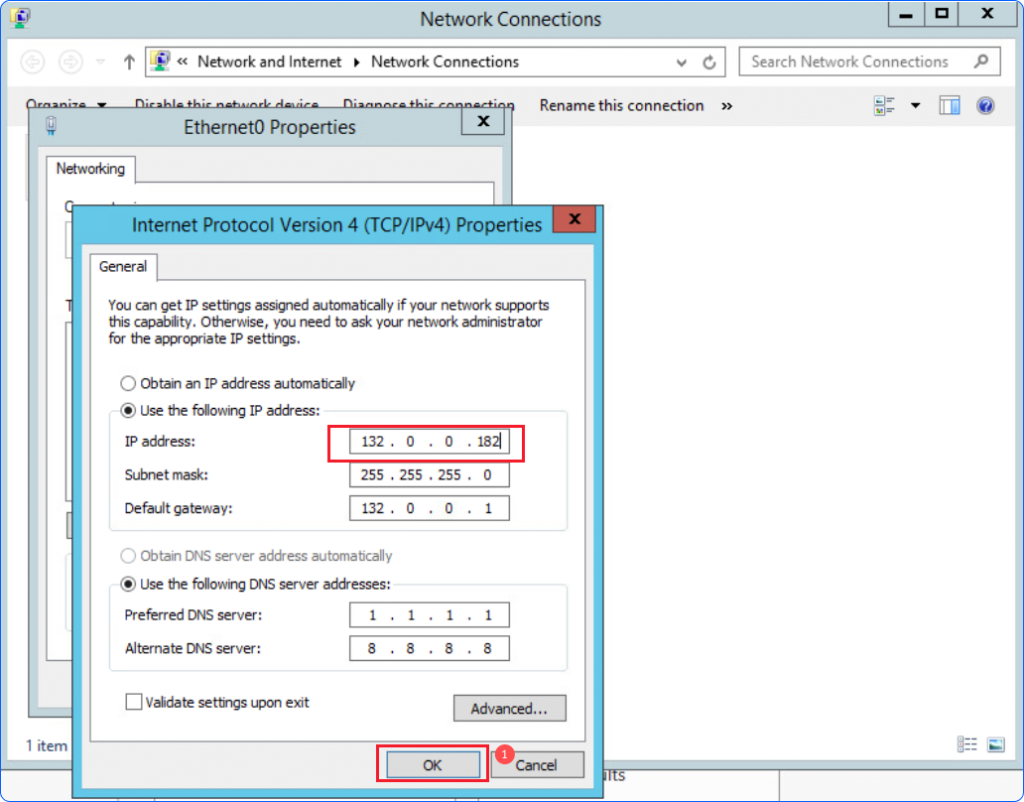
After editing the NIC, the NIC IP is 132.0.0.182.
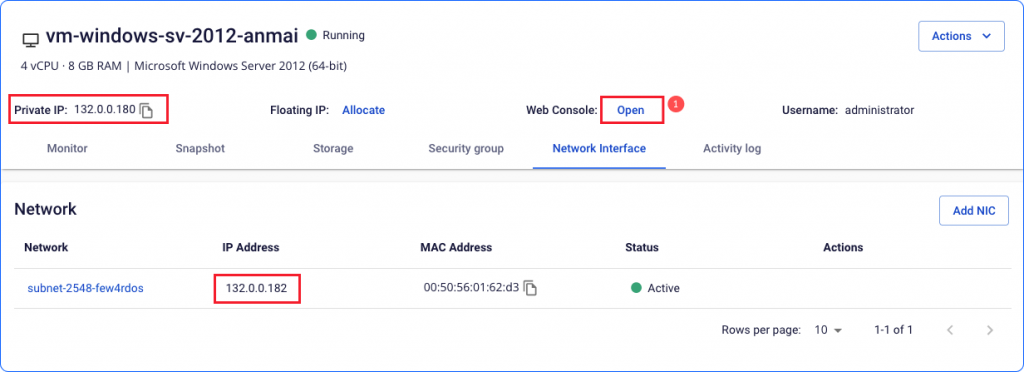
- Open Console and sign in to the instance.
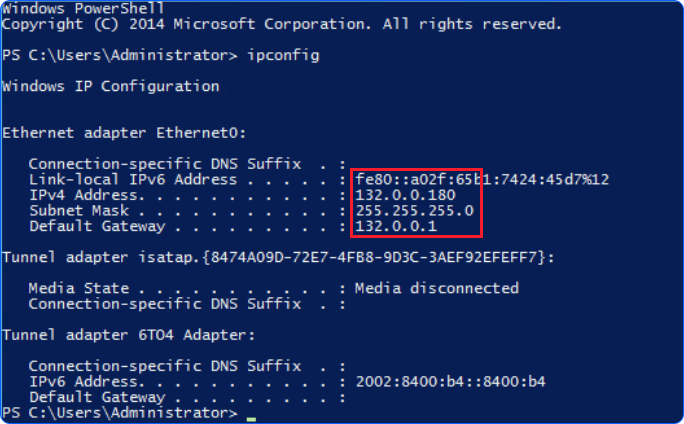
- Open PowerShell or Command Prompt, type
ipconfig, and press Enter to view the current IP address.
Step 2: Open Network Connections
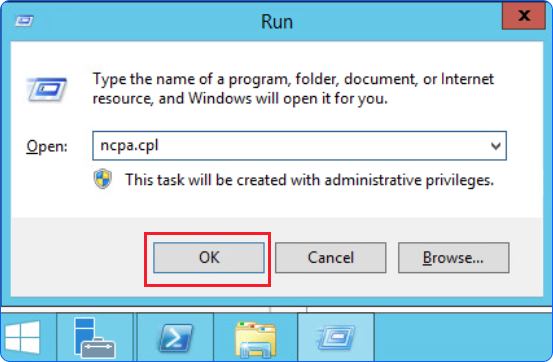
Press Win + R, type ncpa.cpl, and press Enter.
Step 3: Open the network adapter properties
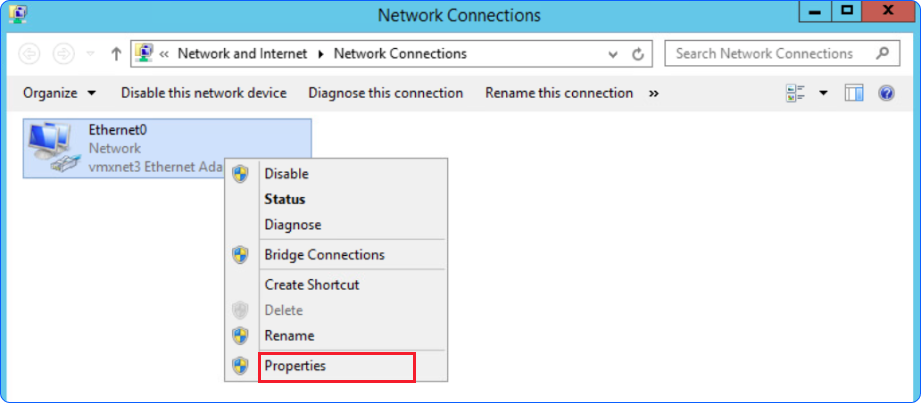
Right-click the network adapter you want to change and select Properties.
Step 4: Update the IP settings
Select Internet Protocol Version 4 (TCP/IPv4) → Properties. Enter the new IP address, subnet mask, default gateway, and DNS server. Click OK to save.
Step 5: Verify and test connectivity
Open PowerShell or Command Prompt again to verify the new IP configuration and ping a network address to confirm connectivity.