Manage Priority Rule of Security Group
Note: This feature is only available for certain Tenants with special configurations. Please contact us for support.
Introduction
This feature allows you to set up rules to control network traffic (firewall rules). Priority determines the order in which rules are executed, directly affecting whether traffic is Allowed or Denied.
The "Manage Priority" feature helps you:
- Arrange rules in order of importance
- Ensure detailed rules are processed before general rules
- Avoid conflicts or incorrect firewall behavior caused by incorrectly positioned rules
Each rule is assigned a Priority value. The lower the Priority number, the earlier the rule is processed. When traffic passes through, the system will:
- Read rules in order from lowest to highest priority
- Apply the first rule that matches the traffic
- Stop and not evaluate any subsequent rules
Example:
- Rule Allow SSH (priority 01)
- Rule Deny All (priority 02) ⇒ SSH traffic is Allowed because rule 01 is evaluated before rule 02.
Step 1: Access Security Group
-
Log in to the FPT Cloud Portal
-
Select Network
-
Select Security Groups
Step 2: Open the Rules list
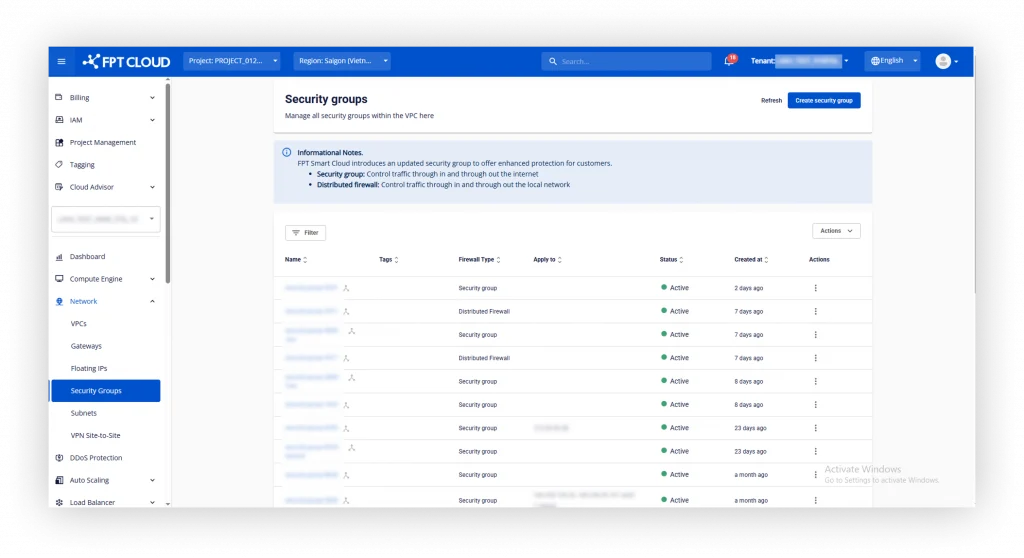
-
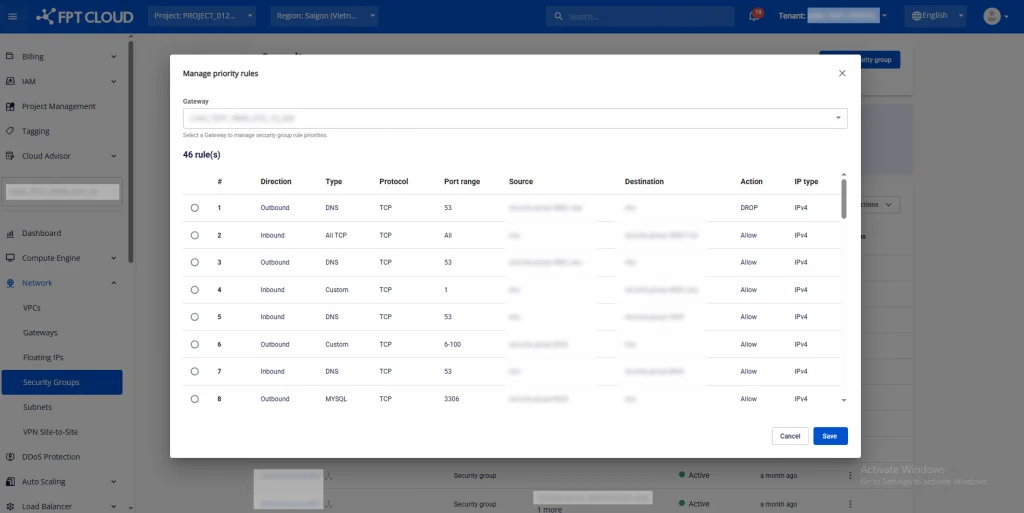
Click the Actions button > Manage priority rule
-
The system will display a modal showing the rule list by gateway (if the VPC has multiple gateways, the system will automatically select the first Gateway and load the rule list for that Security Group in that Gateway)
-
The rule list will display:
- Column #: rule priority order
- Direction (Inbound/Outbound)
- Type
- Protocol
- Port range
- Source / Destination
- Action (Allow/Deny)
- Source / Destination
- IP Type (IPv4/IPv6)
Step 3: Change Priority
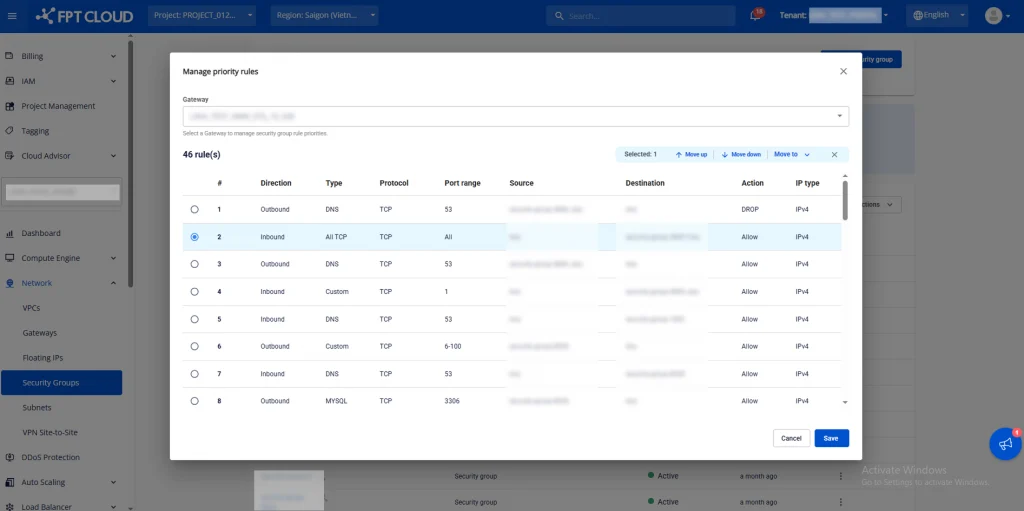
- Click on the rule you want to reorder
- Click Move up / Move down to move the rule up or down to the desired position. Or use Move to to move the rule to any position in the current rule list
- The system will automatically update the Priority value according to the new position
Step 4: Save the configuration
-
After finishing the arrangement, click Save or Apply Changes
-
The rule will be applied immediately
Does changing the priority cause downtime? => No. Rules are applied in real-time and do not affect VM uptime.
Can I set the same priority for multiple rules? => No.