Filter Security Group
Introduction
The Filter Security Group feature allows users to quickly search and narrow down the Security Group list using various criteria such as name, tag, IP address, status, firewall type, creation date, etc.
| Field | Description |
|---|---|
| Name | Enter the Security Group name or a partial name. The system will filter based on the string you enter. Example: enter "sec" to find "security-group-9609", "security-group-6688", etc. |
| Tag level | Dropdown to select the tag level. Used to filter data tags by level. Select All to show everything. |
| Tag | Select a specific tag to filter Security Groups that have that tag assigned. The dropdown shows the list of existing tags. Example: select tag "tagging-prod" to display Security Groups in the Production environment. |
| Apply to | Filter by Instance name or IP address of the Instance that the Security Group is applied to. Example: enter 10.10.5.21 to find Security Groups applied to that IP. |
| Source/Destination | Filter Security Groups that have rules related to the source or destination you enter. Accepts: single IP (e.g., 192.168.10.5) or CIDR range (e.g., 10.0.0.0/24). |
| Status | Filter by Security Group status. Values: Creating, Active, Deleting. |
| Firewall type | Filter by firewall type, including: Distributed Firewall (DFW) & Security Group. |
| Create date from - Create date to | Filter Security Groups by creation date range. |
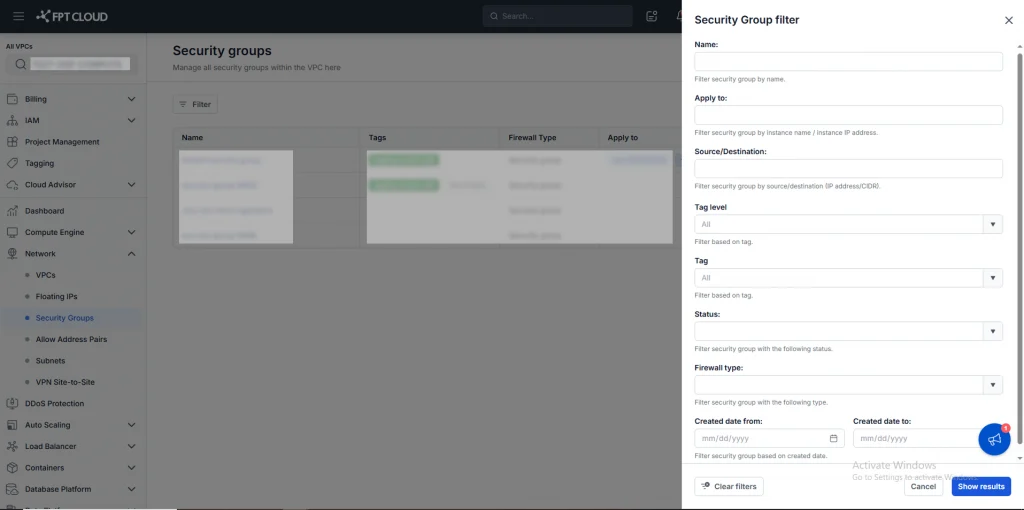
Step 1: Open the Filter window
- Click Filter on the Security Group screen.
Step 2: Enter filter conditions
-
You can enter one or more conditions at the same time.
-
Example combination:
-
Name: prod
-
Tag: tagging-prod
-
Status: Active
-
→ The system will only display active Security Groups with the tag "tagging-prod" whose name contains "prod".
Step 3: Apply the filter by clicking the Show result button.
Step 4: Clear the filter
-
Click Clear to remove all filter conditions.
-
Click X next to each field to remove that individual condition.
The filter does not modify Security Groups — it is for search purposes only.
Some fields may not appear if the Security Group has no corresponding data (e.g., empty Tag).
If the list shows no results, check whether too many filter conditions have been entered.