Create Group
Step 1: Go to Autoscaling > Autoscale Group. Click Create group.
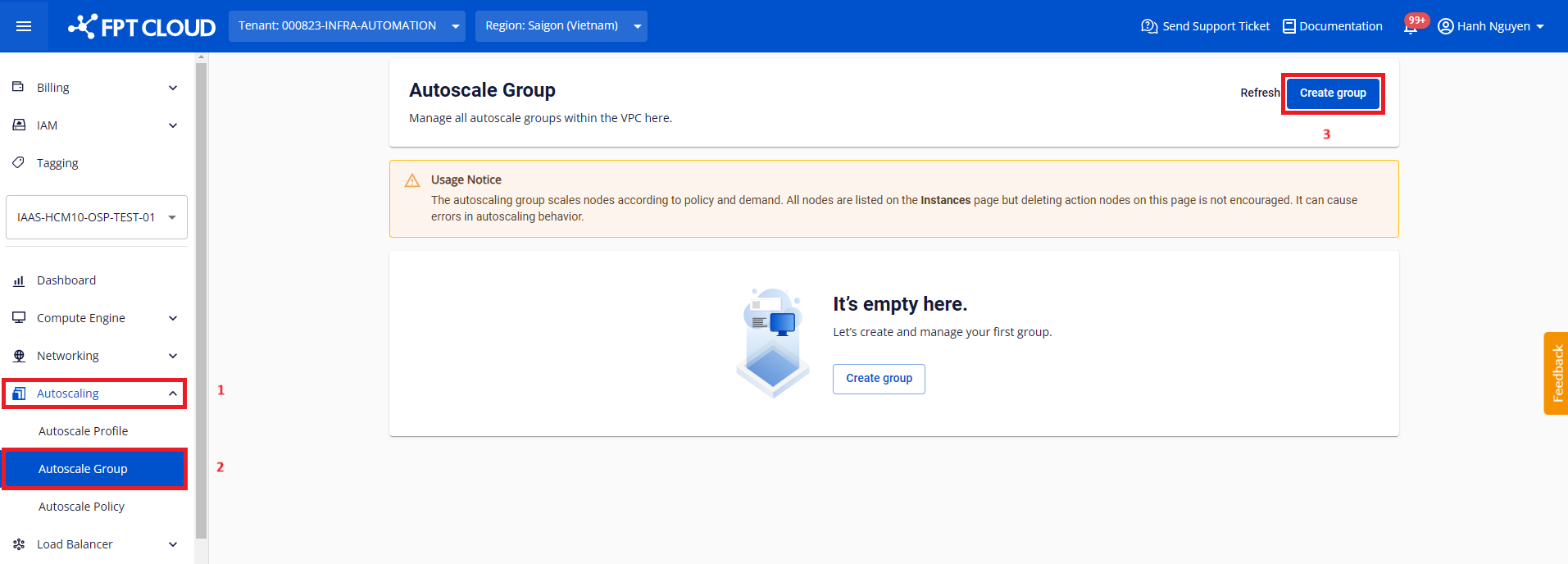
Step 2: A dialog appears. Configure the following parameters.
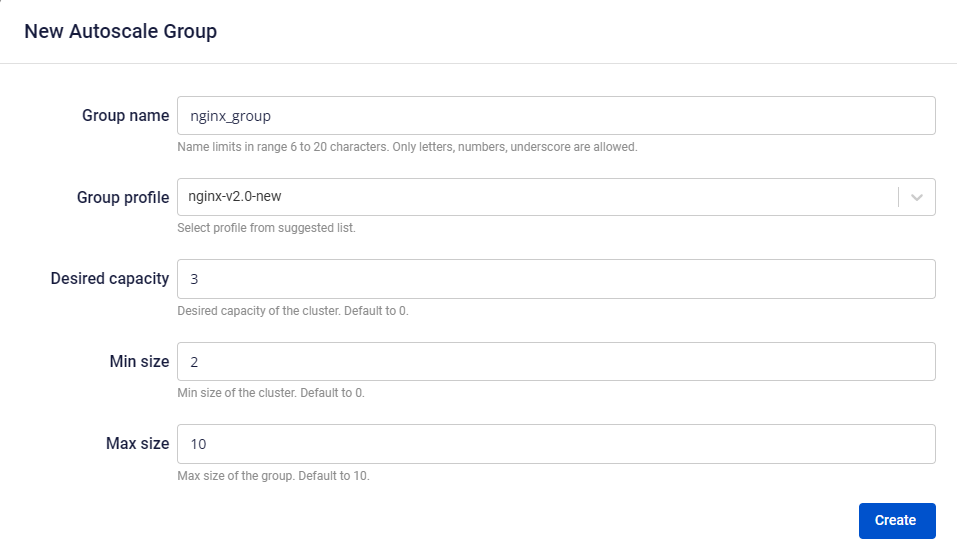
- Group name: Enter a group name that is easy to manage. The name must be 6 to 20 characters and may only contain Latin letters, numbers, and underscores.
- Group profile: Select a previously created profile to use as the base reference for the group.
- Desired capacity: The desired number of nodes to initialize in the group. The value must be greater than or equal to Min size and less than or equal to Max size. This is the number of nodes created based on the selected profile when the group is created.
- Min size: The lower limit of the group, ensuring a minimum number of nodes during operation (to avoid service interruption). The default value is 0; the recommended value is 2 to ensure the group always maintains at least 2 nodes.
- Max size: The upper limit of the group, ensuring a maximum number of nodes during operation (to avoid uncontrolled resource consumption). The default value is 10.
Step 3: Click Create.
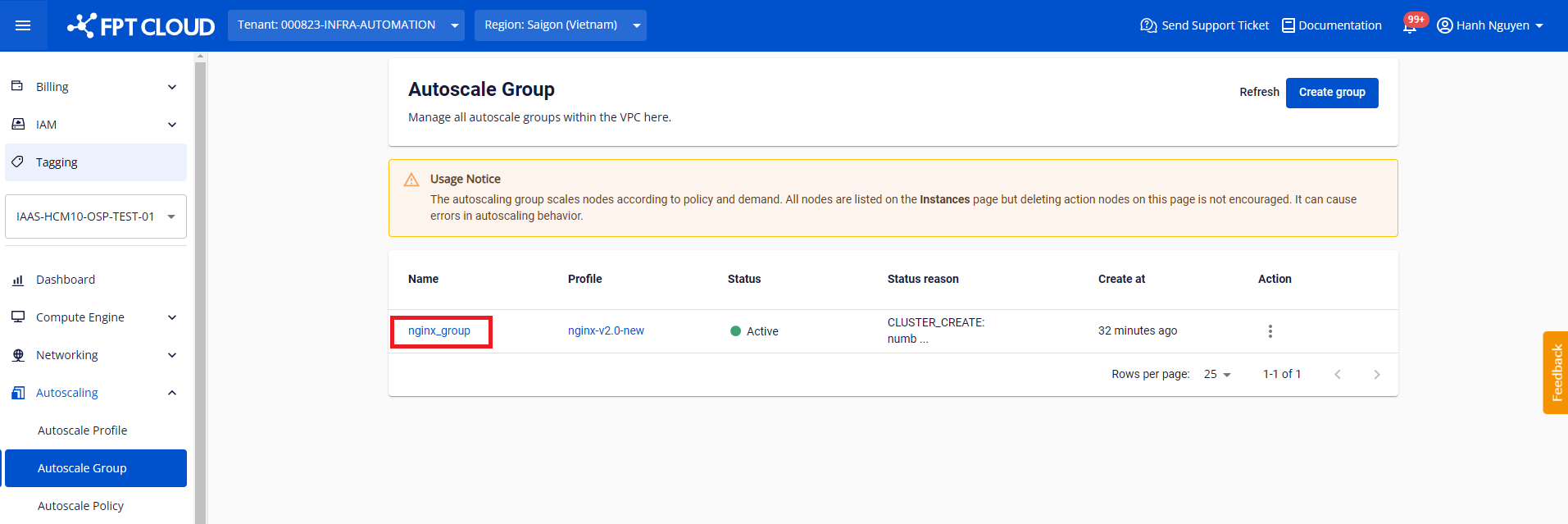
The system checks the remaining resource quota in the VPC and creates the group. The newly created group appears in the list with the status Creating.
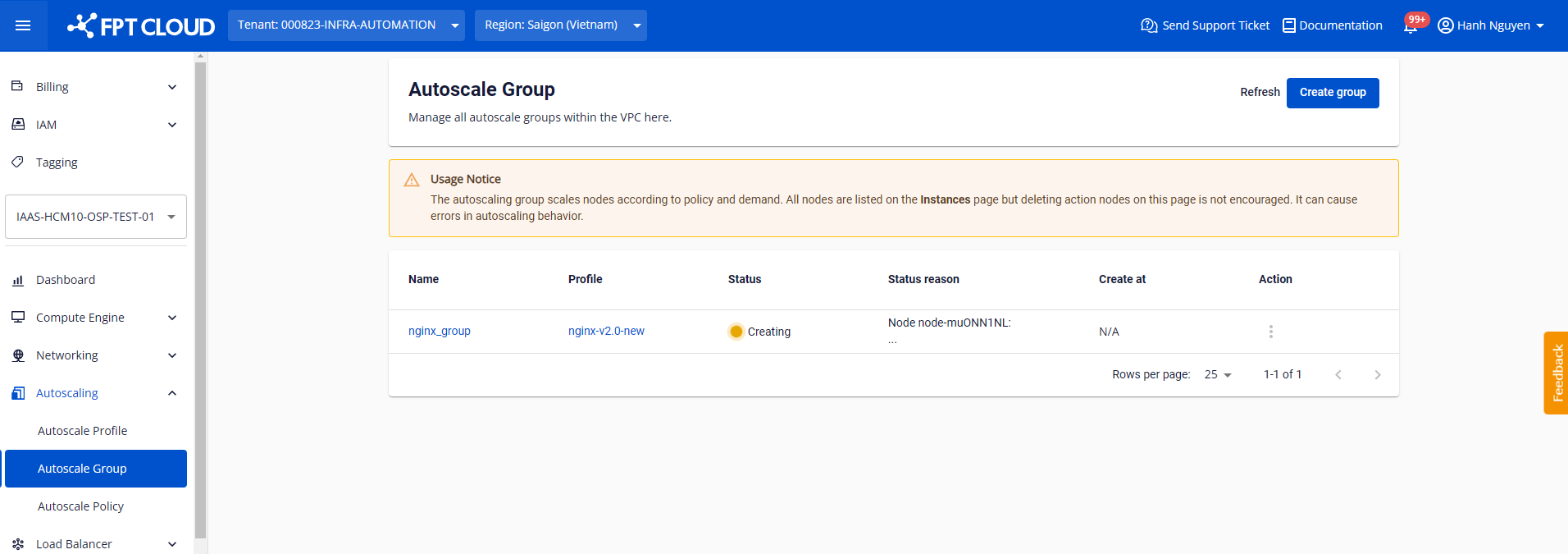
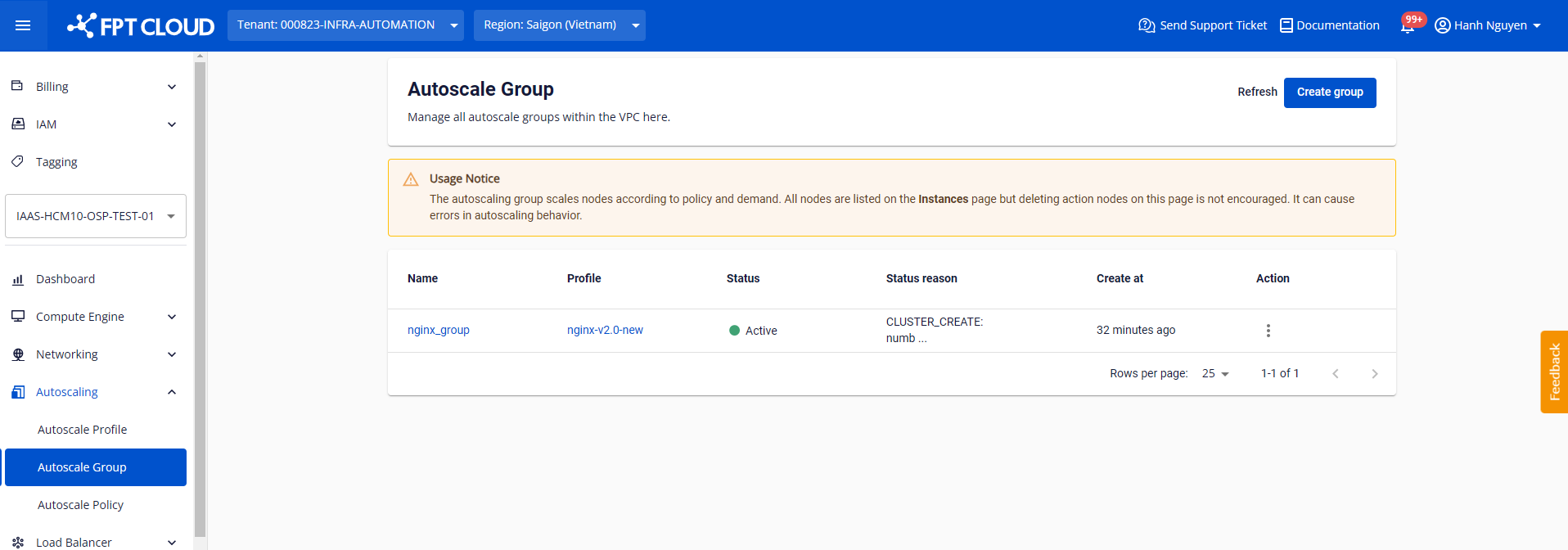
The time to create the group depends on the number of nodes in Desired capacity. When the status changes from Creating to Active, the group is ready to operate.
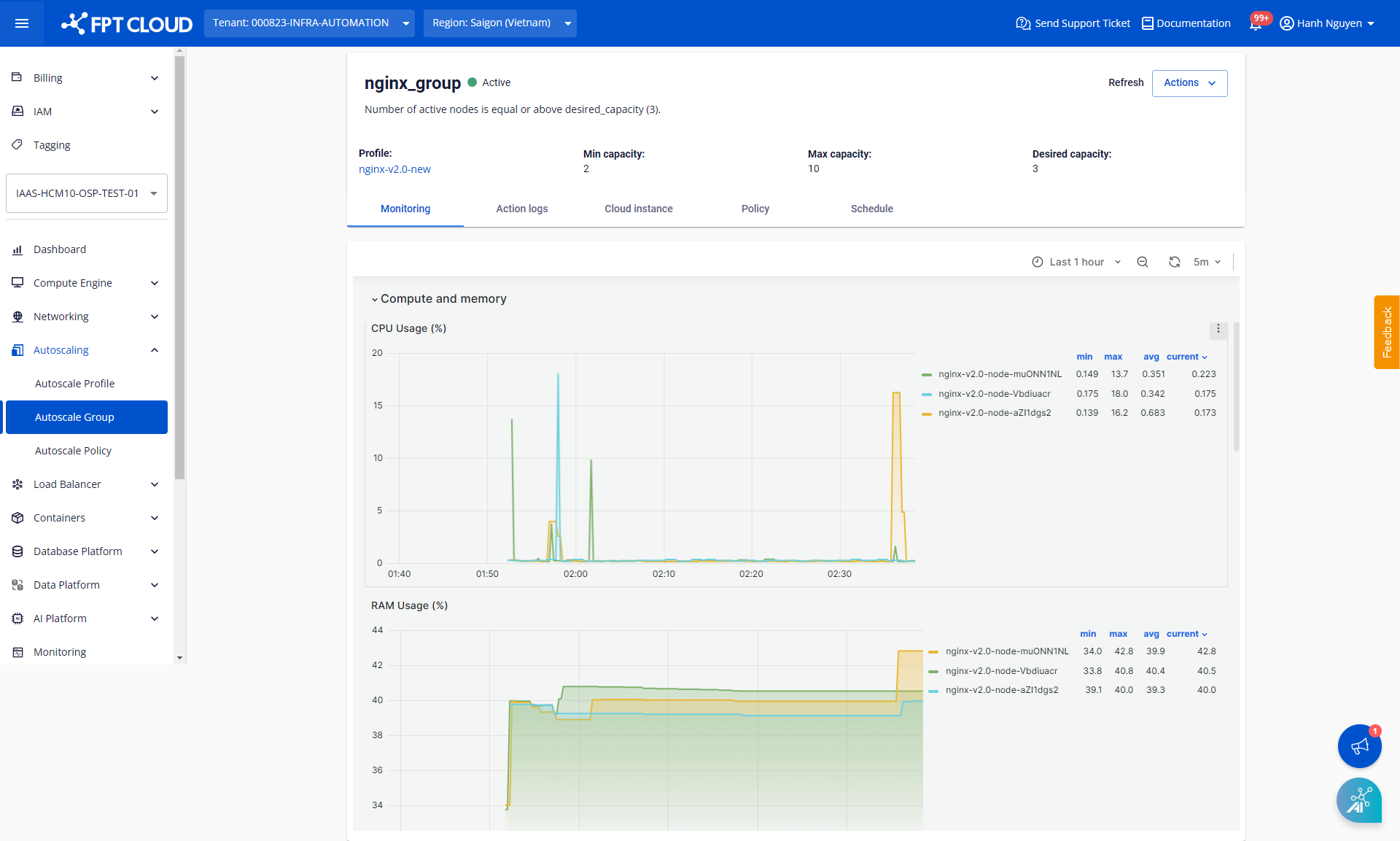
View group details by clicking the group name in the list: