Account/Password via legacy FCDClient
For users who are still using a previously installed legacy FCDClient.
Support for accessing via legacy FCDClient on PCs and laptops will end after 31 March 2026. Access from other device types remains supported until further notice. Install the new FCDClient proactively to avoid interruptions to your work.
1. Open the service homepage with the correct URL
Valid URL formats:
- Your organization's dedicated FCD URL (provided by your customer administrator)
- A URL that already contains a valid authentication code (format:
code.domain). Example:pil783454741.pilotfcd.online - The service default URL
The URL is provided by your customer administrator.
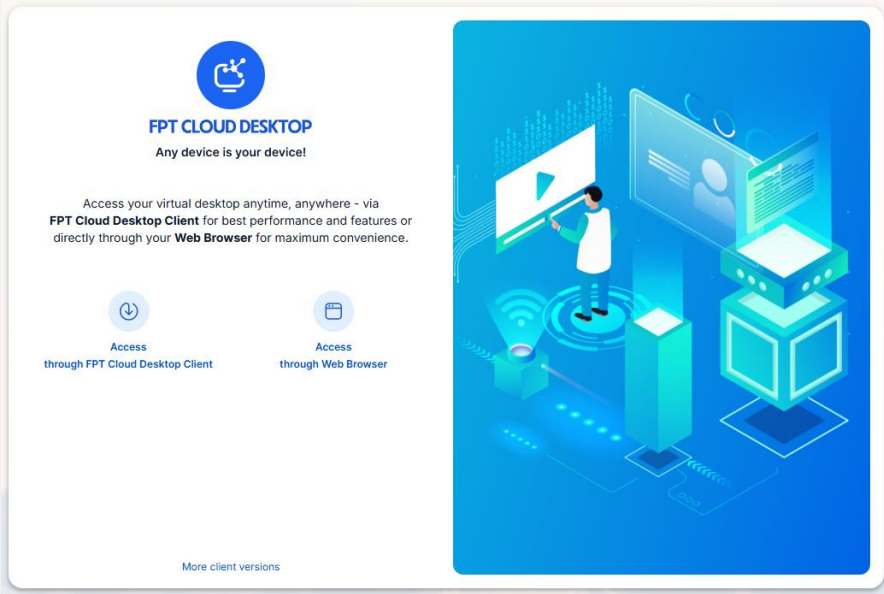
Open the service link in a web browser and select Access through FPT Cloud Desktop Client.
2. Sign in to the Authenticator (Server)
If you are accessing via a URL that already contains a valid authentication code (example: pil783454741.pilotfcd.online):
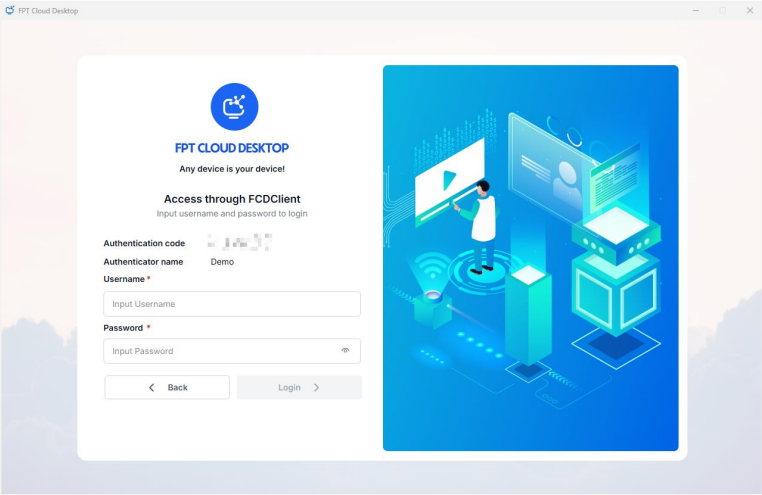
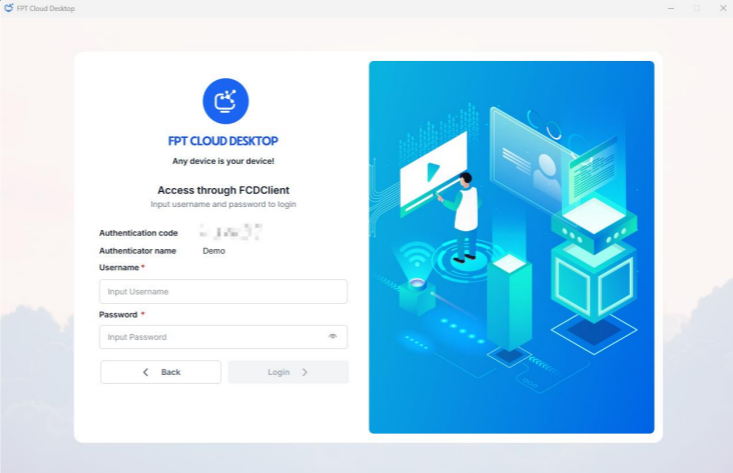
- Enter your username and password. Authentication (Server) login is successful.
If you downloaded FCDClient from the service default URL:
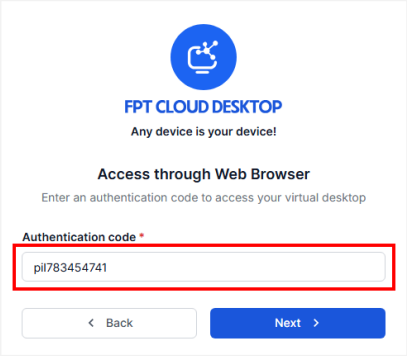
- Enter the Authentication Code (provided by your customer administrator). Example:
pil783454741.
- Enter the username and password for the server you want to sign in to.
If a two-factor authentication QR code is displayed:
- Download and install the Microsoft Authenticator app on your phone from the App Store or Google Play.
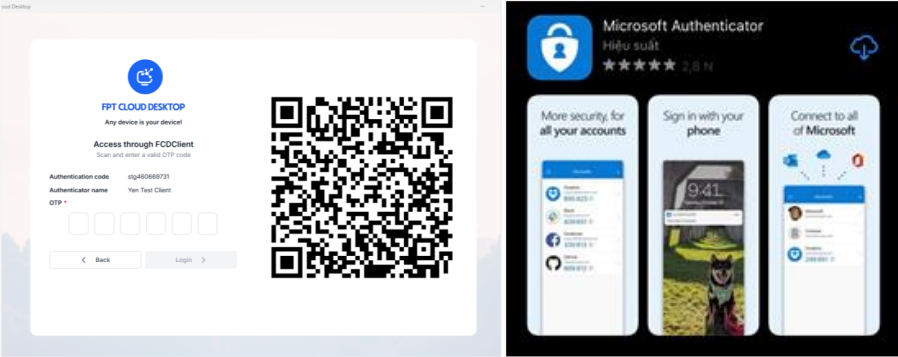
- Open the Authenticator app and scan the QR code.
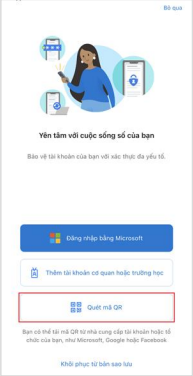
- The app syncs and displays an OTP. Enter the OTP and click Submit. Authentication (Server) login is successful.
3. Access your virtual desktop
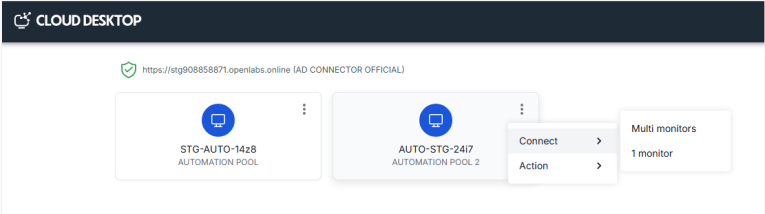
On the virtual desktop list screen, select the virtual desktop you want to access.
At this step, select the option to access via FCDClient.
If the legacy FCDClient is installed: The system opens the legacy FCDClient to access the virtual desktop. Enter your virtual desktop login credentials if prompted. Virtual desktop access is successful.