Account/Password via Web Browser
Access via web browser
For users who want quick access to a virtual machine without installing FCDClient.
1. Access the service homepage with the appropriate URL
Valid URL formats:
- The company/organization's dedicated URL for FCD (provided to users by the customer administrator)
- A URL that already contains a valid authentication code (format: code.domain). Example: pil783454741.pilotfcd.online
- The default service URL
This URL is provided by the customer administrator
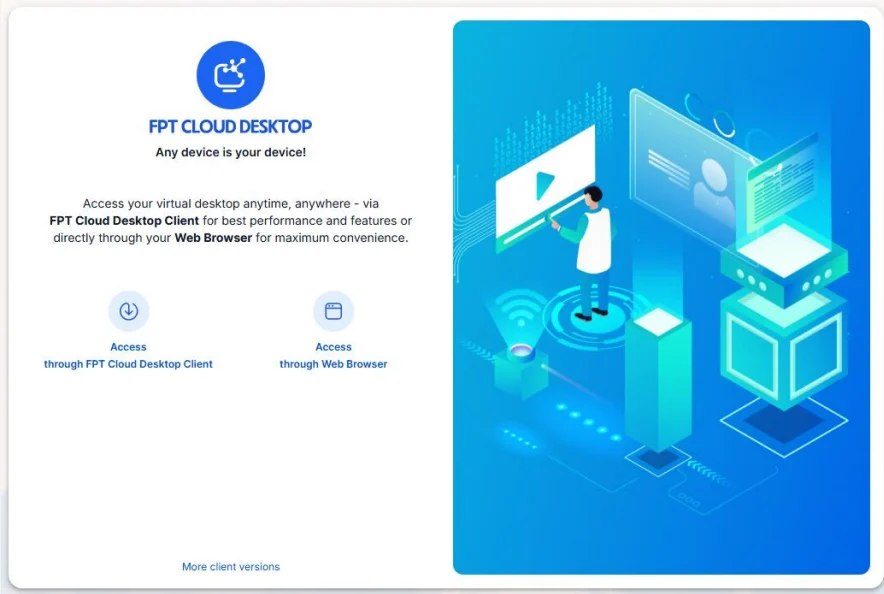
Open the service link in a web browser and select Access through FPT Cloud Desktop Client.
2. Log in to the appropriate Authenticator (Server)
If the user accesses via a URL that already contains a valid authentication code (example of a URL with a valid code: pil783454741.pilotfcd.online):
- Log in with the corresponding account/password:
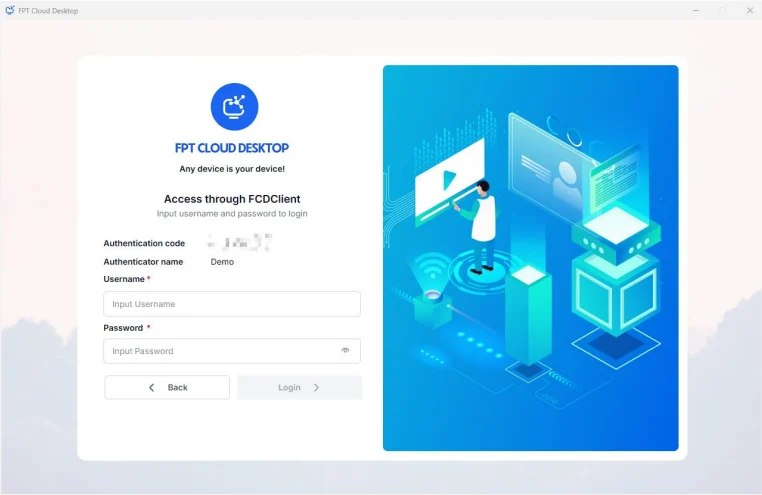
=> Authenticator (Server) login successful.
If the user accesses from the default service URL:
- Enter the Authentication Code (managed by the customer administrator). (Example of a valid Authentication Code: pil783454741)
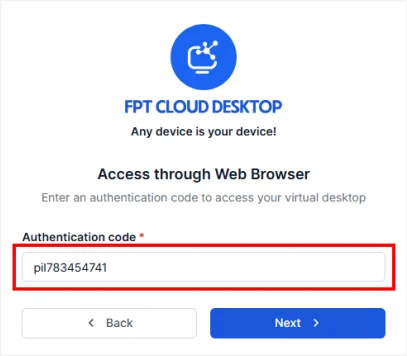
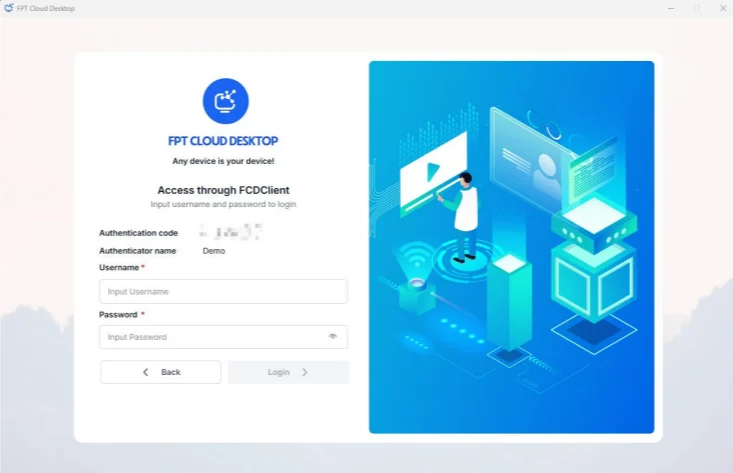
- Enter the account credentials corresponding to the Server you want to log in to.
If a two-factor authentication QR code is displayed: Download and install the Microsoft Authenticator app on your phone from the Apple Store or Google Play.
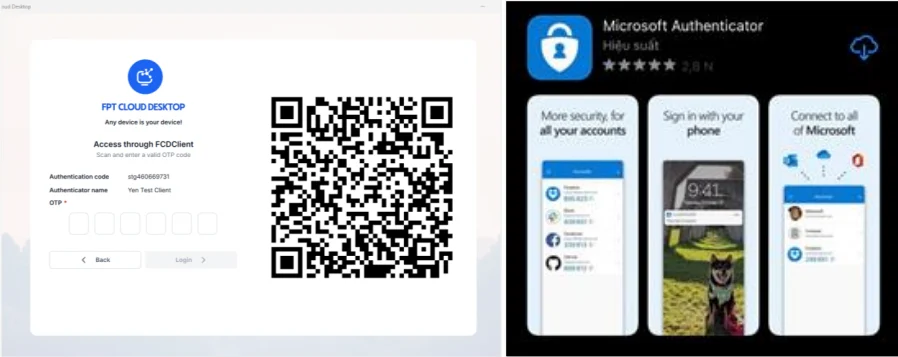
Open the Authenticator app and scan the QR code.

- The app will sync and display an OTP to use when logging in to FCD.
- Enter the OTP and click Submit => Authenticator (Server) login successful.
3: Access the virtual machine
On the virtual machine list screen, select the virtual machine you want to access.

Enter the virtual machine login credentials if prompted by the system => Virtual machine access successful.