Account/Password via new FCDClient
For the most stable and feature-complete experience, giving you direct control through the application.
You only need to complete Step 1 (installation) once. On subsequent visits, you can connect directly from the FCDClient application.
Step 1: Install the new FCDClient
1. Open the service homepage with the correct URL
Valid URL formats:
- Your organization's dedicated FCD URL (provided by your customer administrator)
- A URL that already contains a valid authentication code (format:
code.domain). Example:pil783454741.pilotfcd.online - The service default URL
The URL is provided by your customer administrator.
Open the service link in a web browser and select Access through FPT Cloud Desktop Client.
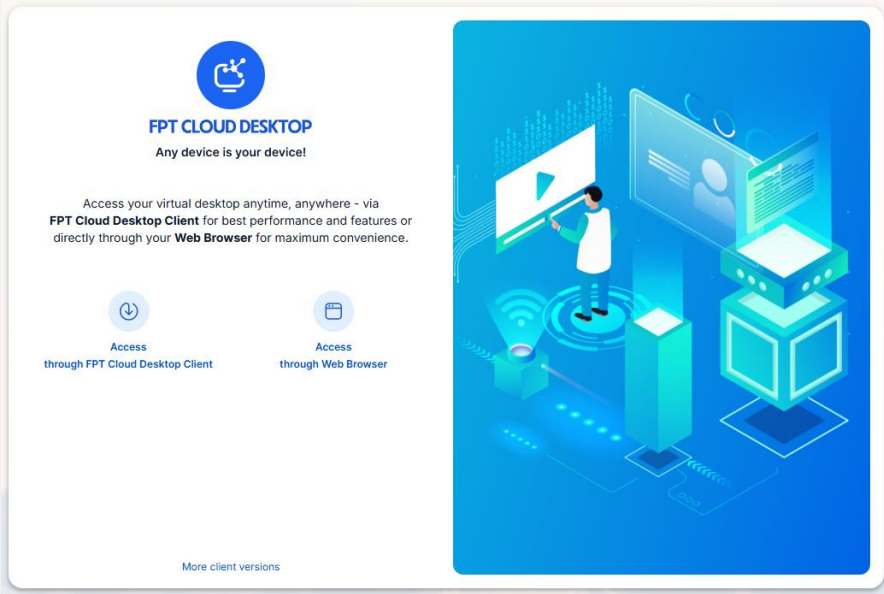
2. Download, install, and open FCDClient
The system automatically downloads the latest FCDClient version compatible with your operating system.
If the browser shows a download warning:
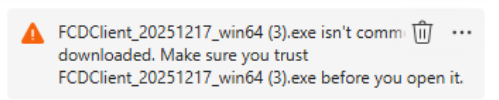
Click the three-dot menu > Keep > Keep anyway.
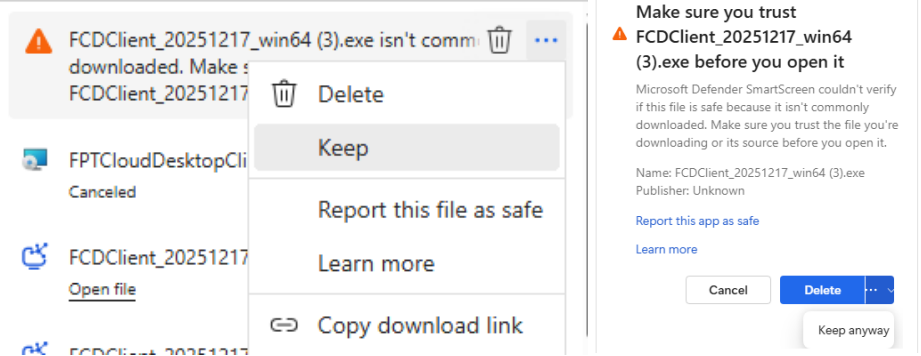
After the download completes, select Open file to install the application.
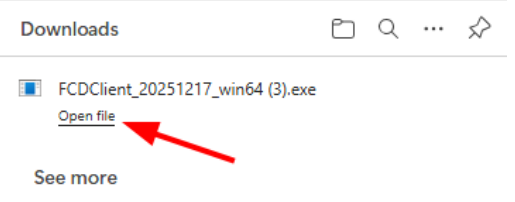
On Windows: When the "Windows protected your PC" popup appears, click More info then Run anyway.
On macOS:
- Drag the installer into the Applications folder
- Open the installer and click Open to confirm
- Check Don't warn me when opening applications on this disk image
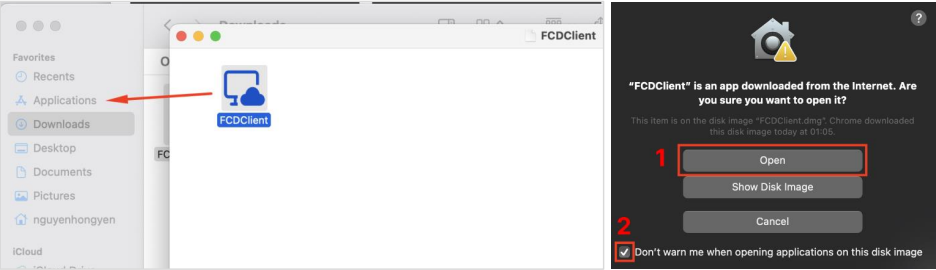
FCDClient is now installed. Open the FCDClient application.
On macOS: You also need to install the Microsoft Windows App from the Mac App Store.
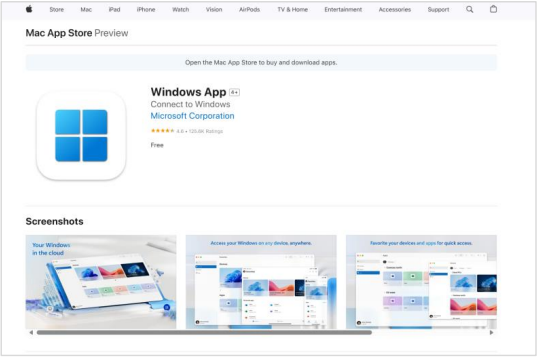
If your device shows a warning about FCDClient, go to Settings > Privacy & Security > Open Anyway for FCDClient.
Step 2: Access your virtual desktop via new FCDClient
3. Open FCDClient and sign in to the Authenticator (Server)
- If FCDClient already has server details (filled in previously, or downloaded from a URL containing a valid authentication code): Select Connect Server and enter your account credentials as described in step 4.
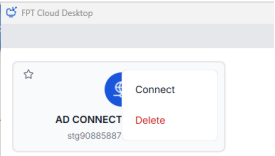
-
If FCDClient has no server details: Select New Server > Enter a valid URL or Domain (provided by your customer administrator).
Example: Enter the full URL
pil783454741.pilotfcd.onlinedirectly, or enter the domainpilotfcd.onlinefirst, then enter authentication codepil783454741.
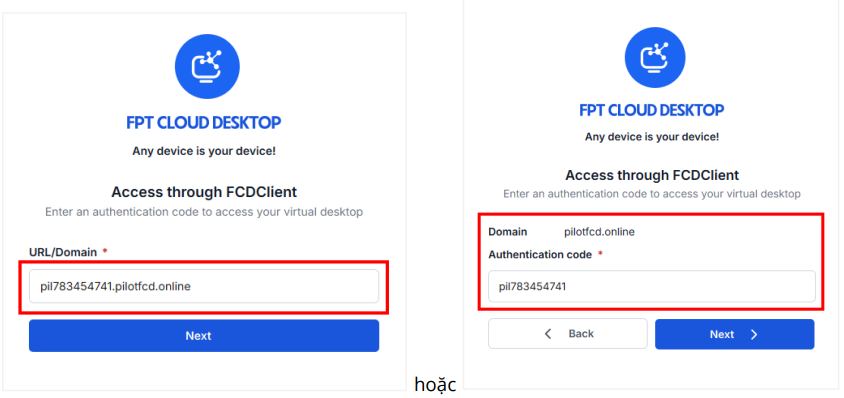
4. Enter your username and password
Enter the username and password for the server you want to sign in to.
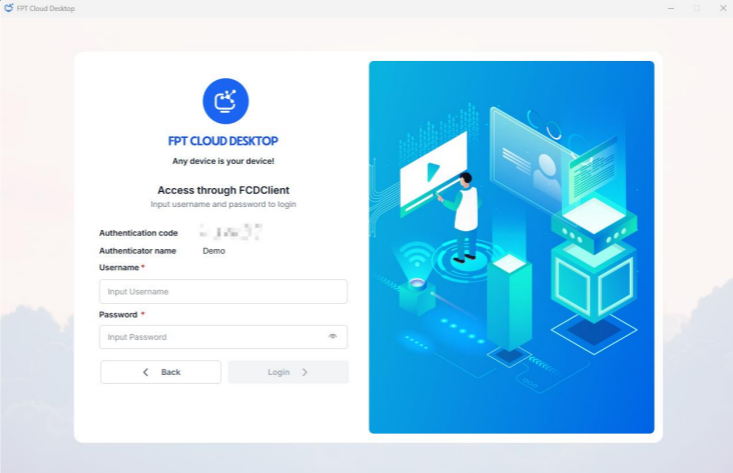
If a two-factor authentication QR code is displayed:
- Download and install the Microsoft Authenticator app on your phone from the App Store or Google Play.
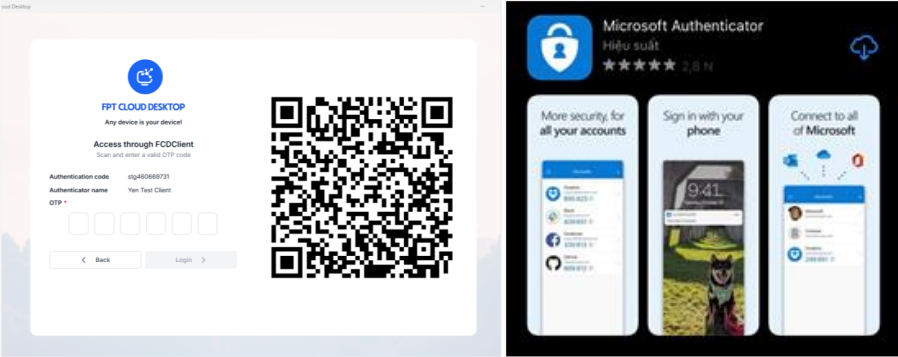
- Open the Authenticator app and scan the QR code.
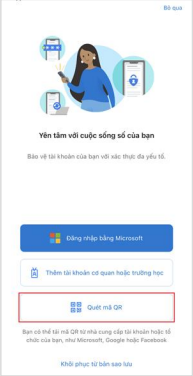
- The app syncs and displays an OTP. Enter the OTP and click Submit. Authentication (Server) login is successful.
5. Access your virtual desktop
On the virtual desktop list screen, select the virtual desktop you want to access.
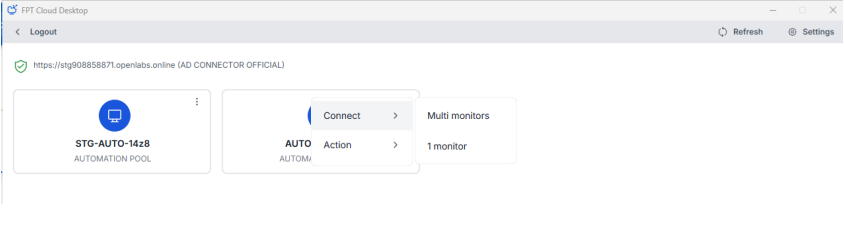
Enter your virtual desktop login credentials if prompted. Virtual desktop access is successful.
Additional features in the new FCDClient
- Auto-connect Server: Connects directly to the Authenticator when you open FCDClient (applies only when launching the app directly; not supported when using Access through FCDClient on the homepage)
- Settings: View installed FCDClient information
- New Server: Add a new Authenticator Server