Create Processing service
To create a Processing service, follow these steps:
Pre-condition: An Orchestration service must be successfully created first.
Step 1: In the menu bar, select Data Platform > Workspace Management > Workspace name
Step 2: In the Workspace Details section, click Create > the Services popup appears, select Processing service > Create Service
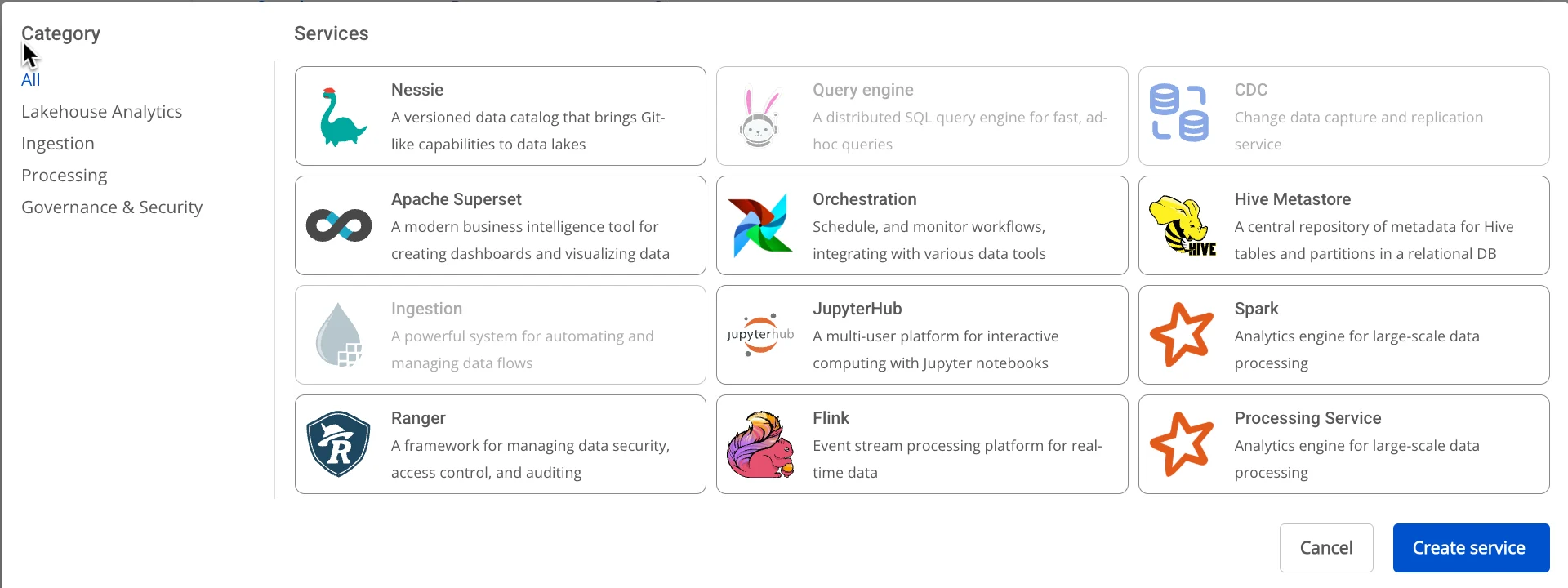
Step 3: In the Processing service creation form, enter the Basic Information:
-
Orchestration service name (required): Select the Orchestration service that will orchestrate Spark Job operations
-
Name (required): Service name
Note: The service name may contain lowercase letters a-z, uppercase letters A-Z, or digits 0-9. Spaces are not allowed — use "-" or "_" instead.
-
Description (optional): Service description
-
Version (required): Service version
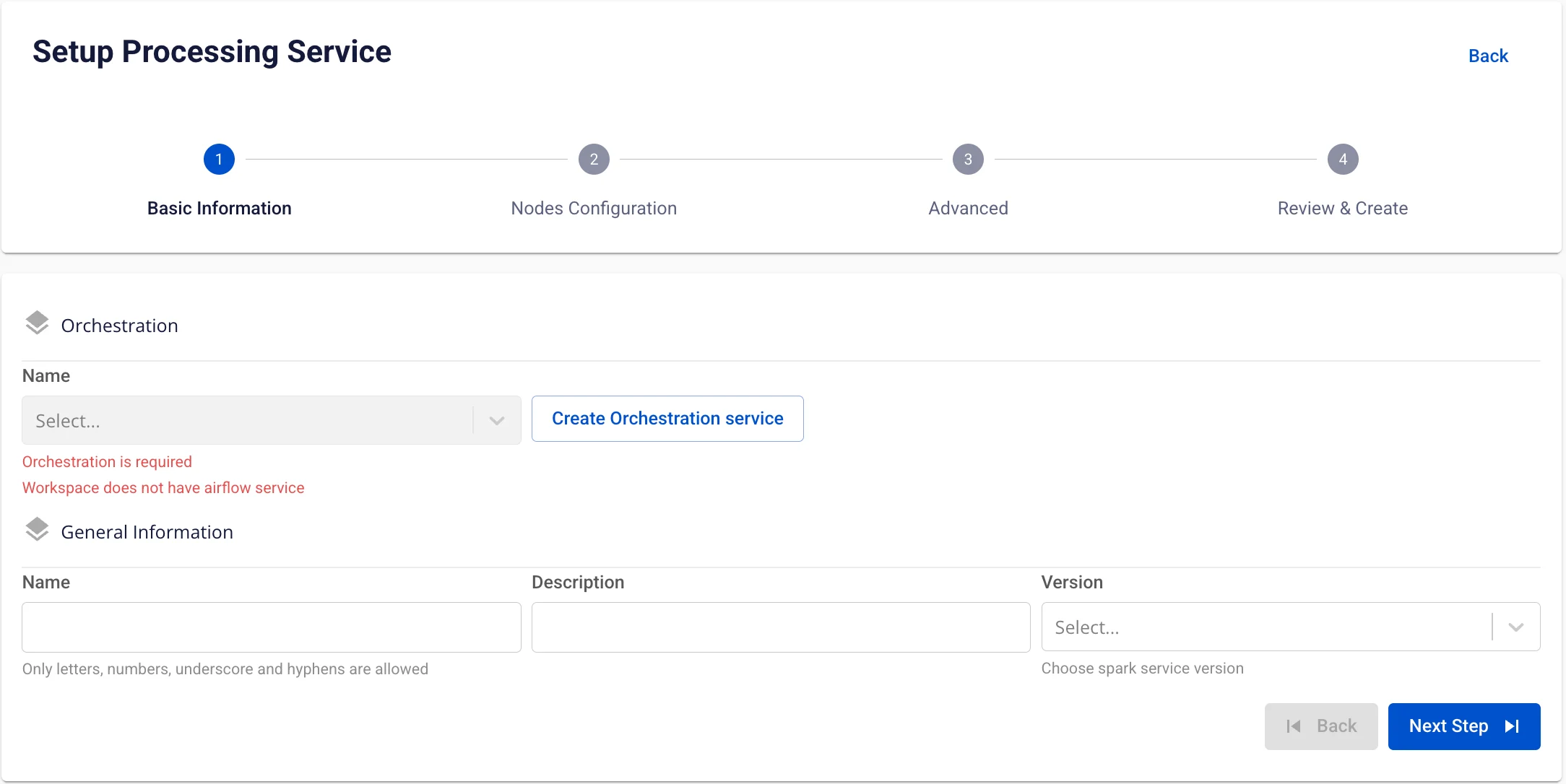
Step 4. Click Next Step to proceed to the Nodes Configuration screen
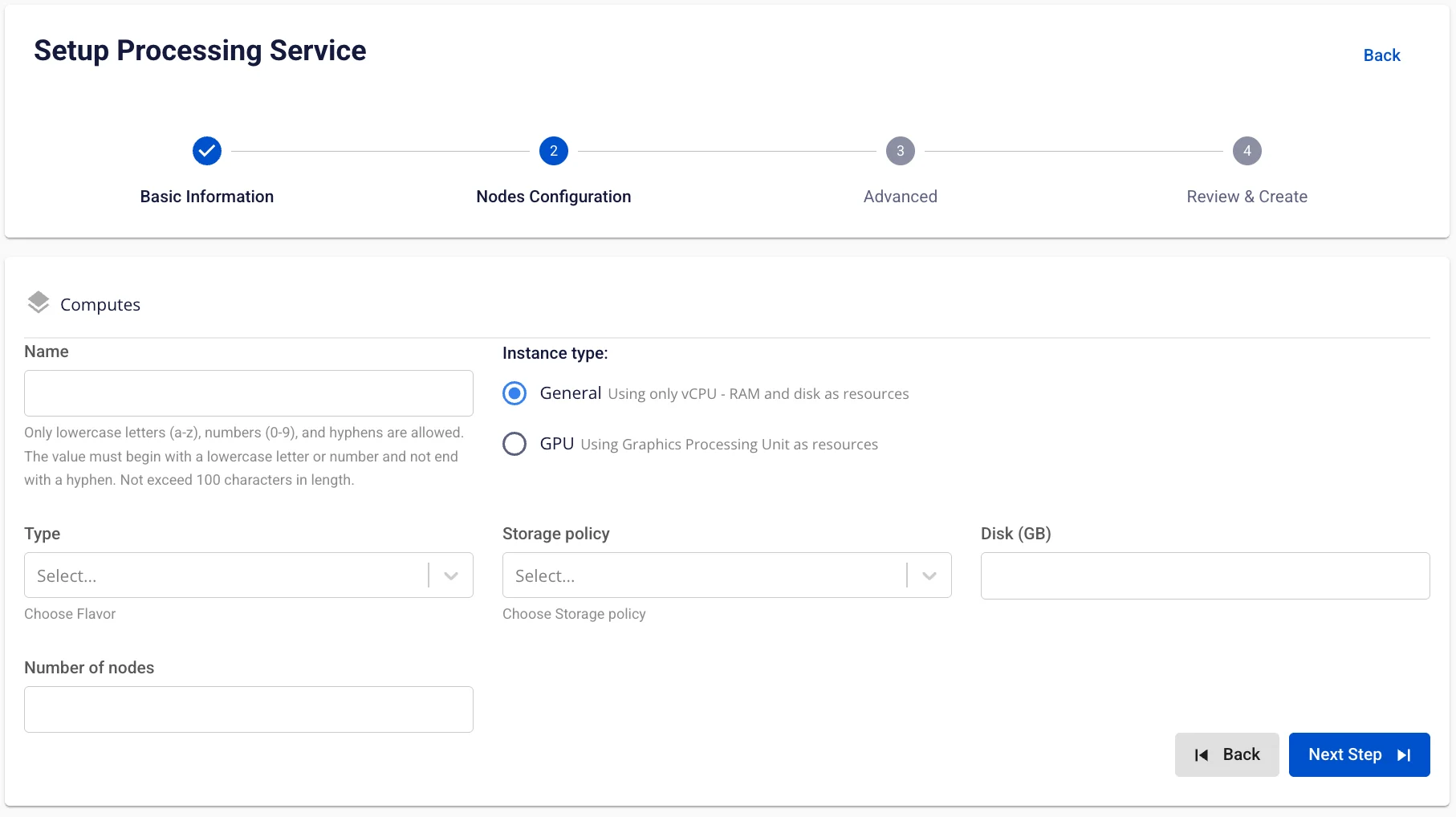
- Instance type = General
Enter the following information:
* **Name** (required): Compute name
Note: The compute name may contain lowercase letters a-z, uppercase letters A-Z, or digits 0-9. Spaces are not allowed — use "-" or "_" instead.
* **Storage policy**: Select a Storage policy

* **Disk size**: Select disk configuration size (Disk >= 40)

* **Type**: Select flavor

* **Number of nodes**: Enter the number of nodes
The number of nodes must be greater than or equal to 1 and less than or equal to 10.
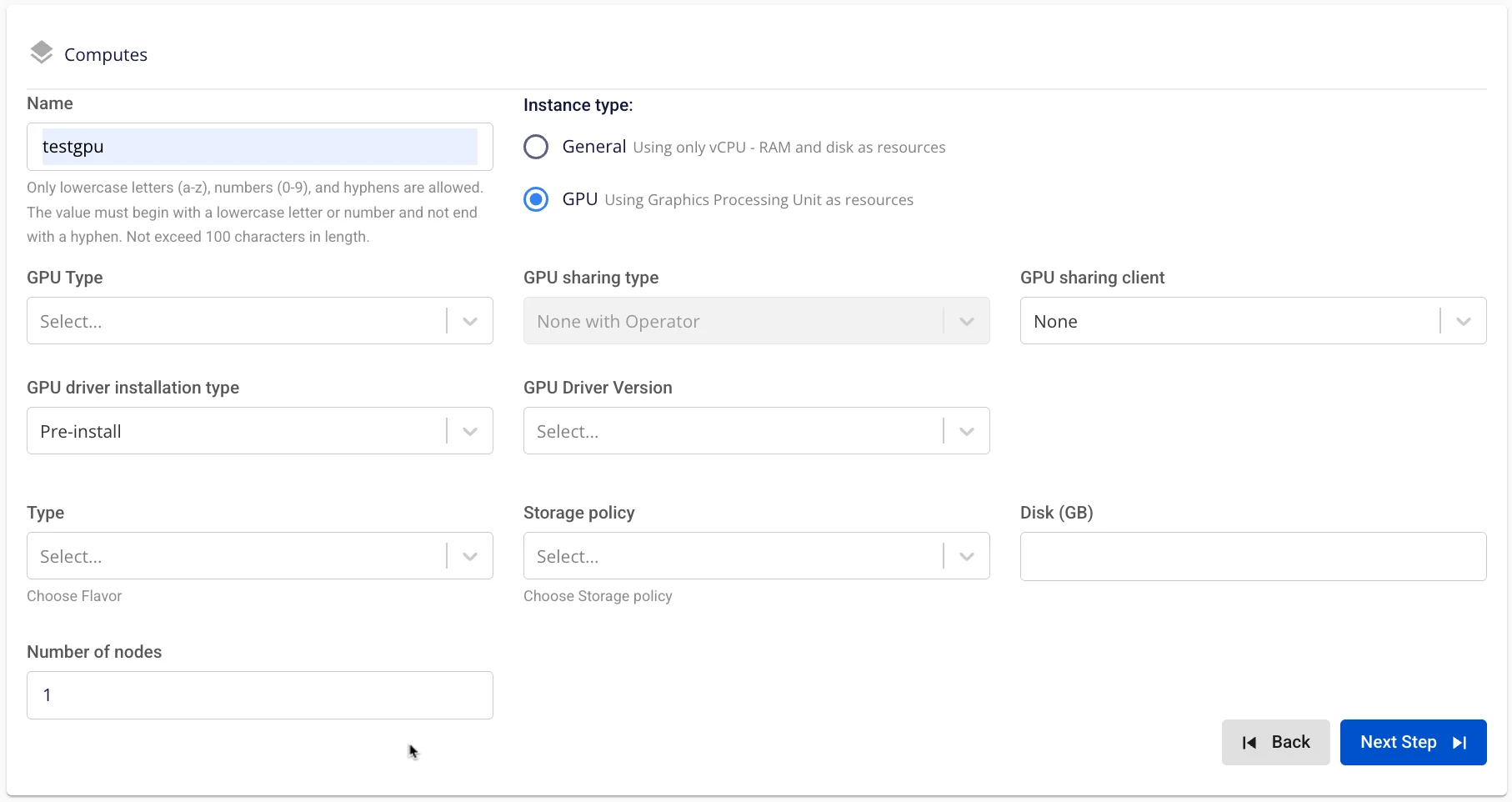
- Instance type = GPU
Enter the following information:
* **Name** (required): Compute name
Note: The compute name may contain lowercase letters a-z, uppercase letters A-Z, or digits 0-9. Spaces are not allowed — use "-" or "_" instead.
* **GPU type** (required if GPU is selected)

* **GPU driver installation type** (required): Select driver installation type

* **Select a driver version** (required): Select driver version

* **GPU sharing type** (required): Select GPU sharing type

  * If None is selected, the **GPU sharing client** input is **not displayed**

  * If a value other than None is selected, the **GPU sharing client** input is **displayed**

* **Policy** (required): Select policy

* **Storage policy**: Select a Storage policy

* **Disk size**: Select disk configuration size (Disk >= 40)

* **Type**: Select flavor

* **Number of nodes**: Enter the number of nodes
The number of nodes must be greater than or equal to 1 and less than or equal to 10.
Step 5. Click Next Step to proceed to the Advanced screen
Enter the following information:
Enable Spark history
-
Checkbox = true = enable history
-
Checkbox = false = disable history
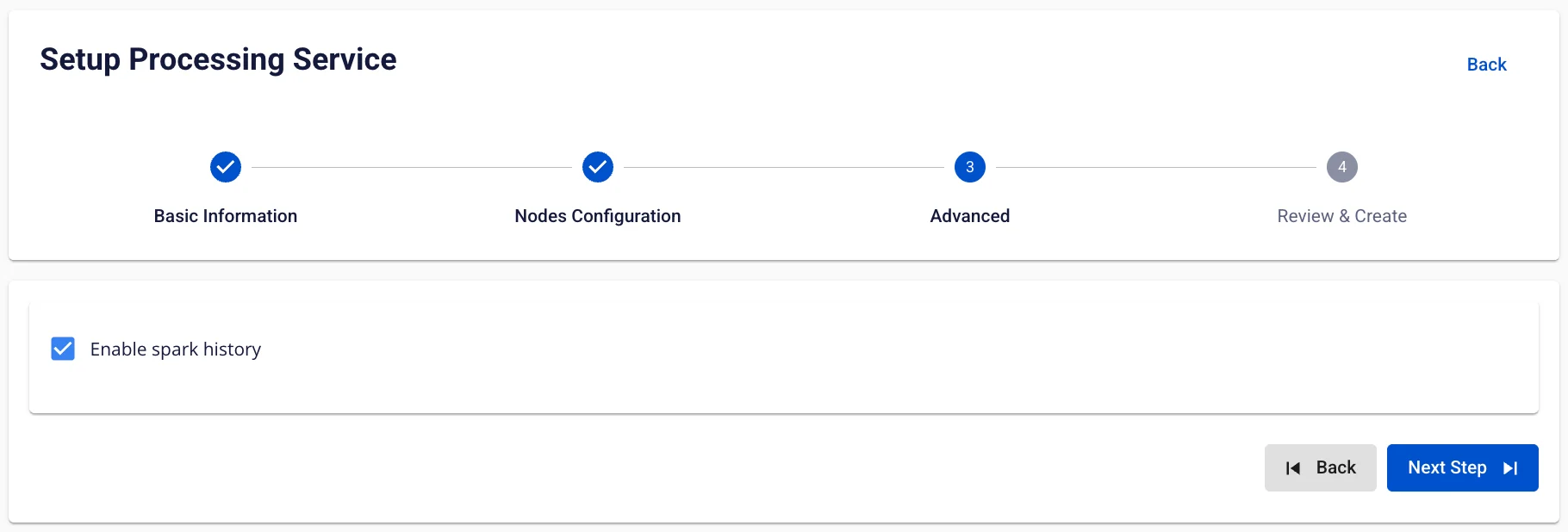
Step 6: Click Next Step to proceed to the Review & Create screen.
Step 7. Review all entered information, then click Create to complete the Processing service initialization.
Processing service initialization is complete when the Worker Status is Succeeded and the Processing service Status is Healthy (~15 minutes)