Manage Compute Images
The Prepulling Image feature allows users to manage Docker images pulled into the workspace from various registries. Pre-pulling images optimizes container startup time and ensures images are ready to use when needed.
Benefits:
- Reduces container startup time
- Centralized management of images required for compute
- Supports both public and private registries
- Real-time monitoring of image pull status
Limit: Each Processing Service can have a maximum of 5 computes.
1. View Compute Image List
To view the list of pre-pulled images on a compute, follow these steps:
Step 1: On the Processing services screen > select the Compute tab
Step 2: Click on the compute whose image list you want to view
Step 3: Select the Images tab

Result: The list of images added to the compute is displayed with the following information:
- Name: Image identifier name
- URL: Full path to the image registry
(e.g.,
docker.io/nvidia/cuda:13.1.0-devel-ubuntu24.04) - Status: Current status of the image
- Ready: Image is ready to use
- Progressing: Image pull is in progress
- Processing: Being processed
- Failed: Image pull failed
- Degraded: Image has an issue (icon available to view detailed logs)
- Unknown: Unknown status
- Actions: Image operation menu (Update, Retry, Delete)
Note: If no images exist yet, the screen will display the message "No image yet" with a Create button to add a new image.
2. Add New Image
Add Image from Public Registry (no authentication required)
Step 1: On the Images tab of the Compute, click the Create button
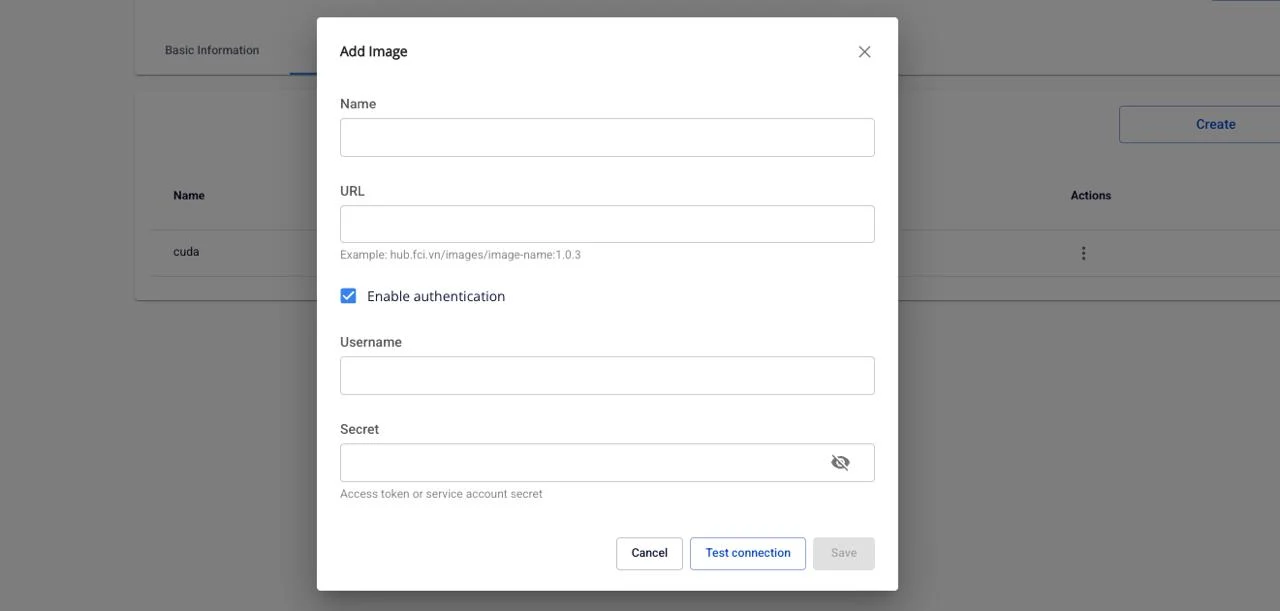
Step 2: In the Add Image popup, enter the following information:
- Name: Image identifier name (required)
- Only letters, numbers, and hyphens (-) are accepted
- Maximum 30 characters
- Example:
nginx-latest,cuda-13-1-0
- URL: Path to the image (required)
- Format: registry/repository/image-name:tag
- Example: docker.io/library/nginx:latest
- Example: hub.fci.vn/images/image-name:1.0.3
Step 3: Ensure the Enable authentication checkbox is not selected (for public images)
Step 4: Click the Test connection button to verify the connection to the registry
- If successful: Displays the message "Success - Test connection successfully"
- If failed: Displays a detailed error message
Step 5: After a successful test connection, the Save button will be enabled
Step 6: Click the Save button
Result:
- Displays the message "Success - Add successfully"
- The new image appears in the list with Progressing status
- After the pull completes, the status changes to Ready
Add Image from Private Registry (with authentication)
Step 1: On the Images tab of the Compute, click the Create button

Step 2: In the Add Image popup, enter the following information:
- Name: Image identifier name
- URL: Path to the private image
Step 3: Check the Enable authentication checkbox
Step 4: Enter the authentication information:
- Username: Username or service account (required)
- Secret: Access token or password (required)
- Click the view icon to show/hide the password
Step 5: Click the Test connection button to verify the connection
Step 6: After a successful test connection, click the Save button
Result: The image is added to the list and the pull process begins with the provided authentication.
3. Update Image
Users can update information for an existing image (name, URL, authentication). When updated, the system will automatically re-pull the image with the new information.
Step 1: In the Images list, click the ⋮ icon (vertical three dots) in the Actions column for the image to update
Step 2: Select Update from the dropdown menu
Step 3: In the Update Image popup, the fields will display the current image information
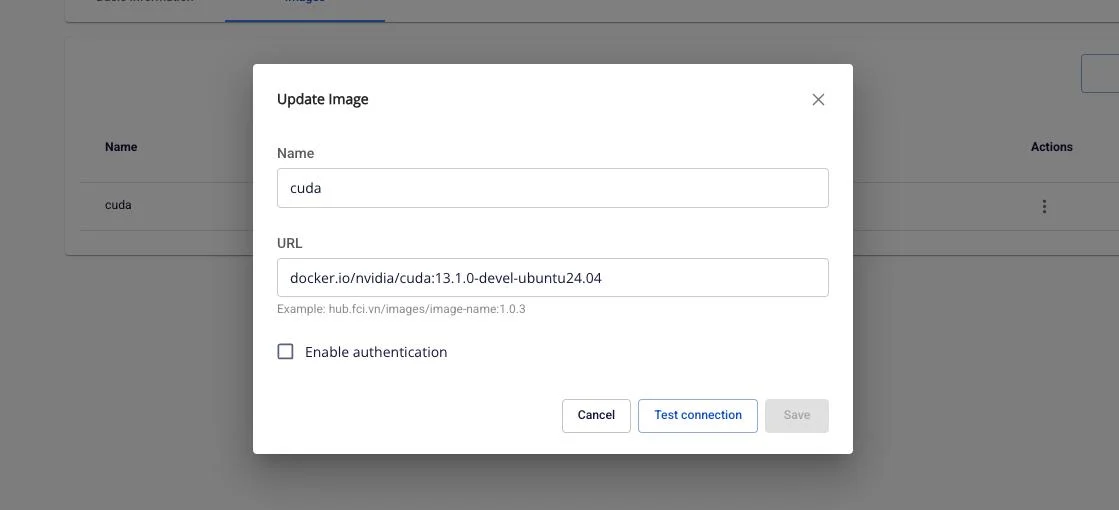
Step 4: Edit the required information:
- Change Name (following the rules: letters, numbers, hyphens, max 30 characters)
- Change URL
- Enable/Disable authentication:
- If enabled: Enter new Username and Secret
- If disabled: Remove authentication (for public images)
Step 5: Click the Test connection button to verify the new configuration
Step 6: After a successful test, click the Save button
4. Retry Image
When an image has a Failed or Degraded status, users can retry to re-pull the image.
Step 1: In the Images list, click the ⋮ icon for the image with Failed/Degraded status
Step 2: Select Retry from the dropdown menu
Step 3: In the Retry compute image popup, confirm the information:

Step 4: Click the Confirm button to confirm the retry
5. Delete Image
Users can remove images that are no longer needed from the compute.
Step 1: In the Images list, click the ⋮ icon for the image to delete
Step 2: Select Delete (red) from the dropdown menu
Step 3: In the Delete compute image popup, read the warning:
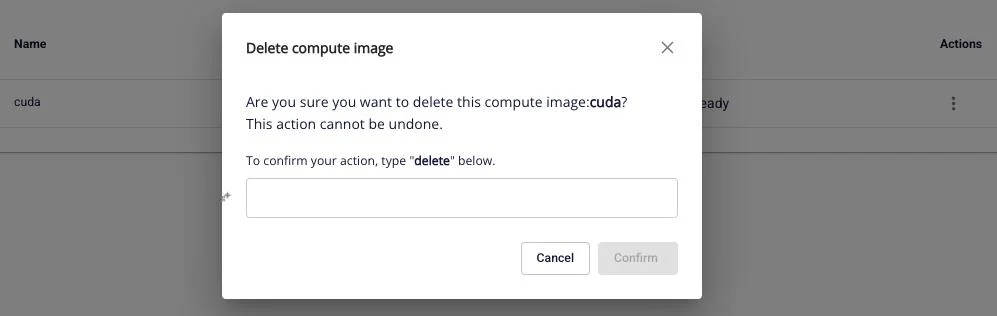
Step 4: To confirm deletion, type delete (lowercase) exactly in the input field
Step 5: The Confirm button will be enabled after the correct input is entered
Step 6: Click the Confirm button
6. View Image Logs
When an image has a Degraded status, users can view detailed logs to troubleshoot the issue.
Step 1: In the Images list, find the image with Degraded status (with icon beside it)
Step 2: Click the information icon
Step 3: The Logs popup will display with detailed log content
Example log: [2020-07-07 15:04:29,334] DEBUG Progress event: TRANSFER_PART_COMPLETED_EVENT, bytes: 0 (io.confluent.connect.s3.storage.S3OutputStream:286)
Step 4: Read and analyze the logs to identify the cause of the error
Step 5: Click the X icon to close the log popup
Result: The popup closes and returns to the Images list screen