Manage Compute
To view the Compute listing, follow these steps:
Step 1: In the menu bar, select Data Platform > Workspace Management > Workspace name
Step 2: In the My Services section, select Processing service > Tab Compute
Compute listing — Displays the list of computes created in the Processing Service, allowing users to:
-
View compute name, GPU type, and resource configuration (Resource type)
-
Create a new compute using the Create button
-
Perform operations on a compute via the Actions menu
-
Limit: Each Processing Service can have a maximum of 5 computes
1. Create compute
To create a Compute, follow these steps:
Step 1: On the Processing services screen > select the Compute tab
Step 2: In the Compute tab, click Create > the Create Services popup appears
Step 3: In the Compute service creation form, enter the information
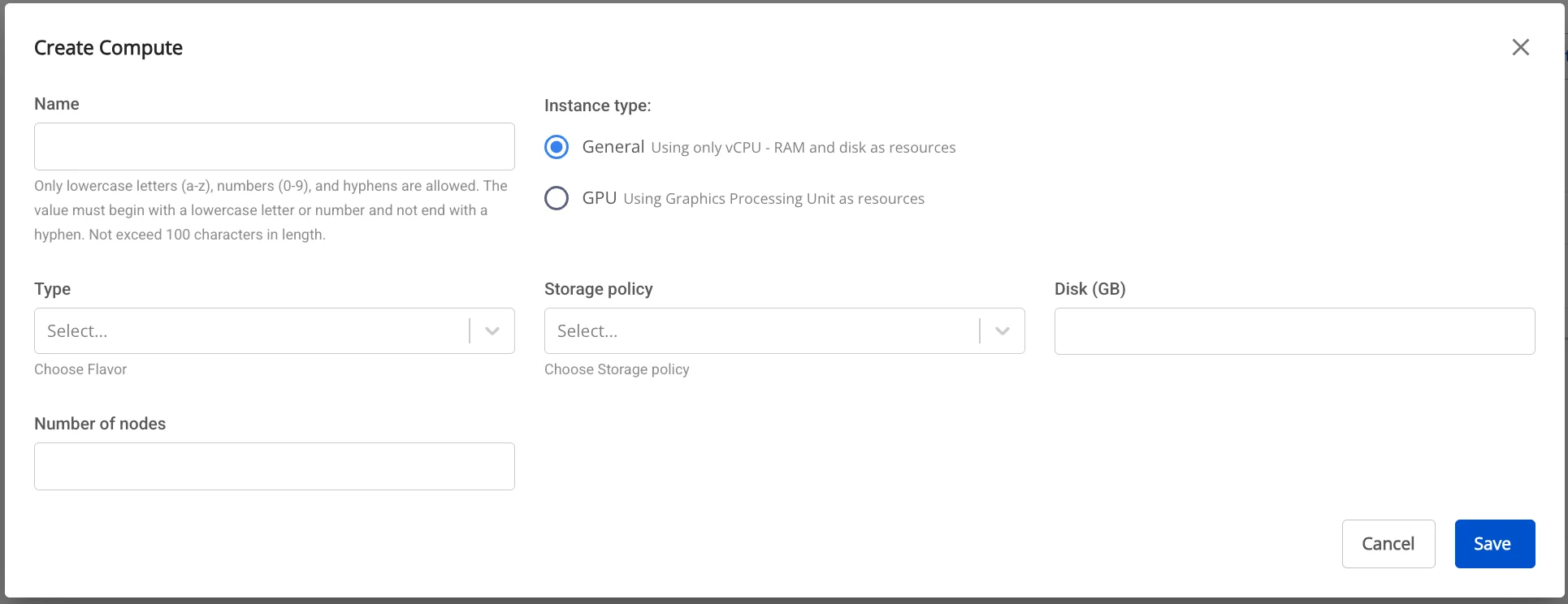
- Instance type = General
Enter the following information:
* **Name** (required): Compute name
Note: The compute name may contain lowercase letters a-z, uppercase letters A-Z, or digits 0-9. Spaces are not allowed — use "-" or "_" instead.
* **Storage policy**: Select a Storage policy

* **Disk size**: Select disk configuration size (Disk >= 40)

* **Type**: Select flavor

* **Number of nodes**: Enter the number of nodes
The number of nodes must be greater than or equal to 1 and less than or equal to 10.
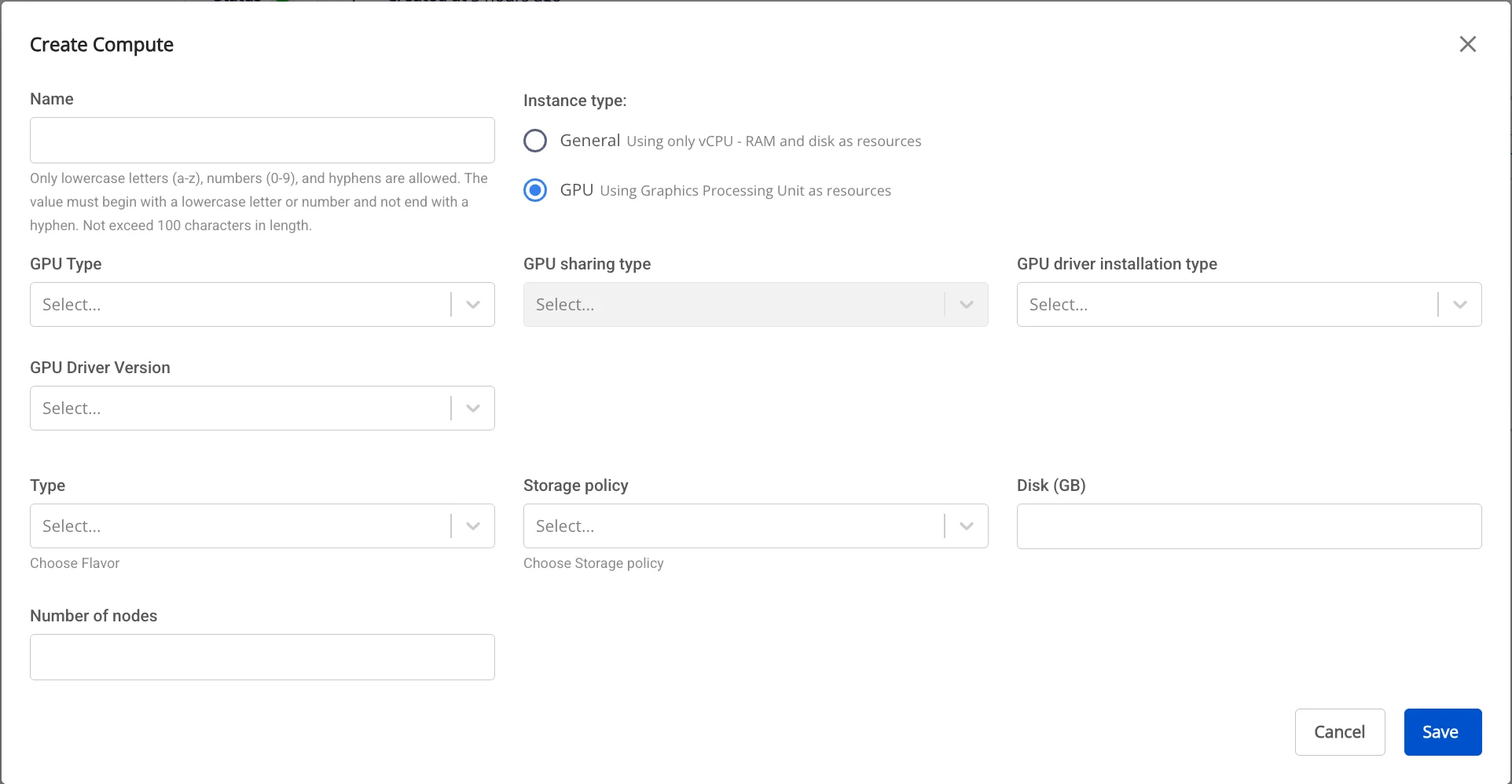
- Instance type = GPU
Enter the following information:
* **Name** (required): Compute name
Note: The compute name may contain lowercase letters a-z, uppercase letters A-Z, or digits 0-9. Spaces are not allowed — use "-" or "_" instead.
* **GPU type** (required if GPU is selected)

* **GPU driver installation type** (required): Select driver installation type

* **Select a driver version** (required): Select driver version

* **GPU sharing type** (required): Select GPU sharing type

* If None is selected, the **GPU sharing client** input is **not displayed**

* If a value other than None is selected, the **GPU sharing client** input is **displayed**

* **Policy** (required): Select policy

* **Storage policy**: Select a Storage policy

* **Disk size**: Select disk configuration size (Disk >= 40)

* **Type**: Select flavor

* **Number of nodes**: Enter the number of nodes
The number of nodes must be greater than or equal to 1 and less than or equal to 10.
Step 4. Review all entered information, then click Create to complete the Compute creation.
2. Delete compute
Step 1: On the Processing services screen > select the Compute tab
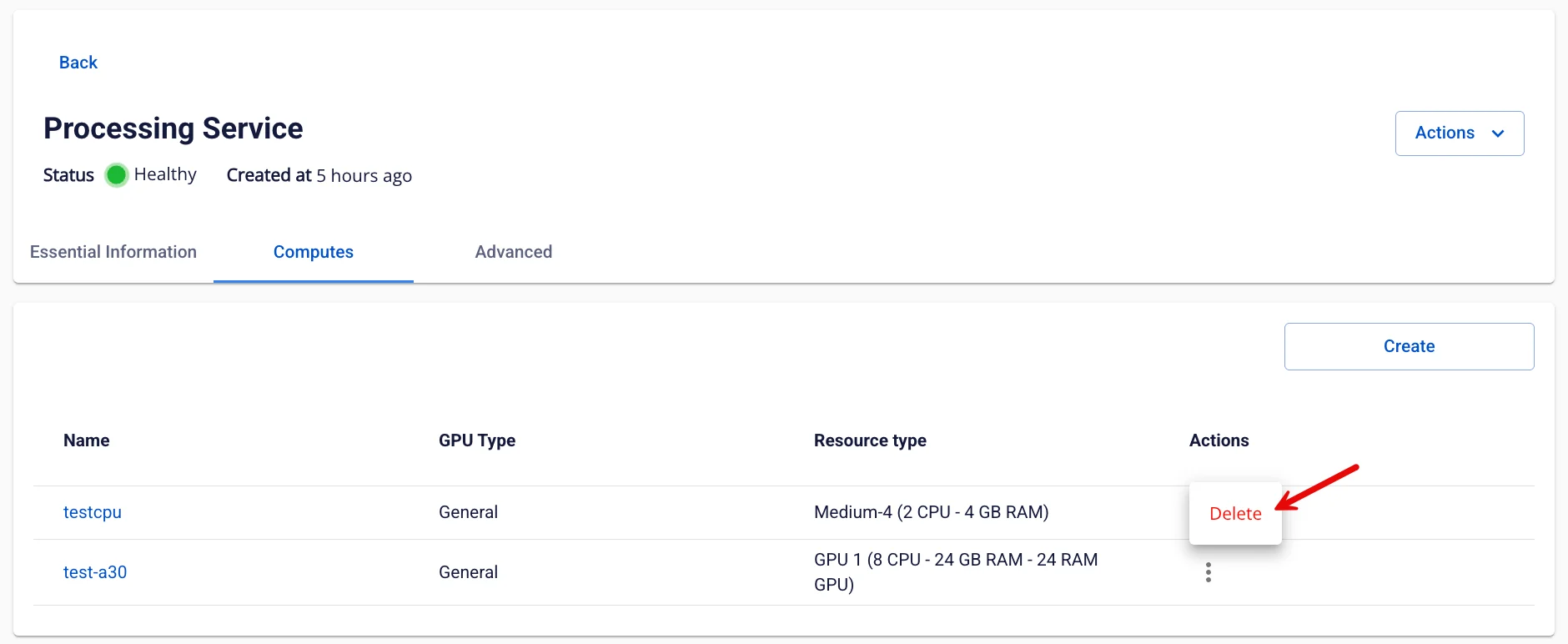
Step 2: In the Compute tab > click Action for the compute to delete > select Delete
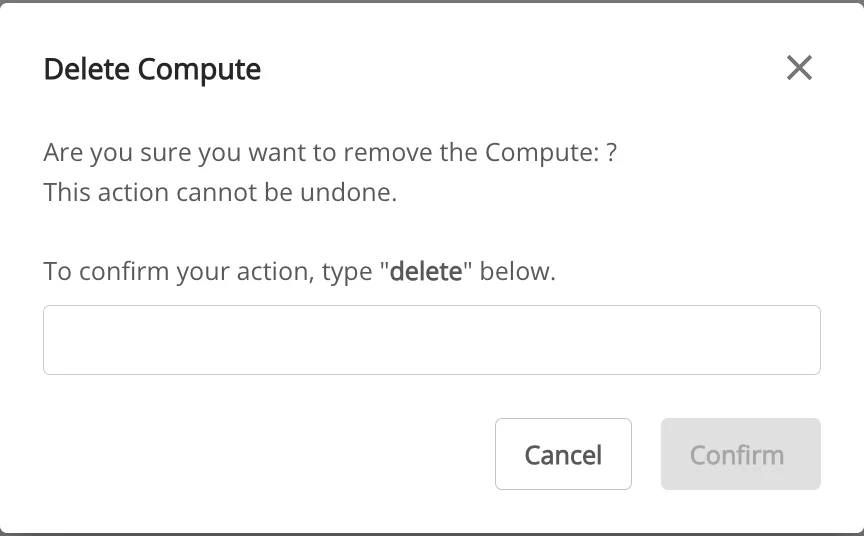
Step 3. The Delete Application dialog appears > type delete > click confirm to complete the deletion of the service from the workspace