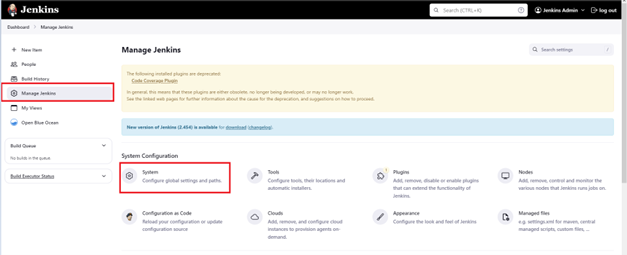
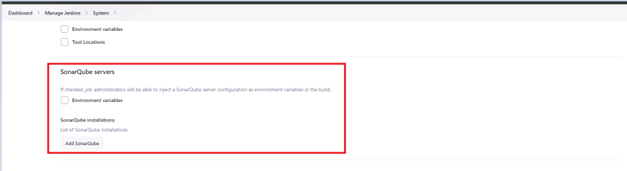
Configure SonarQube servers
FPT Cloud allows you to configure SonarQube Server in Jenkins for source code scanning integration through the Portal interface.
Add a new SonarQube server
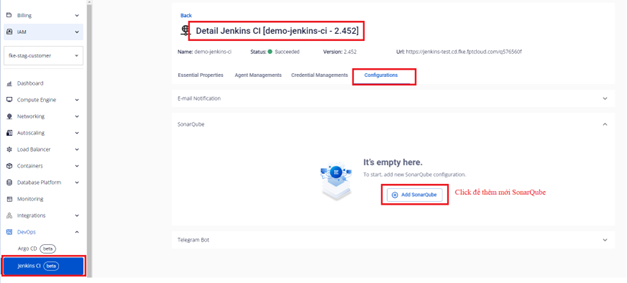
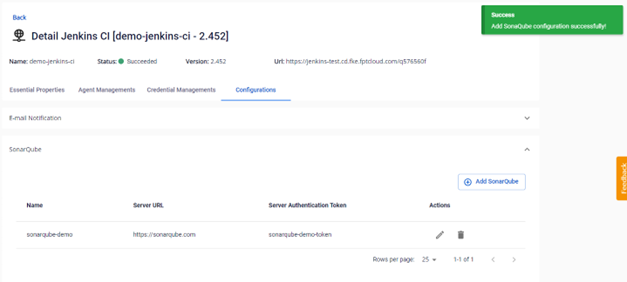
Step 1: In the FPT Portal menu > Jenkins CI > Detail Cluster > Configurations > SonarQube > Add SonarQube.
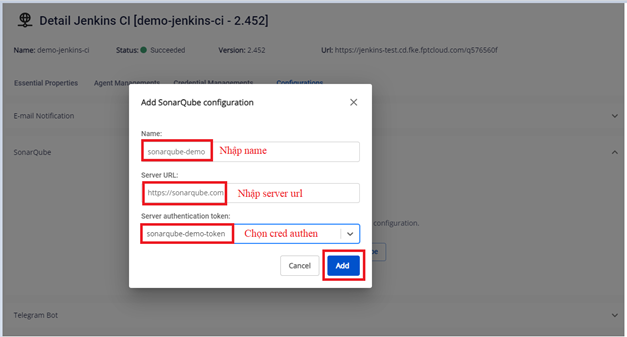
Step 2: Enter the required information to create a new SonarQube server:
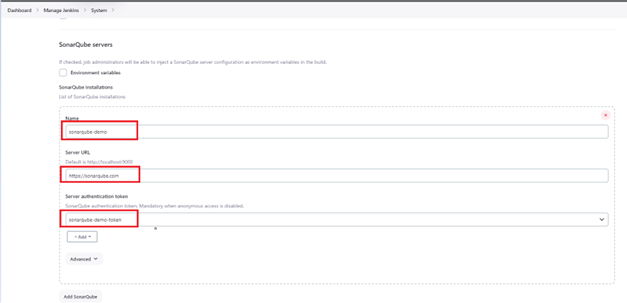
- Name: Enter the SonarQube server name.
- Server URL: Enter the public domain URL of the SonarQube system.
- Server authentication token: Select a credential of type Secret Text to authenticate with SonarQube. If you have not yet created the credential, create it before configuring the SonarQube server.
Step 3: Result after adding the SonarQube server configuration.
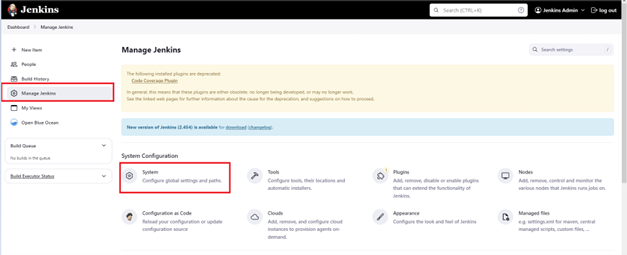
Result in Jenkins:
Edit a SonarQube server
Step 1: In the FPT Portal menu > Jenkins CI > Detail Cluster > Configurations > SonarQube > select the SonarQube server to edit.
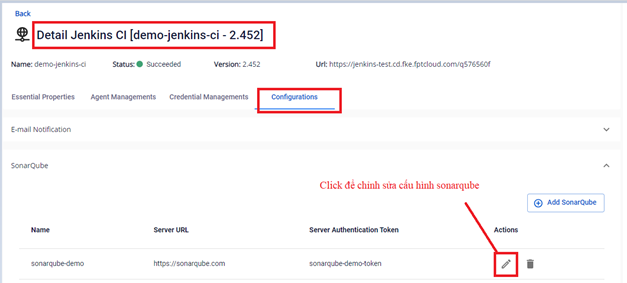
Step 2: Enter the updated information. You can update the server URL or select a different authentication credential.
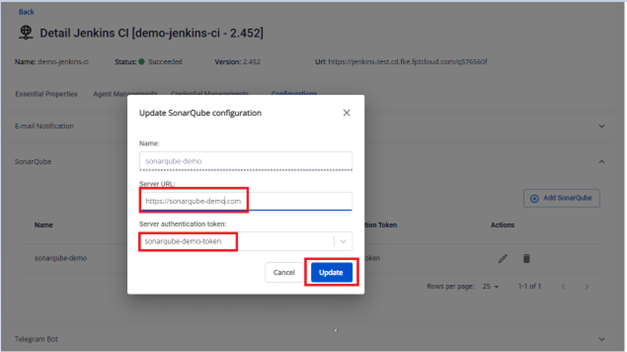
Step 3: Result after editing.
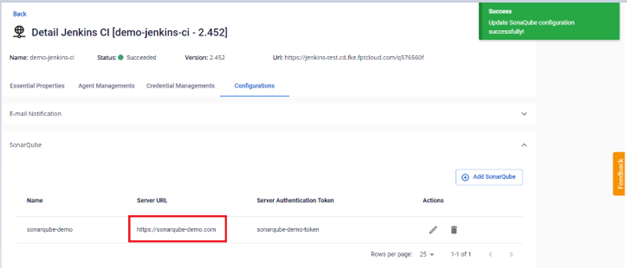
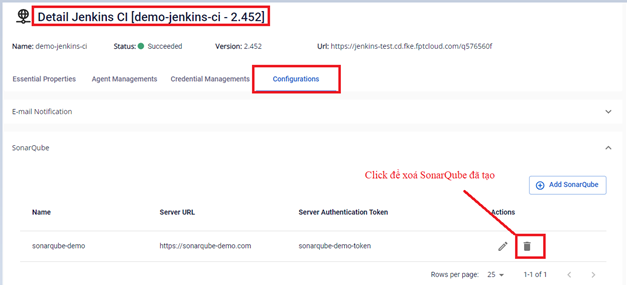
Delete a SonarQube server
Step 1: In the FPT Portal menu > Jenkins CI > Detail Cluster > Configurations > SonarQube > select the SonarQube server to delete.
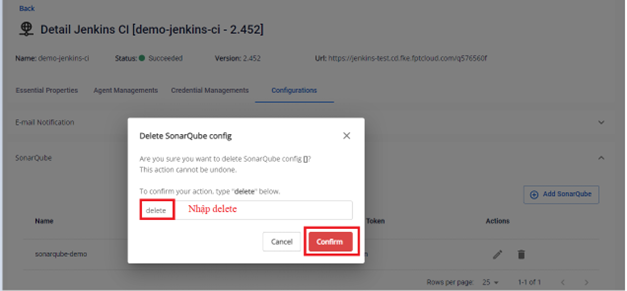
Step 2: Enter the confirmation text to confirm the action.
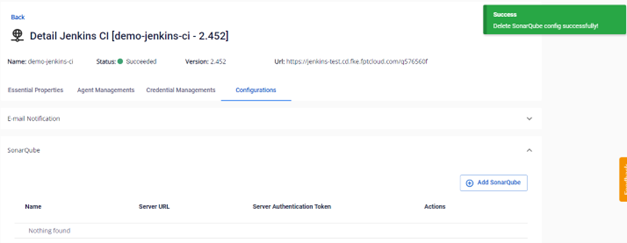
Step 3: Result after deleting the SonarQube configuration.
Result in Jenkins: