FPT Container Registry integration
Only Org Admin and Team Manager have permission to edit the FPT Container Registry (FCR) integration.
See permission details.
Integrate FCR - Add VPC
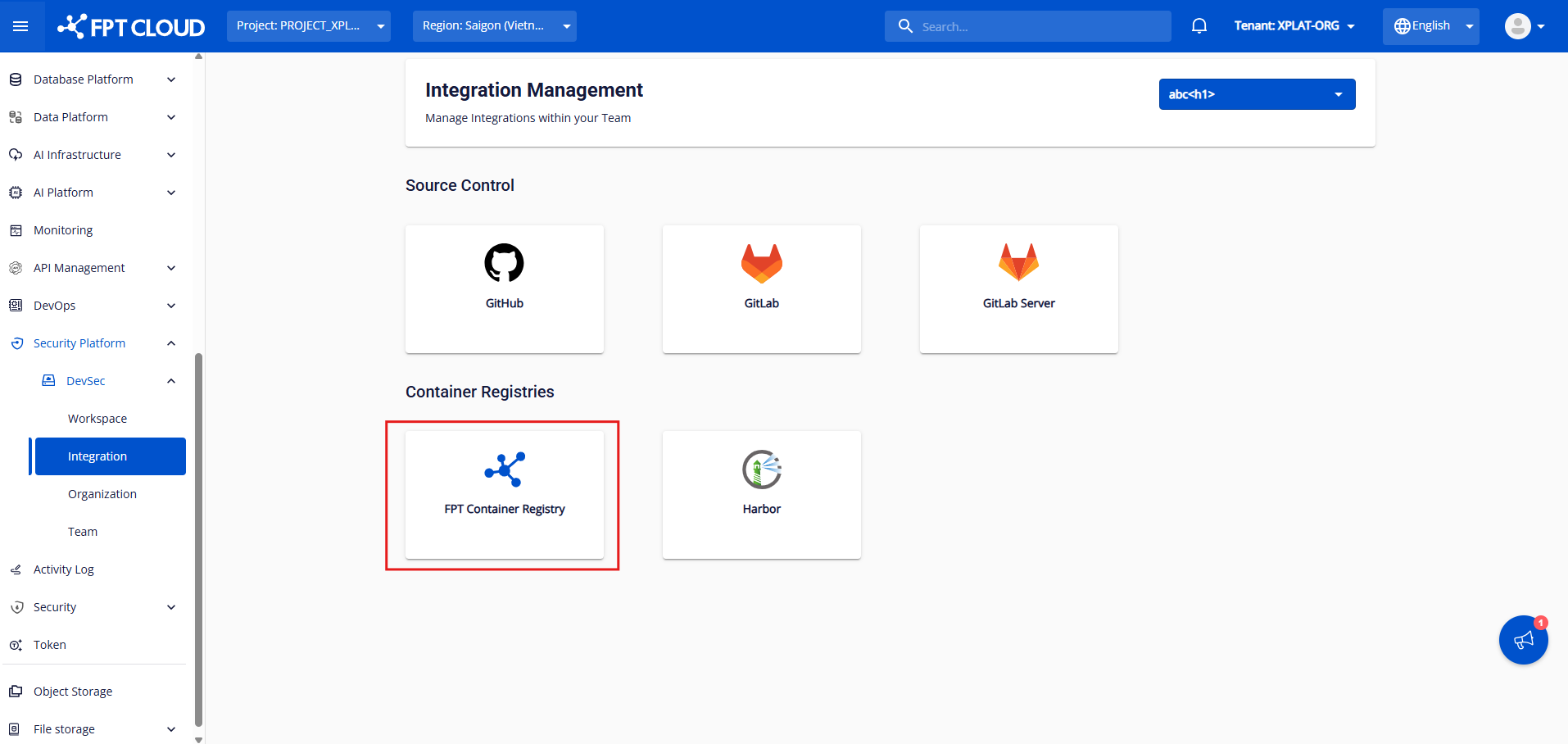
Step 1: After selecting an org/team, click FPT Container Registry to go to the integration screen.
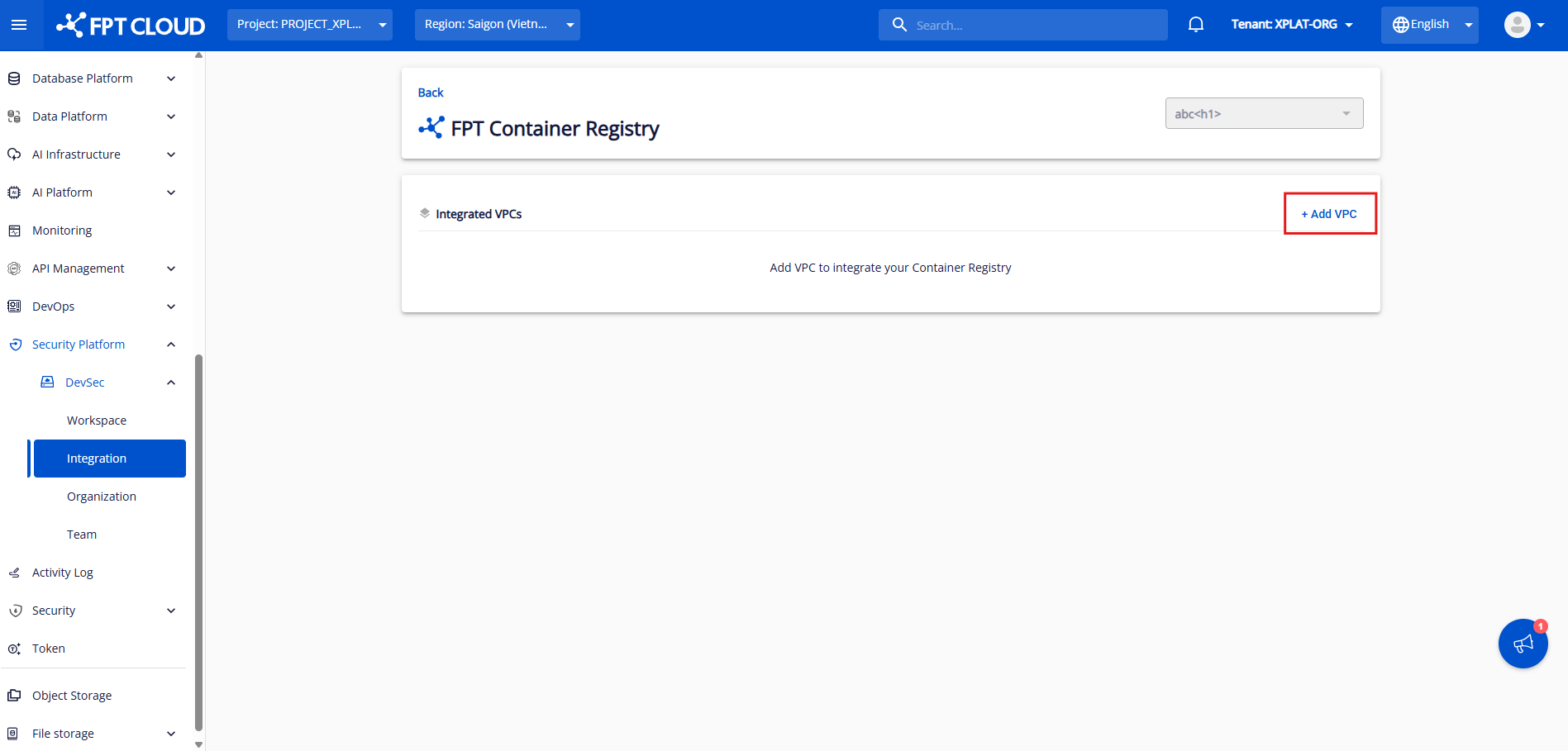
Step 2: Click Add VPC to add a new VPC to the integration list.
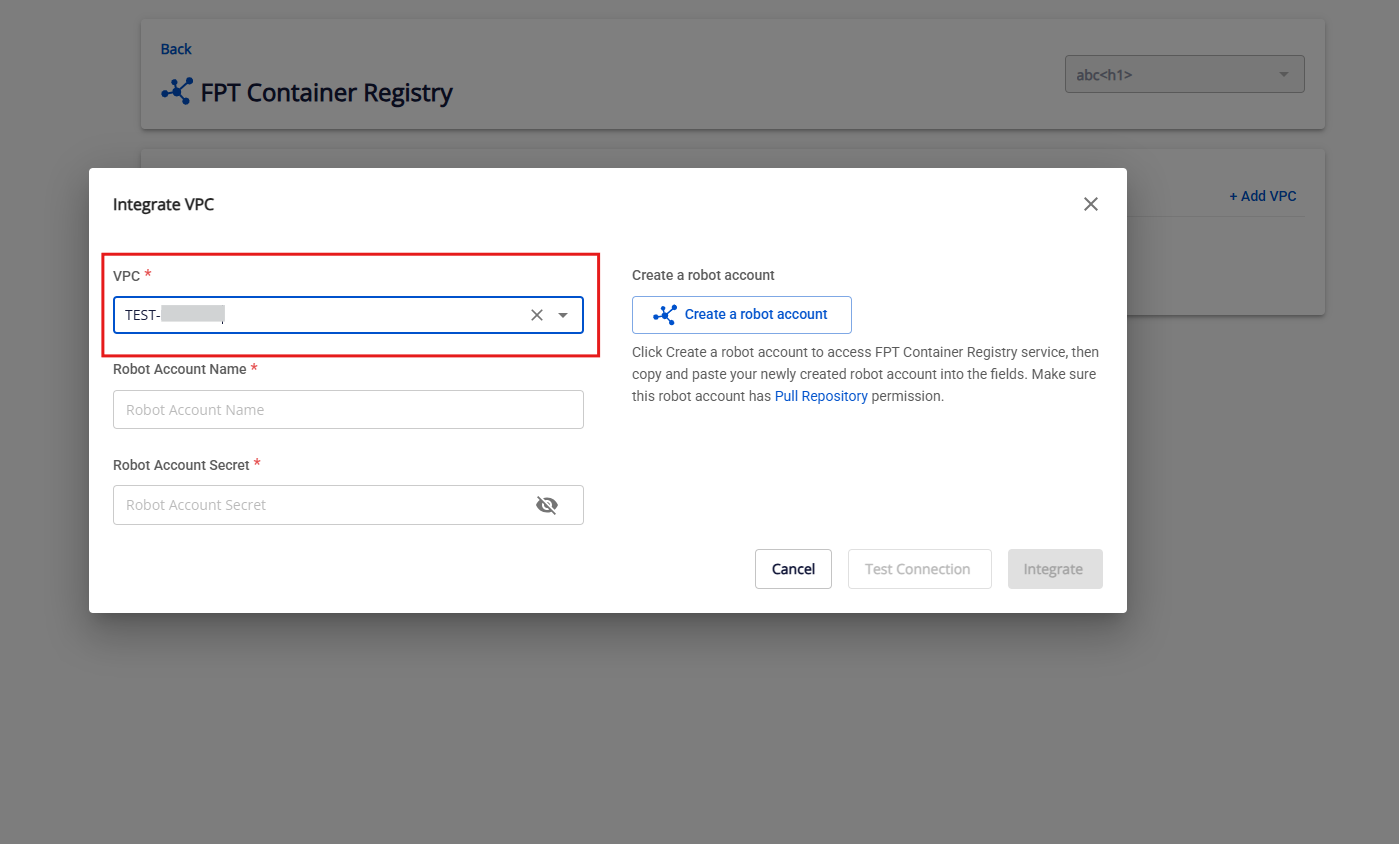
Step 3: Select the VPC to integrate.
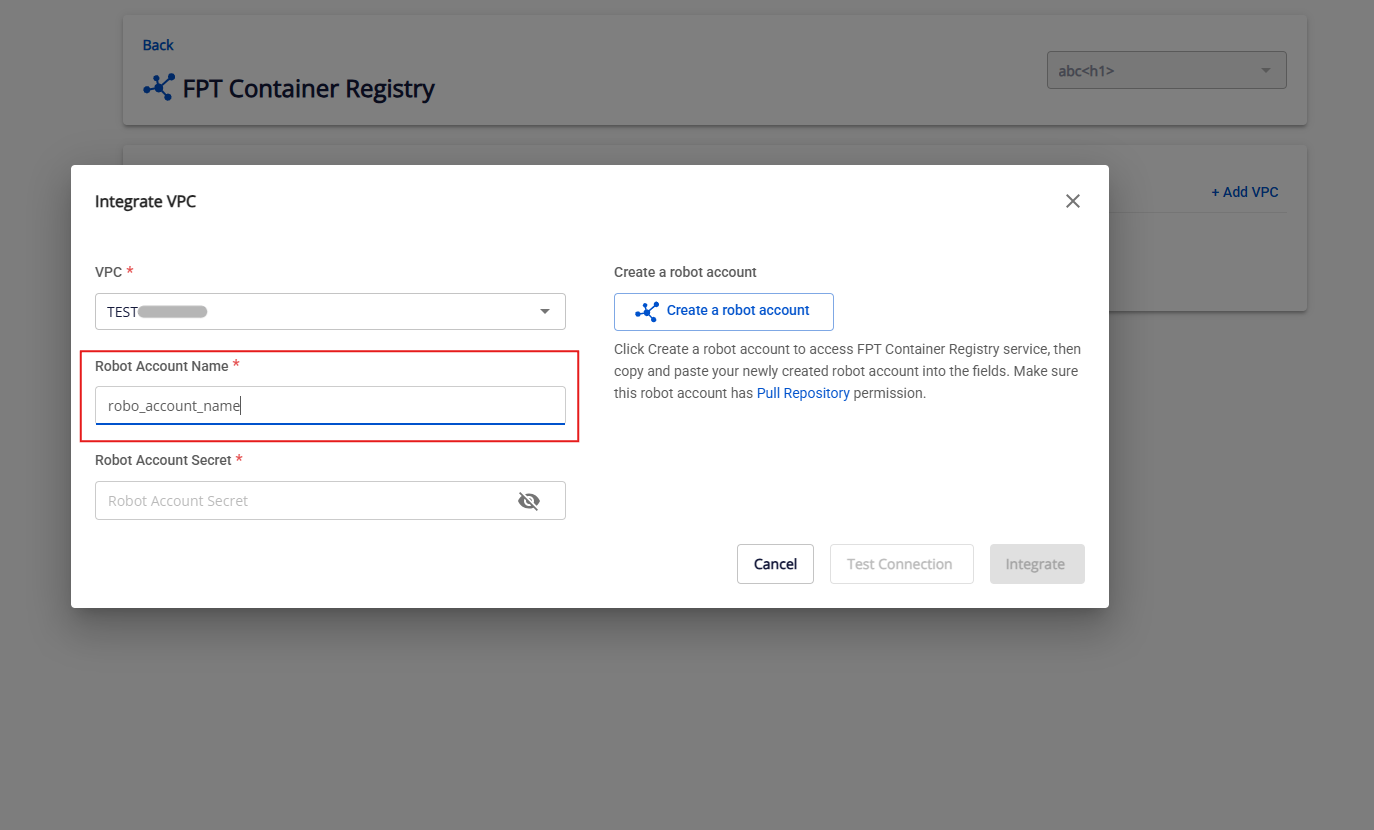
Step 4: After selecting the VPC, if you already have a Robot Account, enter the Robot Account Name. If you do not have a Robot Account yet, refer to the FPT Container Registry guide/.
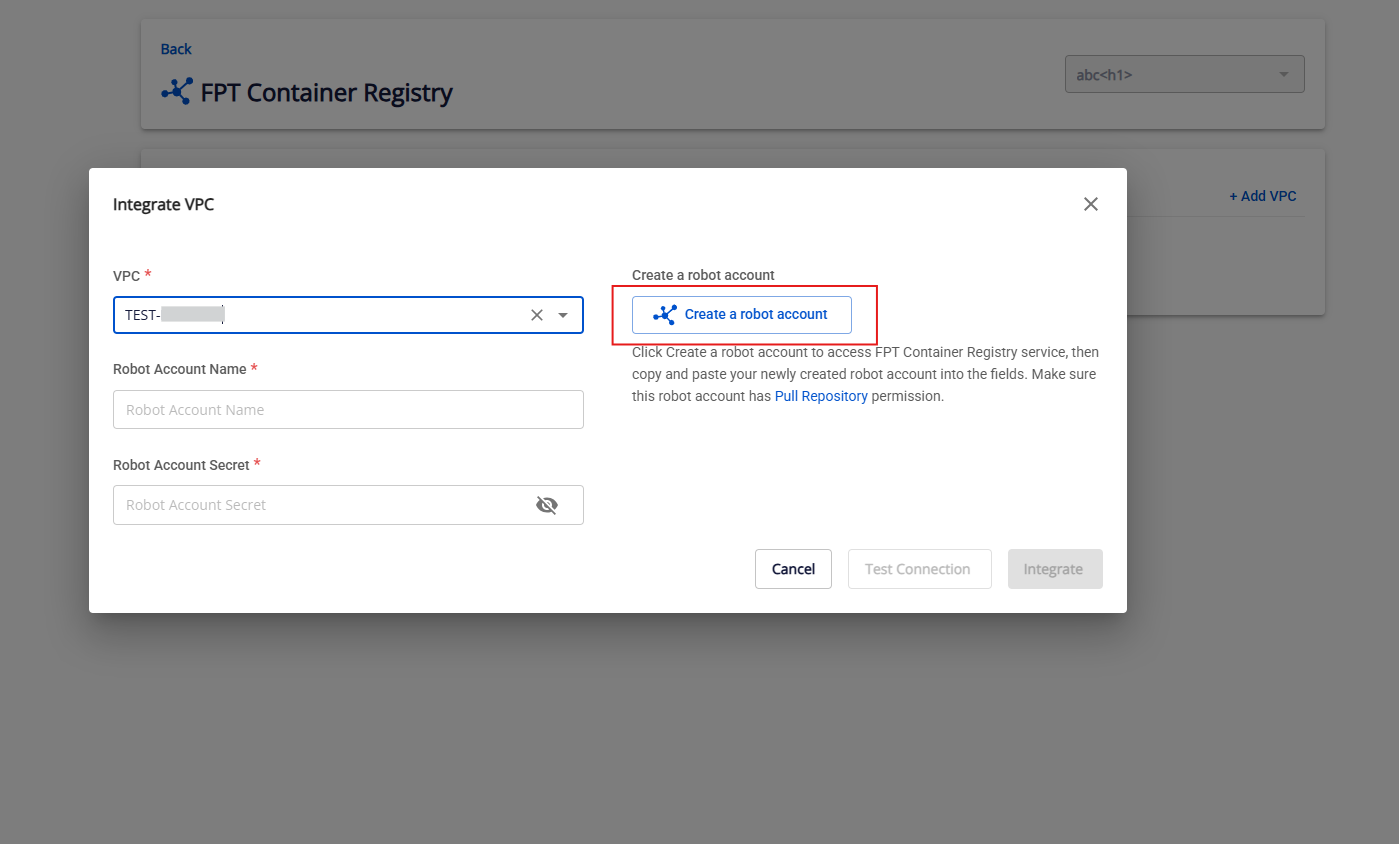
Step 5: Enter the Robot Account name and secret.
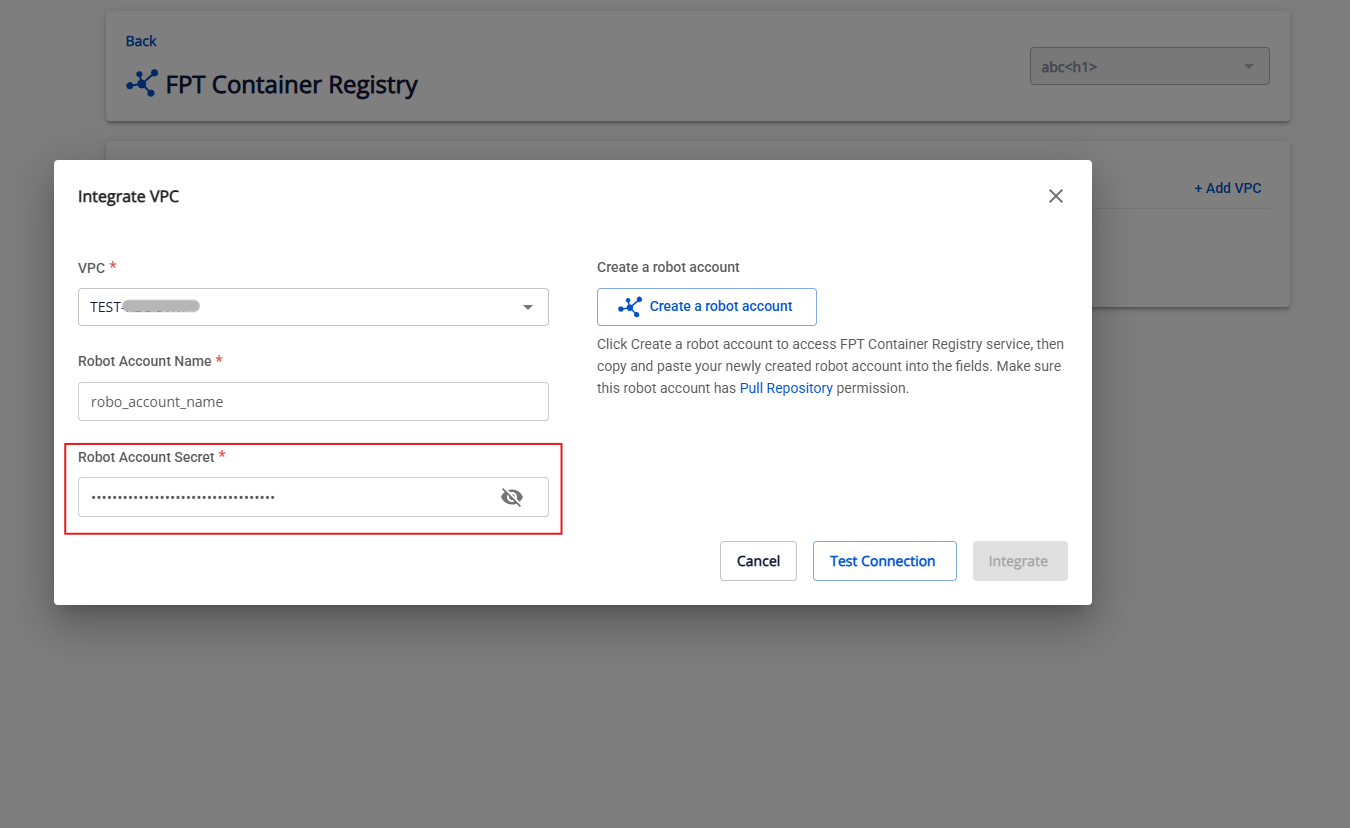
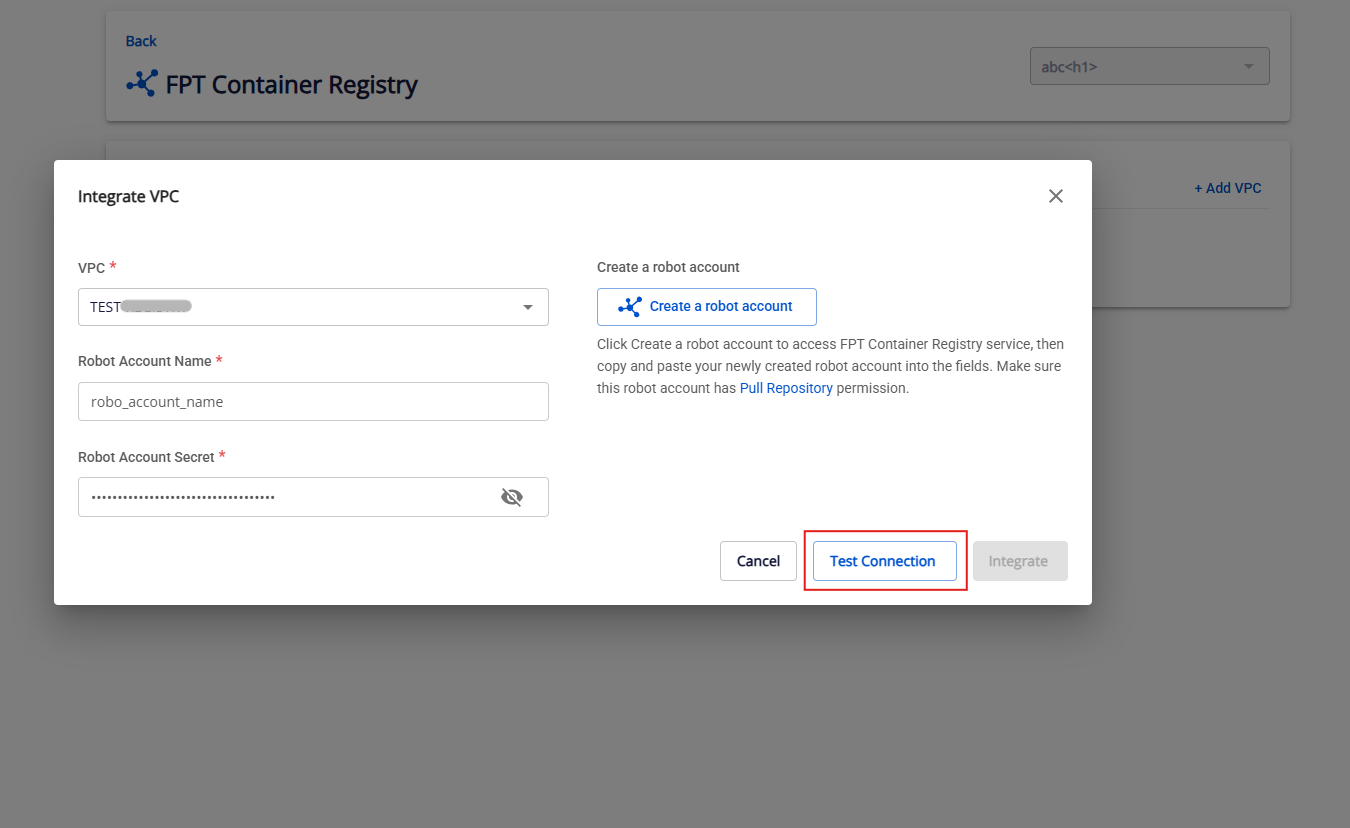
Step 6: After filling in all fields, click Test Connection. The system validates the required fields. If valid, it shows Connected successfully and enables the Integrate button.
If the information is invalid (wrong Robot Account or secret), the system shows "Connected failed".
Step 7: After a successful connection test, click Integrate.
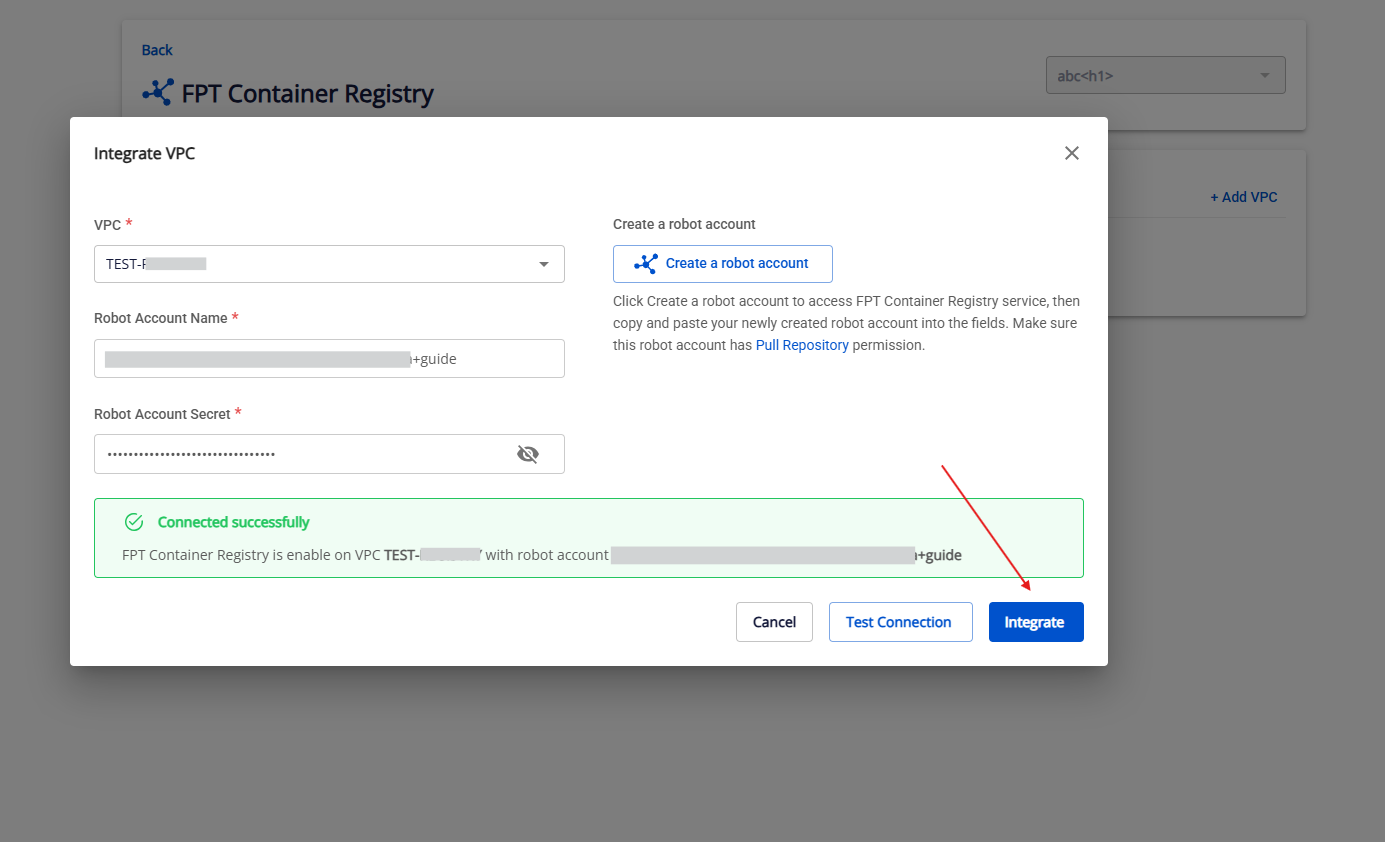
Successfully connected VPCs are added to the Integrated VPCs list.
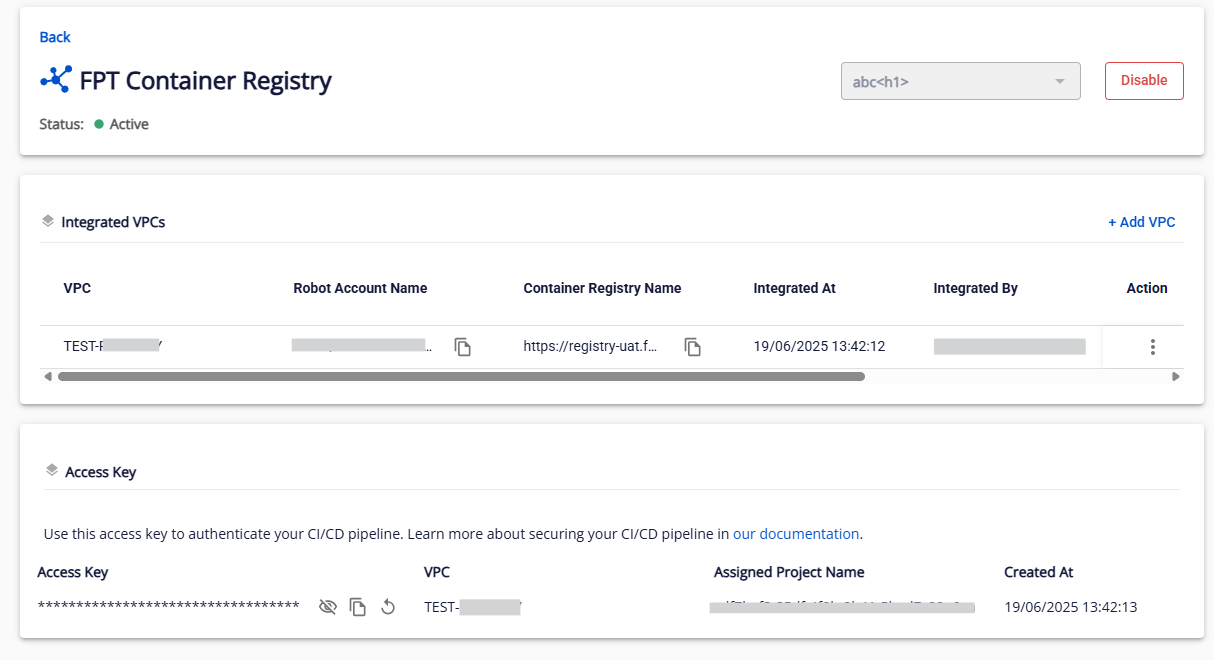
View details
Only Org Admin and Team Manager can view integration details.
After selecting your org/team, click Configured FPT Container Registry to view details.
Here you can view the integration status, the Integrated VPCs list with VPC, Robot Account Name, Container Registry Name, and Access Key for CI/CD integration.
You can Add VPC, Reconfigure, and Delete VPCs, or Disable the integration.
Reconfigure FPT Container Registry VPC
Step 1: Go to the FPT Container Registry integration detail screen. Click Reconfigure in the Action column of a VPC.
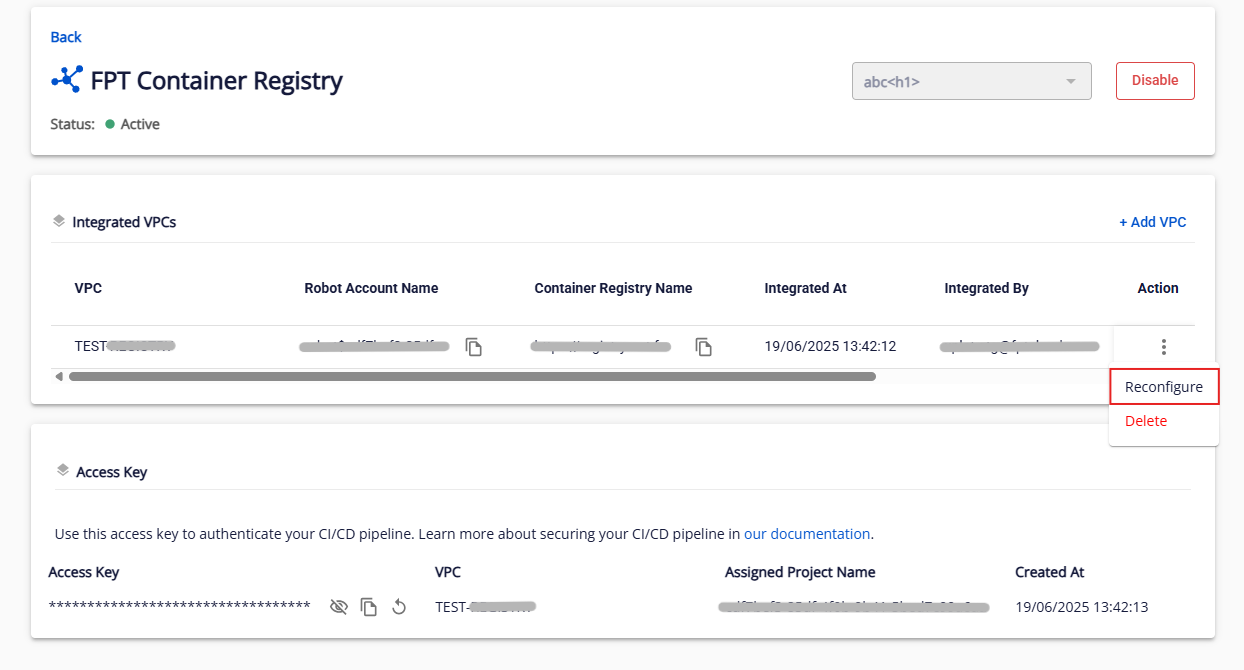
Step 2: Follow the same steps as Add VPC.
Delete a VPC
Step 1: Click Delete in the Action column of a VPC.
Step 2: Type delete, then click Confirm.
Disable FPT Container Registry integration
Access key for CI/CD pipeline
In the detail screen, beyond General Information, you will find the access key for each VPC to use in CI/CD pipelines.
You can copy or reset the access key for CI/CD pipeline integration.