GitHub Personal/Enterprise Cloud integration
Only Org Admin has permission to edit the GitHub integration.
See permission details.
Configure GitHub
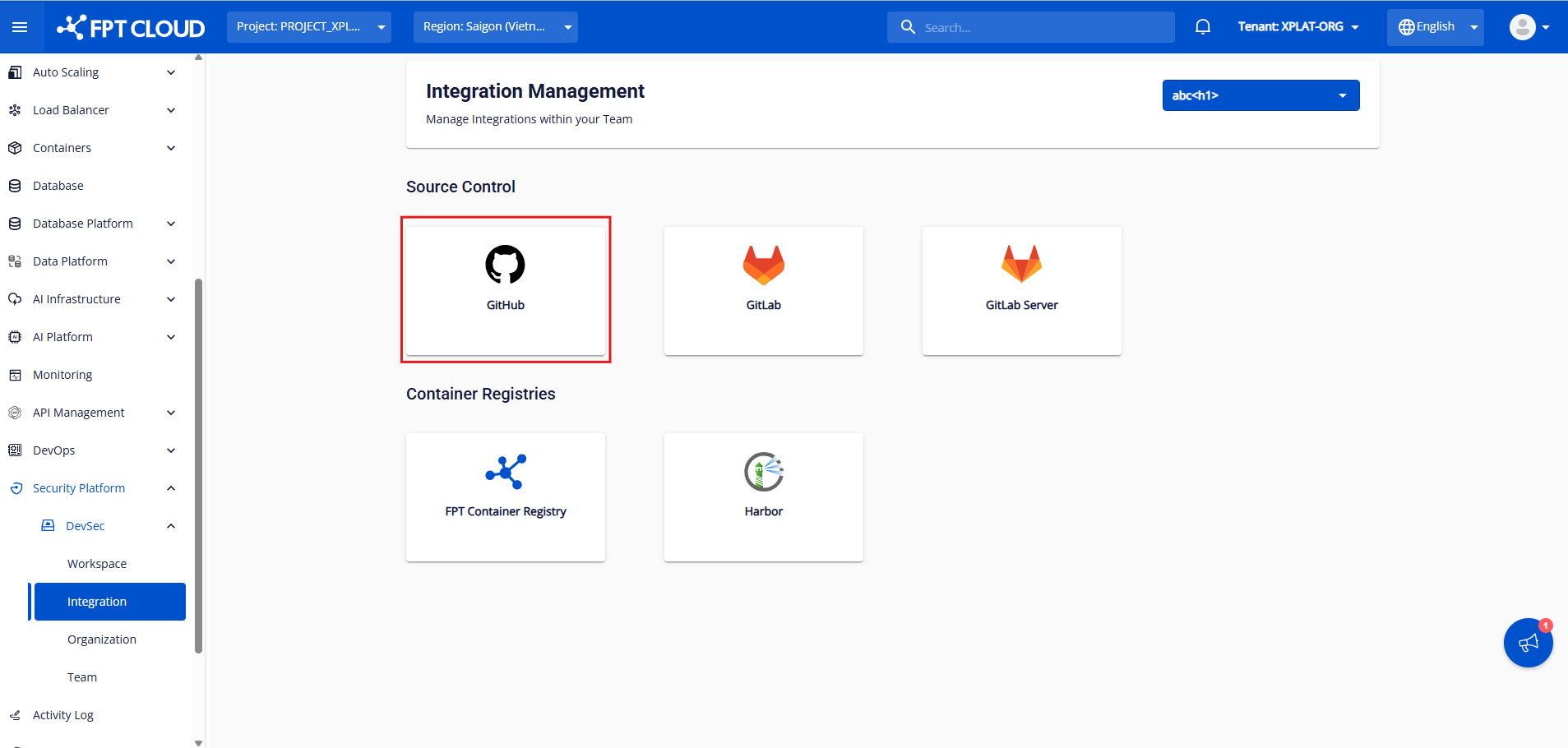
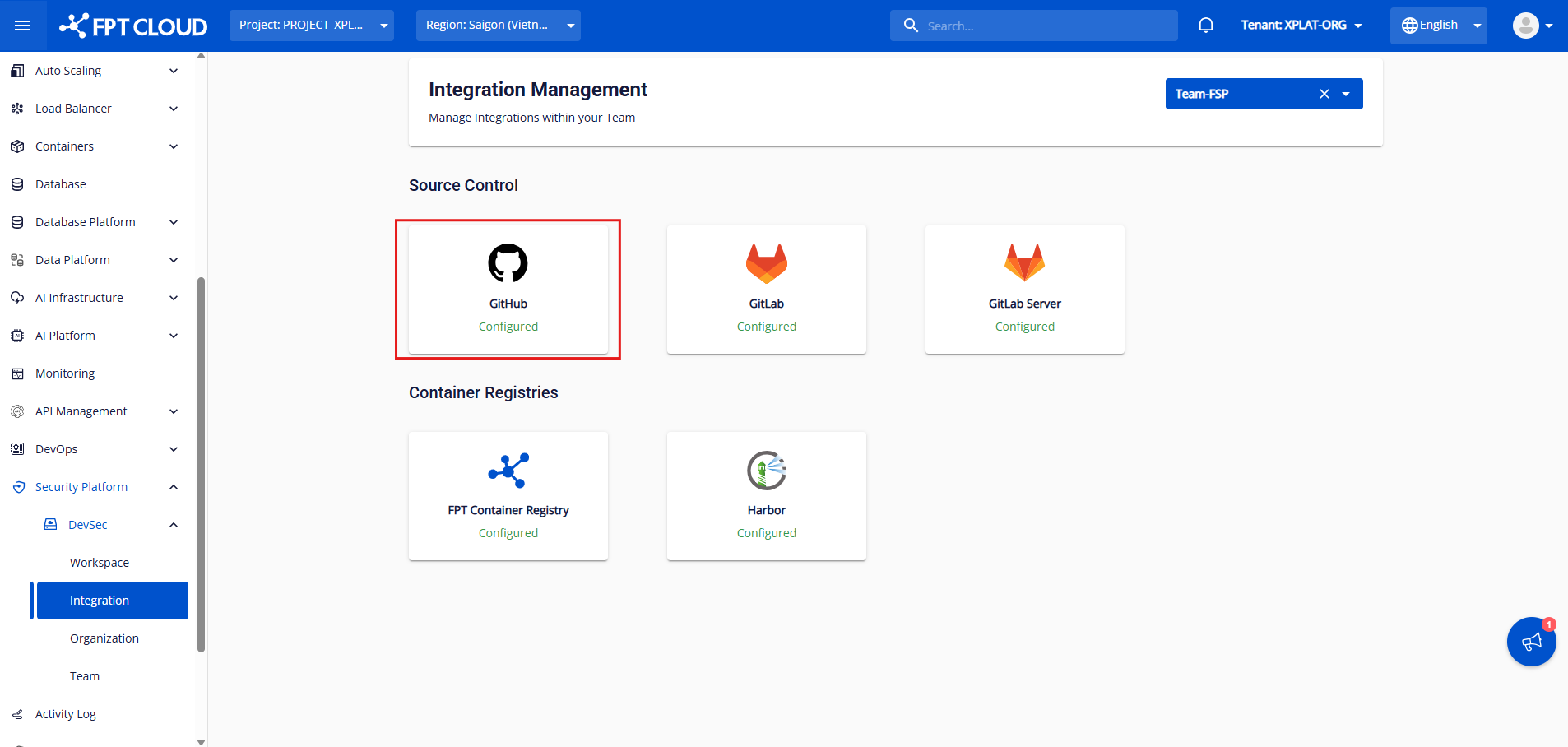
Step 1: After selecting an org/team, click GitHub to go to the GitHub integration screen.
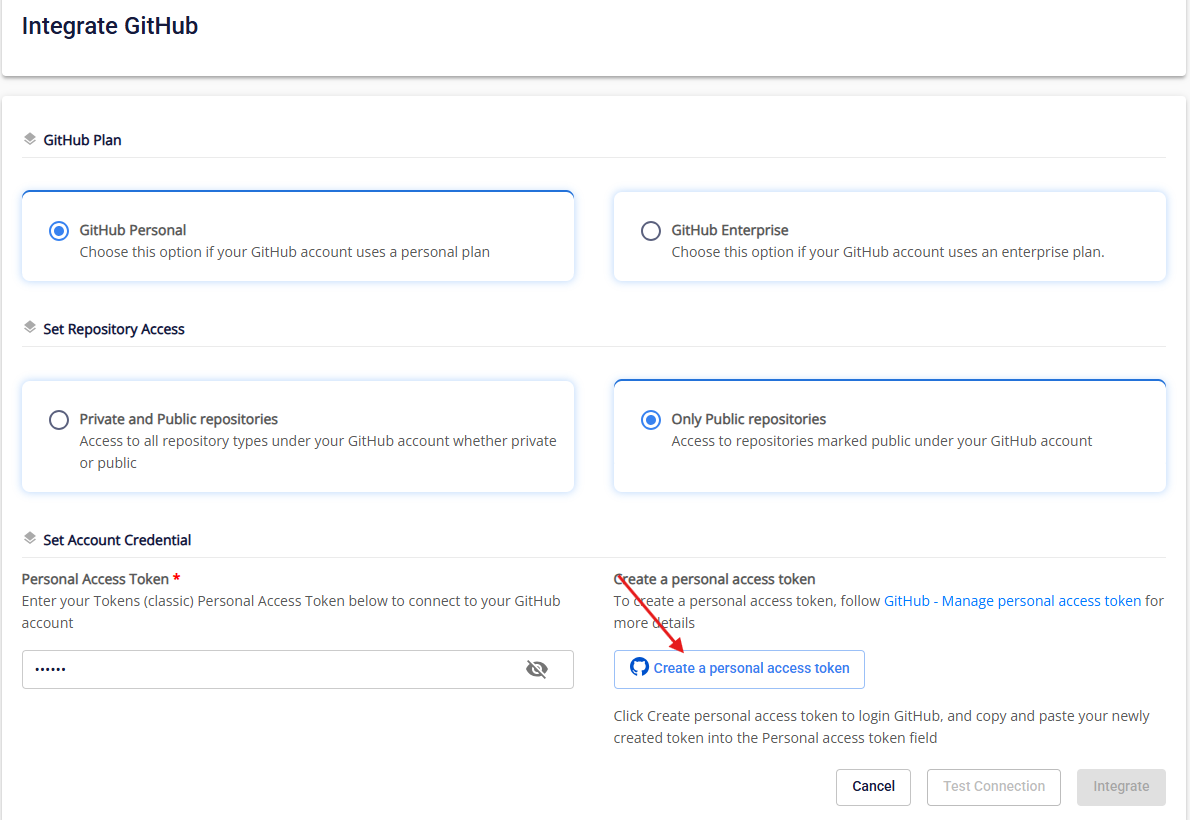
Step 2: After configuring access to Private/public repositories, click Create a personal access token. You will be redirected to GitHub to create a token.
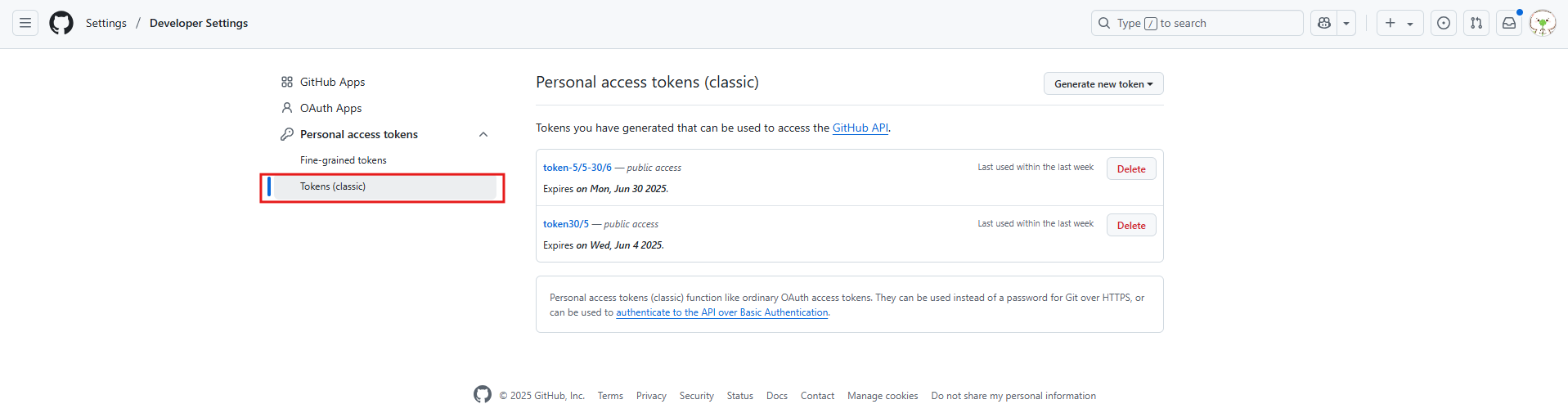
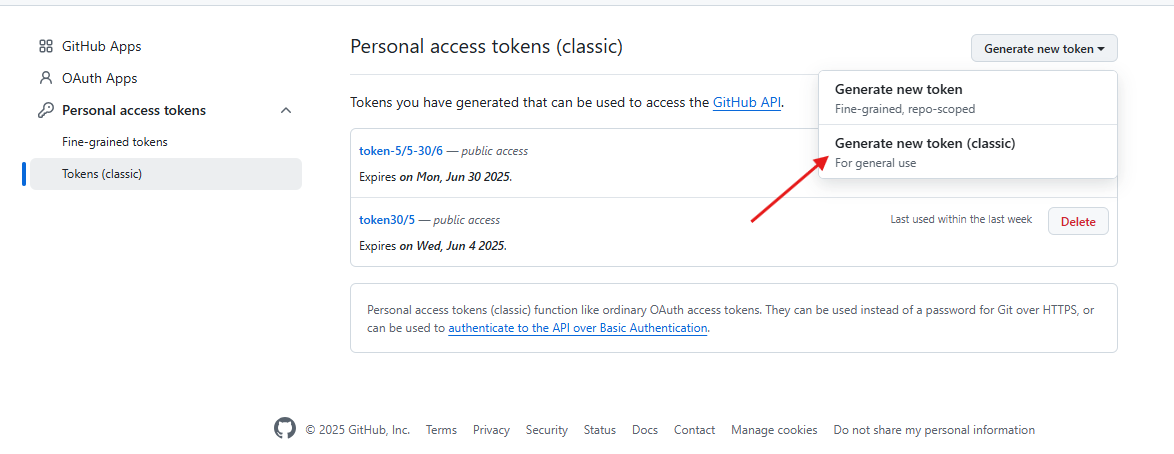
Step 3: Select Tokens (classic) in the left menu and click Generate new token (Classic).
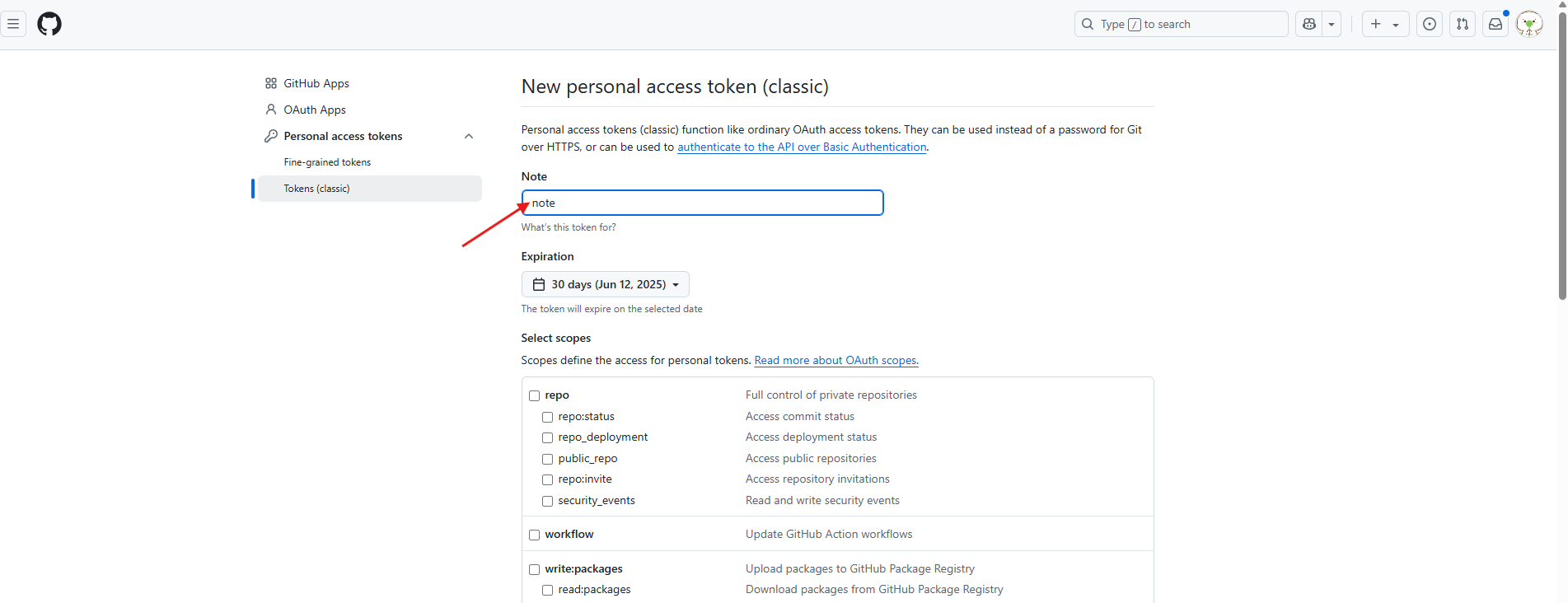
Step 4: Fill in a Note and select the repo scope to enable all features.
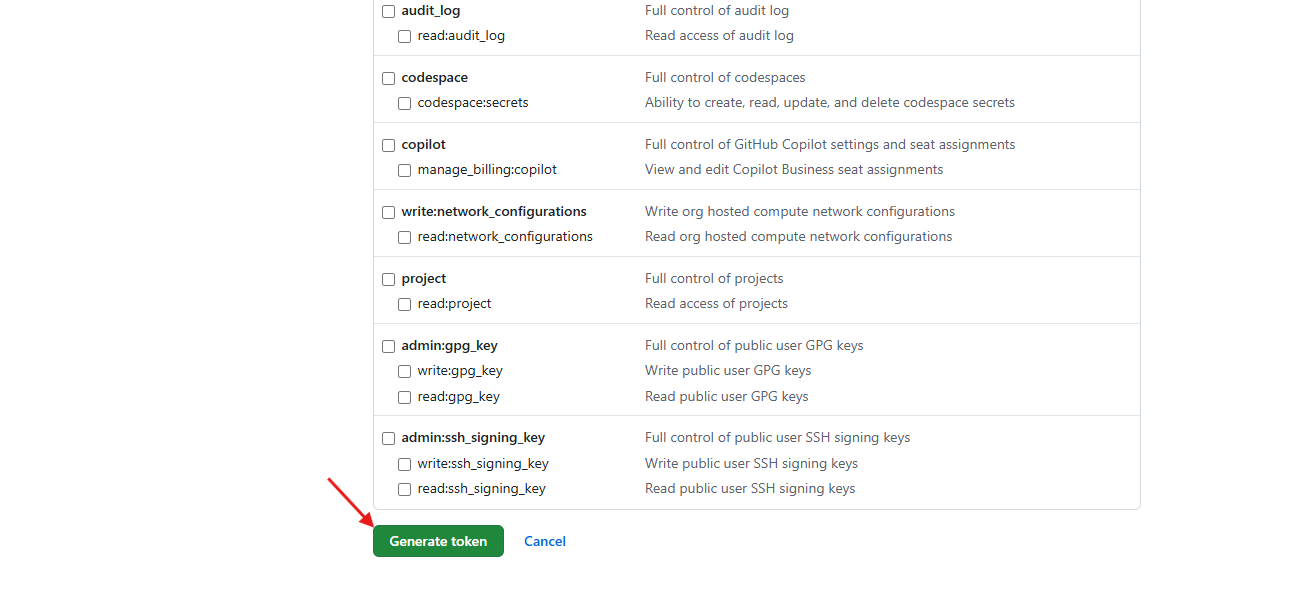
Step 5: Click Generate Token.
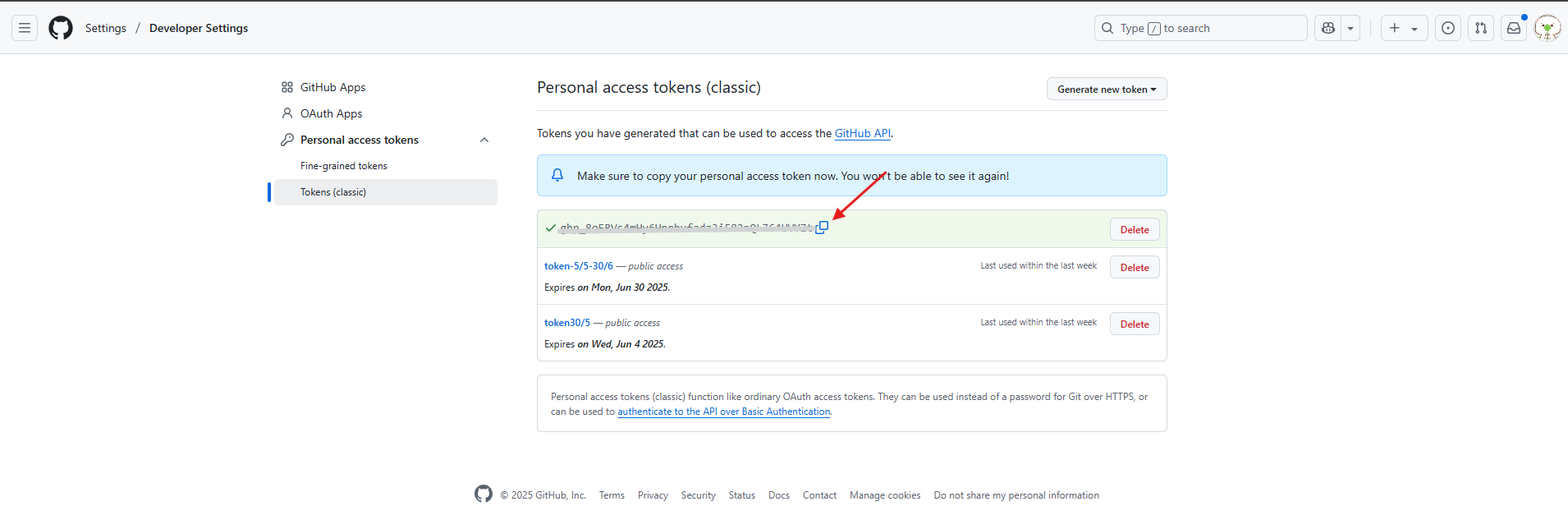
Step 6: Copy the token.
Step 7: Paste the token into the Personal Access Token field and click Test Connection.
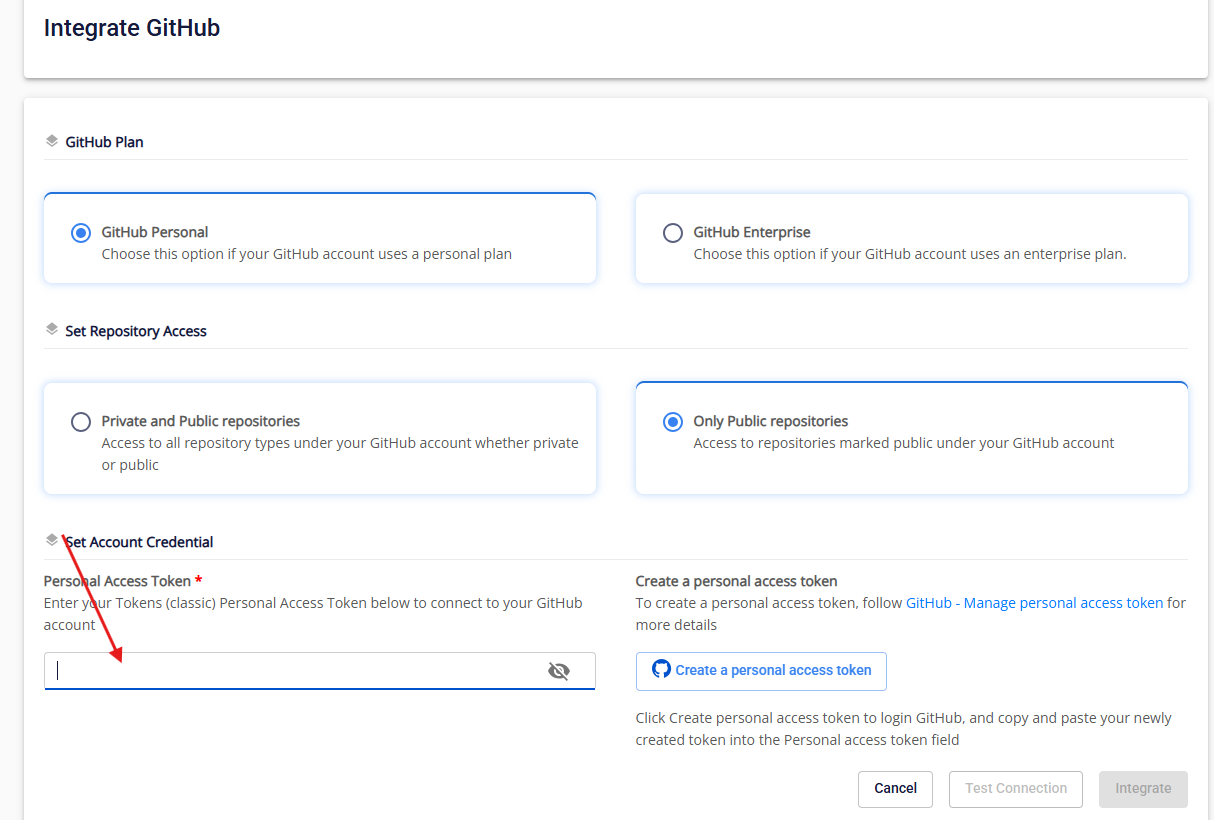
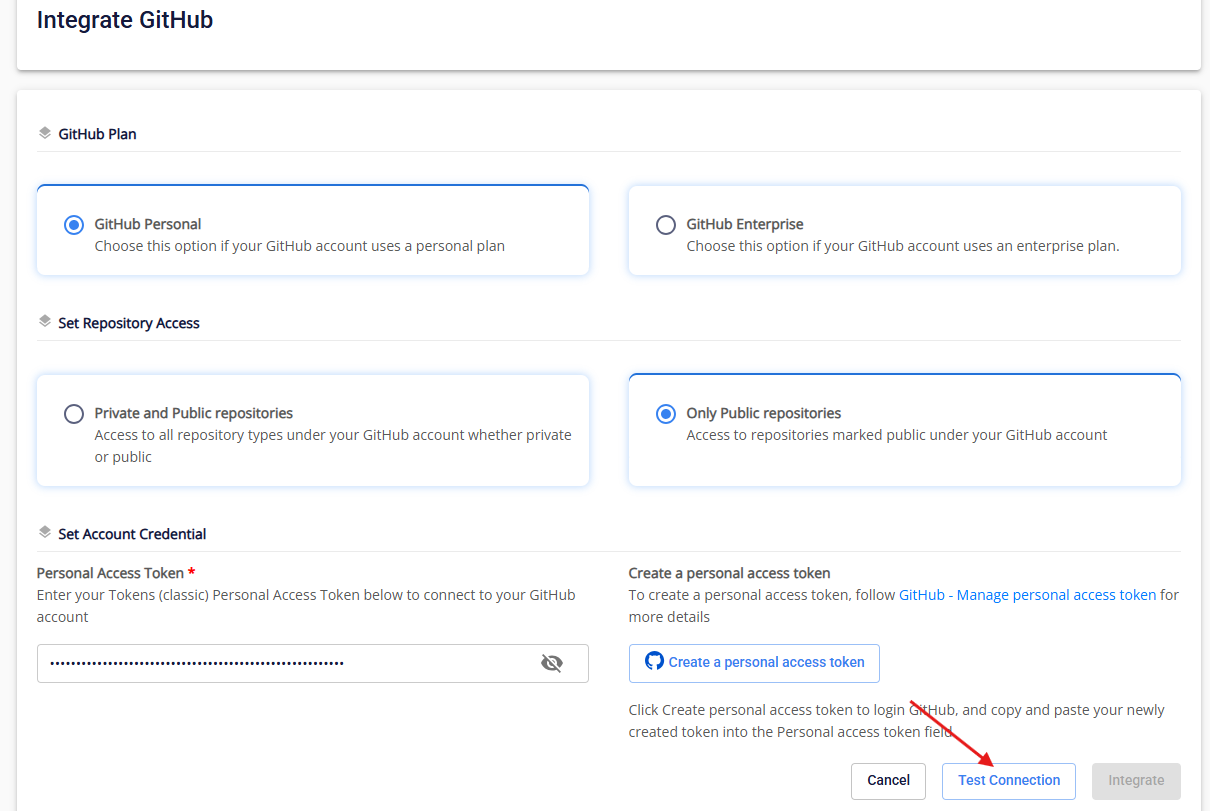
The system validates required fields and the Personal Access Token. If either check fails, a Test connection Failed message appears. If successful, Test connect successfully is displayed.
Step 8: Click Integrate.
View details
Only Org Admin or Team Manager can view integration details.
After selecting your org/team, click Configured GitHub to view the integration status.
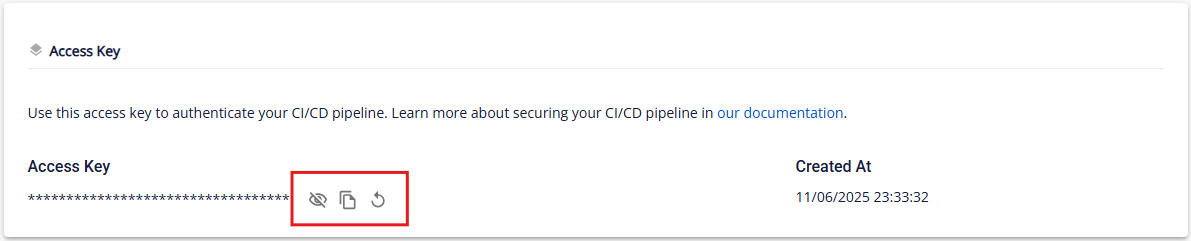
Here you can view Personal Access Token, Repository Access, Integrated at, and the Access Key for CI/CD integration.
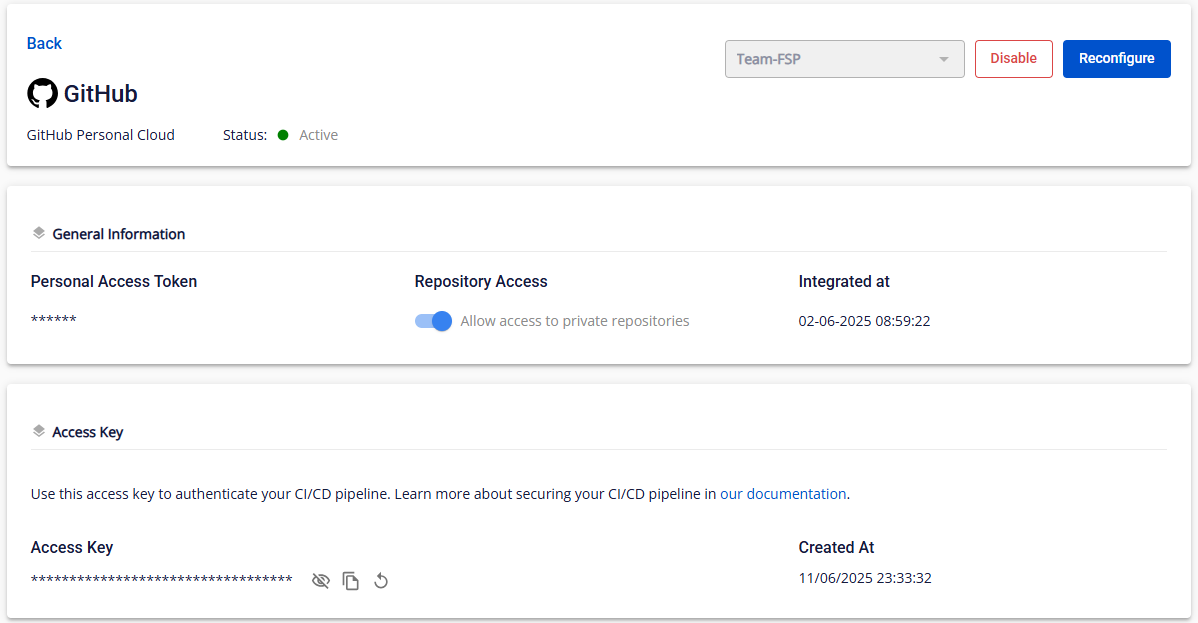
You can also Reintegrate or Disable the GitHub integration.
Reconfigure GitHub
Step 1: Click Reconfigure on the GitHub integration detail screen.
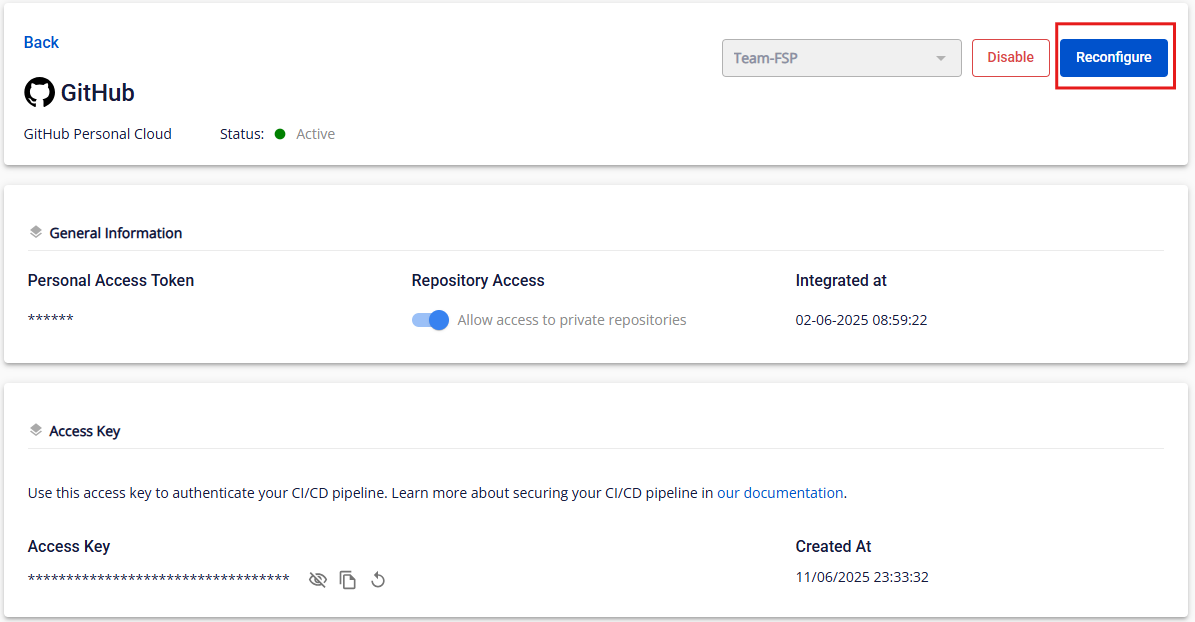
Step 2: Follow the same steps as the initial GitHub integration.
Disable GitHub integration
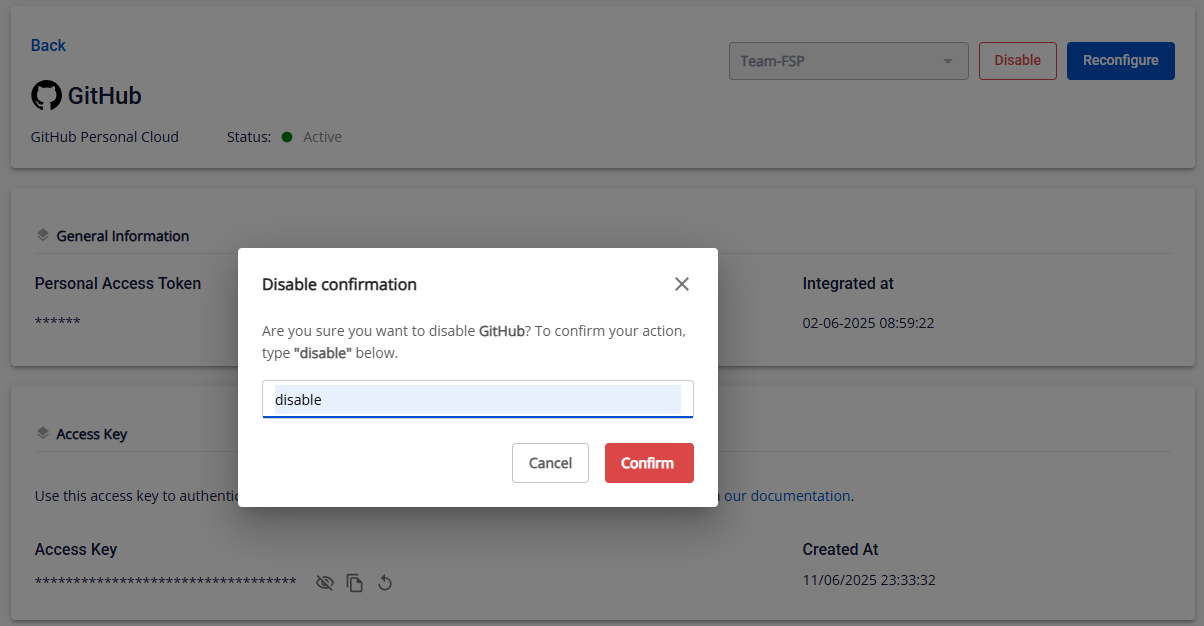
Step 1: Click Disable on the GitHub integration detail screen.
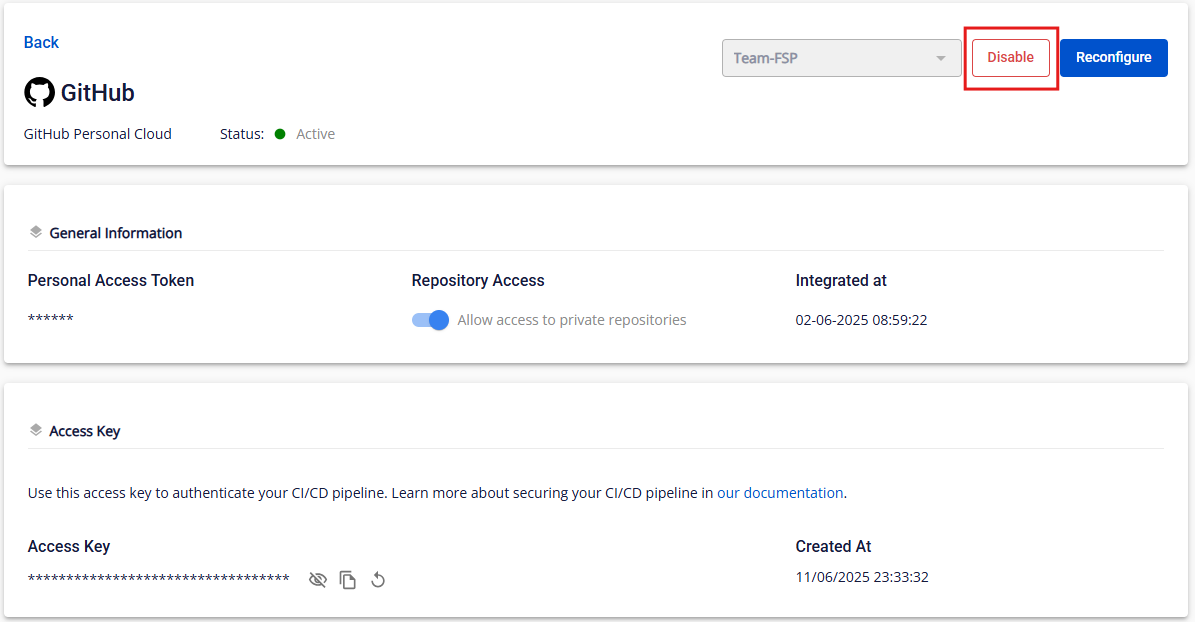
Step 2: Type disable and click Confirm.
Access key for CI/CD pipeline
In the detail screen you will find an access key to use in your CI/CD pipeline. See the CI/CD integration guide.
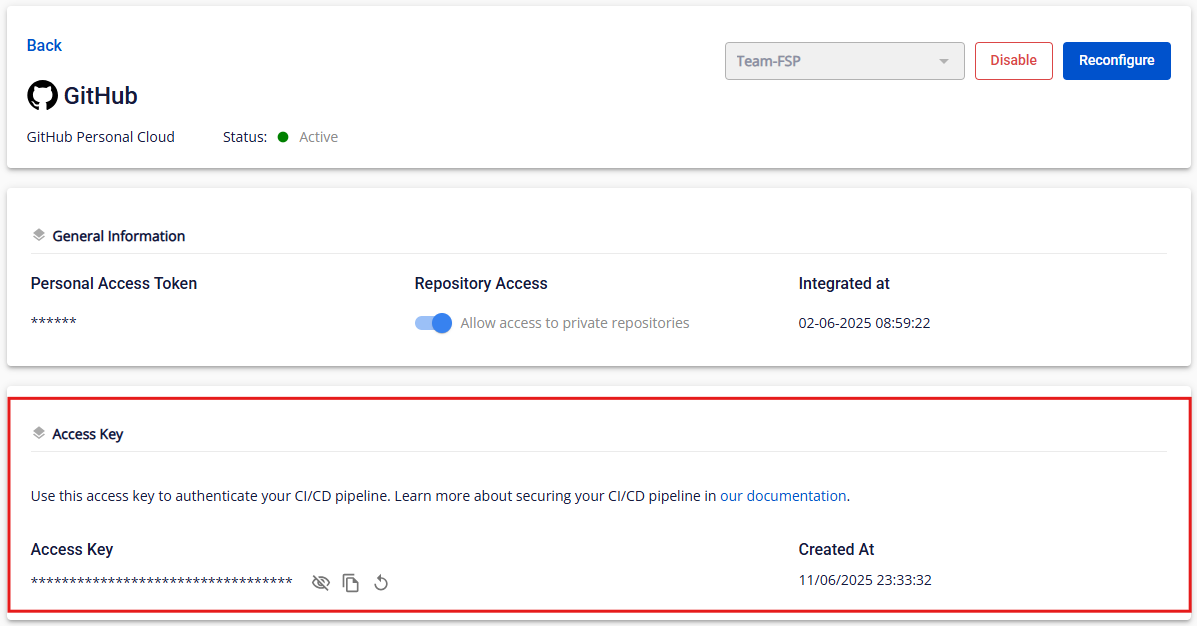
You can copy or reset the access key for CI/CD pipeline integration.