vGPU feature in FPT Kubernetes Engine
FPT Managed GPU Cluster is built on the open-source K8s platform, automating the deployment, scaling, and management of containerized applications. It integrates Container Orchestration, Storage, Networking, Security, and PaaS components to provide the best environment for developing and deploying applications on the cloud.
FPT Managed GPU Cluster provides the vGPU feature for multiple containers/processes on a single NVIDIA GPU. By using this feature, you can optimize GPU usage costs.
Prerequisites
- You must activate the managed GPU cluster service and have sufficient quota for storage, public IPs, etc. to initialize an FPT managed GPU cluster.
- GPU Operator must be installed on the cluster.
- Worker group uses a pre-installed driver or has had the driver installed manually.
- Worker group must be a GPU worker group type.
Installation guide
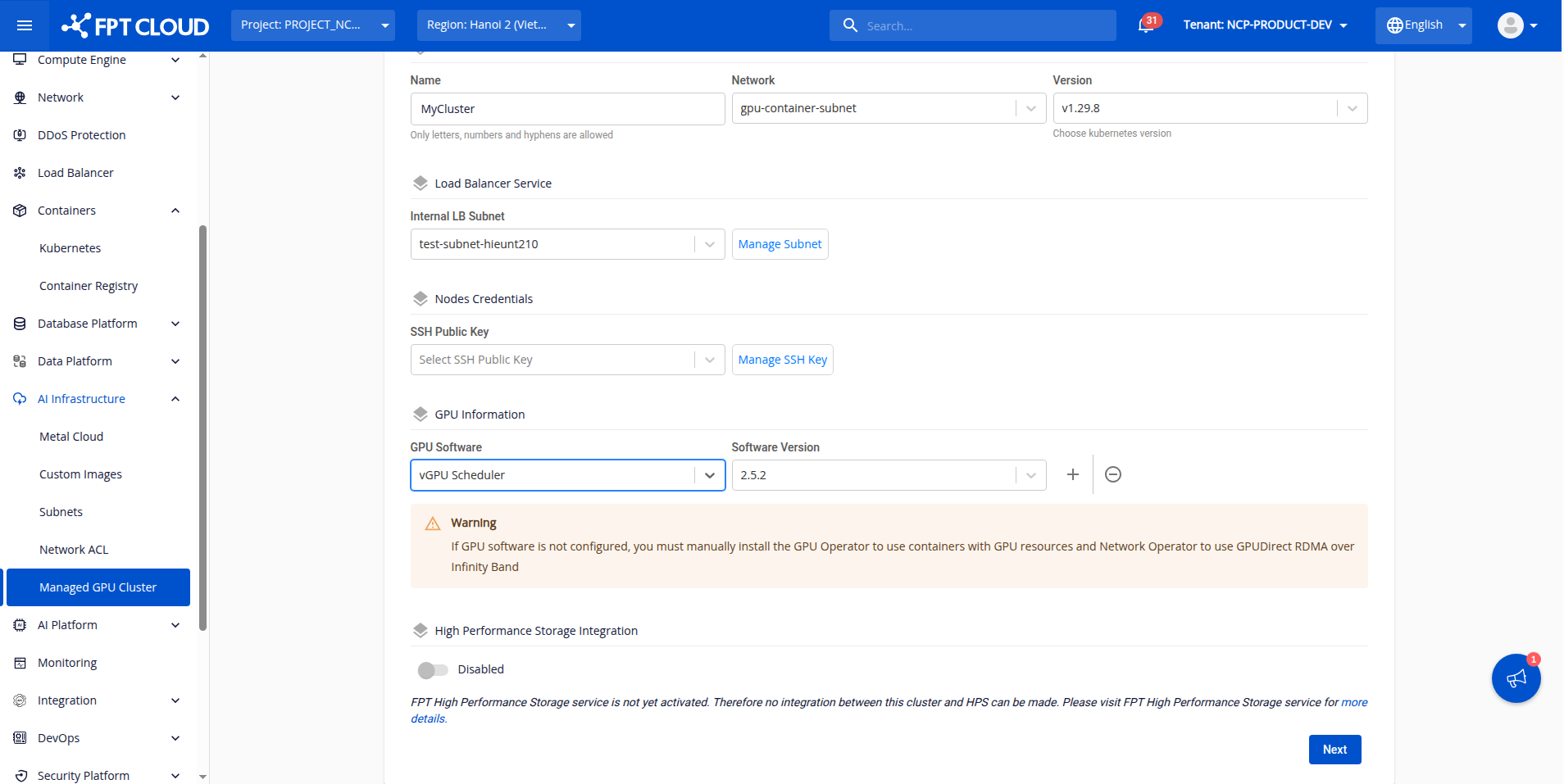
Step 1: Install the vGPU scheduler in the GPU software installation section and wait until the status shows ready.
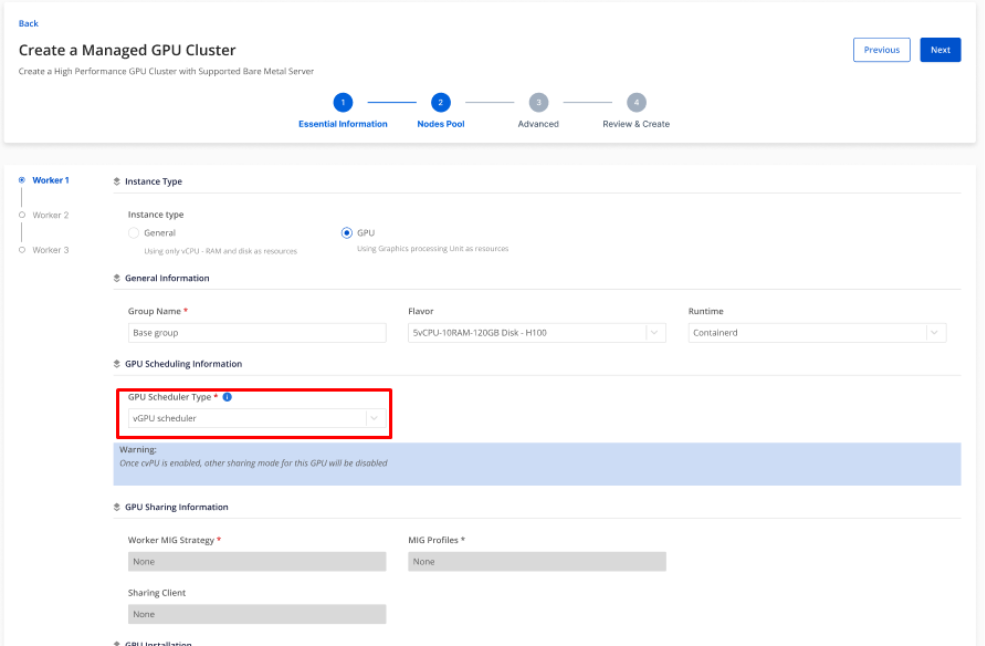
Step 2: In the GPU worker group tab, you can choose to enable or disable the elastic GPU scheduler component on each worker group.
Note:
- If you enable the vGPU scheduler on a worker group, all other sharing modes such as MIG, MPS, and Time Slicing must be disabled on that worker group.
- If you do not need to use the vGPU scheduler, select GPU scheduler type None. You can then use GPU sharing solutions such as MIG, MPS, and Time Slicing as normal.
- A maximum of 48 containers are allowed to share a single GPU. However, it is recommended to use no more than 20 vGPUs per GPU to ensure overall performance.
Step 3: Check the vGPU scheduler status on the designated nodes.
Check that the vGPU device plugin pod is in ready state
Command:
kubectl get pods --all-namespaces --field-selector spec.nodeName=<node_name> -o wide | grep device-plugin

Check vGPU resources on the node:
kubectl describe node <node_name> | grep Allocatable -A9
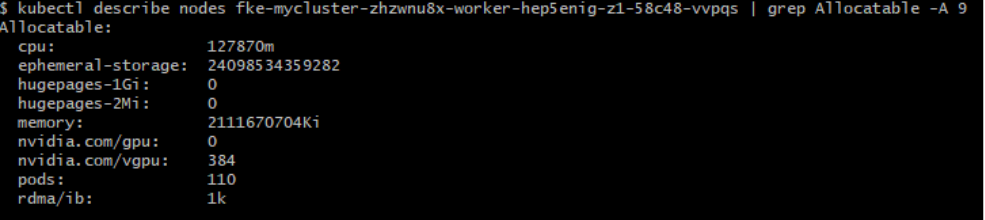
The vGPU on the node is ready when the nvidia.com/vgpu resource appears and has a value greater than 1.
Step 3: Deploy a sample workload on Kubernetes using vGPU.
apiVersion: apps/v1
kind: Deployment
metadata:
  name: vllm-gpt2
spec:
  replicas: 1
  selector:
    matchLabels:
      app: vllm-gpt2
  template:
    metadata:
      labels:
        app: vllm-gpt2
    spec:
      containers:
      - name: vllm
        image: vllm/vllm:latest
        args:
          - --model=gpt2
          - --tensor-parallel-size=1
          - --port=8000
        ports:
          - containerPort: 8000
        resources:
          limits:
            nvidia.com/vgpu: 1       # Require 1 vGPU
            nvidia.com/vgpumem: 40000  # Request 40000 MiB DRAM for container
      restartPolicy: Always
Note:
nvidia.com/vgpu: 1 means you want to use vGPU sharing on only one physical GPU. If you request nvidia.com/vgpu: 2, you need 2 physical GPUs.
Result:
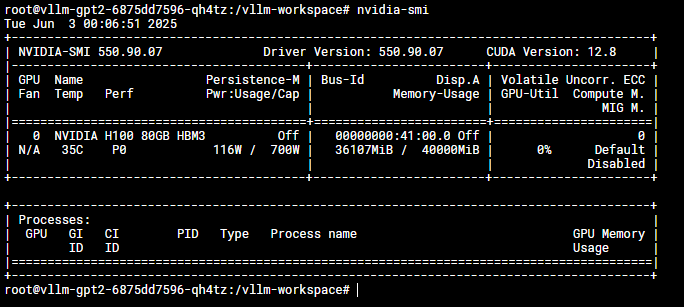
Here, the VLLM container is only allowed to use up to 40000 MiB of GPU DRAM.
vGPU scheduler features
FPT Cloud vGPU scheduler provides the following features:
1. Flexible GPU resource sharing — configurable parameters include:
resourceName: "nvidia.com/vgpu"— number of GPUs the pod will use (e.g. 2 corresponds to 2 GPUs)resourceMem: "nvidia.com/vgpumem"— memory the pod uses per GPU (e.g. 3000 corresponds to 3000 MB GPU Memory)resourceMemPercentage: "nvidia.com/vgpumem-percentage"— same as vgpumem but expressed as a percentageresourceCores: "nvidia.com/vgpucores"— limits the maximum GPU core usage
2. Memory isolation
With the FPT device plugin, we support managing the maximum amount of resources a container can use. You can edit the nvidia.com/vgpumem field when requesting resources for a container.
3. Single GPU sharing and multiple GPU sharing
- You can have your pod use 1 GPU or 2 GPUs by changing the GPU request for the container:
nvidia.com/vgpu. - You can also change the gpumem and gpu cores resources for each vGPU the container requests.
Note:
Setting nvidia.com/gpu: 2 in a container means the container uses 2 vGPUs placed on 2 different physical GPUs — not 2 vGPUs on the same physical GPU.
If you do not specify nvidia.com/vgpumem or nvidia.com/vgpucores, the scheduler will assume you want to use all of the corresponding node resources.
It is not recommended to use a single pod with multiple containers where all containers use GPU when this device plugin is enabled.
Comparison: vGPU scheduler vs. NVIDIA GPU sharing solutions
| Feature | FPTCloud vGPU | MPS | Time-slicing | MIG | Nvidia vGPU |
|---|---|---|---|---|---|
| Target Use Cases | Flexible GPU sharing & scheduling policy for containers using GPU. | Running multiple applications in parallel, trading performance for risk when a process suddenly stops. | Primitive GPU sharing method when you simply want to put a workload on the GPU and let the GPU handle the rest. | GPU sharing with QoS and fault tolerance guarantees, accepting reduced overall performance and less flexibility for MIG profiles. | Multi-tenancy, multiple VMs sharing a physical GPU, accepting the cost of NVIDIA licensing. |
| Partition Type | Logical | Logical | Temporal | Physical | Temporal & Physical (VM) |
| Max Partition | Unlimited | 48 | Unlimited | 7 | Variable |
| SM Performance Isolation | Yes (by % not per client) | Yes (by %, not per client) | No | Yes | Yes |
| Memory Protection | Yes | Yes | No | Yes | Yes |
| Memory Bandwidth | No | No | No | Yes | Yes |
| Error Isolation | Yes | No | Yes | Yes | Yes |
| Reconfiguration | At process launch | At process launch | Time-slice duration only | When idle | No |
| Telemetry | Yes | Limited | No | Yes (including in containers) | Yes (including live migration) |
| Other noteworthy | Supports all GPUs | cudaCapability >= 3.5 | cudaCapability >= 7.0 | cudaCapability >= 8.0 (Hopper, Ampere) | License required |