Backup and Restore
The Backup & Restore feature in M-FKE is designed to create snapshots of PVCs. M-FKE releases Backup & Restore version 1.0.0 with the following capabilities:
Backup Plan:
- View the list of Backup Plans.
- Create a new Backup Plan.
- A single Backup Plan can be configured with multiple schedules for the system to automatically create PVC snapshots, applying to one or more PVCs at the same time.
- Configure a Retention period in minutes, hours, or days.
- Edit a Backup Plan.
- Enable / Disable a Backup Plan.
- Delete a Backup Plan.
PVC Snapshot:
- View the list of PVC Snapshots (showing the creation method: Manually or Scheduled).
- Sync the snapshot list from the cluster to FPT Cloud Portal.
- Create a new PVC Snapshot.
- Delete a PVC Snapshot.
- Restore a PVC Snapshot.
PVC Restored:
- View the list of restored PVCs.
- Reload to update status.
Note: This feature applies to the Cinder driver (pre-created by FPT Cloud).
Create a Backup Plan
Step 1: Go to Portal > Containers > Kubernetes > Cluster Details > Backup tab.
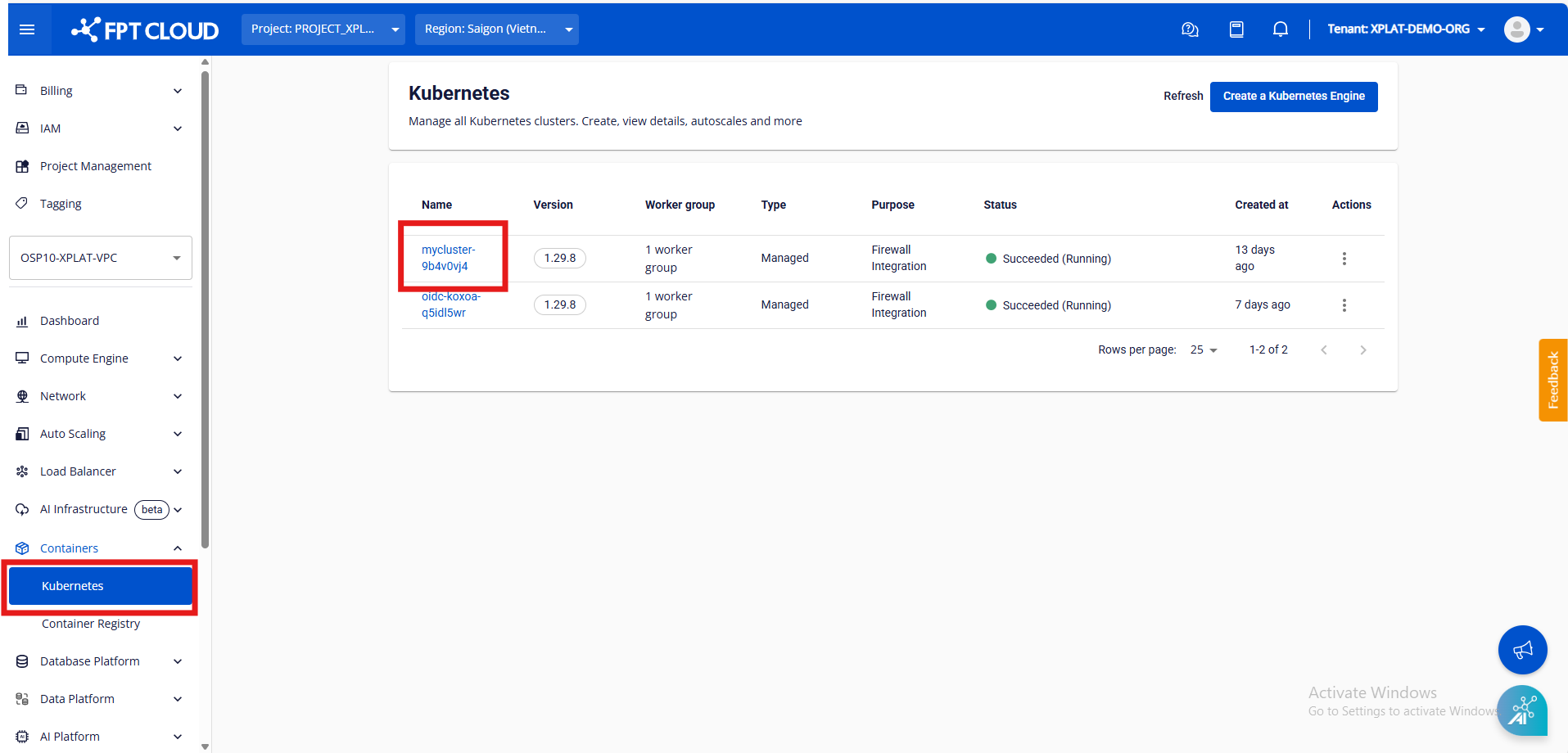
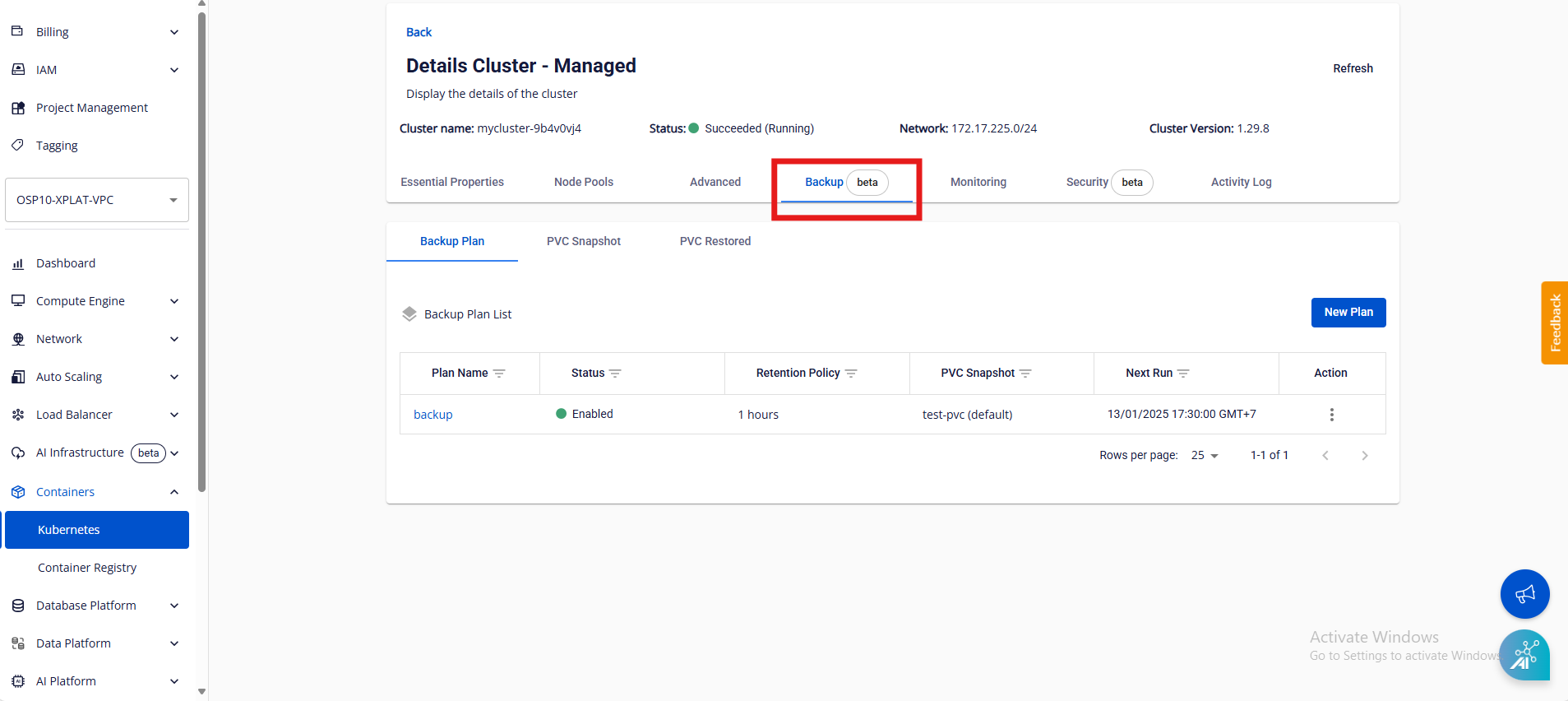
Figure 1: Backup Tab
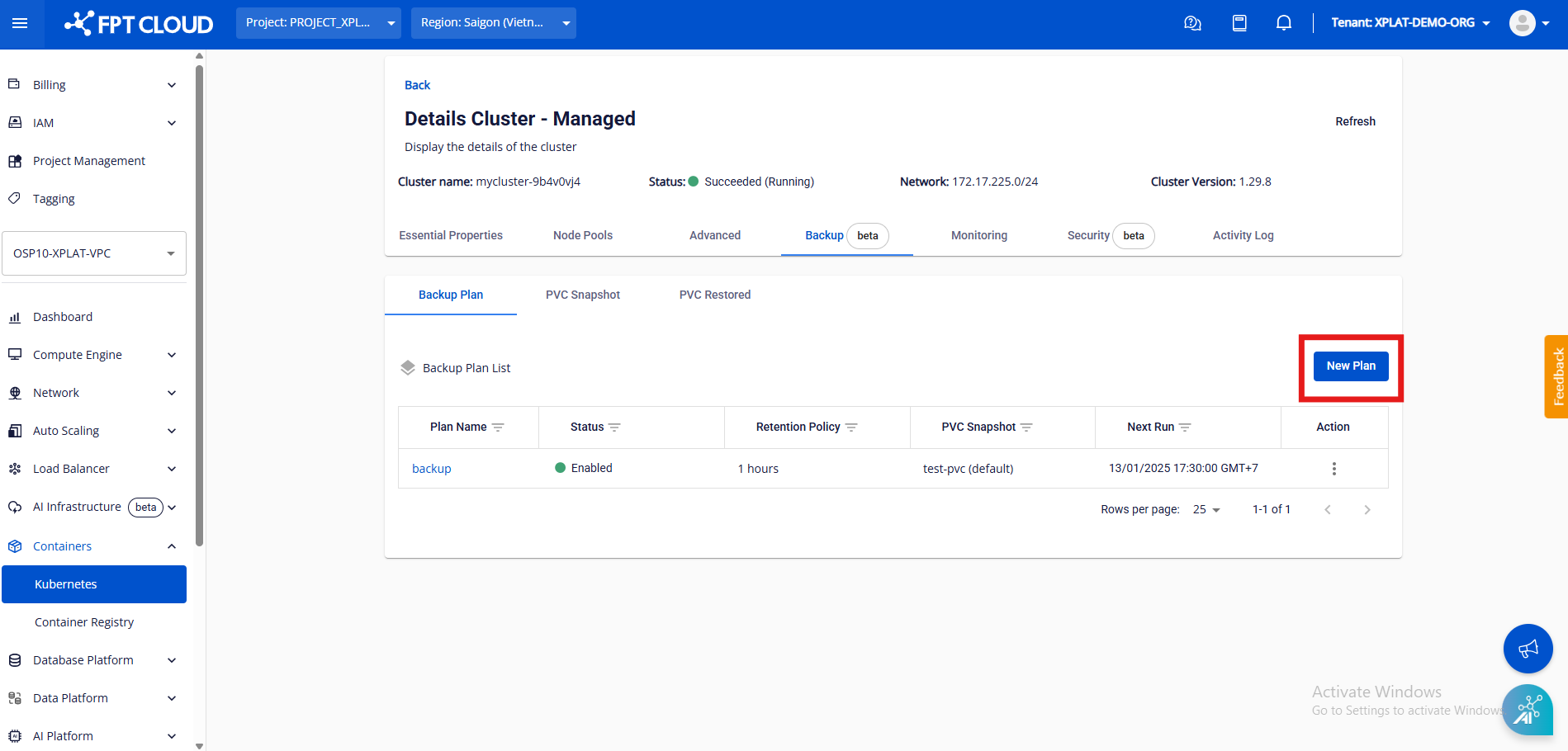
Step 2: In the Backup tab, click New Plan to create a new Backup Plan.
Fill in the Backup Plan information, including:
① Essential Information:
- Plan Name: name of the Backup Plan.
- Retention: how long each snapshot is retained. After this period, the snapshot is permanently deleted.
② Schedule Scope:
- PVC Backup List: list of PVCs in the cluster.
③ Schedules Information: enter specific month/day/year to schedule backups.
Note: Multiple Backup Plans can be created.
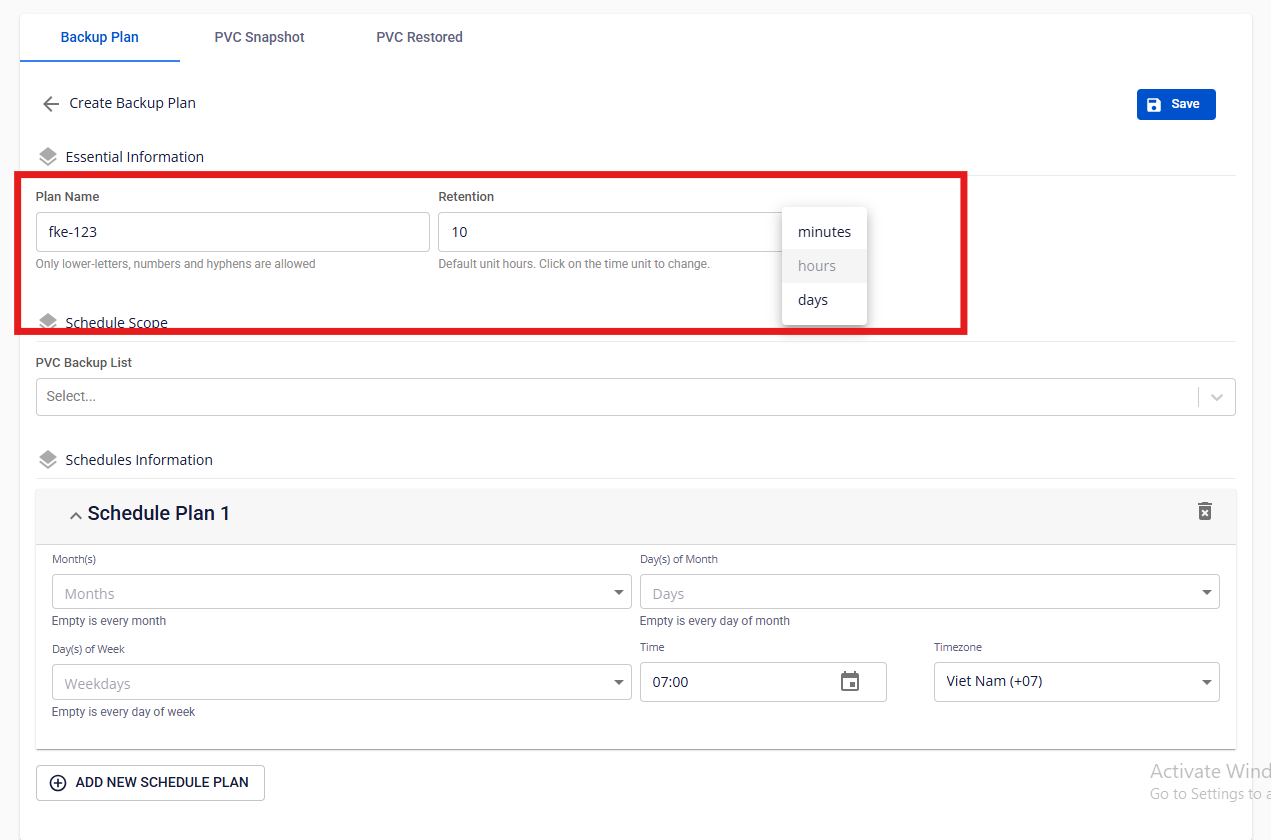
Figure 2: Enter the Plan name and select the Retention period (default 10 hours)
Note: Retention applies to the PVC snapshots selected in the Plan.
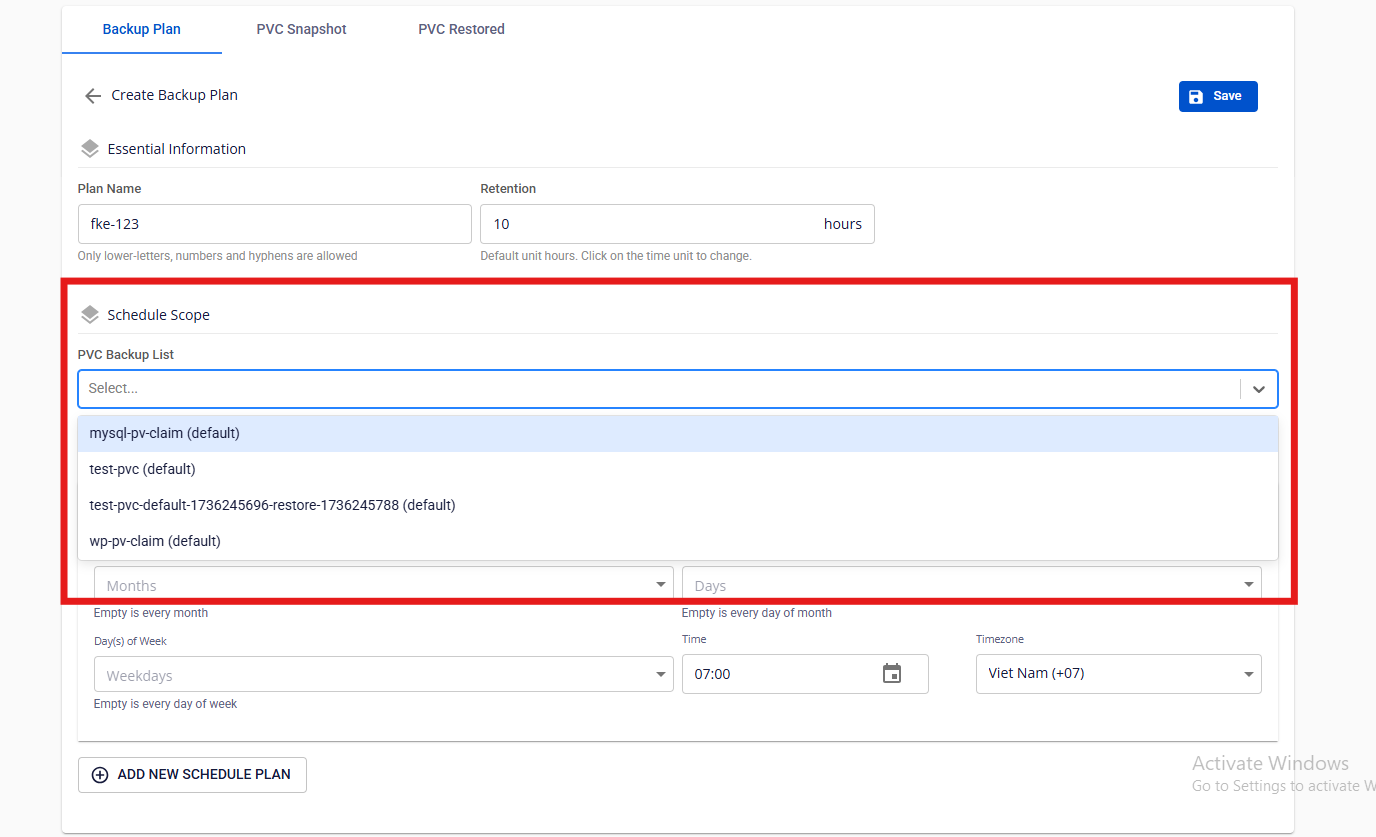
Figure 3: Select the PVCs you want to apply the Plan to
Note: The list is displayed as "pvc_name(pvc_namespace)".
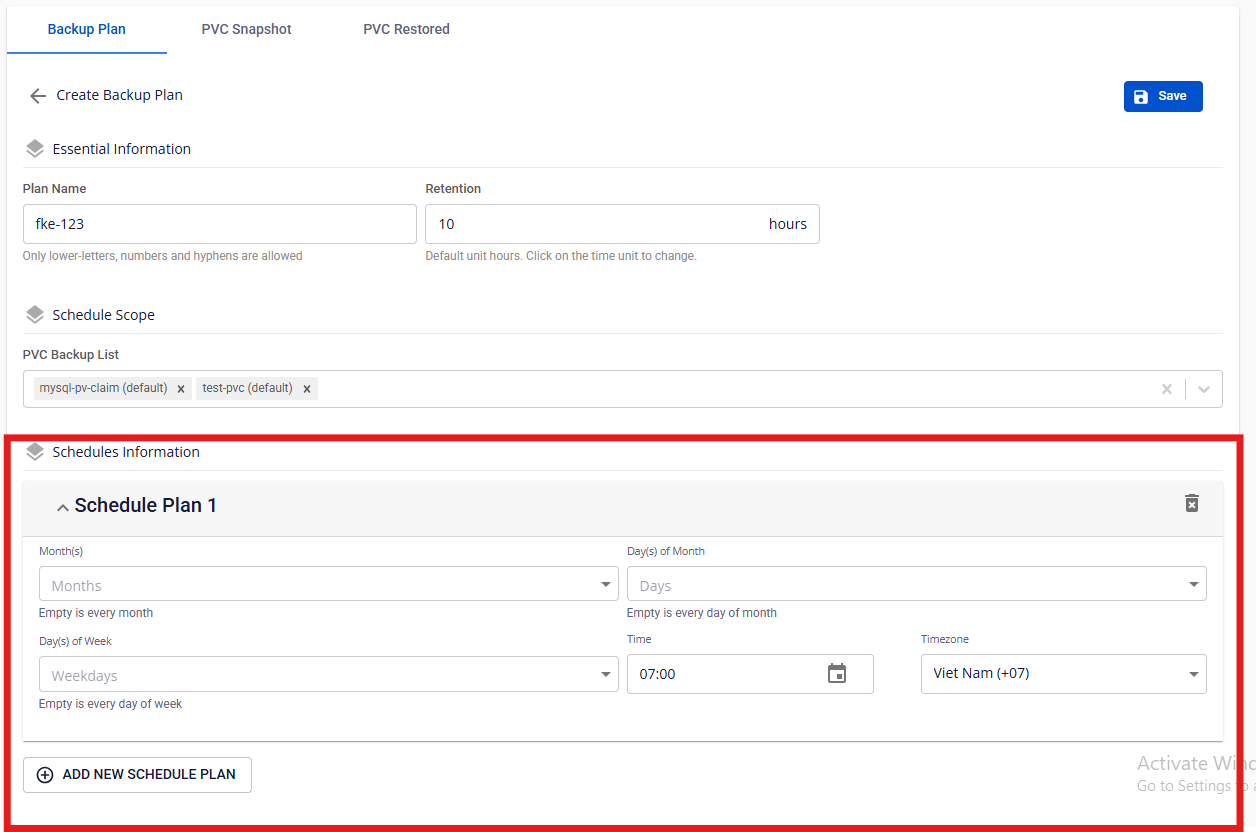
Figure 4: Configure the desired schedules, add or remove as needed
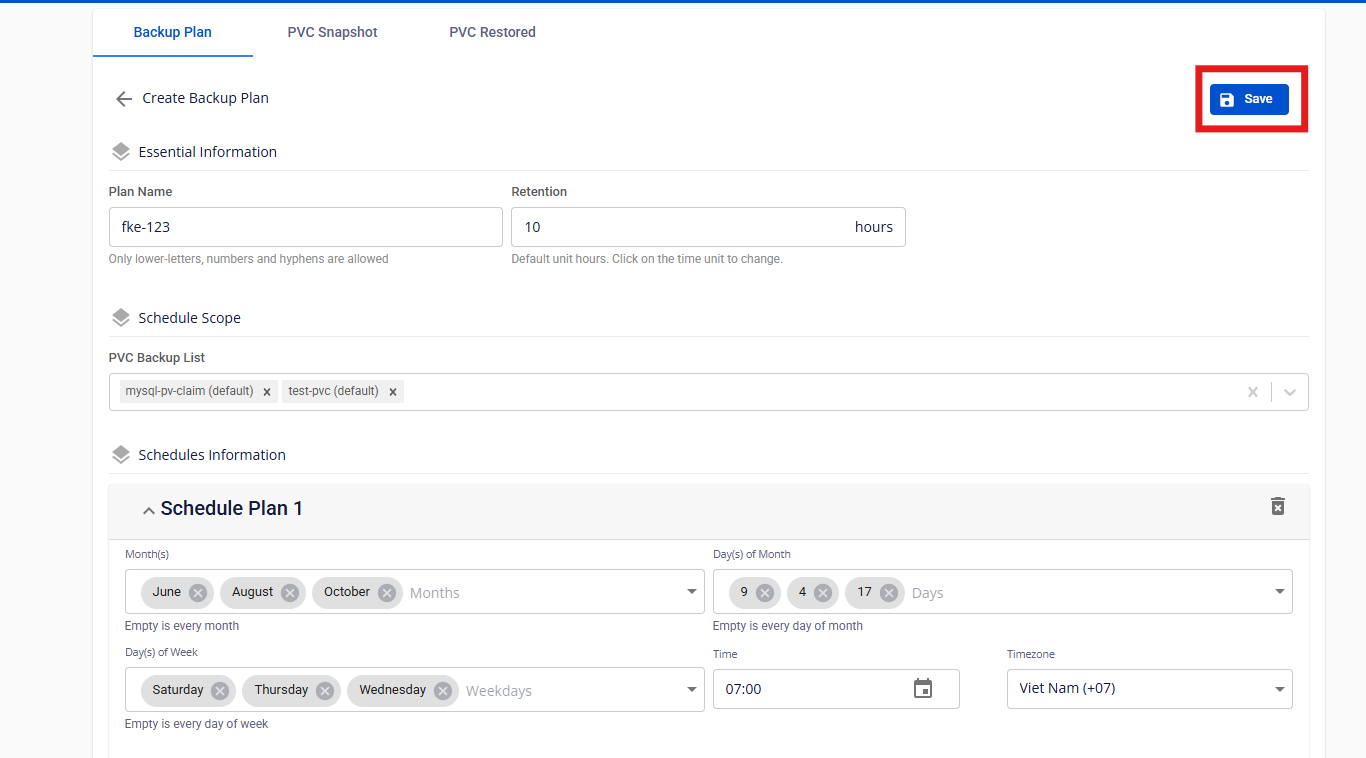
Figure 5: Save the Backup Plan and return to the Backup tab
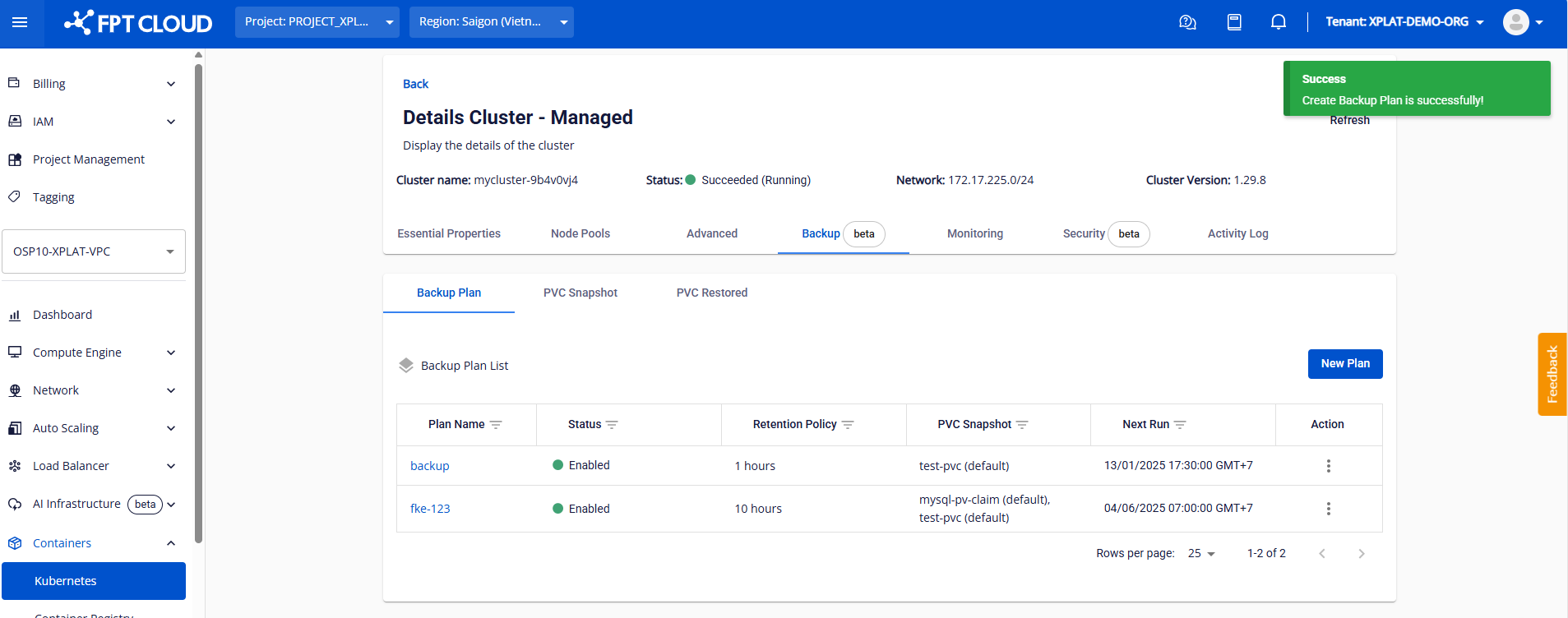
Figure 6: The newly created Backup Plan appears in the Backup Plan List
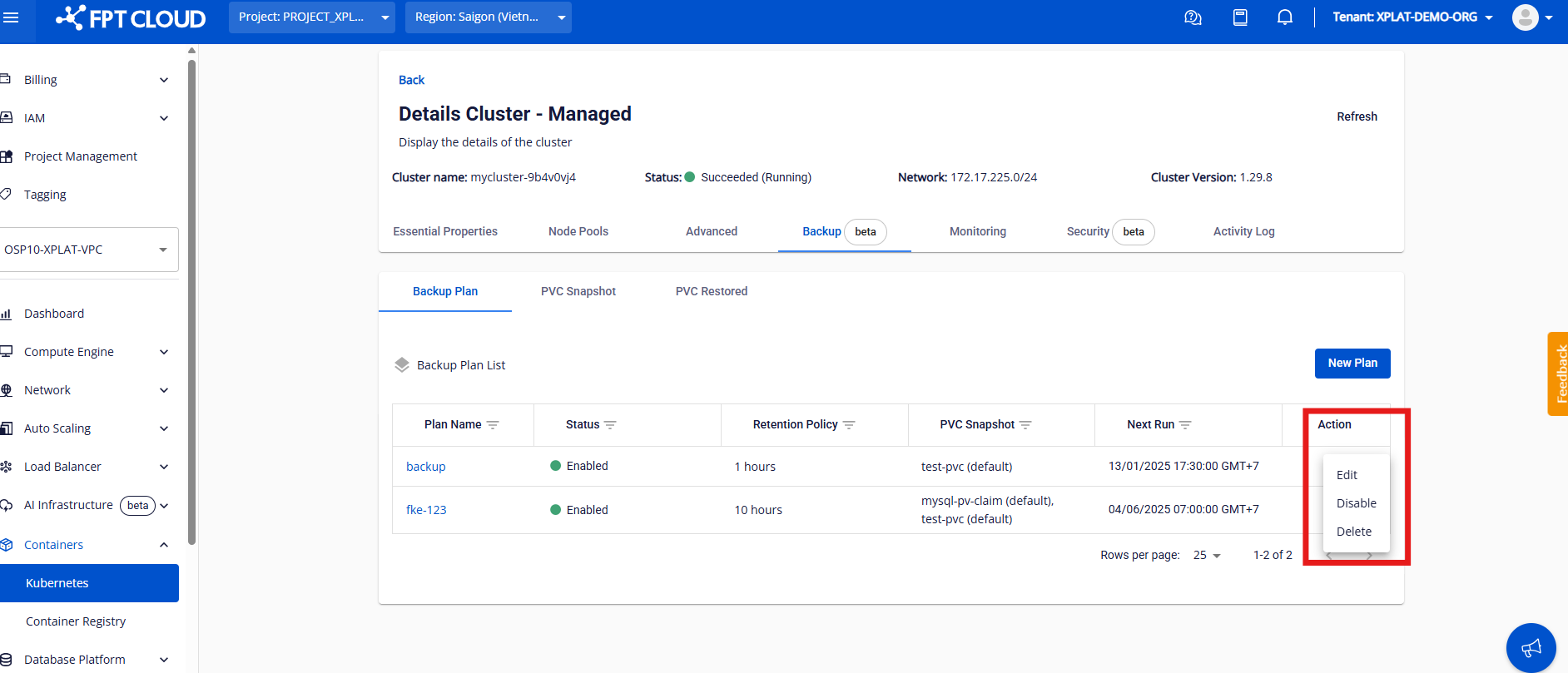
Figure 7: Edit / Disable / Delete a Backup Plan
Snapshots created according to the Backup Plan schedule appear in the Snapshot List with Type = "Scheduled".
Using the PVC Snapshot tab
This sub-tab displays all created snapshots, including those created manually (Type = "Manually") or by a Backup Plan (Type = "Scheduled").
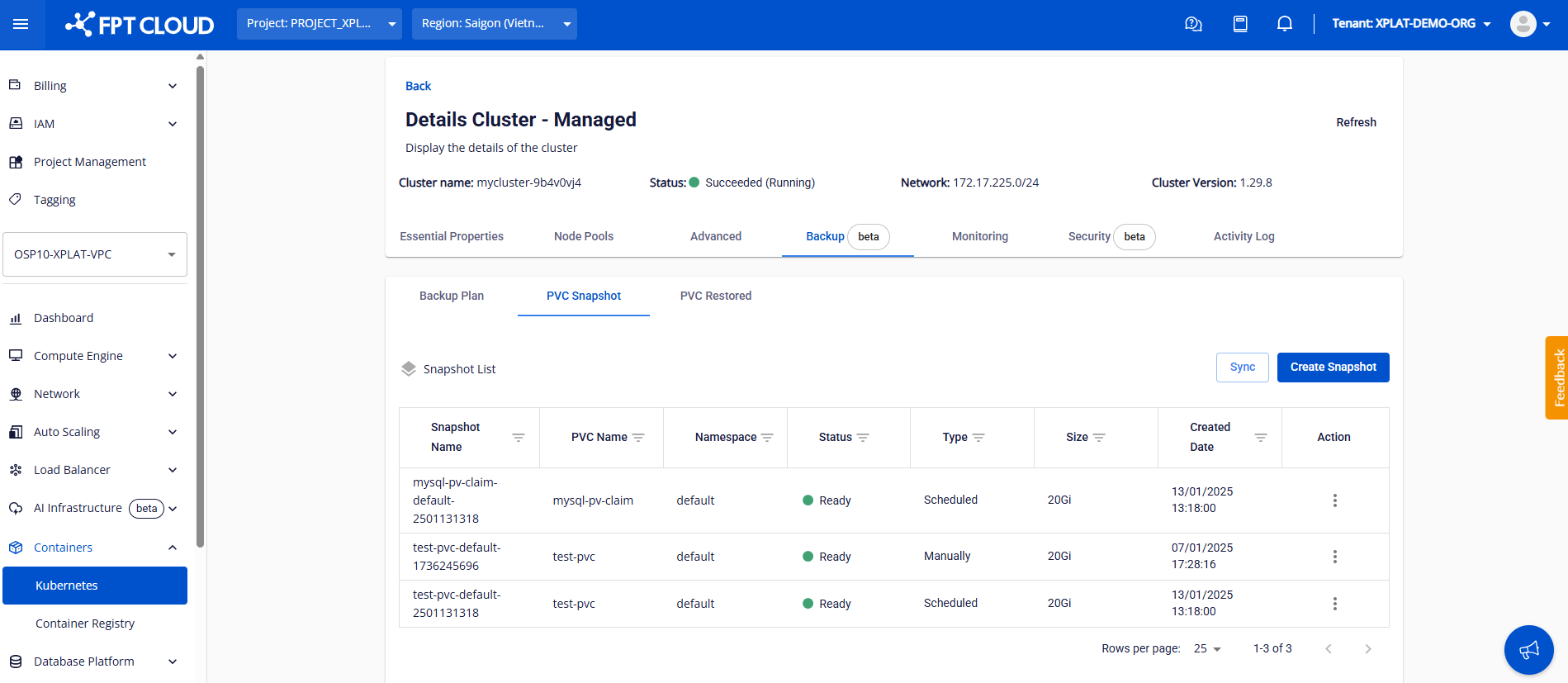
Figure 8: List of created Snapshots
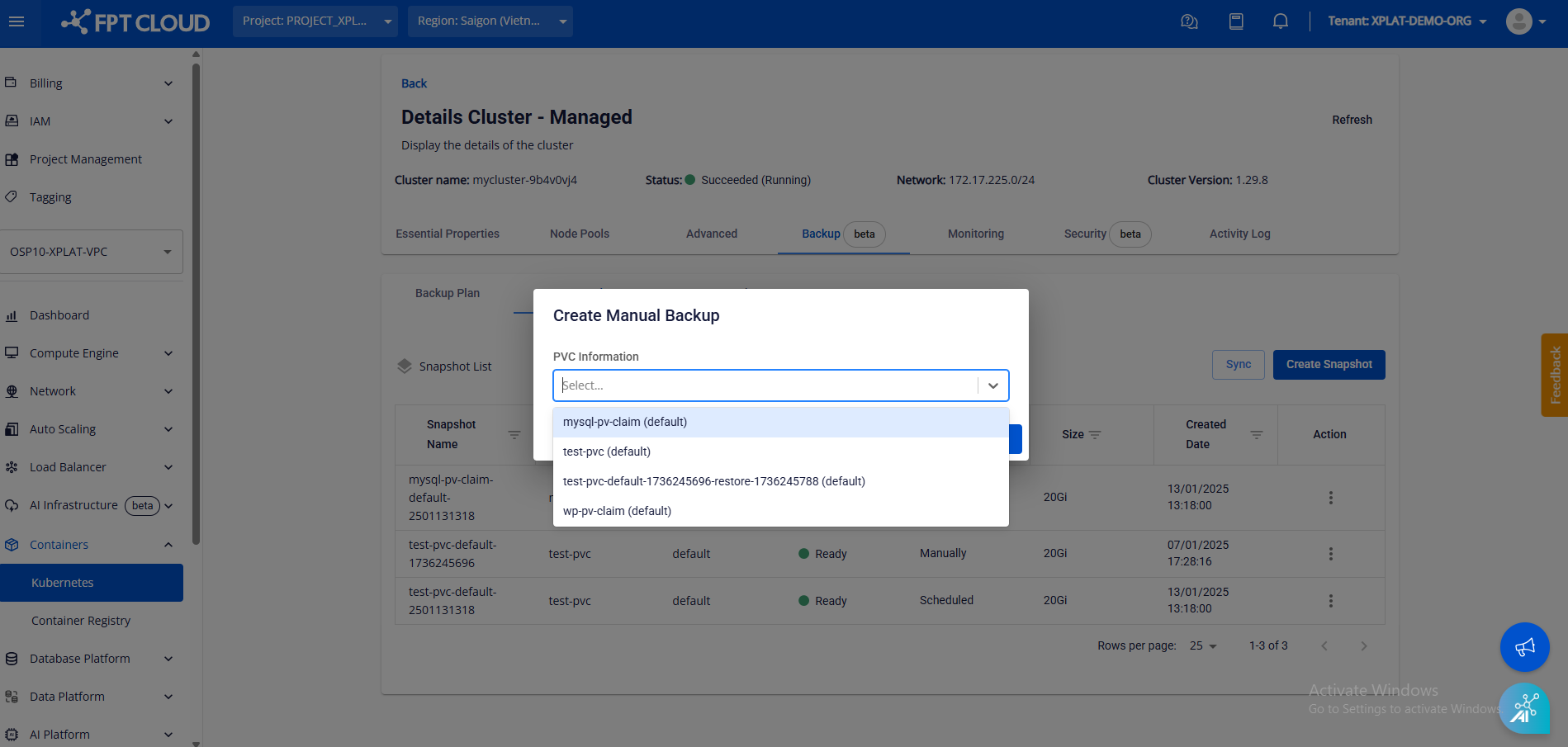
Figure 9: Select Create Snapshot to create a snapshot directly
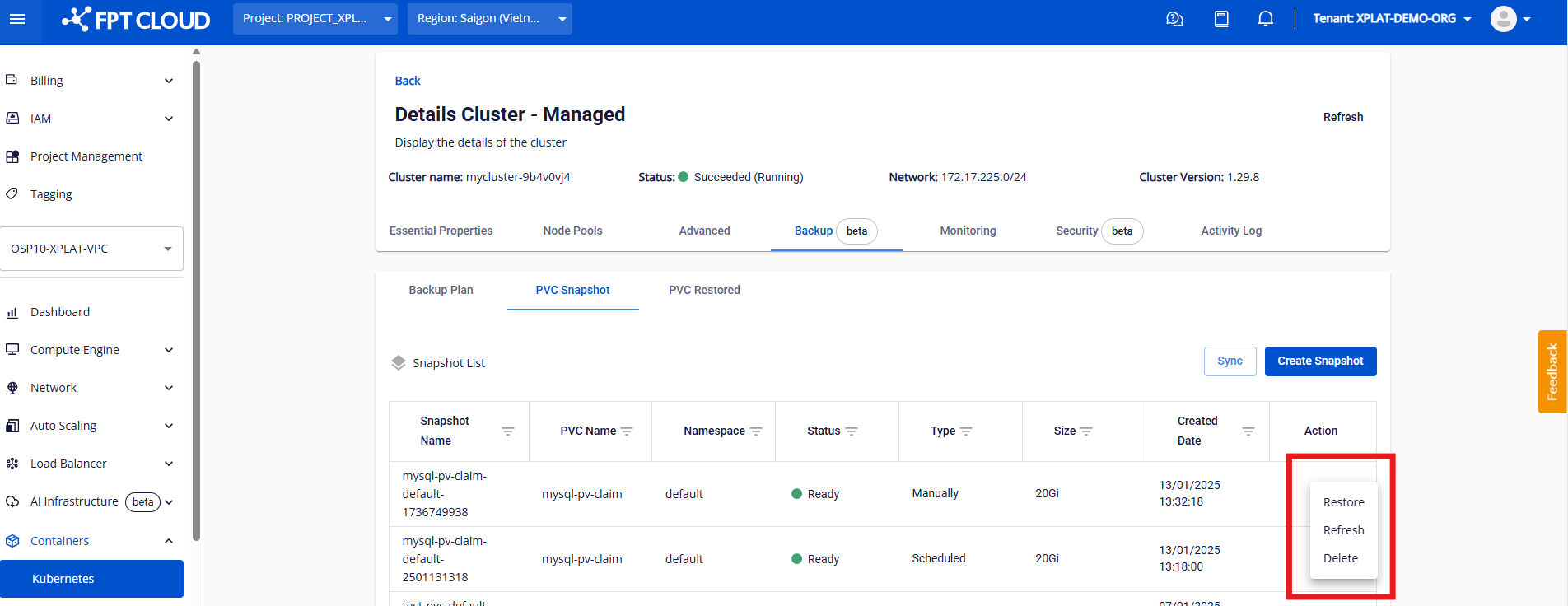
Figure 10: Select Delete to delete, Refresh to update the latest snapshot status, and Restore to restore the PVC to the Kubernetes cluster
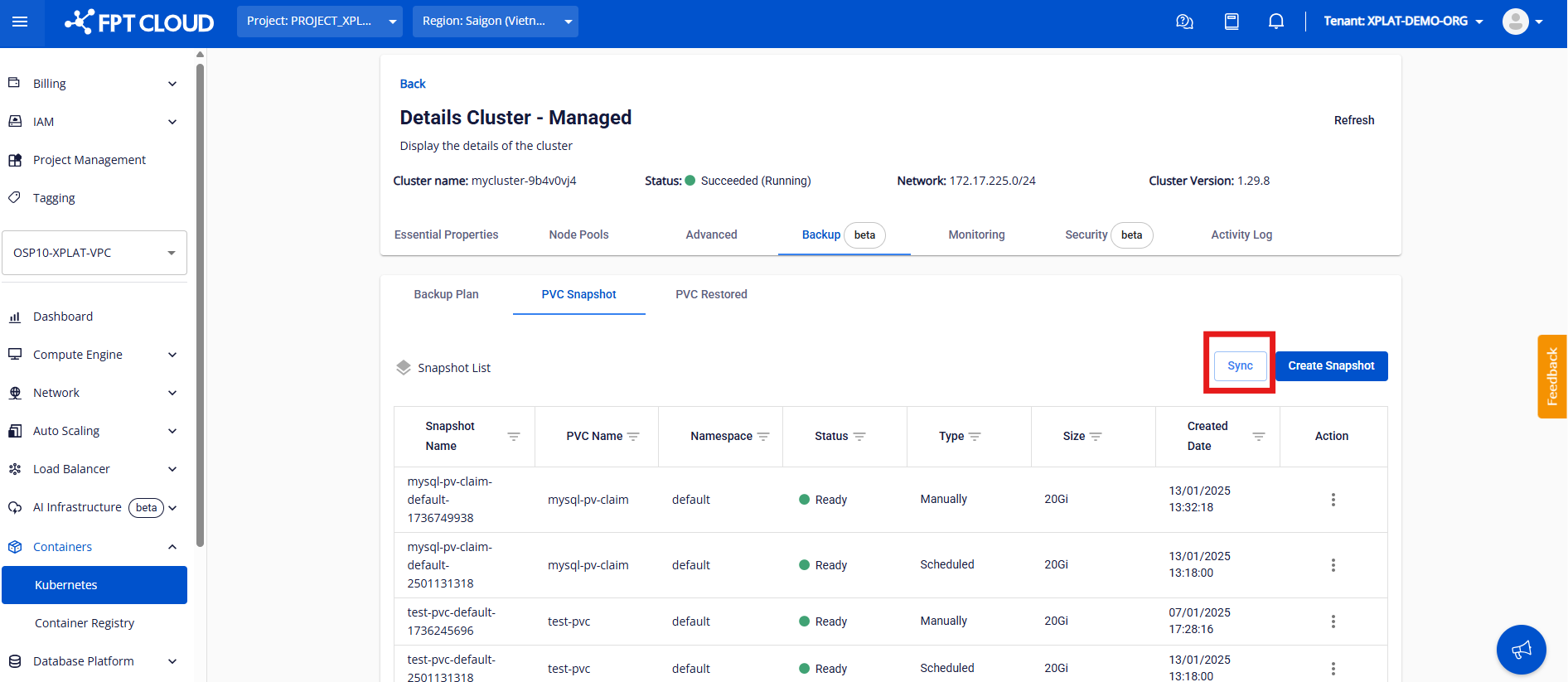
Figure 11: Use the Sync button to directly sync the status of Snapshots and PVCs from the Kubernetes cluster to FPT Cloud Portal
Using the PVC Restored tab
When you restore a snapshot (Restore Snapshot) from the PVC Snapshot sub-tab, the restored PVC appears in the PVC Restored sub-tab.
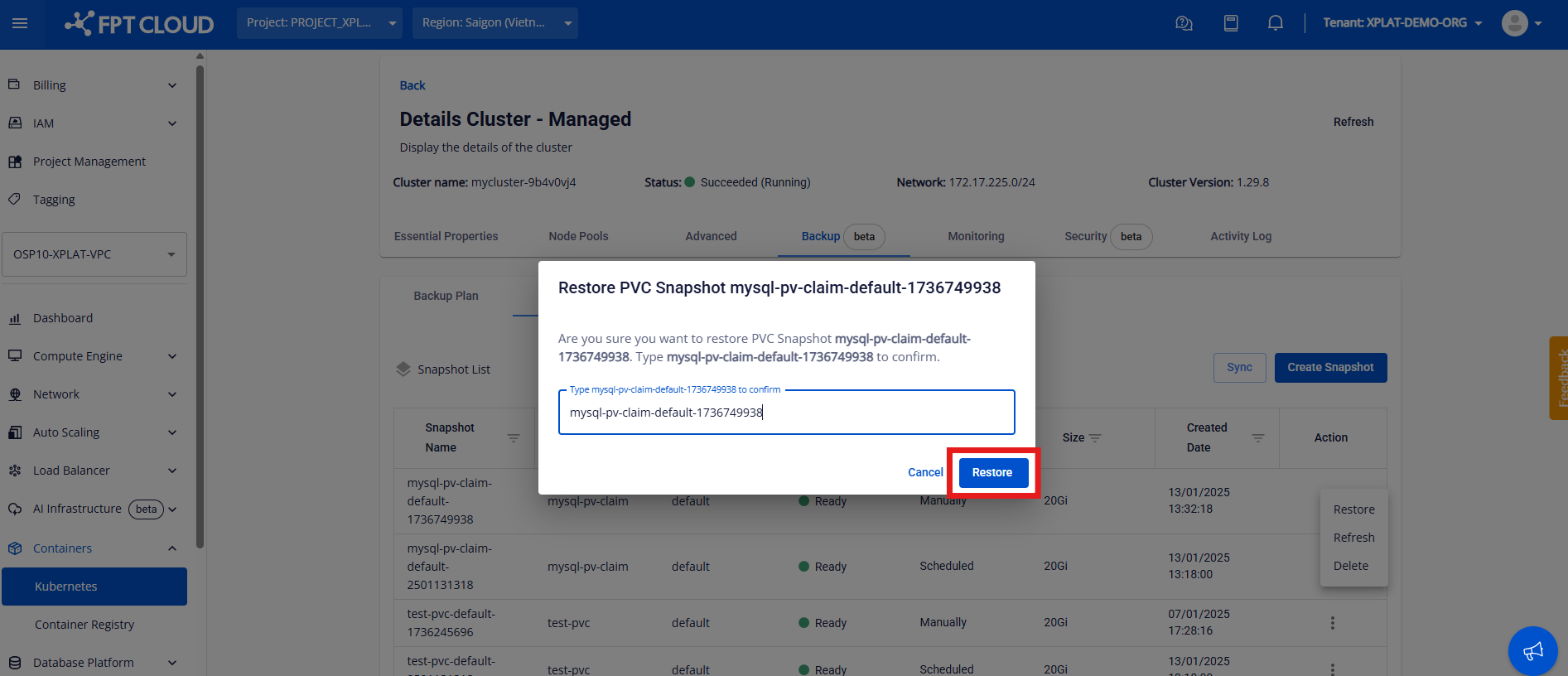
Figure 12: Restore PVC from the PVC Snapshot sub-tab
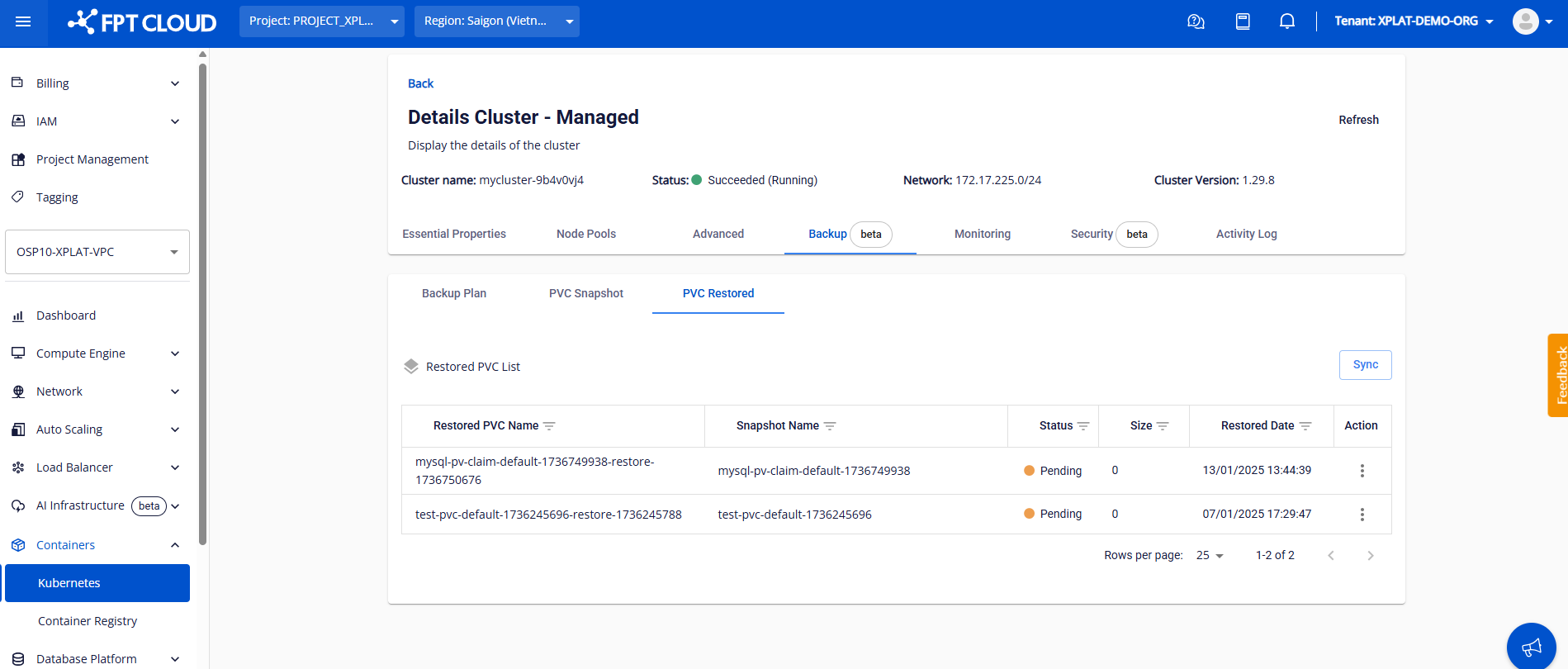
Figure 13: List of restored PVCs. PVCs not yet assigned to a pod will have Pending status
Access your Kubernetes cluster and configure the deployment for the pod mapped to the restored PVC — the PVC status will then be updated.
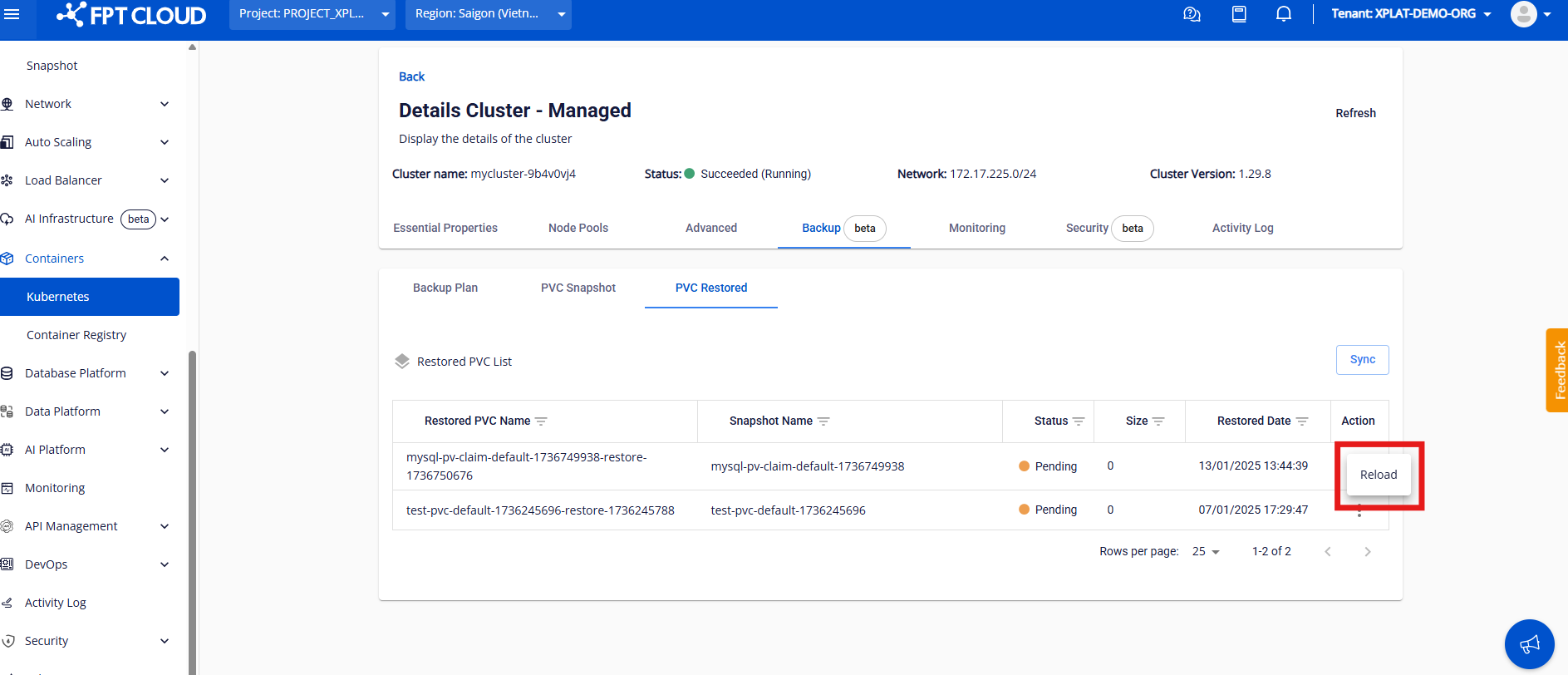
Figure 14: Click Reload to refresh PVC status, or Sync to update all
Notes:
- The number of snapshots per VPC is limited to a maximum of 10. To increase this limit, contact FPT Cloud Support.
- Create Backup Plans carefully to avoid accumulating too many snapshots without deleting them, which can cause the infrastructure to reach its threshold and prevent new snapshots from being created.
- If a Snapshot has a Failed status, access your Kubernetes cluster and run the following command to investigate the cause:
kubectl describe volumesnapshots.snapshot.storage.k8s.io <snapshot-name> -n <namespace>