Tag VMs
The Tagging feature allows you to label virtual machines with custom tags for classification, search, and more effective resource management.
- Smart classification: Easily organize virtual machines by environment (Production, Staging, Development), project, department, or any criteria that fits your management process.
- Quick search: Filter and find VMs easily based on their tags without having to remember complex names.
- Efficient management: Track costs, resource usage, and generate reports based on tagged VM groups.
- Flexible customization: Tags can be customized and applied for various purposes to meet specific business needs.
With the Tagging feature, managing virtual infrastructure becomes more organized, saves time, and improves operational efficiency.
Create a Tag
To tag VMs in an MFKE worker group, first create a tag for the intended purpose.
Step 1: On the Unify Portal, select Tagging → Create tag.
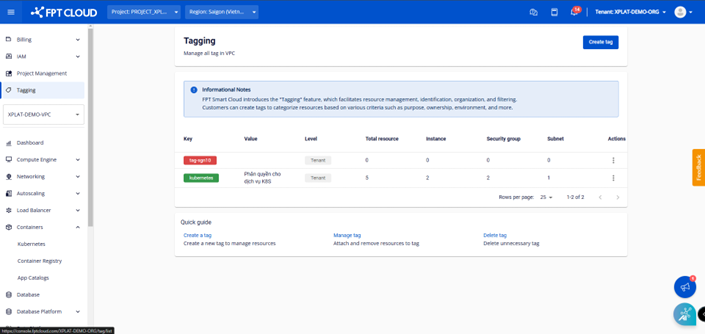
Step 2: Enter the tag information and click Create.
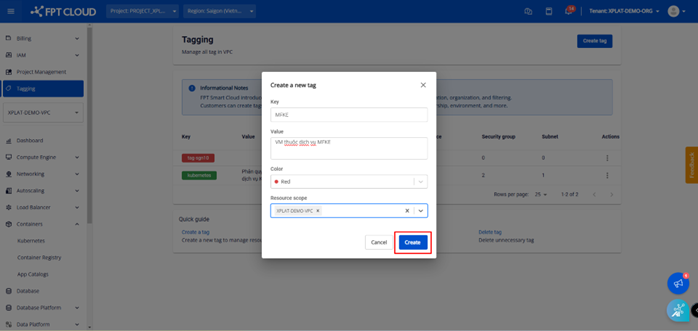
- Key (required): Enter a key to identify the tag.
- Value (required): Enter a value for the tag corresponding to the key.
- Color: Select a color for displaying the tag.
- Resource scope: Select the VPC where the tag is displayed.
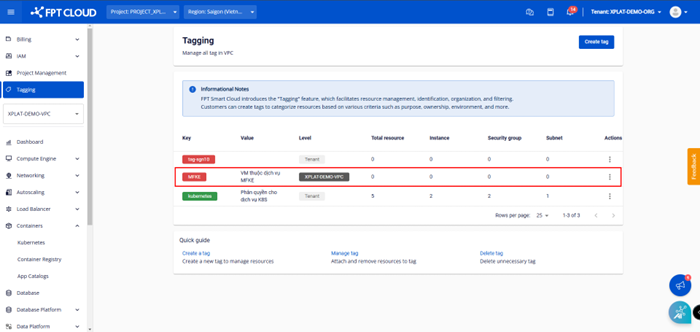
Assign a Tag to an MFKE worker group
For a new cluster:
Step 1: On the Unify Portal, select Kubernetes → Managed → Create a Kubernetes Engine to create a new cluster.
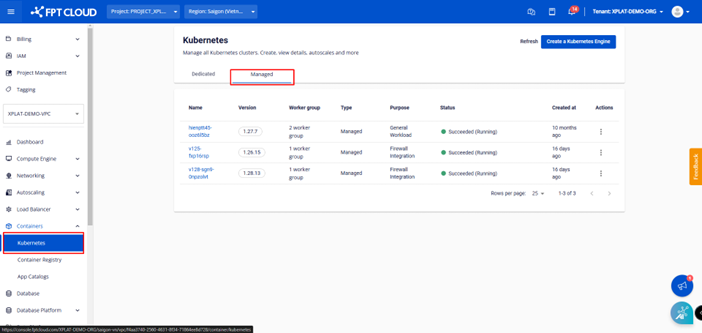
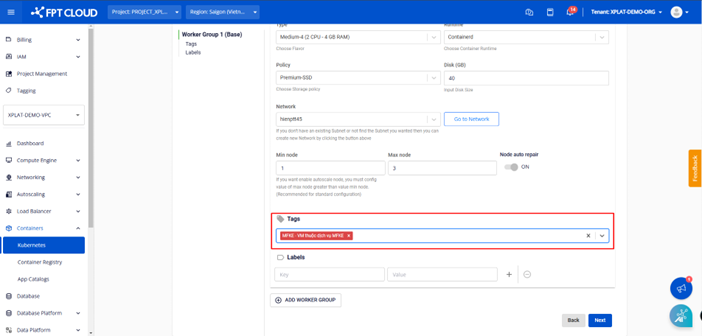
Step 2: In the Nodes Pool section, select the Tag you want to use for the worker group.
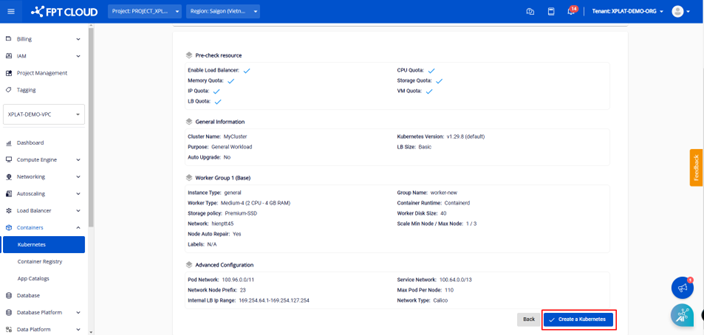
Enter all required cluster information and click Create a Kubernetes.
Edit a Tag for a worker group
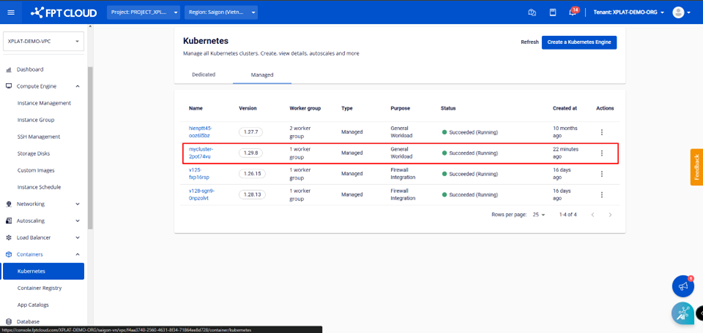
Step 1: From the menu, select Kubernetes. The Kubernetes Management page appears. Select the Cluster you want to edit the Tag for.
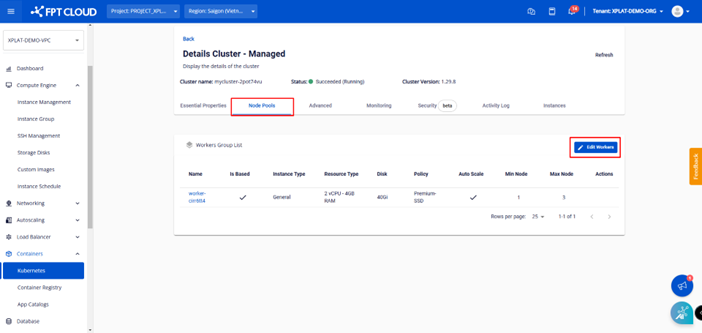
Step 2: Select Node Pools > Edit Workers.
Step 3: Add the Tag to the worker group and click Save.
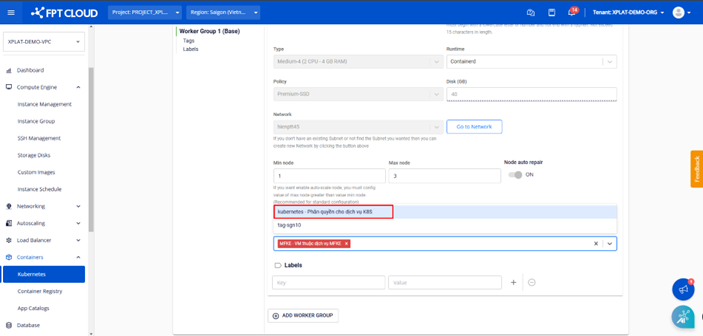
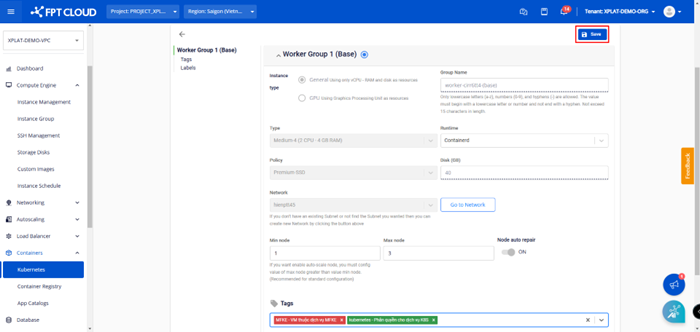
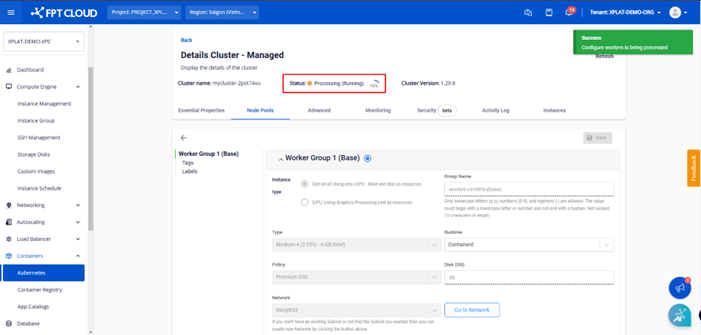
The Tag editing process takes a few minutes. The cluster status changes to Processing during this time, and you cannot make other changes to the cluster until the process completes.
Remove a Tag from a worker group
Step 1: Select Node Pools > Edit Workers.
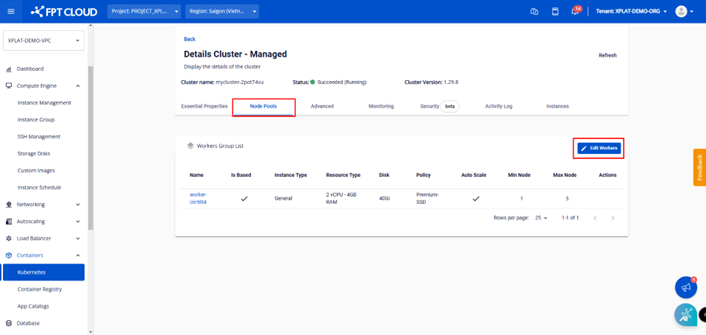
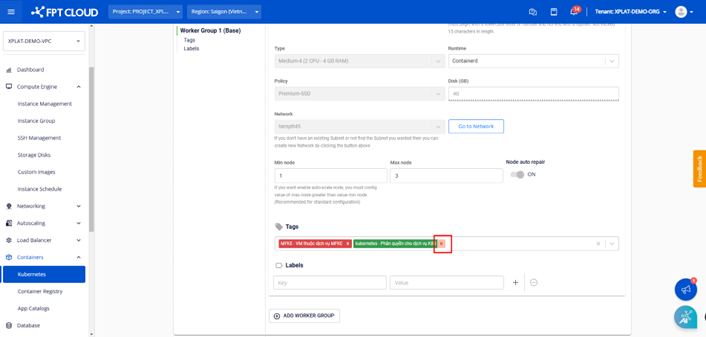
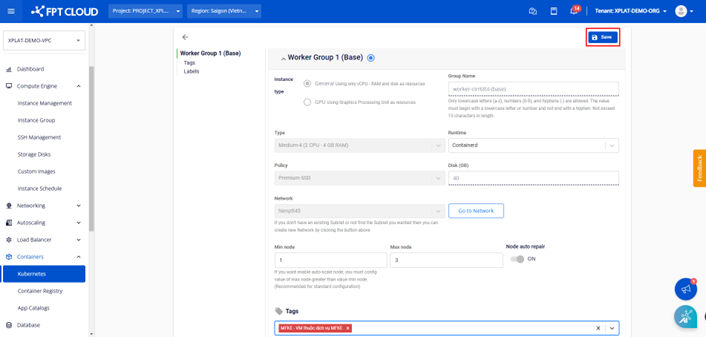
Step 2: Click the remove icon to delete the tag from the worker group, then click Save.
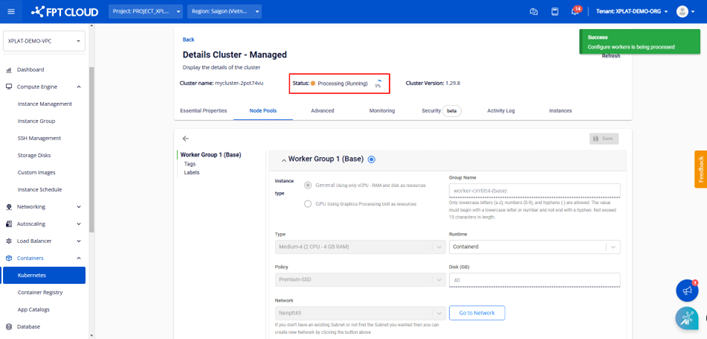
The Tag removal process takes a few minutes. The cluster status changes to Processing during this time, and you cannot make other changes to the cluster until the process completes.