Keystore Management
Keystore Management in Workspace allows users to store and manage keys/secrets (keys, tokens, credentials) used by services in the system.
A keystore can reside within the Workspace or be integrated with an external key storage service (e.g., HashiCorp Vault).
1. Keystore List
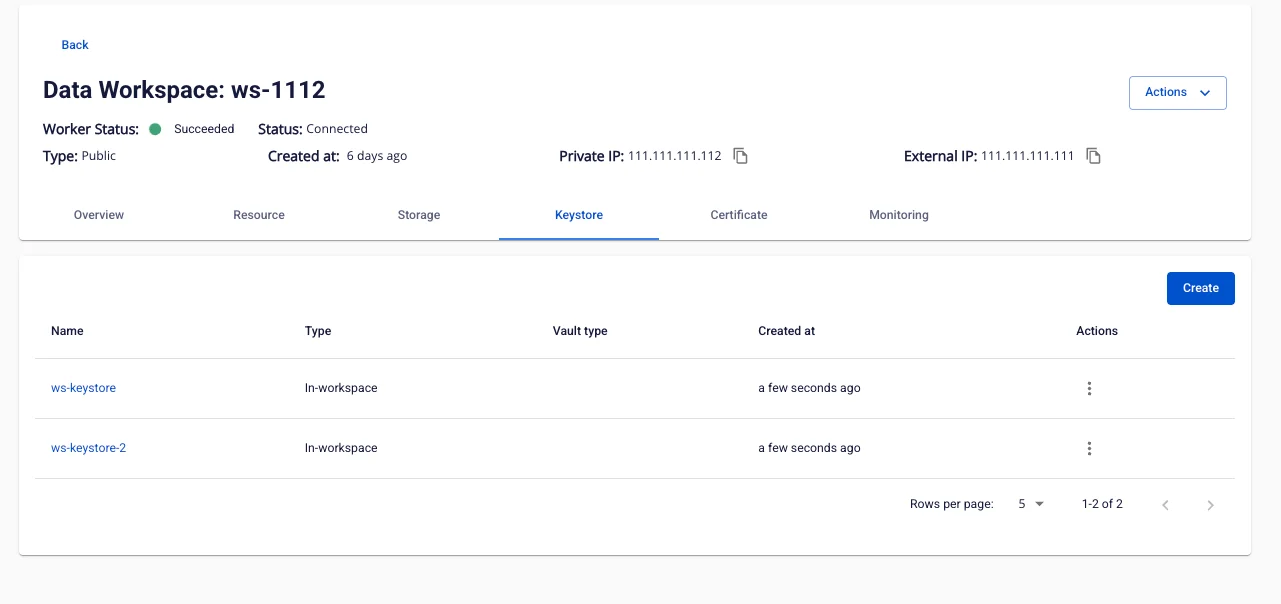
Purpose: Displays all created keystores.
Access: Data Platform > Workspace Management > Keystore
Screen displays:
-
Name – Keystore identifier name.
-
Type – Keystore type:
-
Integration (external integration, e.g., HashiCorp Vault).
-
In-workspace (internal storage).
-
-
Vault type – Vault type when using external integration (e.g., HashiCorp).
-
Created at – Time the keystore was created.
-
Action – Action menu (Update, Delete).
2. Create a New Keystore
Step 1: Go to Data Platform > Workspace Management > Keystore.
Step 2: Click Create to open the Create keystore popup.
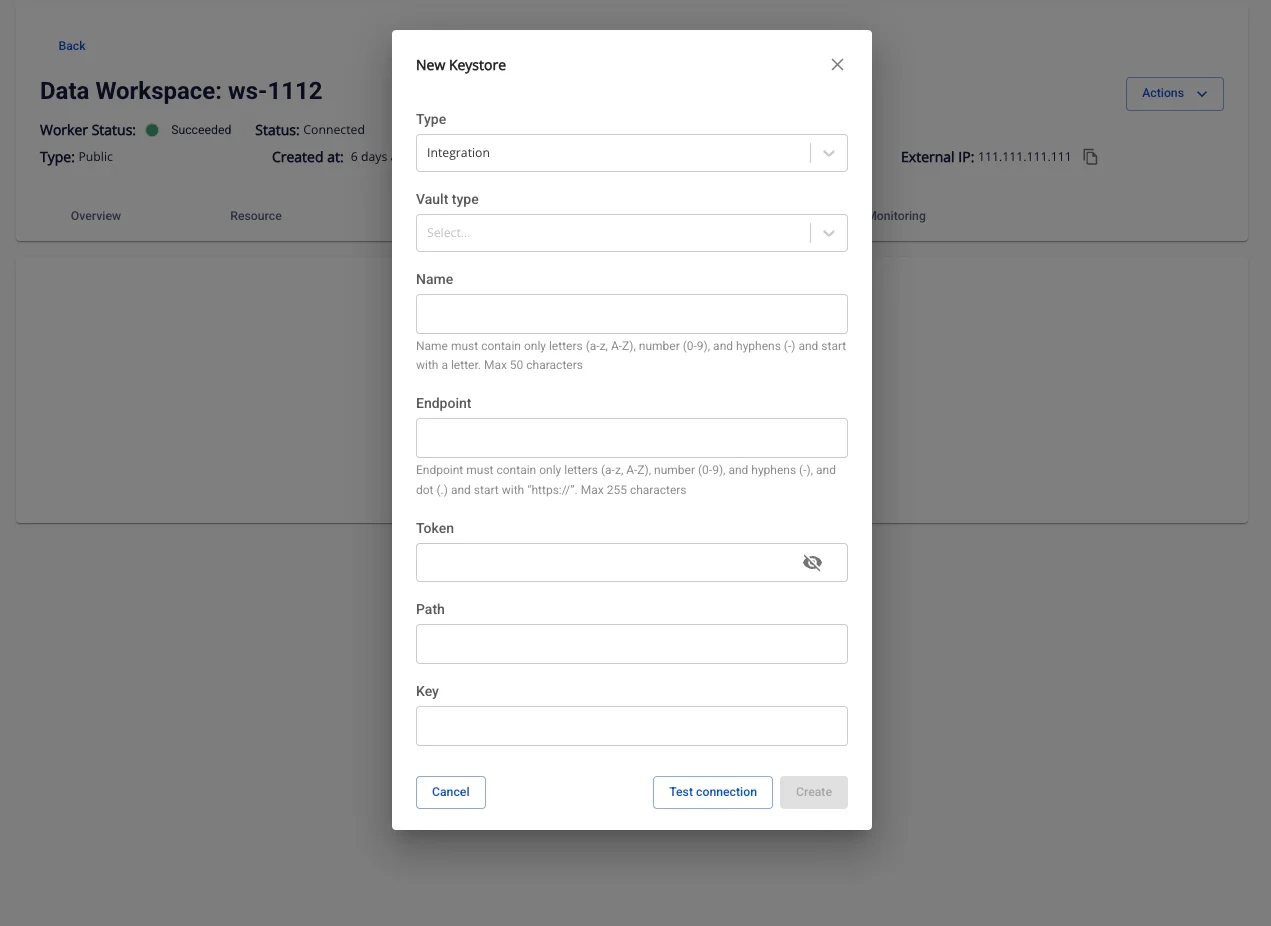
Case: Type = Integration (connect to external Vault, e.g., HashiCorp)
Step 3: In the Type field, select Integration.
Step 4: In Vault type, select the system you are using (typically HashiCorp).
Step 5: Enter the Name (identifier name):
-
Only letters a–z, A–Z, digits 0–9, hyphens "-"; must start with a letter; maximum 50 characters.
-
Recommended naming convention: purpose-environment (e.g., s3-prod).
Step 6: Enter the Endpoint (Vault URL):
-
Must start with https://; maximum 255 characters.
-
Only letters, digits, "-", "." (per the rule shown on the form).
-
Example: https://vault.example.com.
Step 7: Enter the Token:
-
Vault access token (characters are hidden when typing; can be toggled to view).
-
Use a valid, non-expired token; you will Update it later when the token changes.
Step 8: Enter Path and Key:
-
Path: Path to the secret in Vault (min 1, max 255 characters).
-
Key: Secret/key name within the path (min 1, max 255 characters).
-
Example: Path data/lakehouse/s3-key — Key sse-c-key.
Step 9: Click Test connection:
-
If OK → the Save button is enabled.
-
If Fail → check Endpoint/Token/Path/Key (common issues: insufficient access rights, expired token, path/key does not exist, or endpoint not using HTTPS).
Step 10: Click Save to create; Cancel to discard.
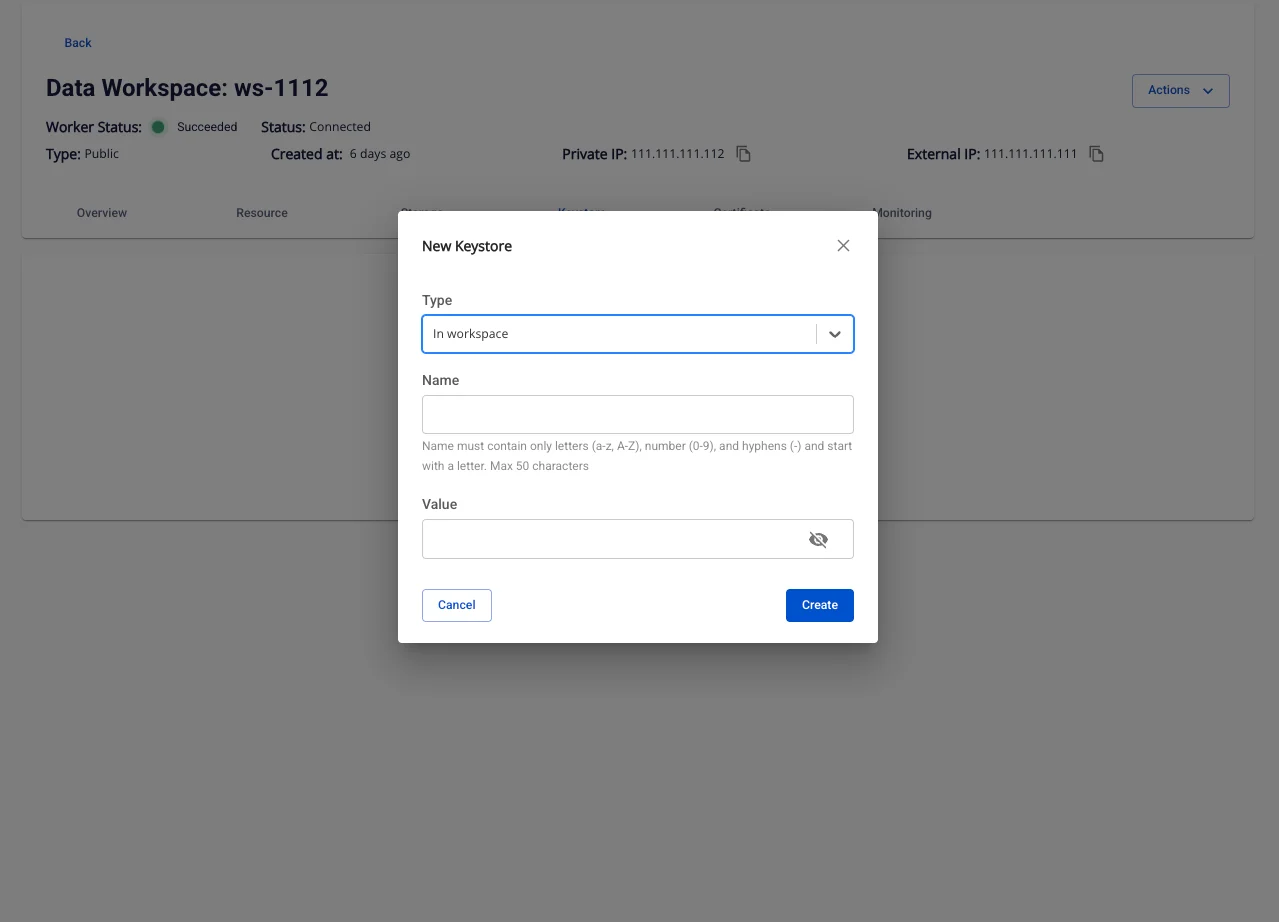
Case: Type = In-workspace (store secrets directly within the Workspace)
Step 3: In the Type field, select In-workspace.
Step 4: Enter the Name:
- Same rules as above: a–z, A–Z, 0–9, "-"; must start with a letter; maximum 50 characters.
Step 5: Enter the Value:
- The secret value (password, token, connection string, etc.); maximum 255 characters; special characters are allowed (use the icon to toggle visibility).
3. Update Keystore
Purpose: Allows changing the configuration information or secret value of a keystore when the endpoint, token, path, or value content changes.
On the Keystore List screen, click the Action icon (three-dot menu) of the keystore to edit → Update.
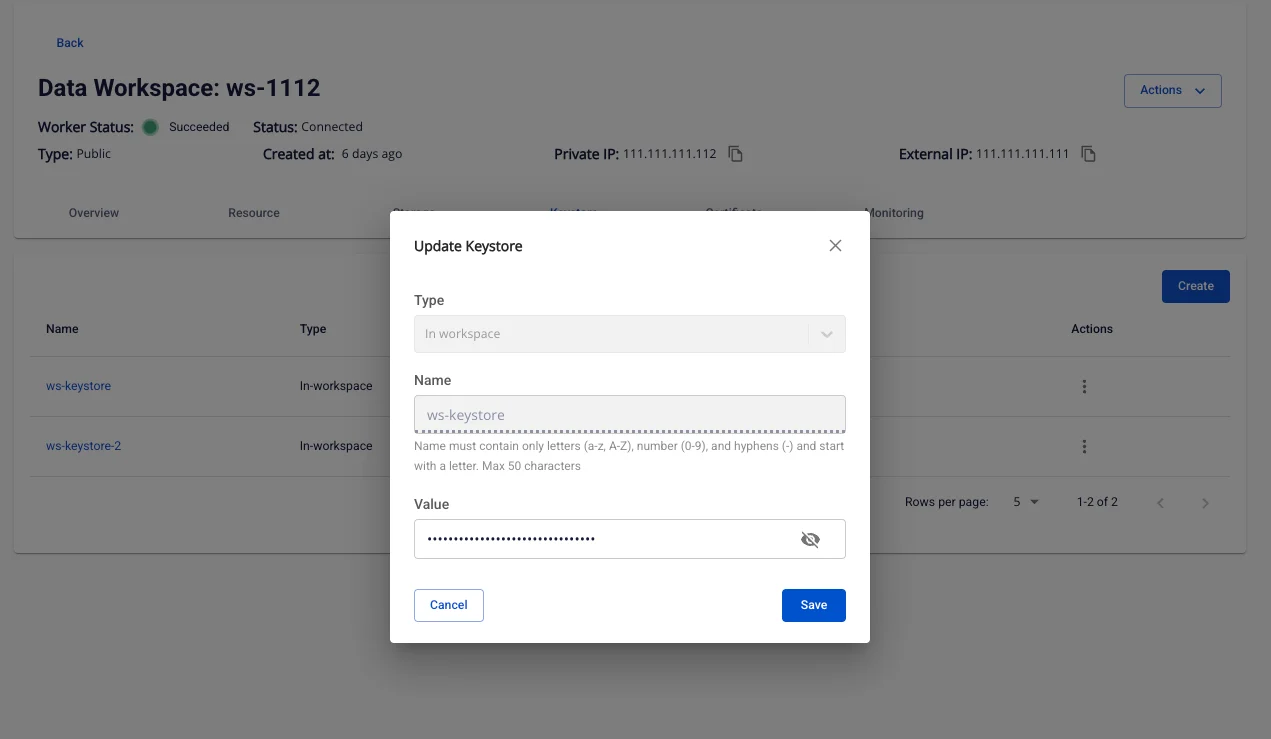
Case 1 – Type = In-workspace
Steps:
Step 1: On the Keystore List screen, click the Actions button (three-dot menu) of the keystore to edit → select Update.
Step 2: The Update Keystore window appears with the following fields:
-
Type: Fixed as In-workspace; cannot be changed.
-
Name: Keystore identifier name; read-only, cannot be edited.
-
Value: Secret value to store (maximum 255 characters; special characters allowed).
Step 3: Enter the new Value. Click the icon to view the value being entered.
Step 4: Click Save to save the changes or Cancel to discard.
Case 2 – Type = Integration
Steps:
Step 1: On the Keystore List screen, click the Actions button of the keystore to edit → select Update.
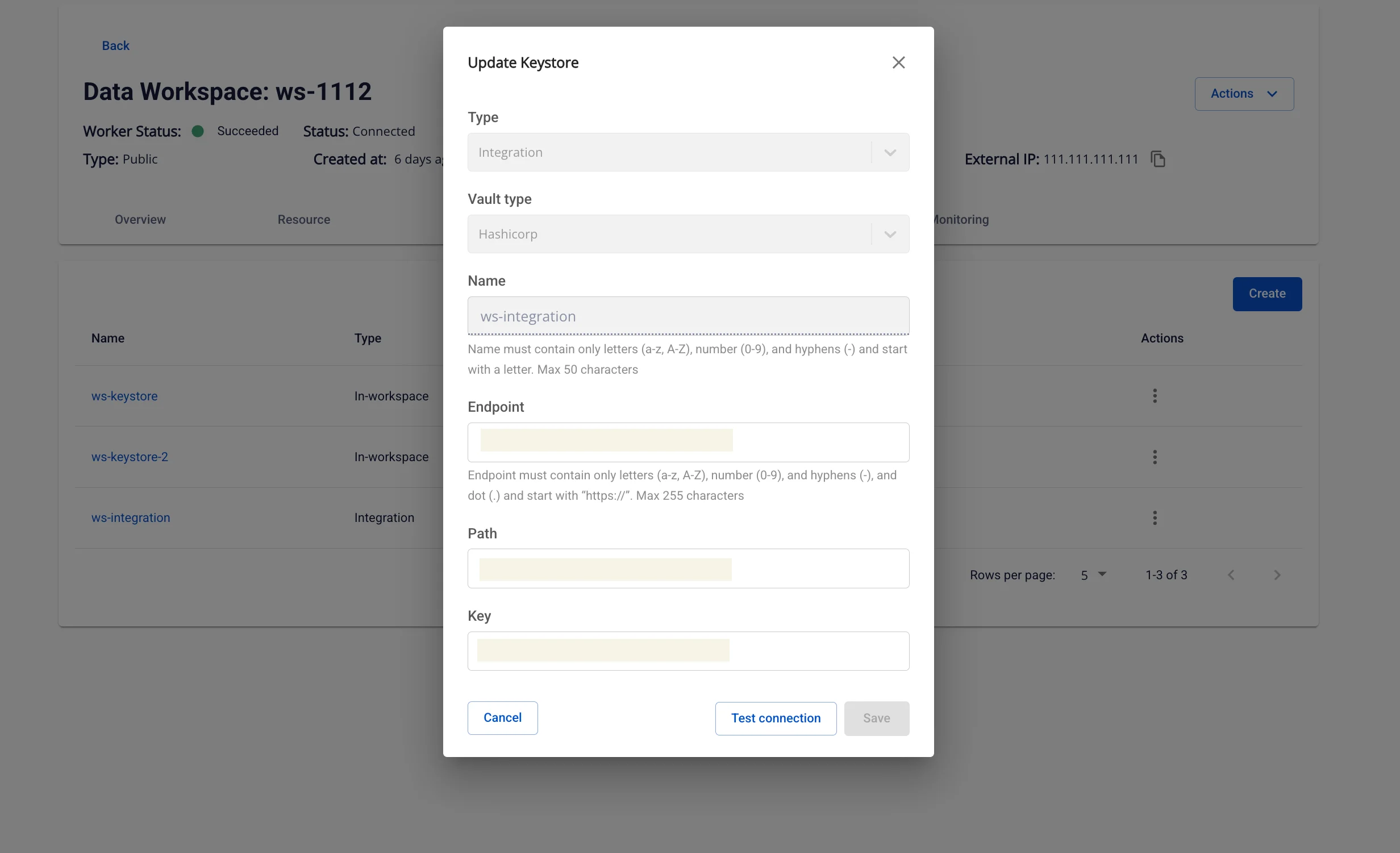
Step 2: The Update Keystore window appears with the following fields:
-
Type: Always Integration; cannot be changed.
-
Vault type: Vault type (e.g., HashiCorp); fixed, cannot be edited.
-
Name: Identifier name; read-only.
-
Endpoint: New vault endpoint URL (must start with https://; maximum 255 characters).
-
Path: Path to the key in the vault.
-
Key: Key name in the vault.
Step 3: Fill in or update the Endpoint, Path, and Key fields according to the new configuration requirements.
Step 4: Click Test connection to verify the connection to the vault.
-
If successful → the Save button will be enabled.
-
If failed → check the entered information.
Step 5: Click Save to save the changes or Cancel to discard.
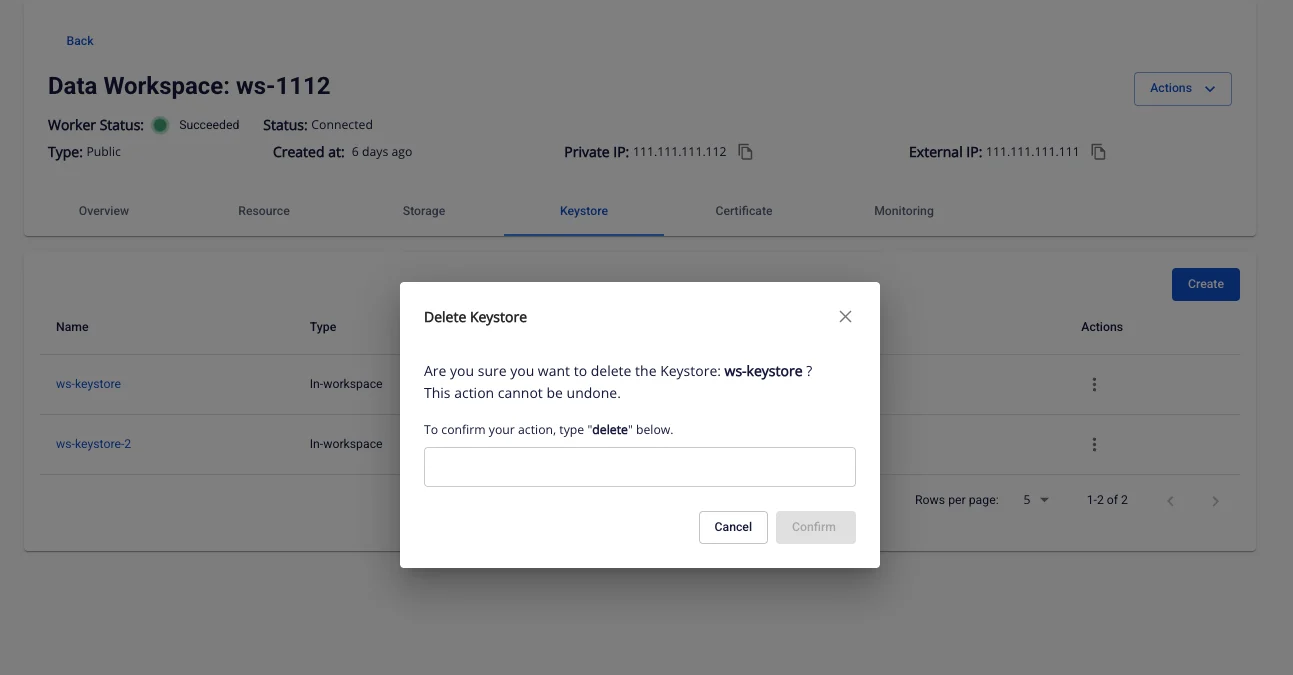
4. Delete Keystore
How to access: Click Action > Delete on the keystore.
Steps:
-
The system displays a confirmation popup.
-
Enter the keyword delete in the confirmation field.
-
Click Confirm to delete.
Conditions:
- If the keystore is currently in use by a service, the system displays an error:
"The keystore is in use by: {service_name}" and deletion is not permitted.