View workspace information
To view workspace information, follow these steps:
Step 1. In the menu bar, select Data Platform > Workspace Management
Step 2. Click on a workspace name
The screen displays 3 tabs: Overview, Resource, Storage
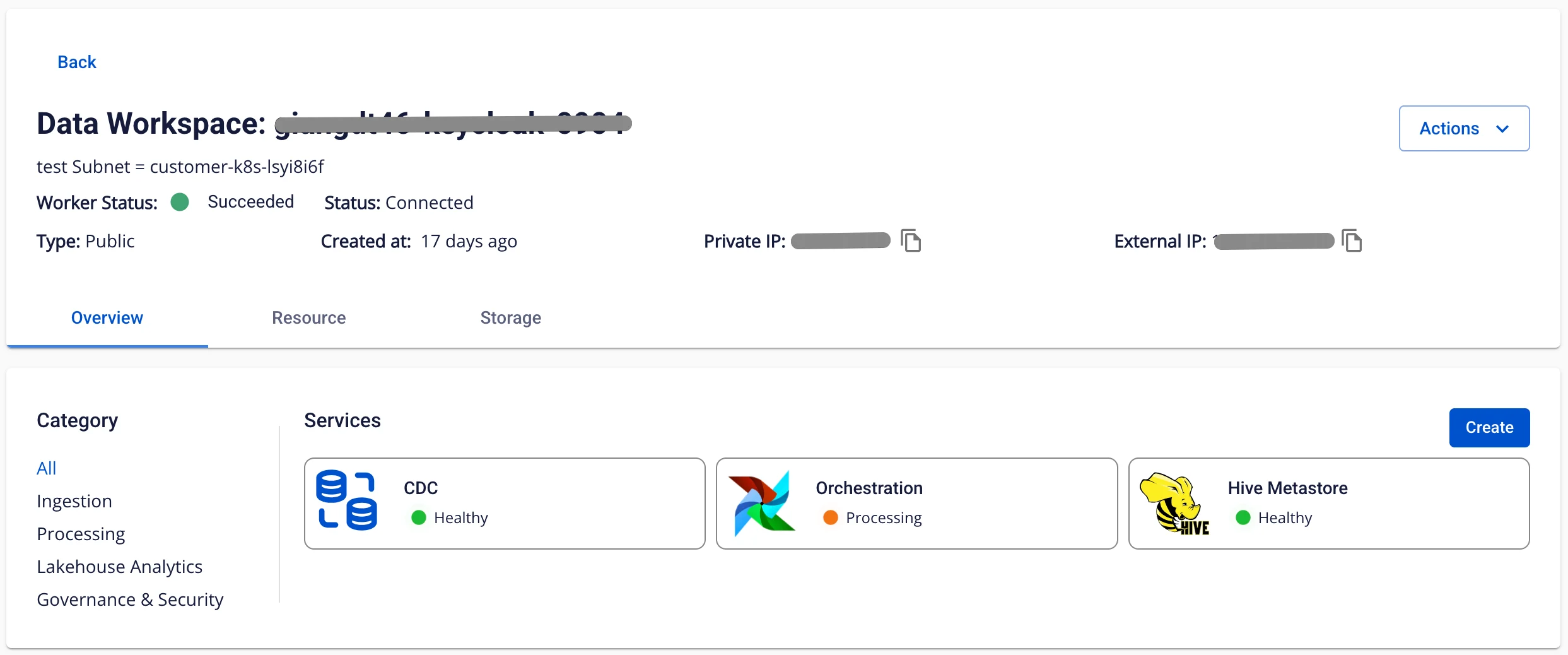
Overview Tab
Displays all services installed in the workspace
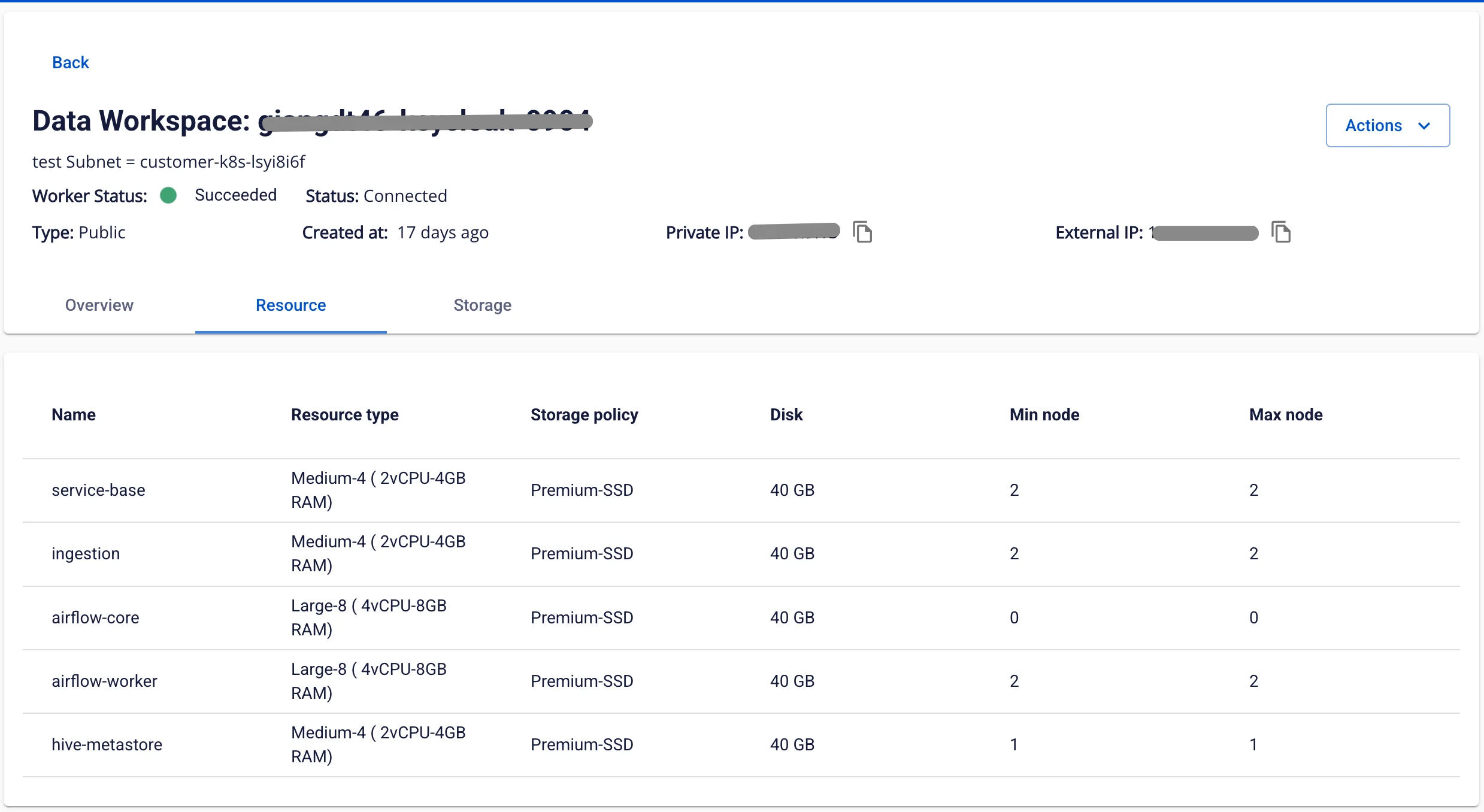
Resource Tab
Displays the Resource configuration for the workspace
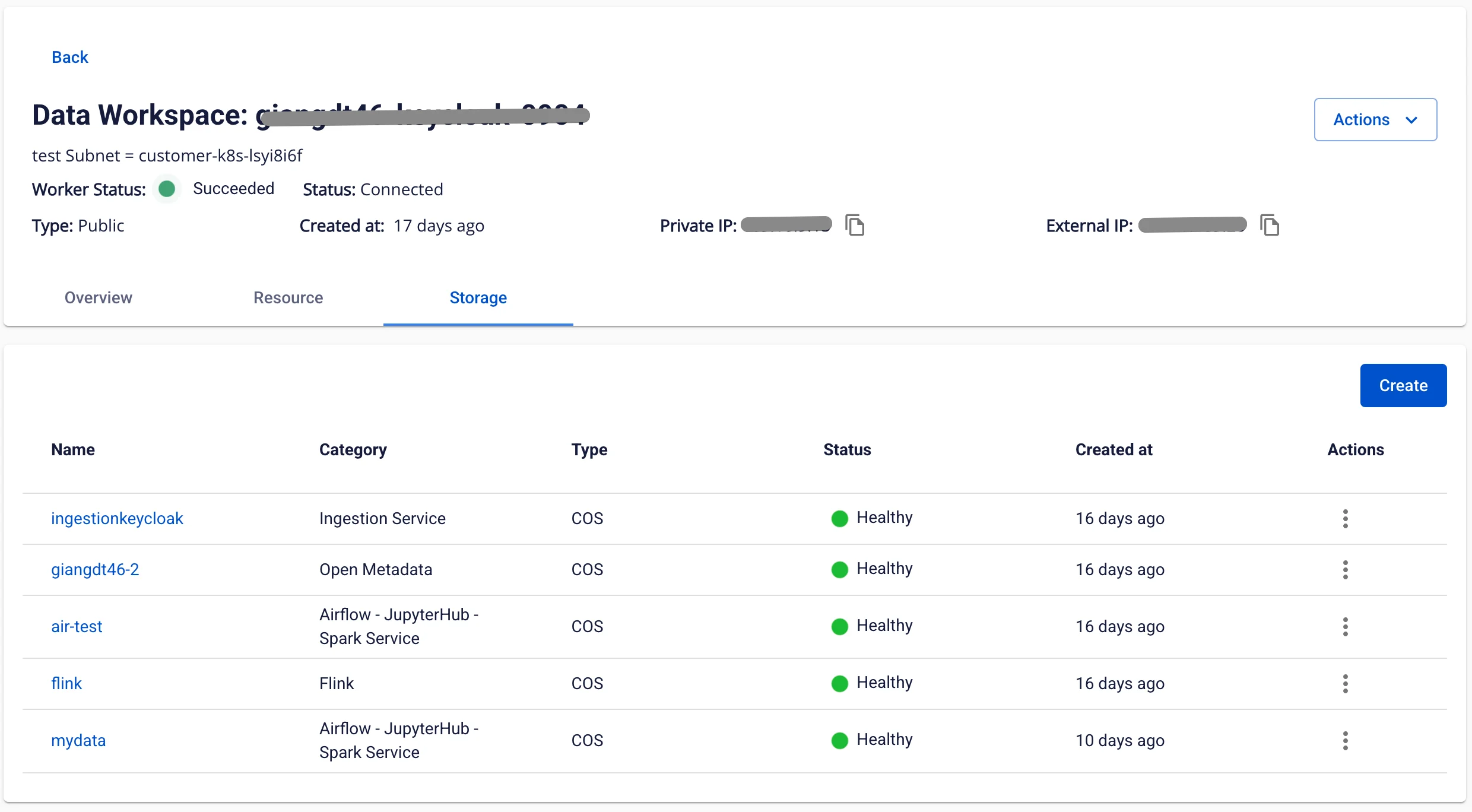
Storage Tab
Manages the integrated data sources (Mount) on the Workspace.
To create storage, follow these steps:
Step 1. In the menu bar, select Data Platform > Workspace Management > click on a workspace name
Step 2. Select the Storage tab > click Create
Step 3. A dialog box appears. Select the following information:
-
Category:
-
Airflow - Jupyterhub - Spark service: Storage for the following services: Airflow, Jupyterhub, Spark service
-
Flink: Storage for Apache Flink
-
Ingestion service: Storage for Ingestion service
-
-
Type: Select the storage type: S3 or NFS

Step 4. Click Create. The screen switches to the storage connection information form:
-
Name (required): Package name
-
Bucket name (required): Bucket name
-
Endpoint (required): Endpoint address
-
Access key (required): Access key
-
Secret (required): Secret key

After entering the connection information, click Test connection to verify the connection from the Workspace to the S3 storage.
If the Type is NFS, the screen switches to the NFS storage connection information form:
-
Version (required): NFS version
-
Port (required): Connection port
-
Name (required): Storage name
-
Server address (required): NFS server address
-
Directory (required): Directory path
Step 5. Click Create to complete the storage creation.