Create workspace
Workspace is the user's working environment on the Data Platform system. The primary purpose of a Workspace is to provide an isolated and secure environment where users can perform data-related operations efficiently and conveniently.
To create a workspace, follow these steps:
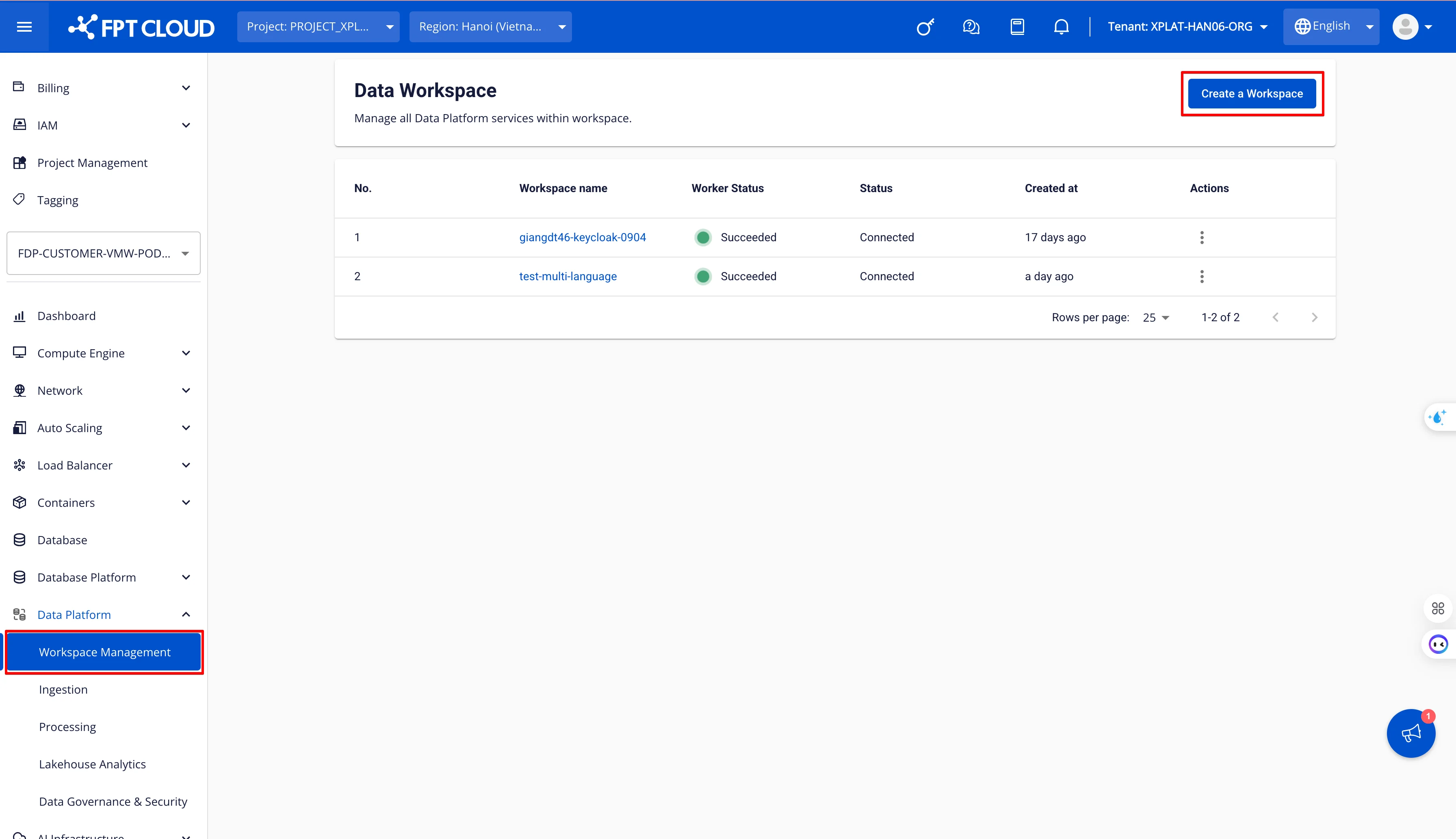
Step 1. In the menu bar, select Data Platform > Workspace Management > click Create a Data Workspace
Step 2. In the workspace creation form, enter the Basic Information:
- Name (required): Workspace name
The workspace name must be between 1 and 30 characters. It can contain lowercase letters a-z, uppercase letters A-Z, or digits 0-9. Workspace names must be unique. Spaces are not allowed — use "-" or "_" instead.
-
Description (optional): Workspace description
-
Type (required): Select Public or Private
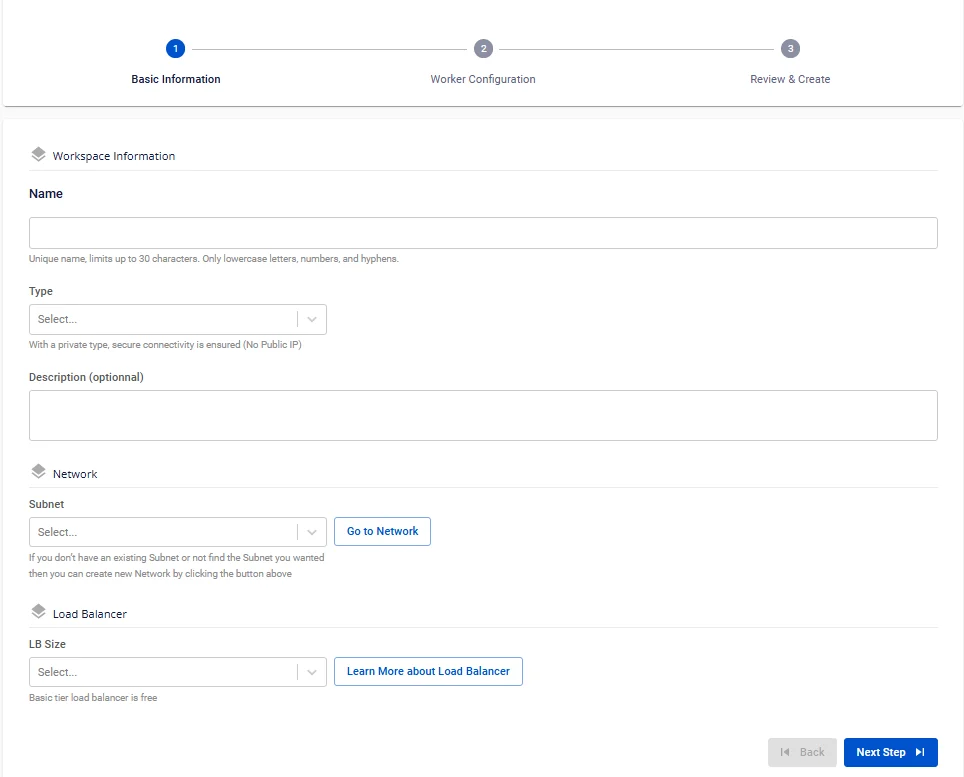
- Subnet (required): Select a network
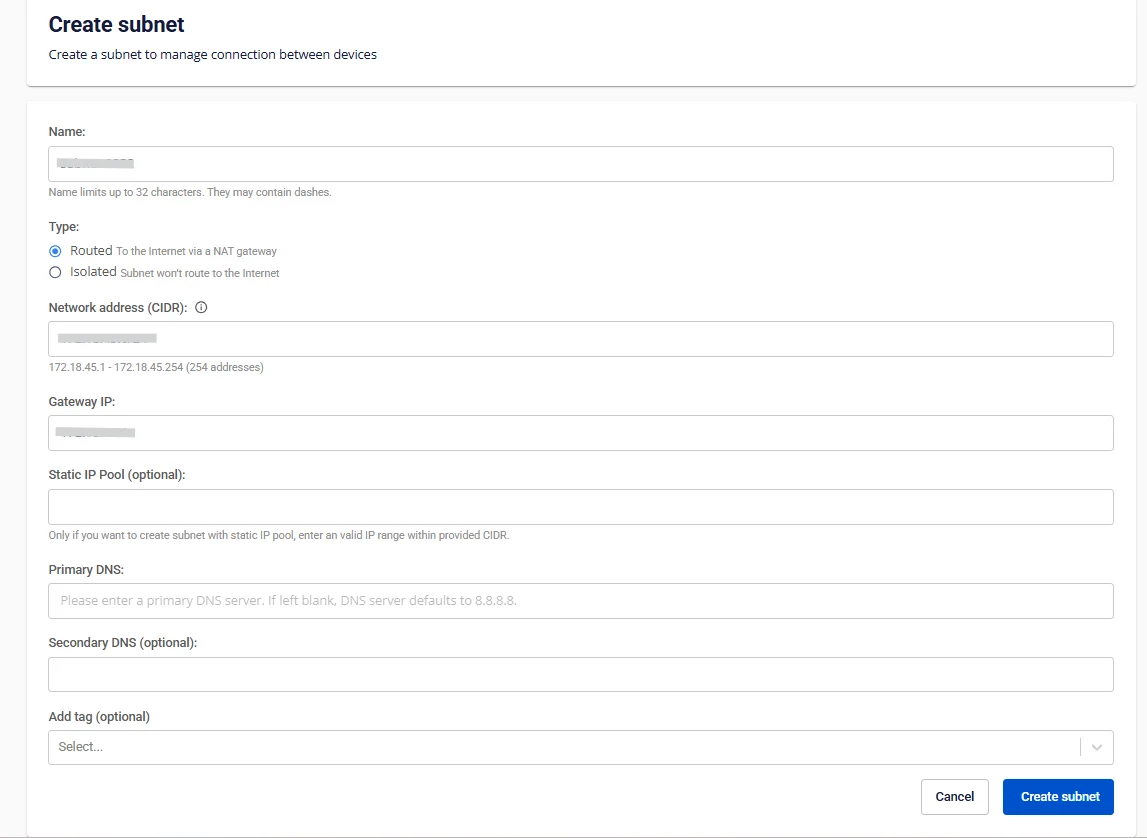
Workspaces only work with Subnets that have the Static Pool option enabled. Therefore, you need to create a Subnet with a Static Pool by following these steps:
Click Go to Network
The screen switches to the Subnet creation screen. Click Create Subnet
In the Subnet creation form, enter the following information:
-
Name: Enter the Subnet name
-
Type: Select the Subnet type
Select Routed as the Type
-
Network address (CIDR): Enter a valid CIDR
-
Gateway IP: Enter the gateway IP address
-
Static IP Pool (optional): Enter a valid IP range taken from the CIDR.
Static IP Pool information is required
-
Primary DNS: Primary DNS address
-
Secondary DNS (Optional): Secondary DNS address
-
Add tag (optional): Tag to attach to the subnet
Then click Create subnet to complete the Subnet creation.
- LB Size (required): Select the correct allocated LB
Check your LB quota before creating a Workspace by selecting Dashboard from the menu, then choosing detail under the load balancer section. If no quota is available, please contact sales support.
Step 3. Click Next Step to proceed to the Worker Configuration screen
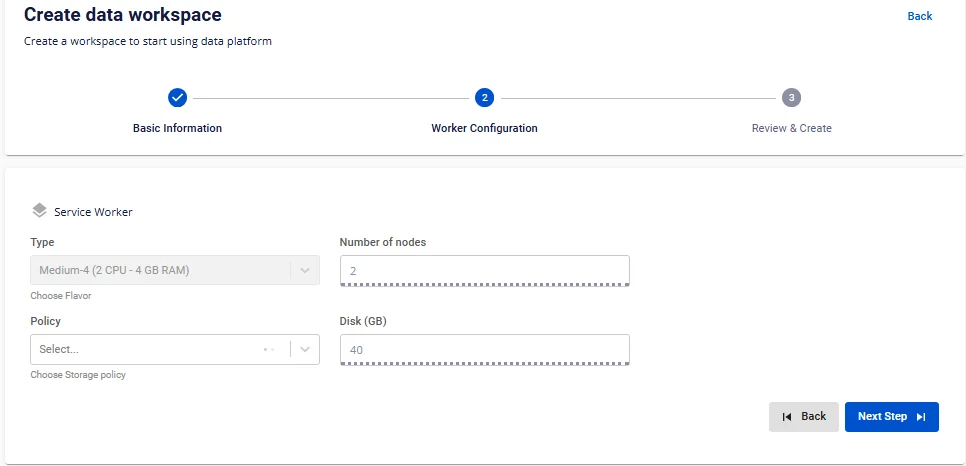
Enter the Worker Configuration information:
-
Policy (required): Select the storage policy for the Service worker
-
Type: Default value is Medium-4 (2 VCPU – 4 GB RAM)
-
Number of nodes: Default value is 2
Disk (GB): Default value is 40
Step 4. Click Next Step to proceed to the Review & Create screen
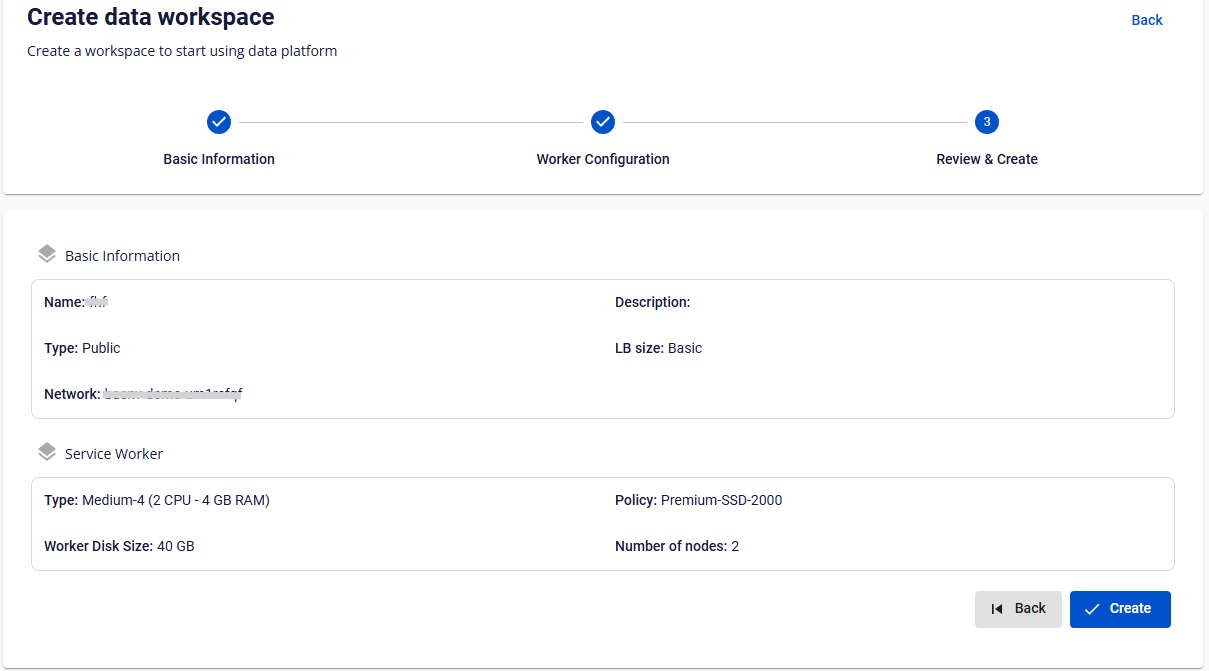
Step 5. Review the information, then click Create to complete the workspace creation.
The Workspace is fully initialized when Worker Status is Succeeded and Status is Connected (~10 minutes).