Monitor infrastructure and platform
Step 1: Log in to FPT Cloud Portal at https://console.fptcloud.com.
Step 2: In the FPT Cloud Portal menu, click Monitoring.
Step 3: Click into a workspace, then navigate to the Add Data tab.
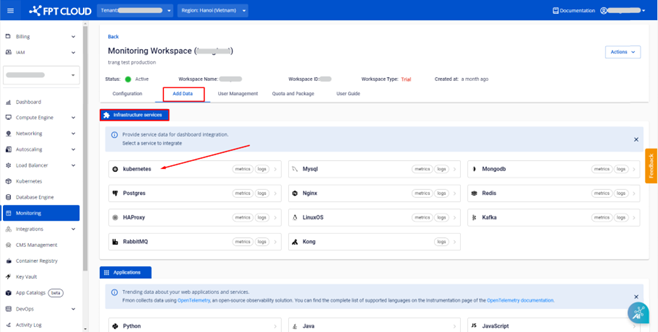
Step 4: In the Infrastructure services tab, the list of available infrastructure services is displayed. Click a service you want to monitor.
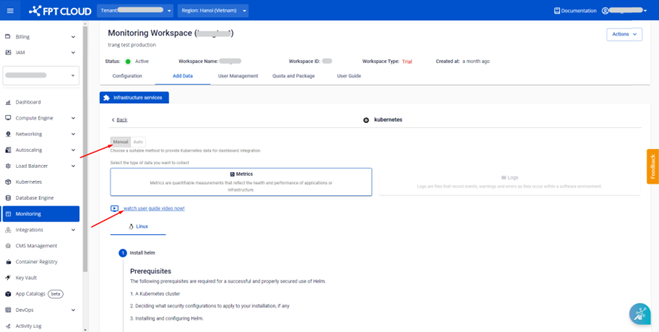
Step 5: Click Manual and follow the on-screen instructions.
Automatic Kubernetes integration
FPT Monitoring supports automatic integration for Kubernetes Dedicated and Kubernetes Managed clusters. This feature lets you configure metric and log monitoring for each cluster easily and professionally.
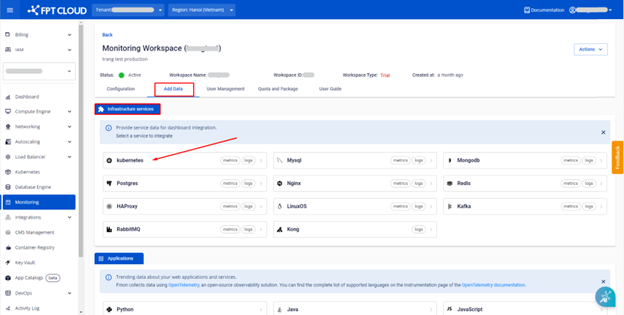
Step 1: In the Infrastructure services tab, click Kubernetes.
Step 2: Click Auto. A list of Dedicated and Managed clusters appears.
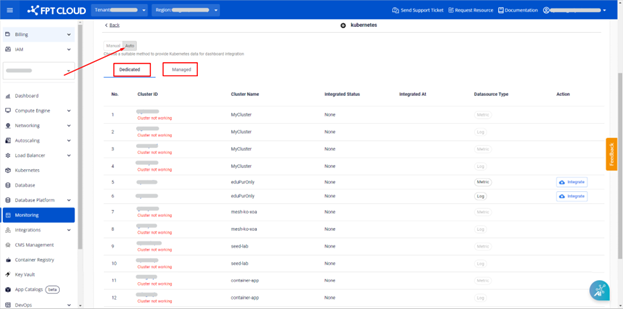
If no clusters appear, go to Kubernetes in the menu and click Create a Kubernetes Engine to create one. If your tenant does not have permission to create clusters, contact our admin team for assistance.
Integrate Dedicated Kubernetes
- Click the Dedicated tab.
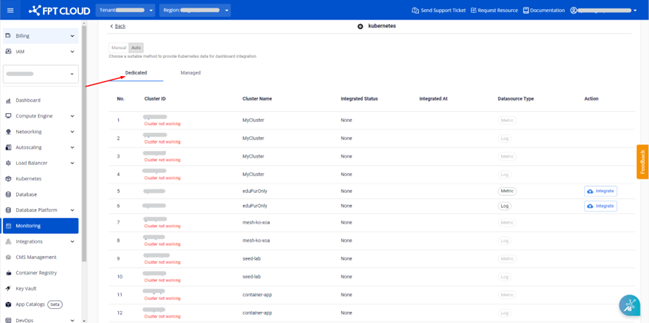
-
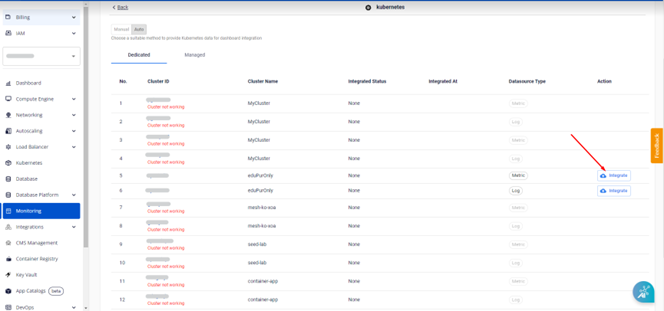
Select the cluster and the datasource type (metric or log) to integrate. Only active clusters with active datasources can be integrated.
-
Click Integrate.
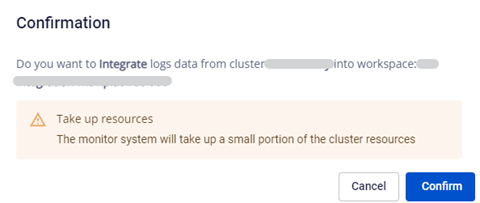
A confirmation dialog asks whether you want to integrate the cluster's logs/metrics into the corresponding workspace. Click Confirm.
The integration status changes to Integrating.
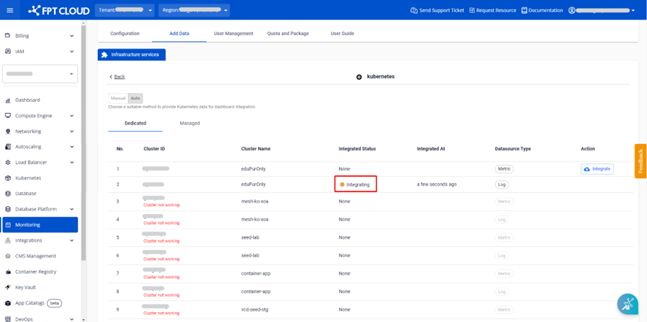
Wait 1–2 minutes for the system to update the final status (success or failure).
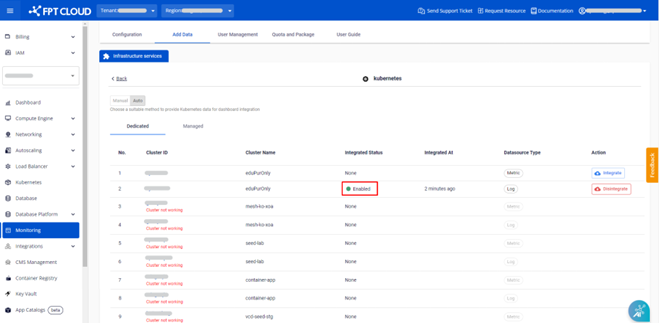
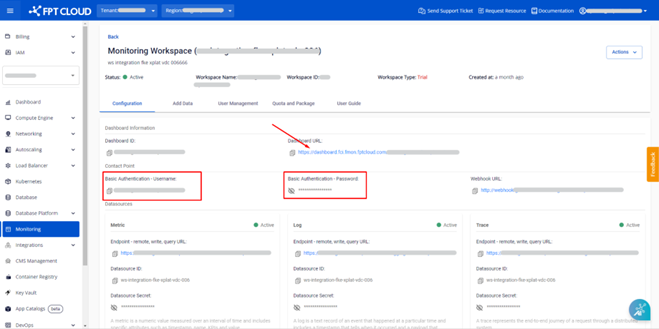
- Log in to the dashboard: go to the Configuration tab, click the Dashboard URL, and log in with the displayed username and password.
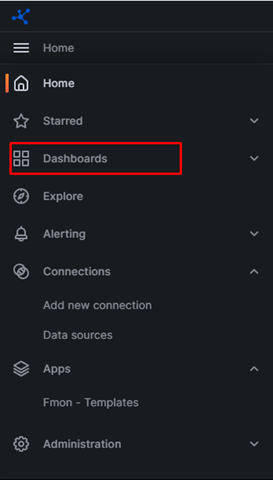
- Once in the dashboard, click Home > Dashboard > select the Fmon – Kubernetes folder.
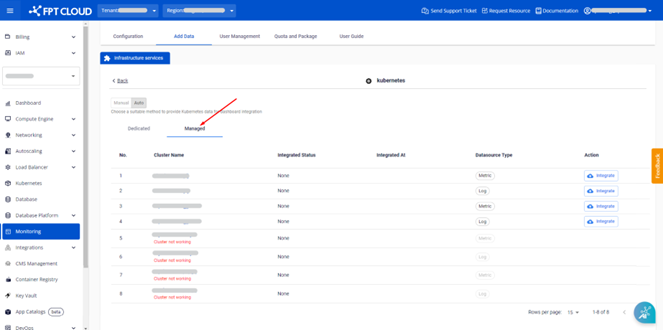
Integrate Managed Kubernetes
Select the Managed tab and follow the same steps as for Dedicated Kubernetes.