Create a Virtual Machine
Create a Virtual Machine
Step 1: In the menu, select Compute Engine > Instance Management, then click Create instance.
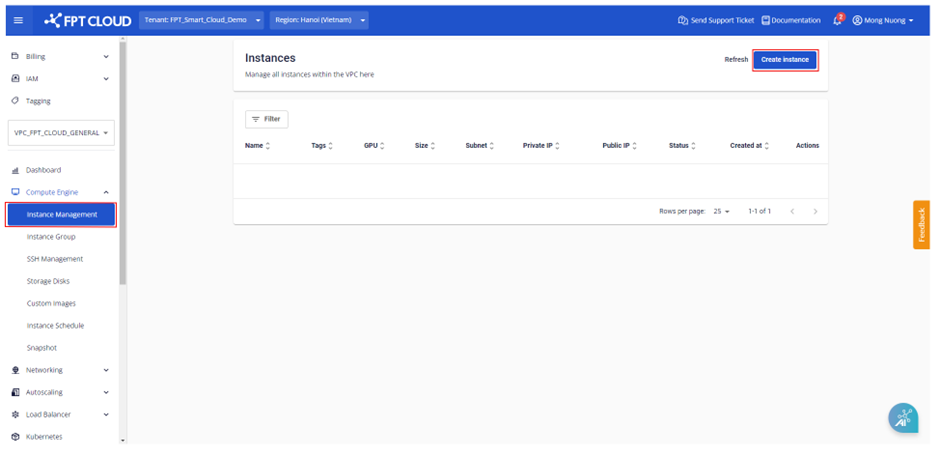
A new dialog box will appear to guide users through the next steps.
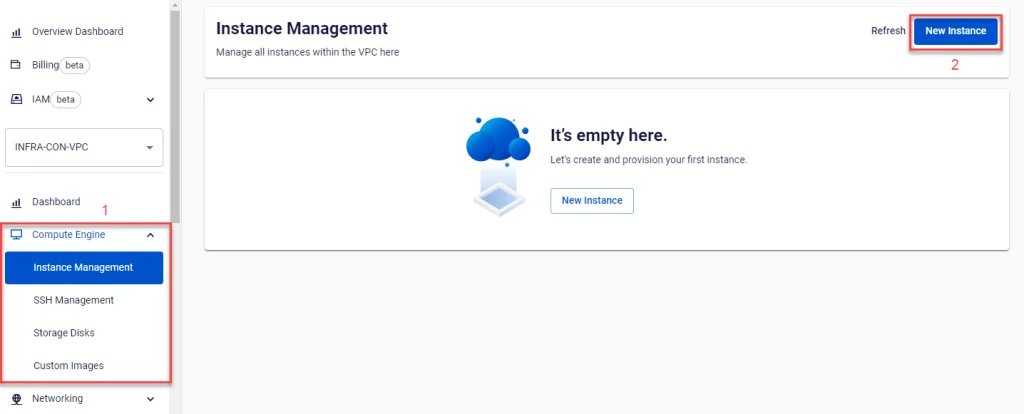
Step 2: Configure the virtual machine according to your needs with the following options:
Configuration Information
Instance Type: Users can choose the machine type that best suits their needs. Currently there are 2 common types: General and GPU.
-
General is a machine type that serves basic needs well.
-
GPU serves needs that require high performance (High Performance Computing), Machine Learning, etc.
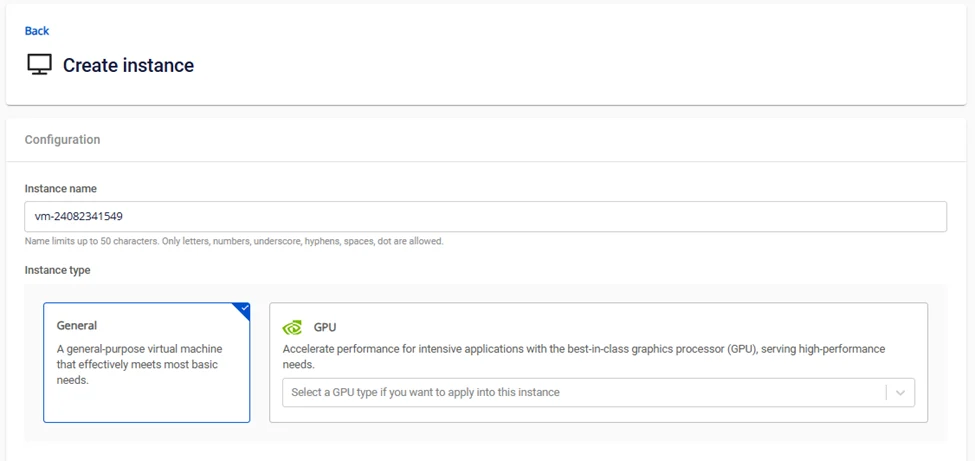
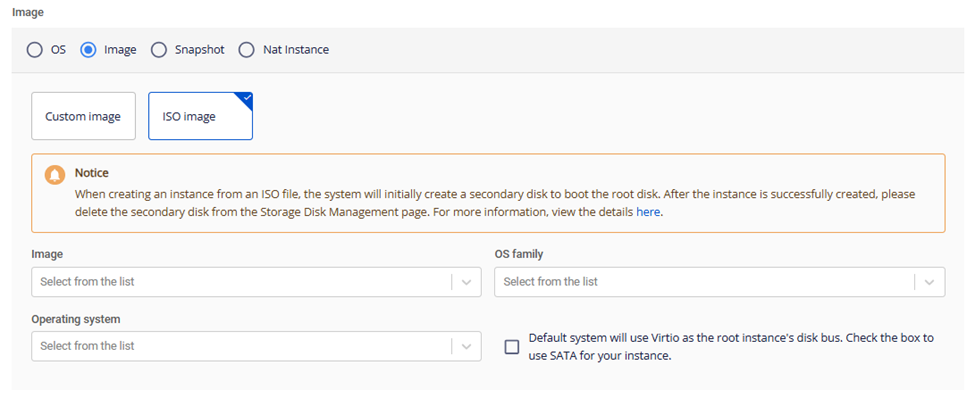
Image: Select the main OS that suits your needs. Each OS group includes different versions. The default is the latest version. Users can customize as needed by uploading their own ISO files or creating a virtual machine from previously initialized templates.
For general
- When creating a virtual machine from an OS

- When creating a virtual machine from an Image: users can choose a custom image or ISO image (See additional notes: Link)
- When creating a virtual machine from a Snapshot/NAT Instance


For specific

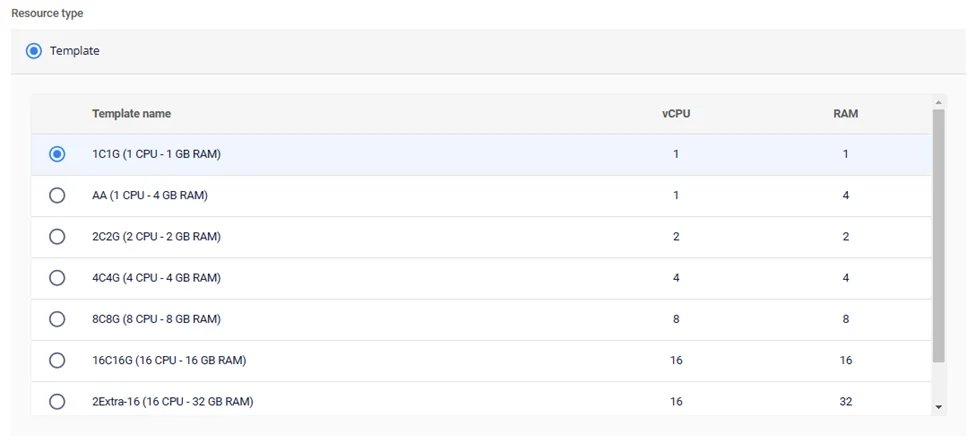
Resource type: Each machine type has different CPU and RAM configurations, or users can create a custom configuration.
Storage Disk Information
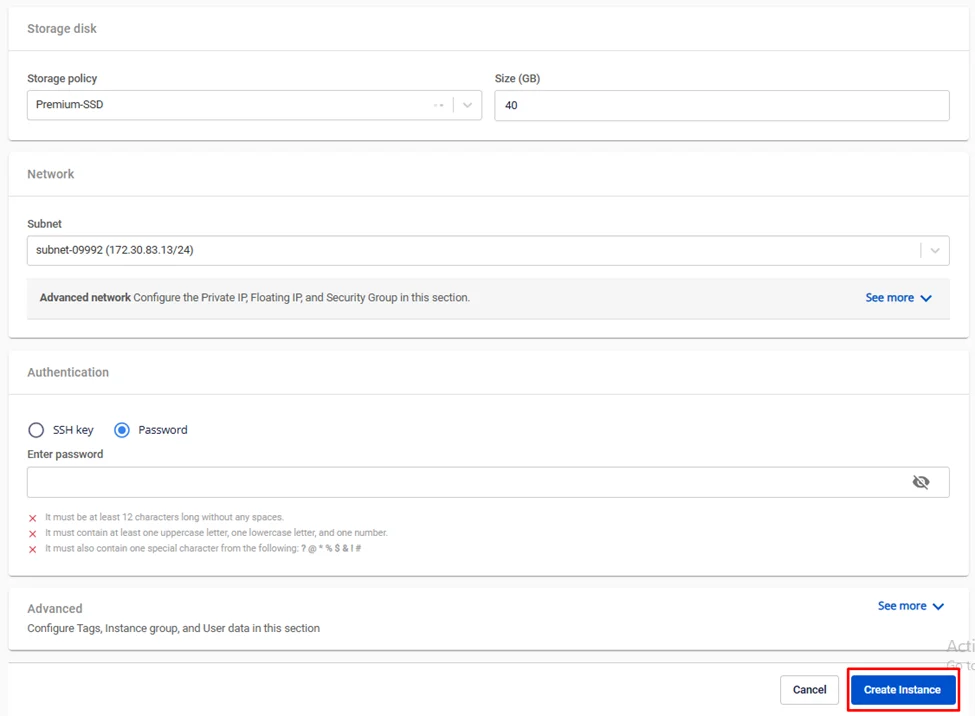
Storage: Storage attached to the virtual machine includes:
-
Storage Policy: Storage type
-
Size: Storage size

Network Information
Includes Subnet and Advanced information such as Private IP, Floating IP, Security group.
-
Subnet & Private IP: Users select a network to ensure the virtual machine has connectivity to the resources and network services it needs to operate. This allows the virtual machine to communicate with other devices on the network and access external resources such as the internet. Users can enter a private IP address for the virtual machine or the system will auto-generate one based on the selected Subnet (if this field is left blank).
-
Security Group: Users select a security group to control traffic to and from the virtual machine. Users can leave this field blank and configure it later.

Authentication Information
Authentication type: SSH key or Password
- If SSH Key is selected, the system will use the most recent SSH key (can be changed).

- If using the Standard method, users should remember and keep the password secure in a safe location.

Advanced Information
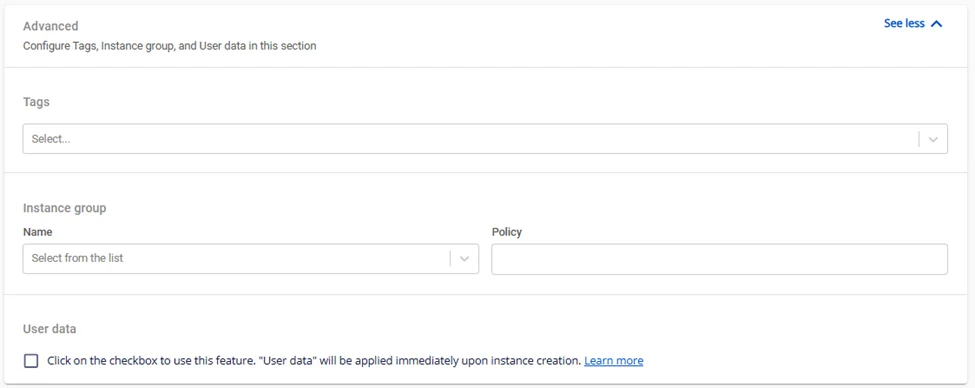
-
Instance group: Users can optionally choose an Instance group to configure the placement of the virtual machine on the physical host.
-
Instance name: Enter the virtual machine name for easy management. This will also be the hostname of the virtual machine.
-
User data: Contains the cloud-init script. When the virtual machine boots, cloud-init will read the metadata provided by the cloud and initialize the system based on it. Cloud-init is commonly used to set up networking, storage, SSH keys, and other parts of the system. Note: If the virtual machine is initialized with a Windows operating system, a reboot is required to run the scripts from cloud-init.
Sample cloud-init script: With this sample script, the system will automatically create user "testcloudinit" with password "Abc123" and user "testcloudinit2" with password "abc@123Abc123". [code] Copy#cloud-config users: - name: testcloudinit sudo: ALL=(ALL) NOPASSWD:ALL lock_passwd: false shell: /bin/bash passwd: $6$rounds=4096$V6anciWl30$xKbcljqks1gUkMiM80pyKzhvyhn7U1n.jXcGCUfkUlX.rnllUWKUrmDEzekhhhP8aERSylRuC7gfDhJ32Xv0A1 - name: testcloudinit2 groups: sudo lock_passwd: false shell: /bin/bash plain_text_passwd: abc@123Abc123 - hostname: testcloudinit
[/code]
Note for Windows: Cloud base init script format will be used.
Sample script: [code] Copy#cloud-config users: - name: testcloudinit primary_group: Administrators groups: Administrators passwd: abc@123Abc123 [/code]
Step 3: Click Create Instance to create the virtual machine. The system will display a confirmation, verify resources, and proceed with the initialization of the new virtual machine based on the selected configuration.
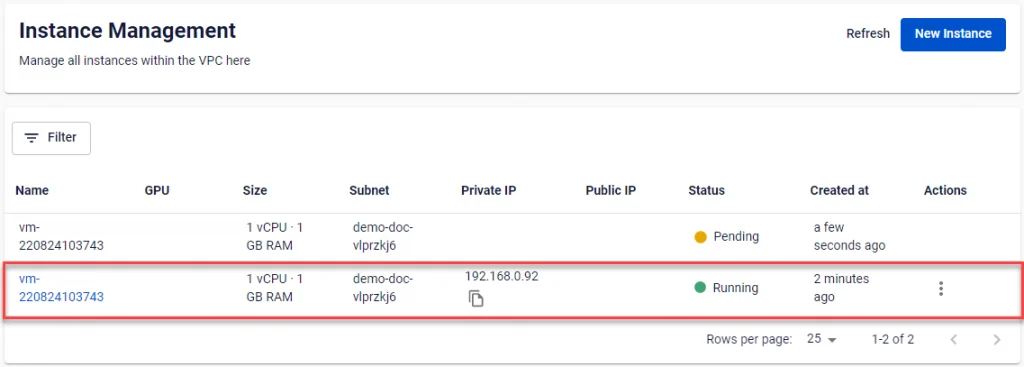
After successful initialization, users can see the newly created virtual machine and check its information on the management dashboard. Each virtual machine will display complete information about its name, configuration (RAM, CPU, Storage), IP address, and operating status (Off/On/Suspended) on the panel.
**
**