Create Profile
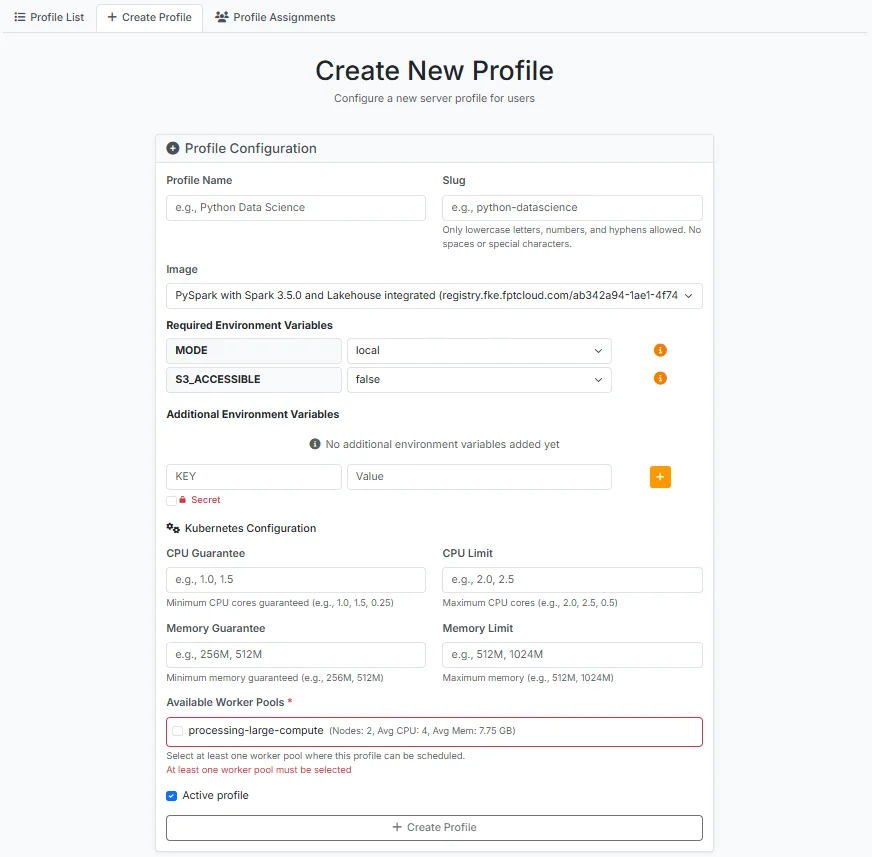
After logging into JupyterHub, a user with the Admin role selects the Service > Profile menu and clicks the Create Profile tab.
-
Profile Name: Profile name
-
Slug: Enter the names of libraries to use when spawning the server
-
Image: Select the image to use when running the profile from the list
-
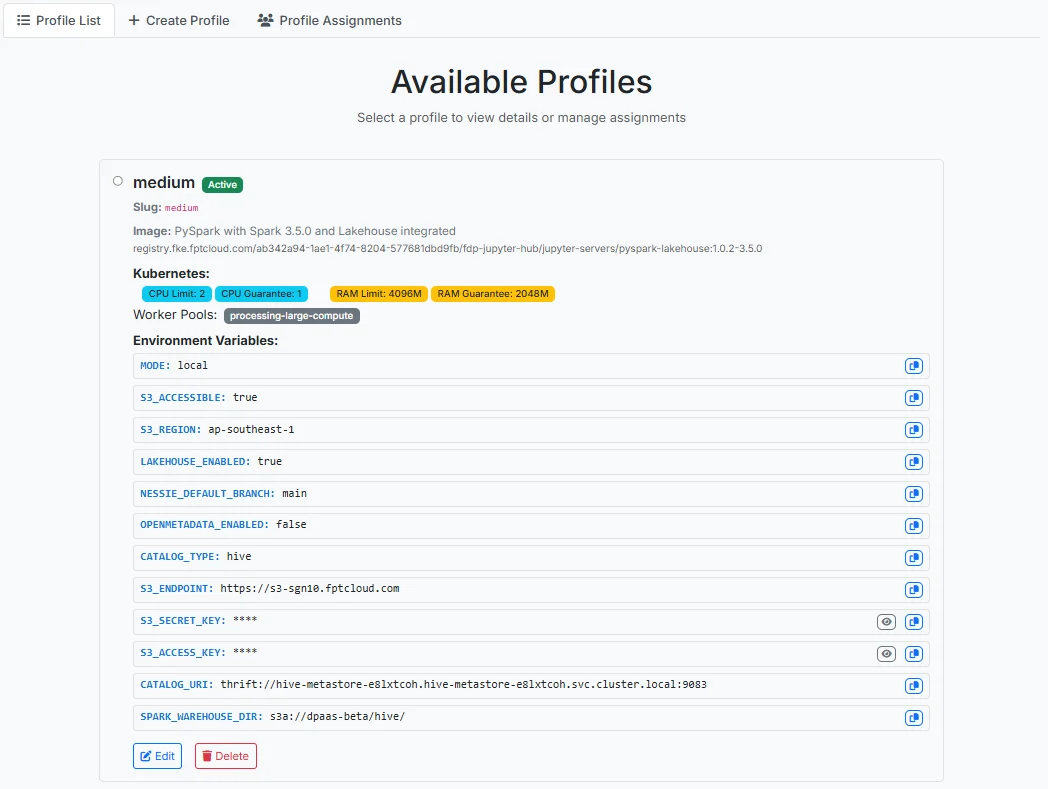
MODE: Select local
-
S3_ACCESSIBLE: Select false if not using S3, select true if using S3 and enter the following information:
-
S3_ENDPOINT: URL endpoint of the S3 service
-
S3_ACCESS_KEY: Access key ID for authenticating with the S3 service
-
S3_SECRET_KEY: Secret access key for authenticating with the S3 service
-
-
LAKEHOUSE_ENABLED: Select false if not using a lakehouse connection, select true if using lakehouse and enter the following information:
-
CATALOG_TYPE: Type of metadata catalog to use — select Hive or Nessie
-
CATALOG_URI: URI for connecting to the metadata catalog
-
SPARK_WAREHOUSE_DIR: Warehouse directory path for Apache Spark
-
-
Additional Environment Variables
-
KEY: Enter the environment variable name
-
Value: Enter the corresponding environment variable value
-
-
CPU Guarantee: Enter the guaranteed CPU amount for the profile at initialization
-
CPU Limit: Enter the maximum CPU threshold when using the profile
-
Memory Guarantee: Enter the guaranteed RAM amount for the profile at initialization
-
Memory Limit: Enter the maximum RAM threshold when using the profile
-
Available Worker Pools: Select from the Worker Pool list in the Processing service to choose the spawn environment for the profile
-
Active profile: Check to set the profile to Active status after creation
After entering all the information, click Create Profile to complete the creation.
To ensure user access to the lakehouse catalog, configure directory permissions on FPT Cloud Storage:
-
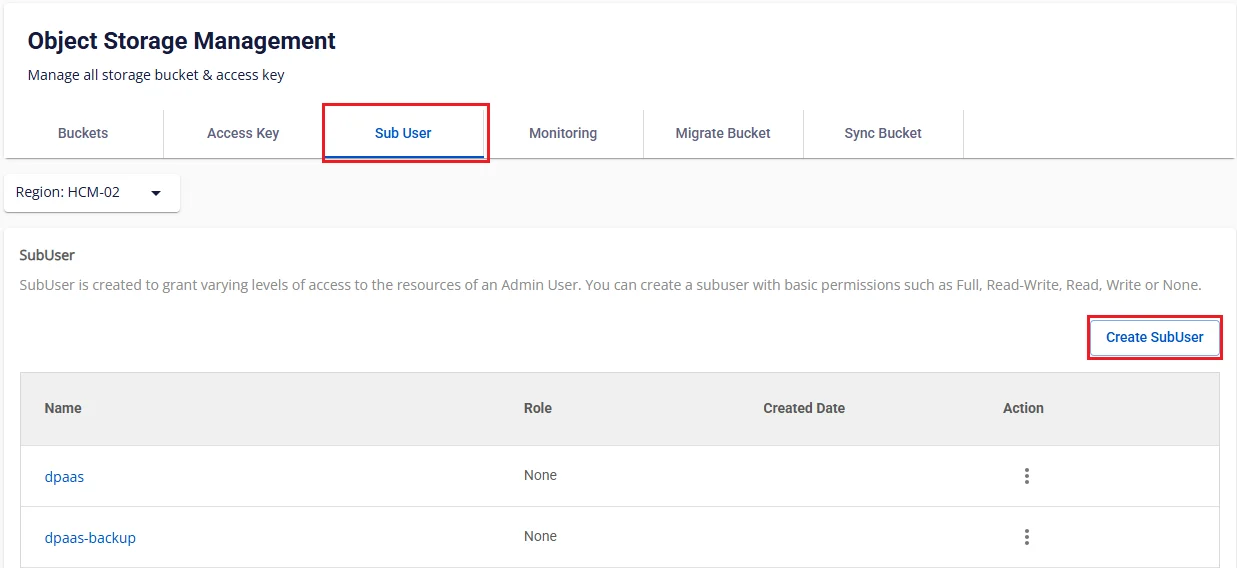
Step 1. Go to https://console.fptcloud.com/, select the Object Storage menu
-
Step 2. In the Object Storage Management interface, select the Sub user tab and click Create SubUser
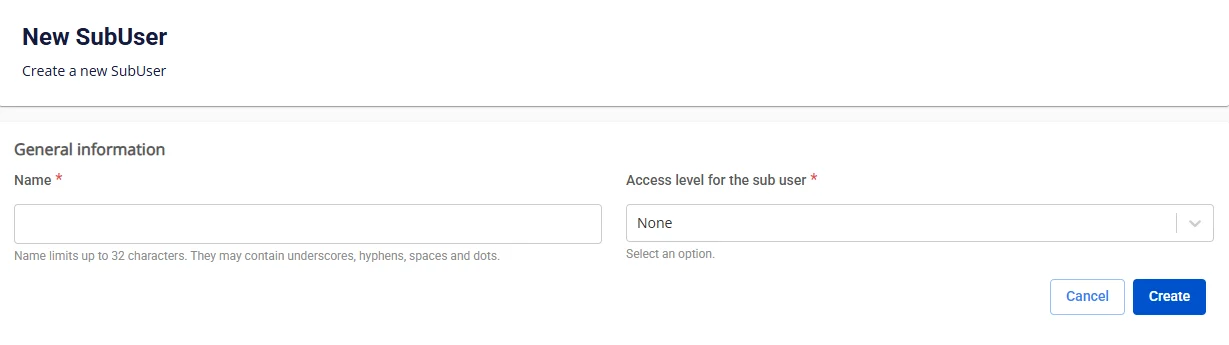
- Step 3. Enter the Name for the Subuser, set Access level for sub user to Full
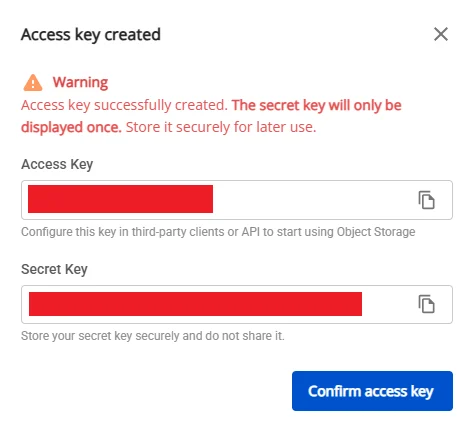
- Step 4. In the Sub User list interface, click to view details, click Generate Key, then save the Access Key and Secret Key information
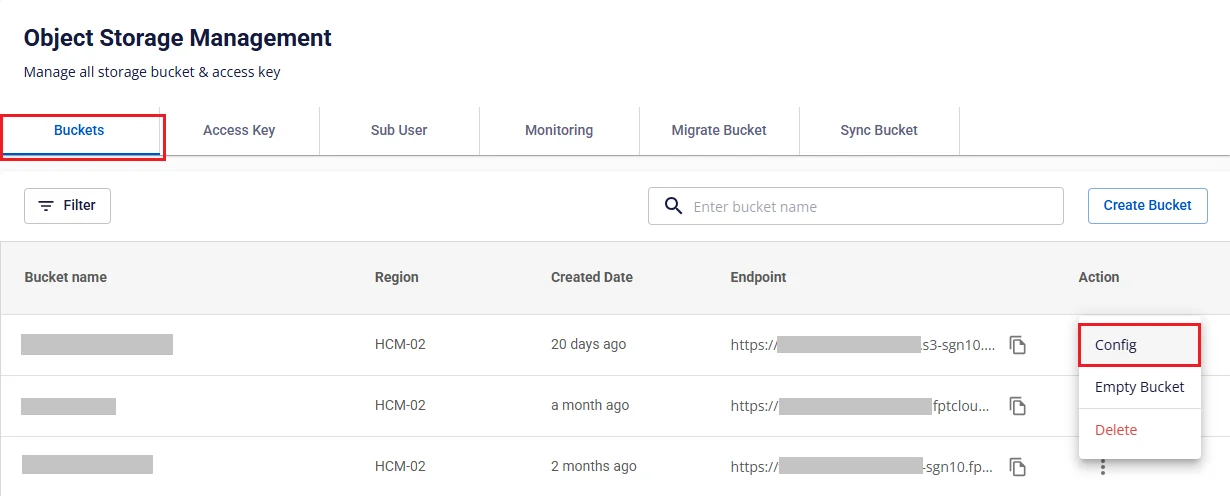
- Step 5. Return to the Object Storage Management interface, select the Buckets tab. For the bucket that needs permissions assigned to the subuser, select the Config action
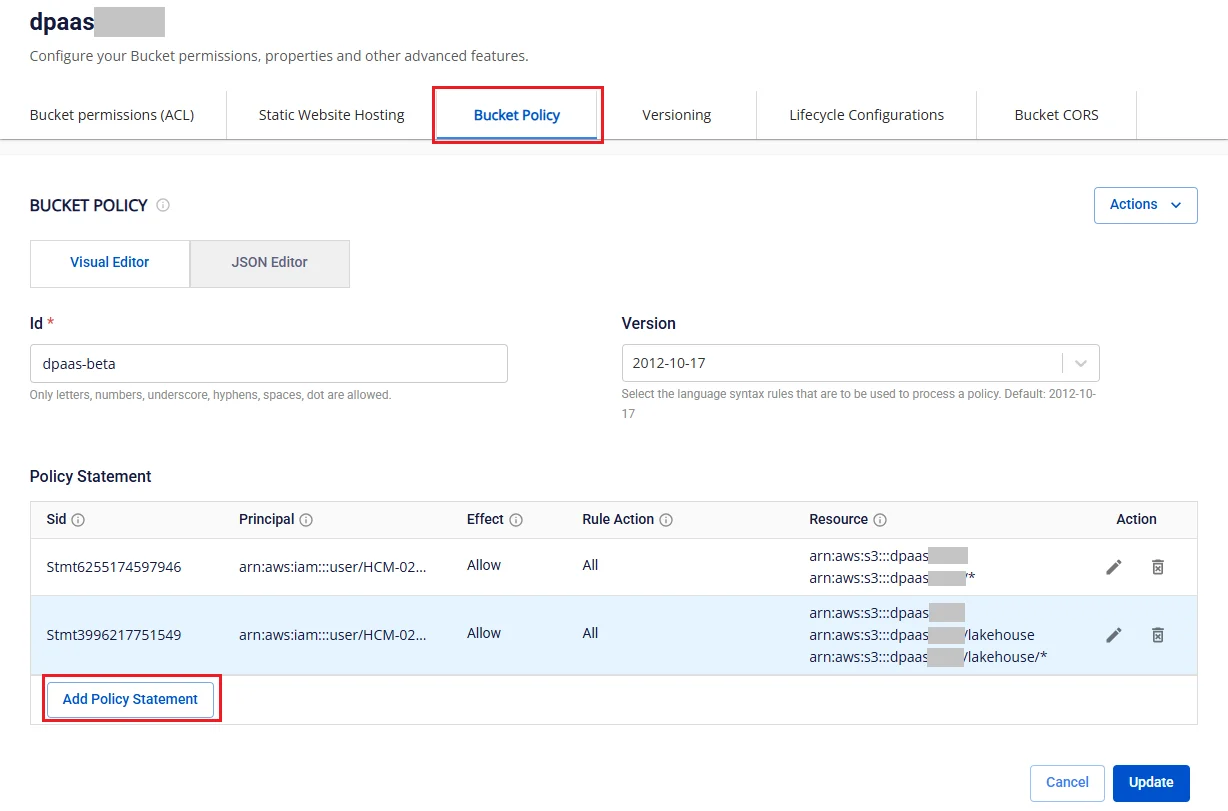
- Step 6. In the bucket details interface, select the Bucket Policy tab and click Add Policy Statement
-
Step 7. In the Add Policy Statement interface:
-
Sid: Enter the statement ID
-
Effect: Select Allow
-
Principal: Select the subuser list
-
Action: Check Action, check All S3 Actions (s3.*)
-
Resource (ARN): Enter the resource information in the specified format, pointing the subuser to the exact directory containing the catalog they are permitted to access
-
Click Add to complete the Policy Statement configuration.
After creation, the profile information is displayed in the Profile List tab.