DAST API asset operations
1. Add Asset
Org Admin and team Users can add new assets.
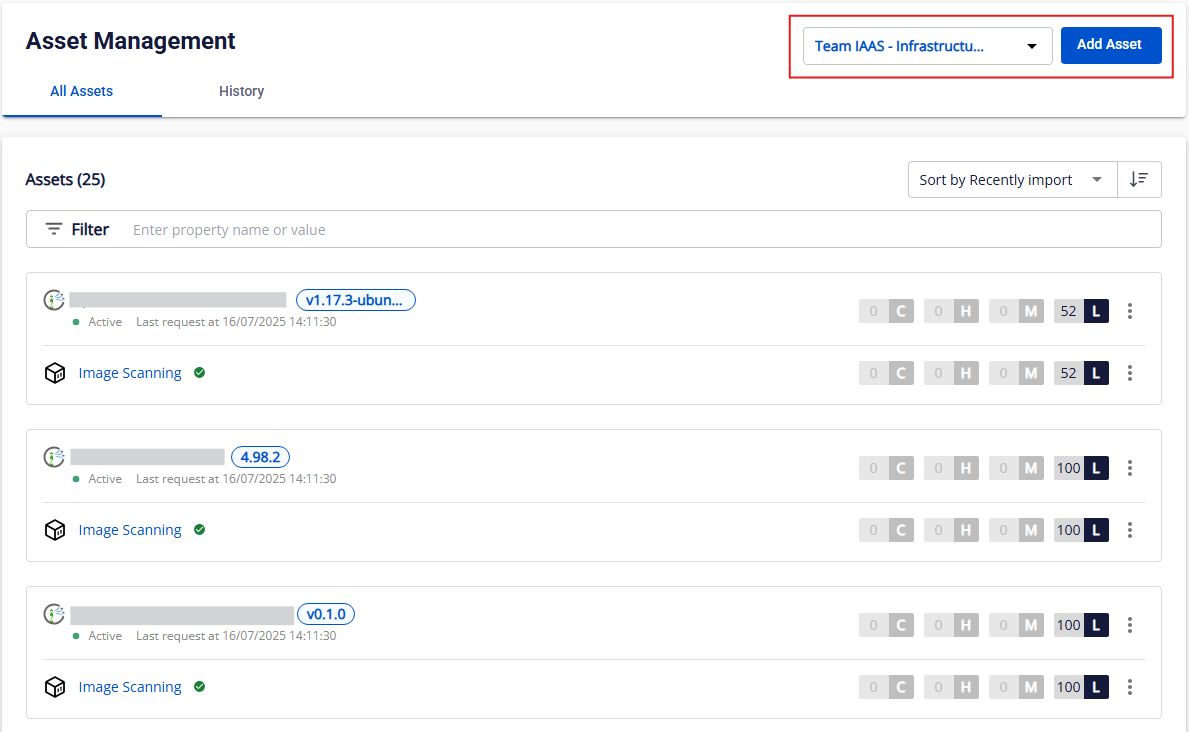
Step 1: After selecting a Team, click Add Asset.
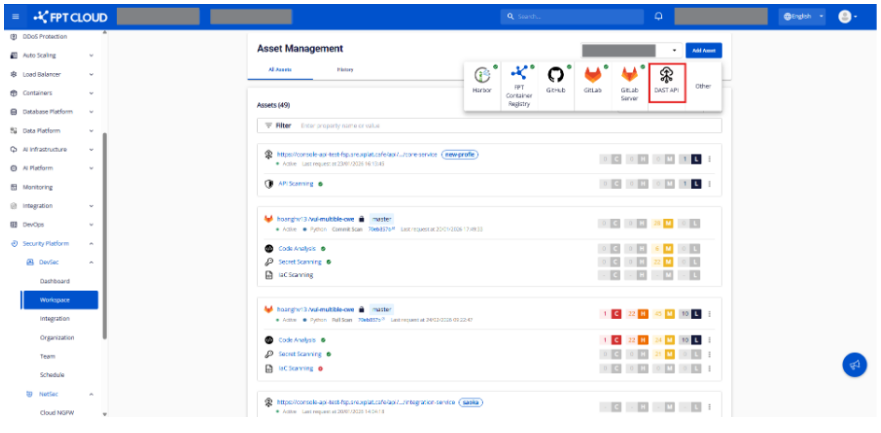
Step 2: Select DAST API.
Step 3: Choose the API Source to scan.
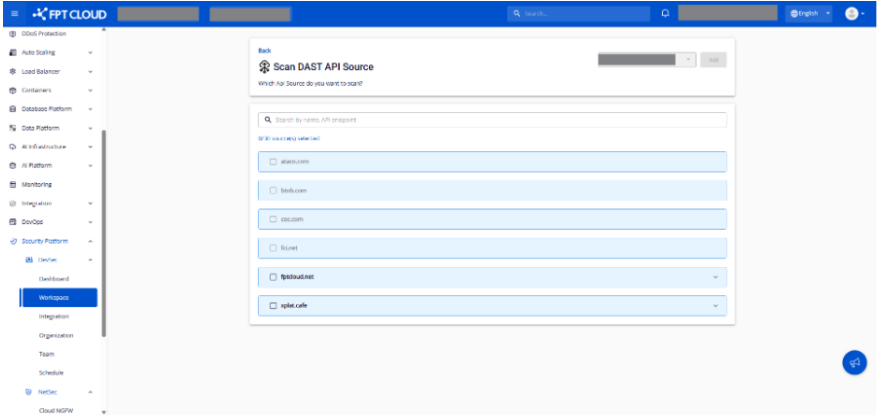
The screen now shows the API Source.
Step 4: Select the API Source you want and click Add.
After a successful add, the system automatically runs the first scan, returns the result to the All Assets tab on the Asset Management screen, and records the add operation in the History tab.
2. View an asset overview
Step 1: On the Asset Management > All screen, open any asset by clicking its DAST API Asset Name link.
Step 2: On the Asset Overview screen, you can review the overall information:
-
General Information:
-
Asset Name, Asset Access (Public/Private), Status (Active/Inactive)
-
Owner: the asset owner (User name + email, or CICD pipeline)
-
Added By: who added the asset (User name + email, or CICD pipeline)
-
Added At: when the asset was added
-
-
Most recent scan (Issue Overview):
-
Scan Type (logo + scan name; click to view details per type)
-
Scan Time, Total Open Issues, No. Severity
-
Scanning Times By Day chart (last 7 days)
-
-
Latest Request: up to 3 most recent scan requests (Scanned By, Scanned At, scan result)
3. View issue information
3.1. Open the Issue List screen
Same as the guide for SCM assets.
3.2. View issue information
-
On the Issue List screen, each issue is displayed as an Issue Info Card with:
-
Severity: Critical/High/Medium/Low
-
Score: 0–10 (rounded to one decimal)
-
API Source Name
-
Issue Title & Description (if a ":" is present, the part after ":" is shown)
-
Issue Status: the current status of the issue as of the latest scan.
-
Location: the path where the issue occurred.
-
-
Extracted Results: the discovered risk results
-
HTTP Method
- Response Code
3.3. Filter, search, and sort issues
3.3.1. Filter
Filter by: Severity, Status, Priority Score (0–10), Issue Type. Multiple conditions can be combined.
3.3.2. Search
-
Enter a keyword to search by: Issue ID, Issue Title
-
Press Enter to search; click Clear to reset the list.
3.3.3. Sort
-
Sort by: Severity (C→H→M→L), Score
-
Default: sort by Score descending.
3.4. View an issue's detail
Step 1: Click Details on any issue to open the Issue Detail popup.
Step 2: On the Issue Detail screen, you can review the issue's full details.
4. Rescan asset
Same as the guide for SCM assets.
5. Disable/Enable Asset
Same as the guide for SCM assets.
6. Delete Asset
Same as the guide for SCM assets.