Install Veeam Agent for Linux
-
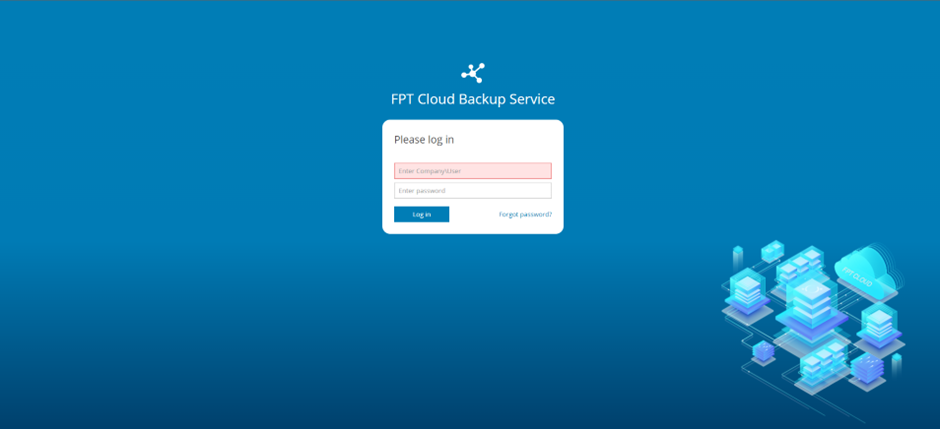
On the server you want to back up, log in to the BaaS portal at https://baas.fptcloud.com.
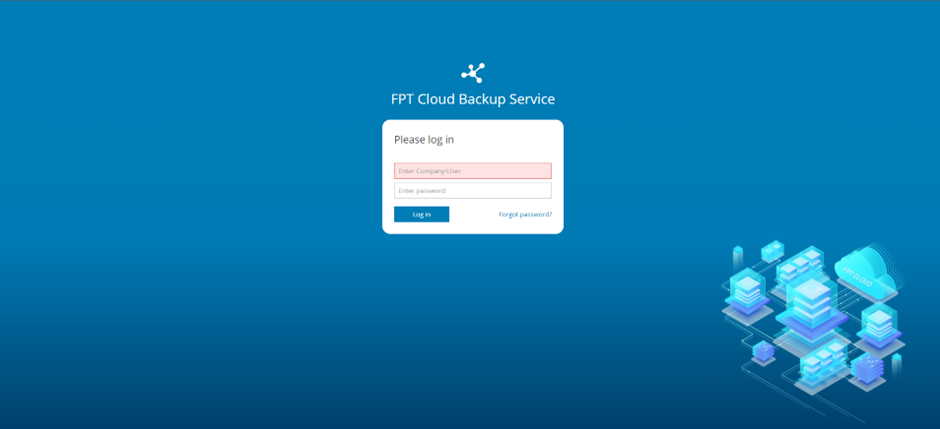
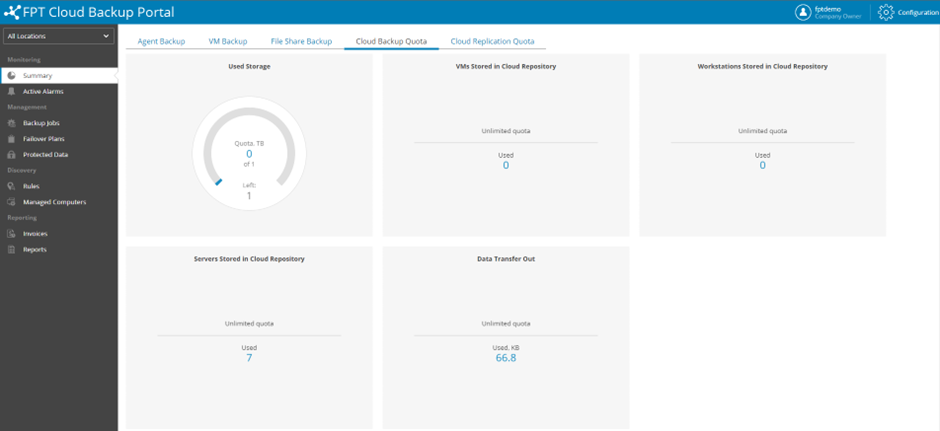
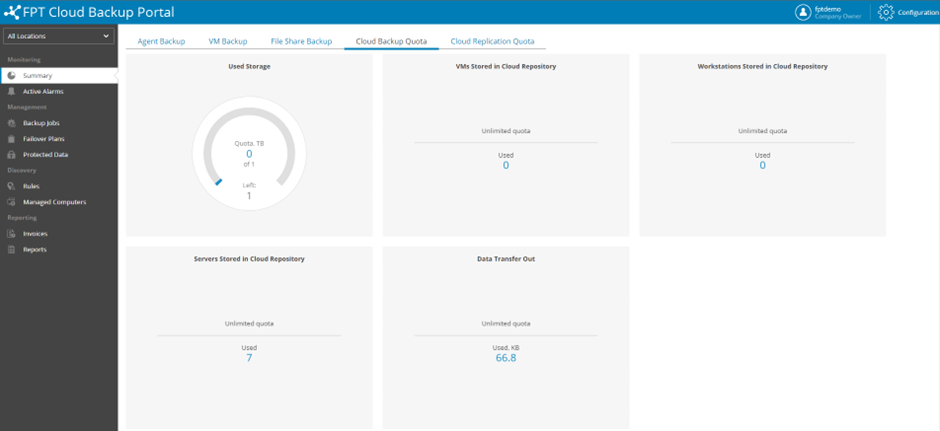
After logging in successfully:
-
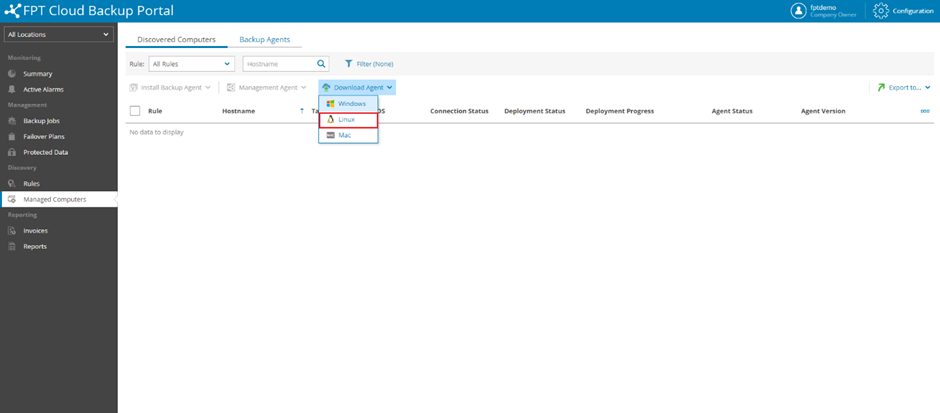
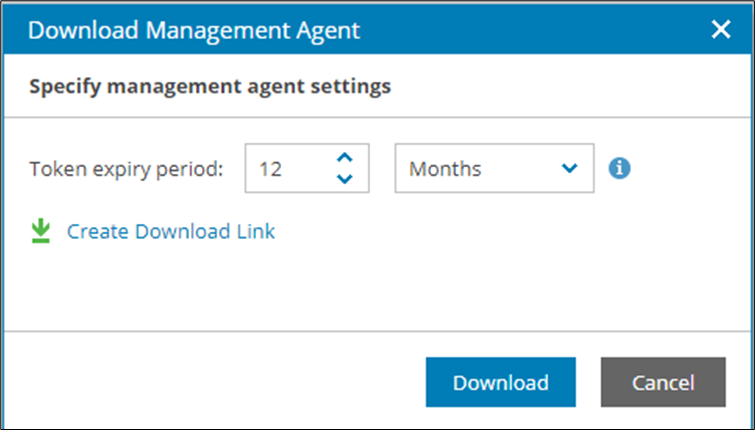
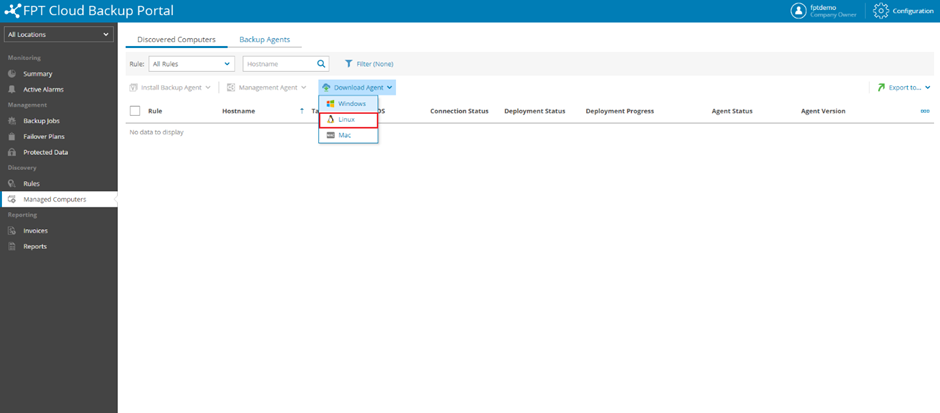
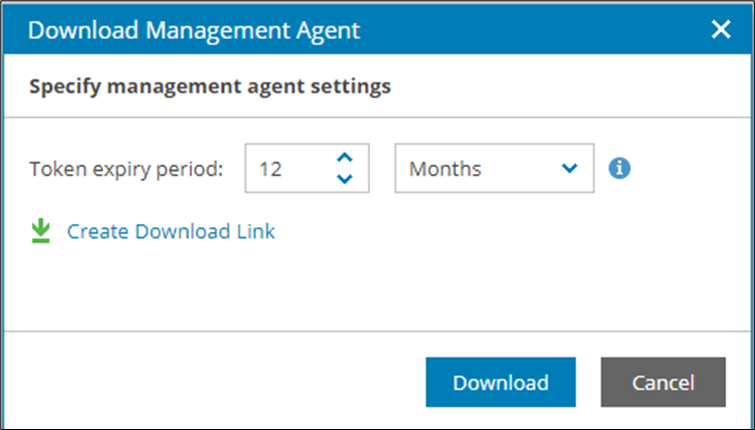
Go to Managed Computers, select Download Agent, then select Linux. Adjust the token expiration time if needed (default is 12 months).
-
After downloading
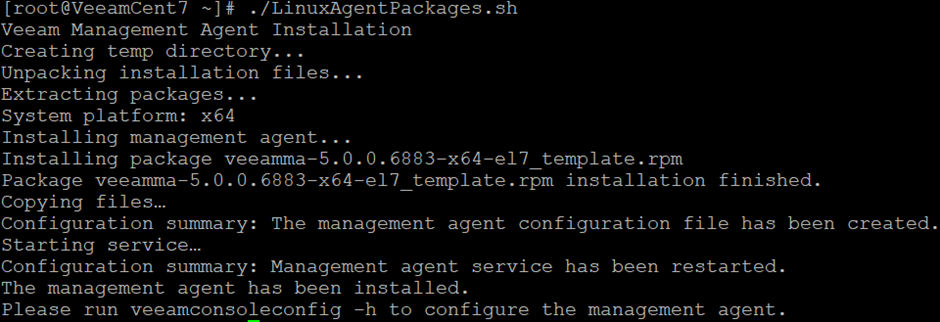
LinuxAgentPackages.sh, copy it to the server and run the installation:sudo chmod +x LinuxAgentPackages.sh
sudo ./LinuxAgentPackages.sh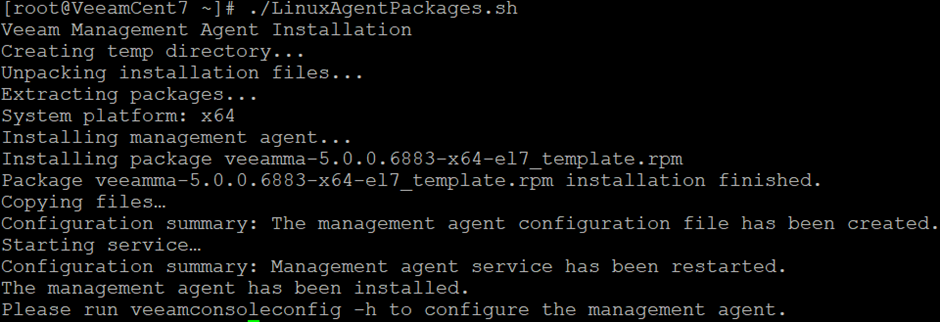
-
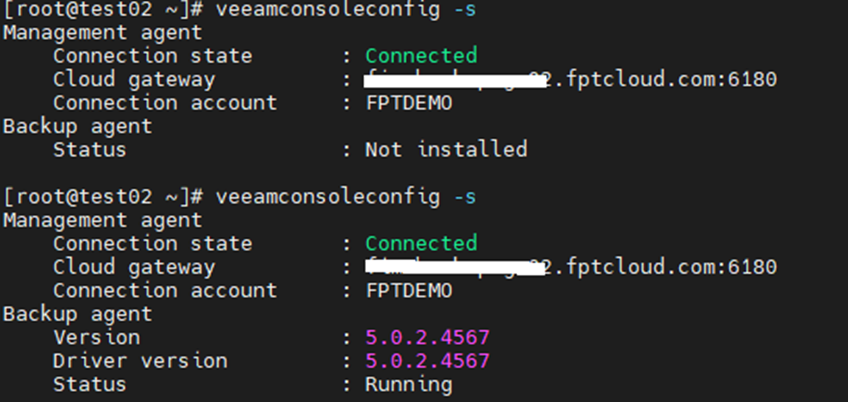
Veeam automatically installs the agent after the script runs. Verify the connection status:
veeamconsoleconfig -s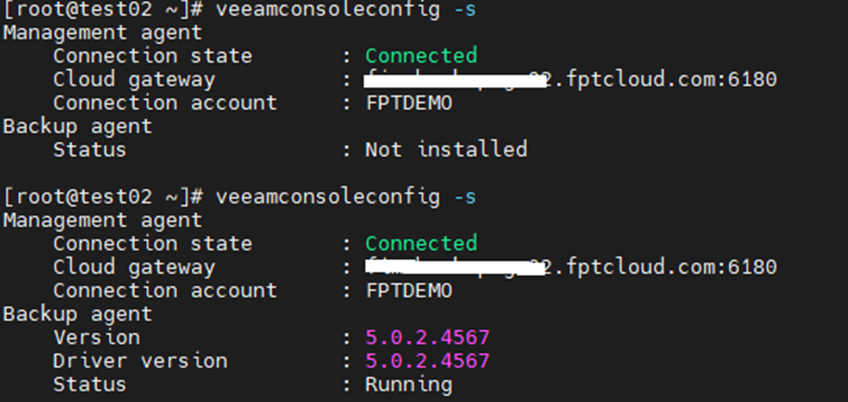
-
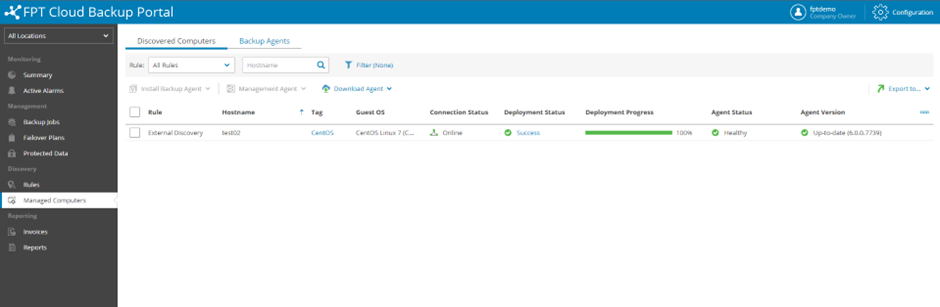
Verify the installation was successful.
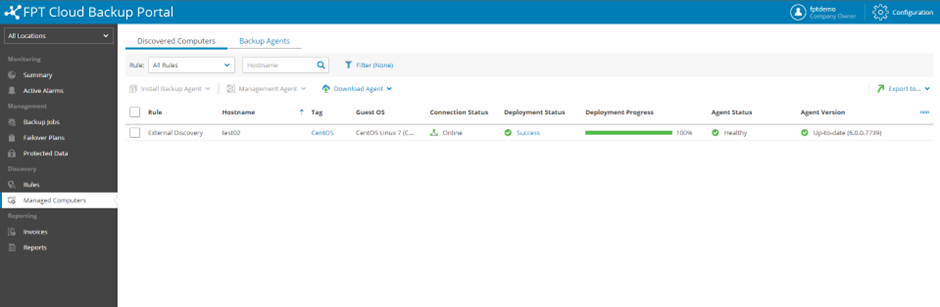
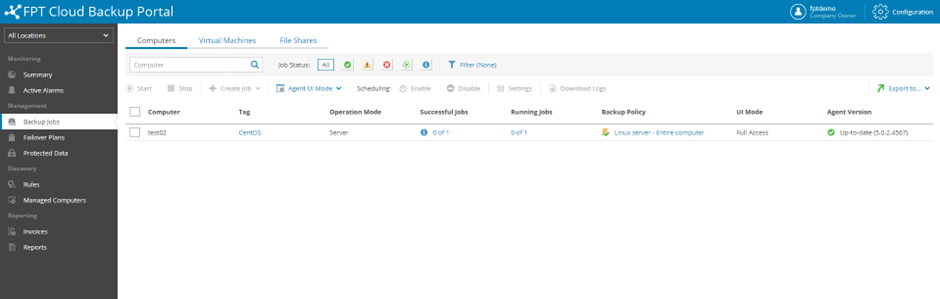
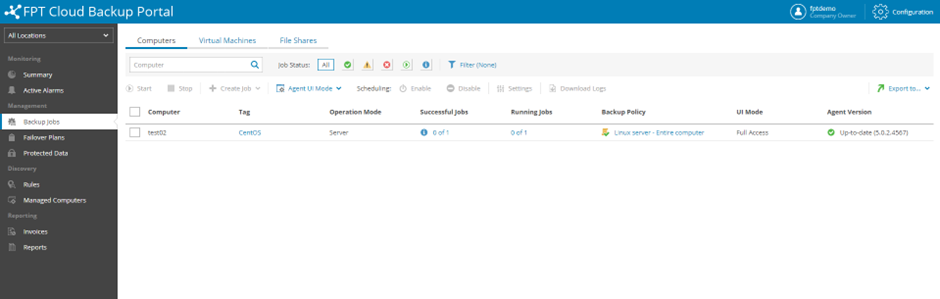
Confirm the backup job appears in the Backup Job section.