Install Veeam Agent for Windows
-
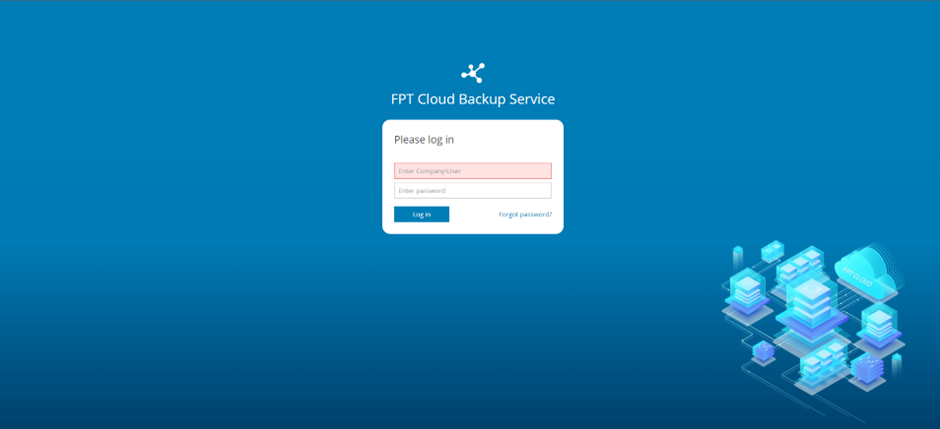
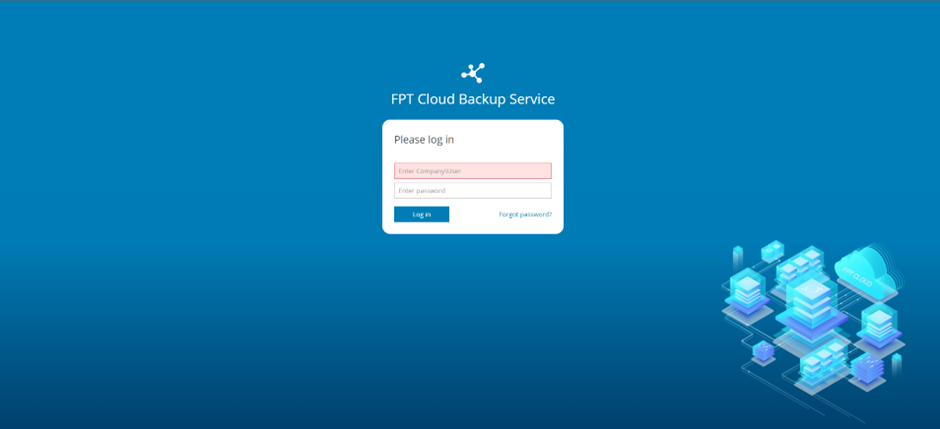
On the server you want to back up, log in to the BaaS portal at https://baas.fptcloud.com.
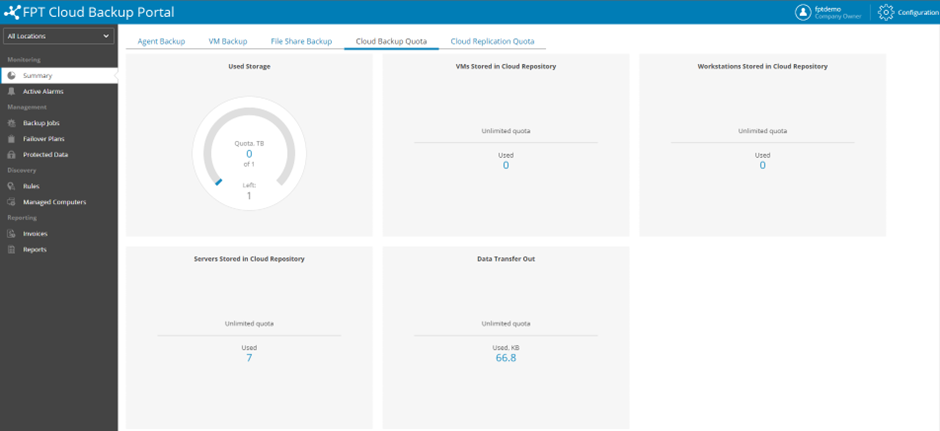
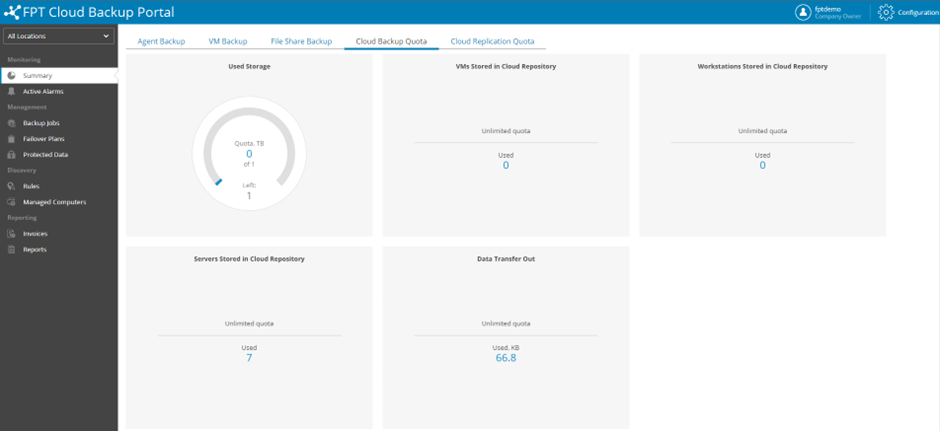
After logging in successfully:
-
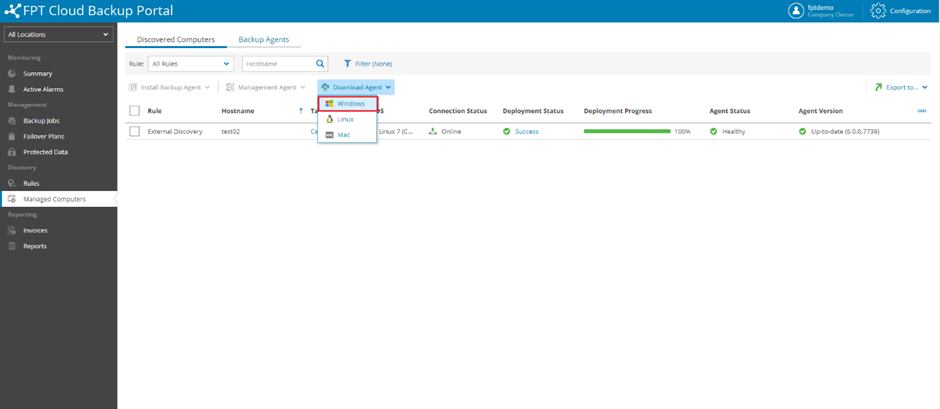
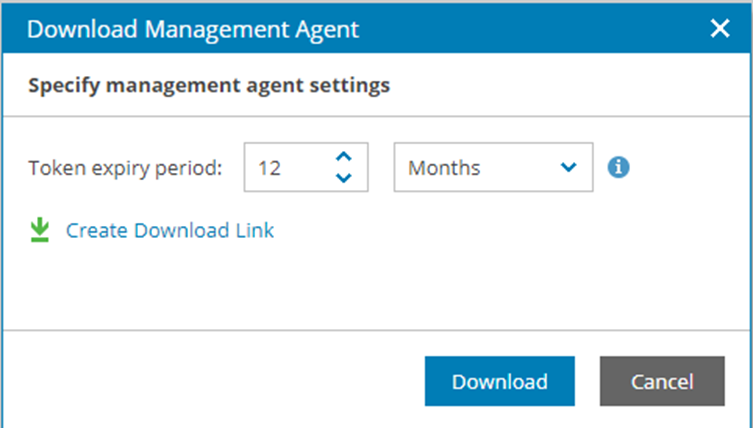
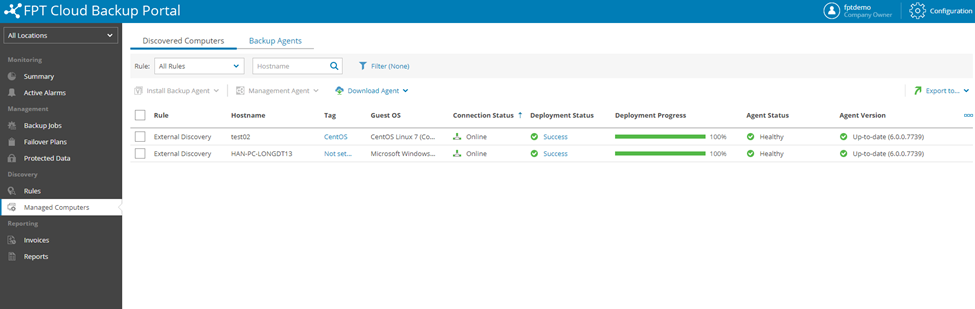
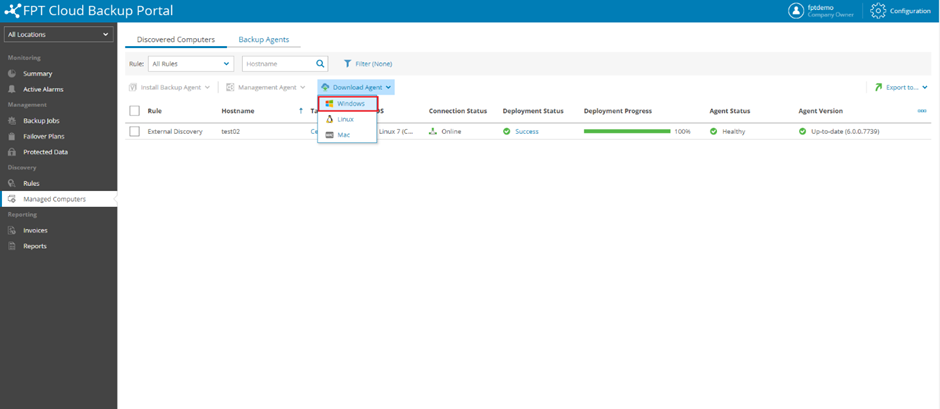
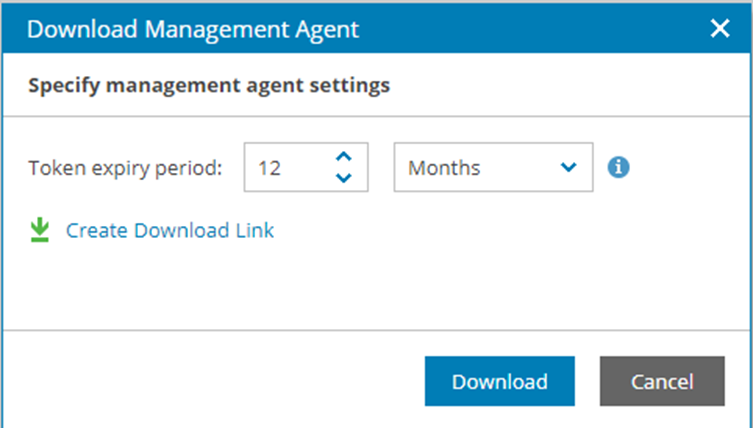
Go to Managed Computers, select Download Agent, then select Windows. Adjust the token expiration time if needed (default is 12 months).
-
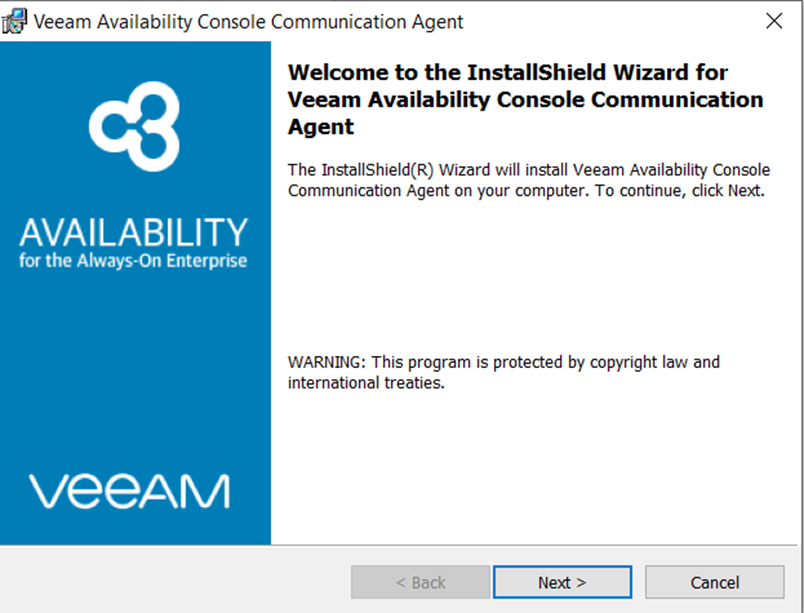
After downloading, run the Management Agent installer on the server:
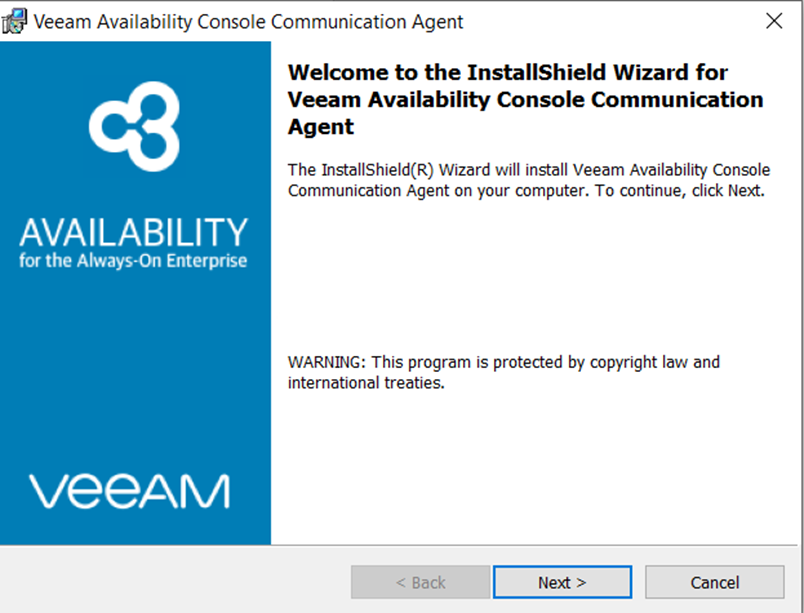
Select Next to continue:
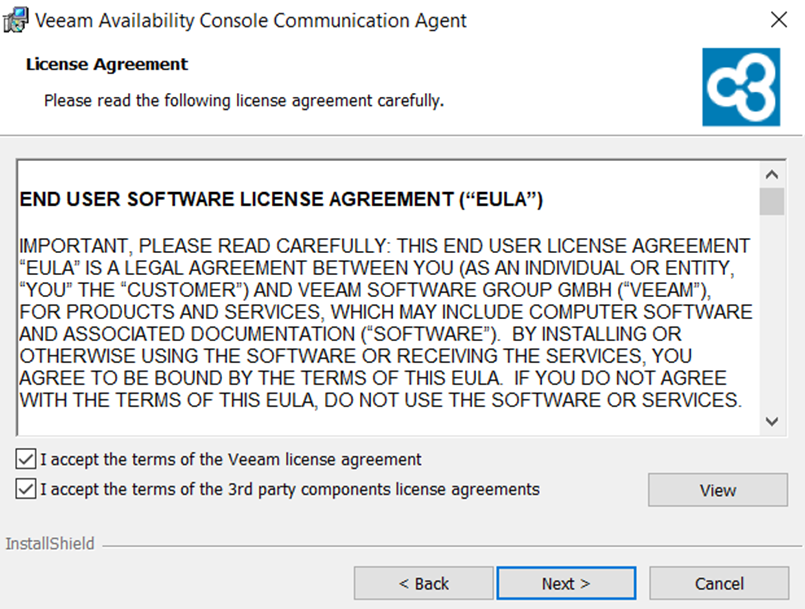
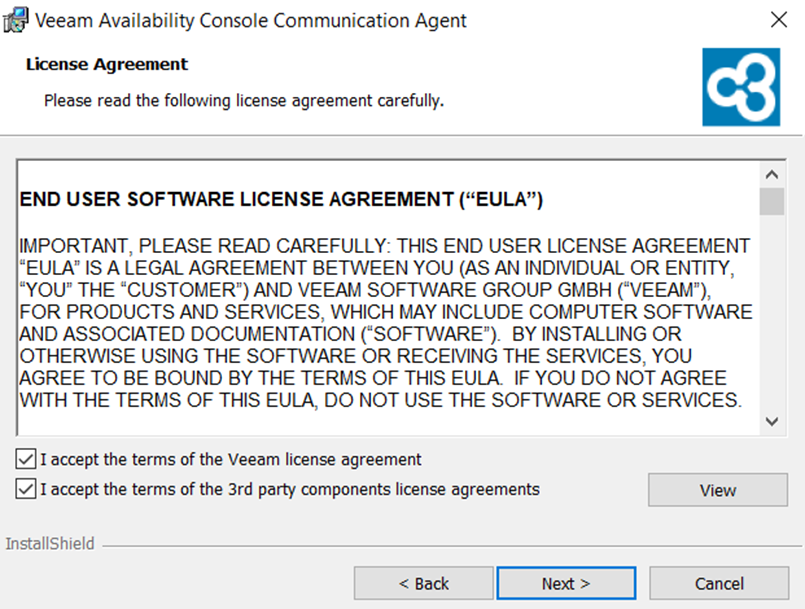
Accept the license terms and continue.
-
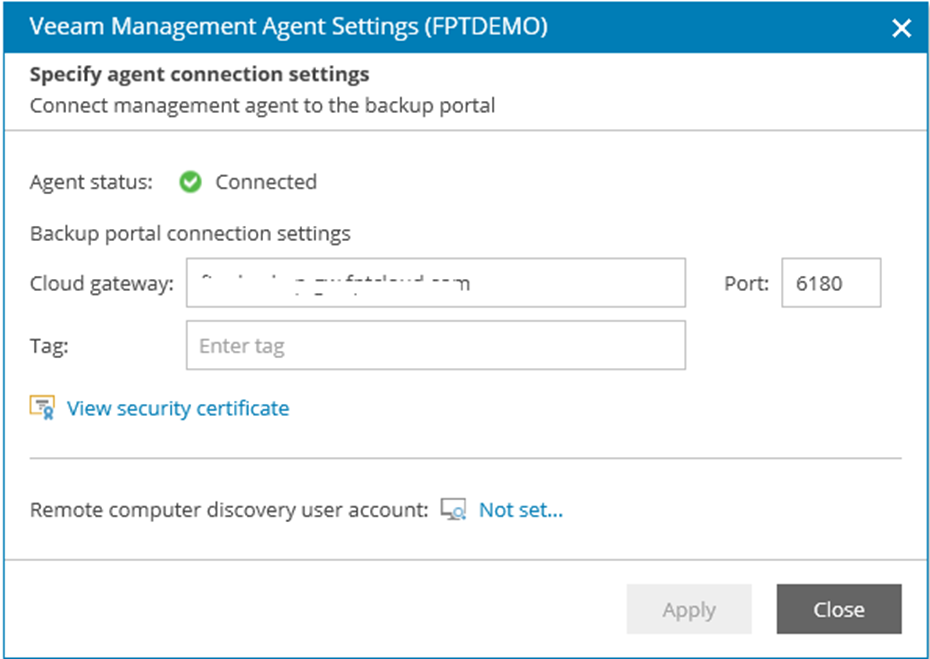
Enter the Cloud Gateway connection details:
- Cloud Gateway:
baas-sgn-gw.fptcloud.com(Ho Chi Minh City) orbaas-han-gw.fptcloud.com(Hanoi) - Port:
6180
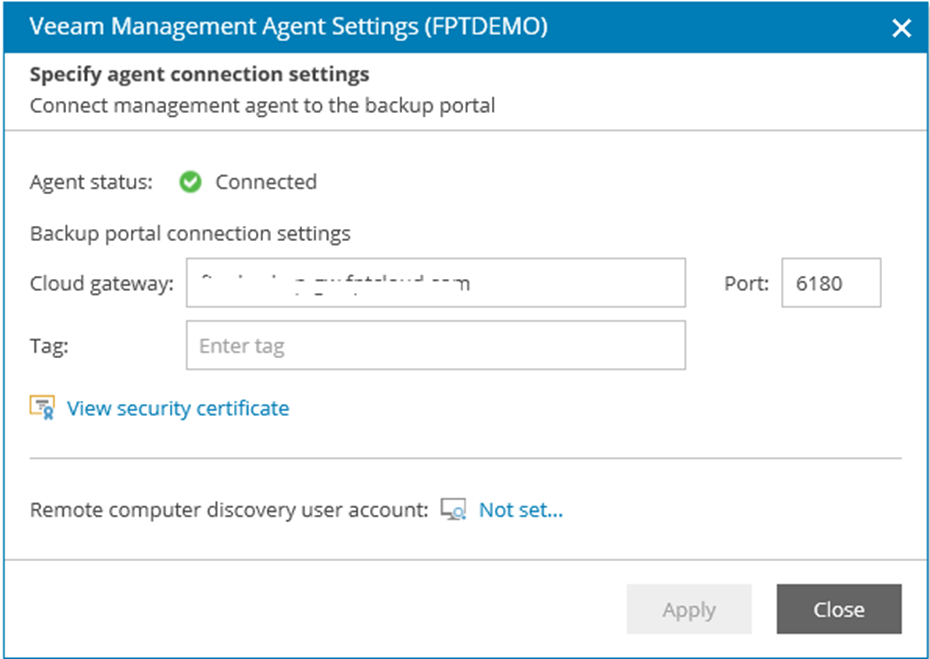
- Cloud Gateway:
-
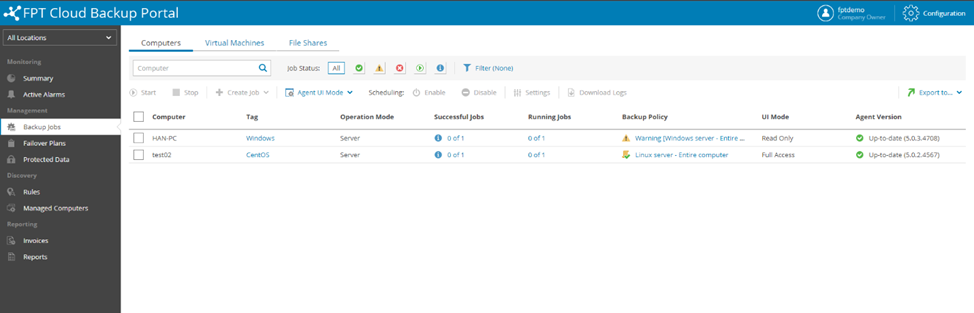
Verify the VM appears in the portal and the Veeam Agent installation completed successfully.
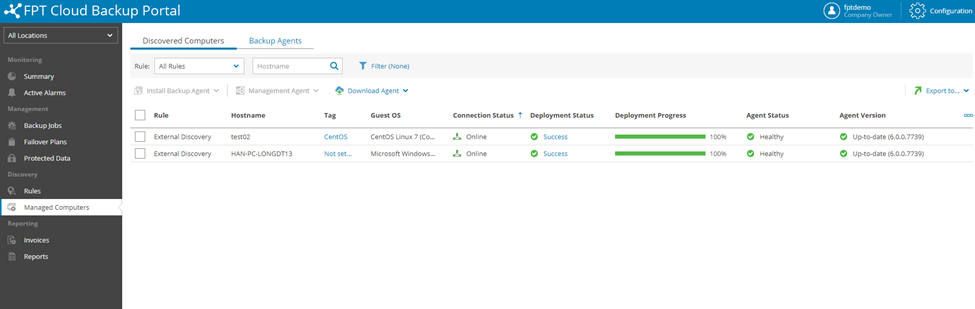
-
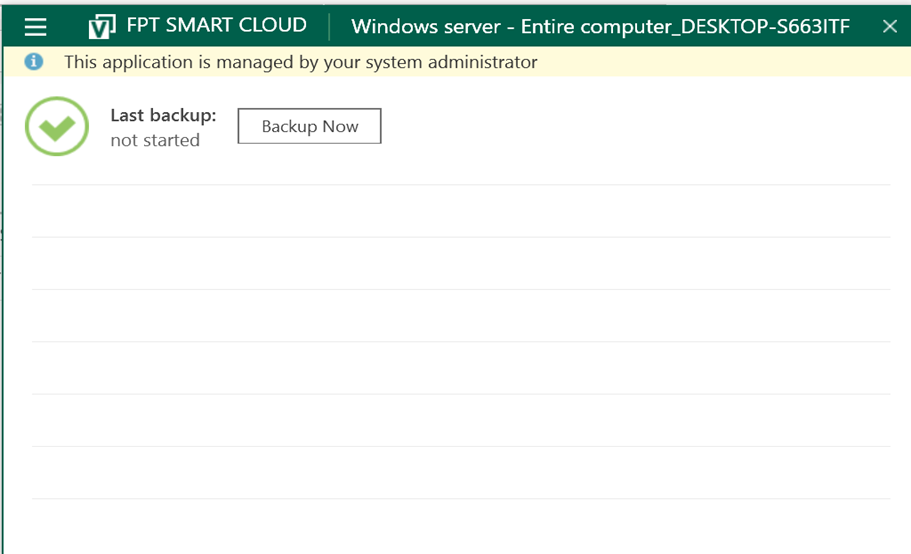
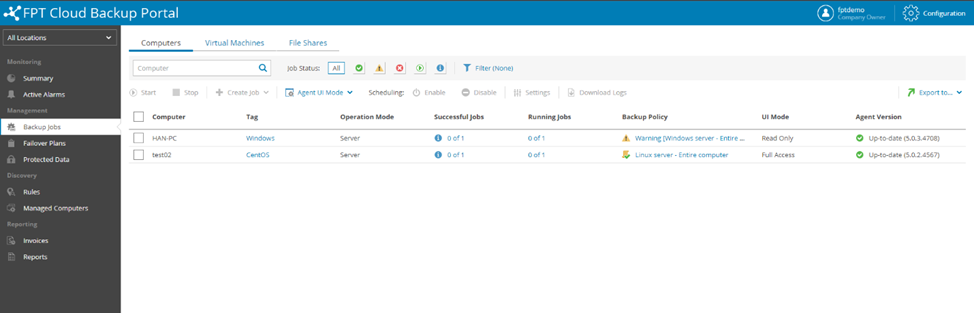
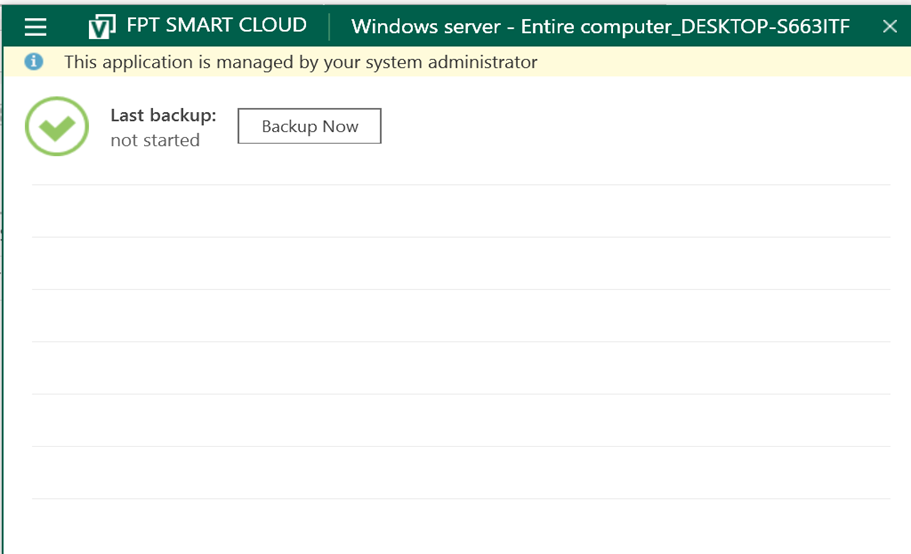
Confirm the backup job appears in the portal and Veeam Agent for Windows is installed on the server.